Easy Tech Tuts
How to Set Up Wix Payments Account Easily 2026
By Impran M NLast checked against official docs
Getting paid on a Wix site starts in one place: the Accept Payments settings hub, tucked inside Finance & payments. What you'll actually see there depends on your plan and region, and the plan requirement reaches further than most people expect: Wix requires a plan that supports payments before any method works, including PayPal and Manual Payments, not just its own native processor. This guide walks through that settings hub as it really appears, including the PayPal and manual payment setup flows, so you know exactly what to expect before you commit to a plan.
Before you start
- A Wix site on a plan that supports payments — PayPal and Manual Payments need this too, not only Wix's native processor
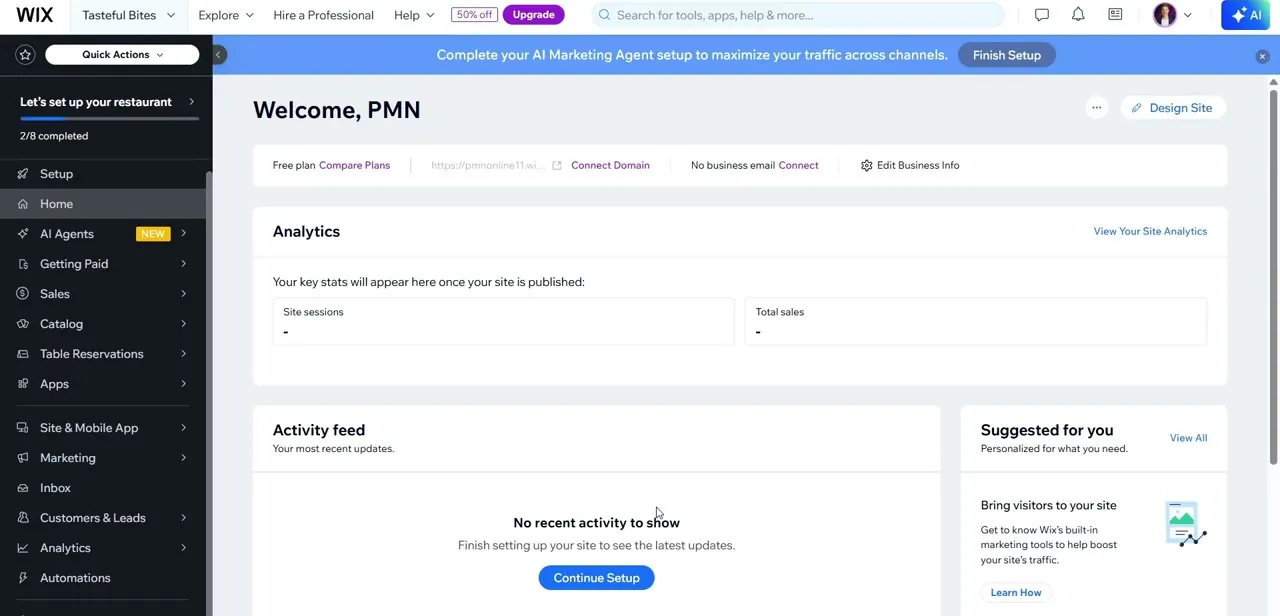
01Open your Wix dashboard
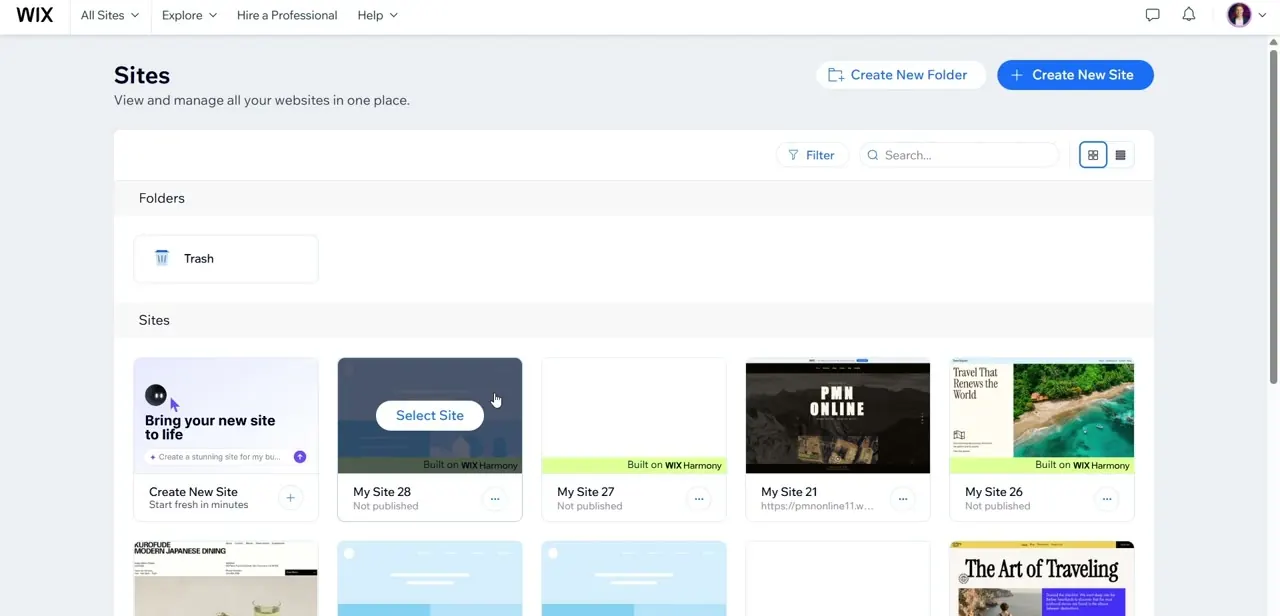
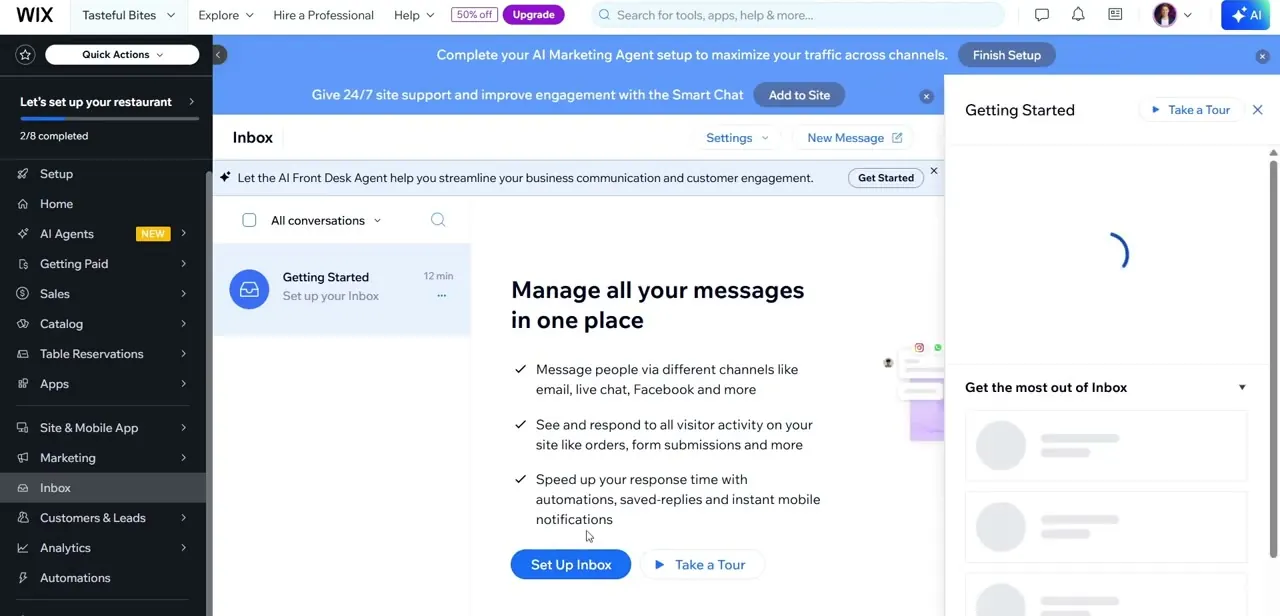
Log into your Wix account and land on the site's Home dashboard. The left sidebar is where every settings area lives, including Getting Paid, a few rows below Home. If your site is on the Free plan, dashboard prompts nudge you toward a paid tier throughout, and payments are one of the reasons why: accepting money through any method needs a plan upgrade first, which the next step covers.
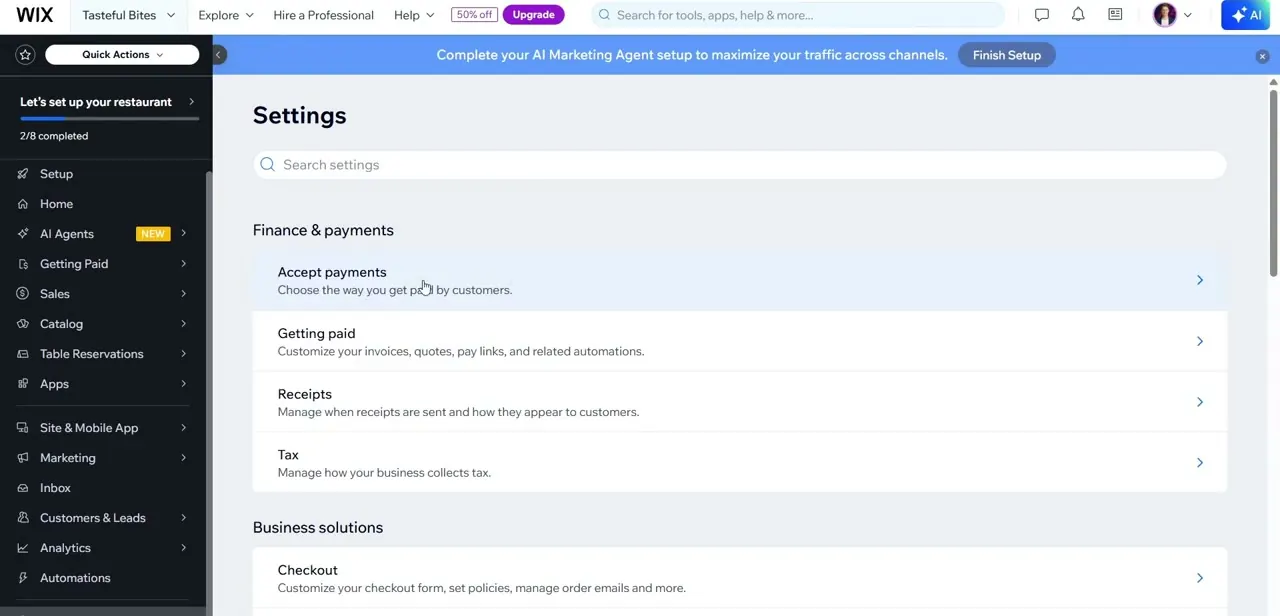
02Go to Settings and open Accept Payments
Click into Settings, then find the Finance & payments group near the top. Accept payments is the first item listed, described plainly as "Choose the way you get paid by customers." This is the entry point for every payment method Wix supports on your site, whether that's Wix's own processor, PayPal, or a manual offline option.
03Know the plan requirement before you pick a method
Wix's own support documentation is specific here: your site needs a plan that supports payments before any method works, not only Wix's native processor. That rules out the Free plan for PayPal and Manual Payments too, which is easy to miss since both get described as the lighter-weight alternatives to upgrading.
Wix Payments, the native processor for cards, Apple Pay, and Google Pay, has the added requirement of running on a plan and region where Wix itself supports it. Check the Accept Payments page on your own site before assuming a method is available: it shows Connect for what you can use and Upgrade for what you can't.
04Connect PayPal
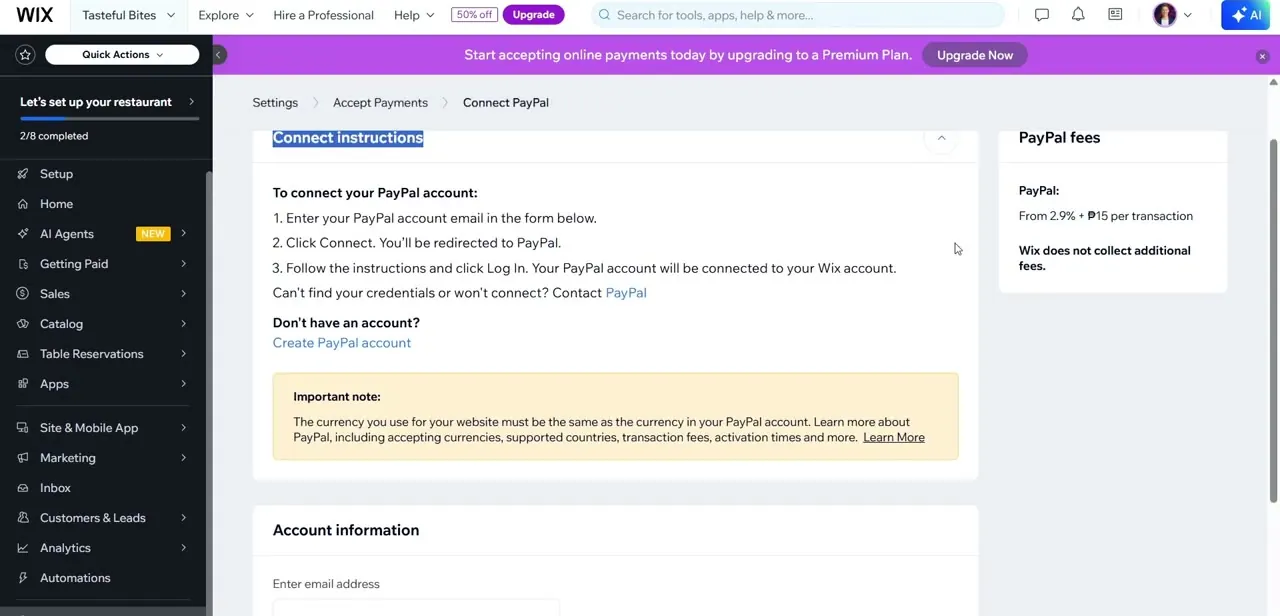
PayPal is one of the gateways available without Wix's native processor, though it still needs the site on a plan that supports payments. The Connect PayPal screen walks through three steps: enter your PayPal account email, click Connect, then log in on PayPal's site to finish linking the two accounts. Wix displays PayPal's fee structure on the same page and flags a real constraint: the currency your website uses has to match the currency on your PayPal account, or transactions won't process.
05Set up Manual Payments for offline orders
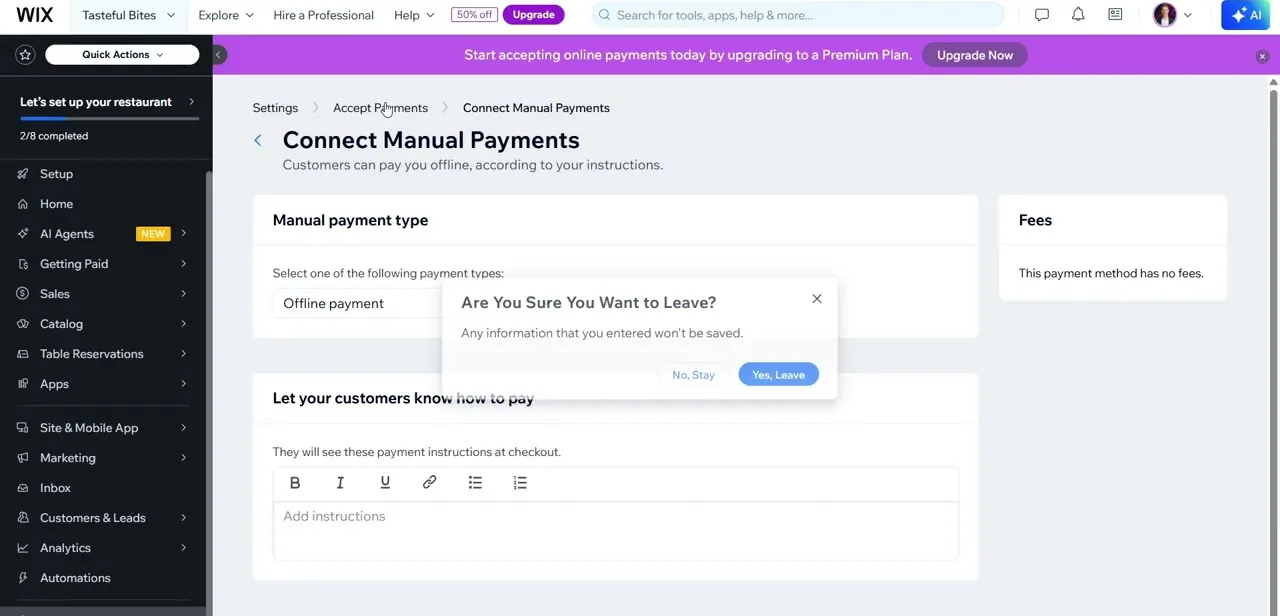
Manual Payments covers anything collected outside checkout itself: cash on delivery, a bank transfer, an in-person handoff. Pick a payment type from the dropdown, such as offline payment or cash on delivery, then write the instructions customers see at checkout explaining how to actually pay you. There's no processing fee, but Wix is explicit that a manual payment can't be refunded, deleted, or have its status changed from the Payments tab once it's marked Paid; any correction happens directly with the customer instead.
06Choose the method that fits your business
Wix Payments is the only option that lets customers pay with cards directly at checkout without redirecting to PayPal, and it tends to convert better for that reason, but it's the one gated behind both a paid plan and regional availability. PayPal is the fastest to set up if your customers already trust it, at the cost of PayPal's own transaction fee on top of whatever Wix charges.
Manual Payments has no fees at all but pushes the collection, and any refund, back onto you and the customer, outside Wix's own tools. For more than a handful of orders, budget for whichever plan unlocks Wix Payments; for early testing or low volume, PayPal or Manual Payments get you started without that commitment.
| Method | Extra fees beyond Wix's plan | Refundable from the Payments tab | Best for |
|---|---|---|---|
| Wix Payments | Card network and processing fees, varies by region | Yes | Ongoing card, Apple Pay, and Google Pay sales |
| PayPal | PayPal's own transaction fee | Yes | Customers who already trust PayPal |
| Manual Payments | None | No — handle refunds directly with the customer | Cash, bank transfer, or in-person orders |
Fee figures and availability vary by region and plan; the Accept Payments page in your own dashboard shows what applies to your site.
When it doesn't work
Accept Payments only shows Upgrade next to every method
Why: The site is on the Free plan, which can't accept payments through any method, including PayPal and Manual Payments.
Fix: Upgrade to a plan that supports payments; which specific plan qualifies depends on your region, shown on the Accept Payments page itself.
PayPal fails to connect or process a payment after login
Why: The currency set on the Wix site doesn't match the currency on the PayPal account.
Fix: Match the two currencies, either by changing the site's currency or connecting a PayPal account set to the same one.
A manual payment needs to be refunded
Why: Wix's Payments tab has no refund, delete, or status-change tool for manual payments once they're marked Paid.
Fix: Refund the customer directly outside Wix, then keep your own record of it, since Wix won't reflect it.
Frequently asked questions
Do I need a paid Wix plan to accept payments?
Yes, for every method. Wix's support documentation states that accepting payments through PayPal or Manual Payments needs a plan that supports payments, the same as Wix's own processor. The Free plan can't take payments at all.
Does PayPal charge extra fees on top of Wix?
Yes. PayPal's transaction fees appear directly on the Connect PayPal setup screen, and Wix doesn't add a separate fee on top of them.
What is Manual Payments for?
It lets customers pay you outside the normal checkout flow, using instructions you write yourself, and it carries no processing fee. It also can't be refunded through Wix's Payments tab once marked Paid.
Why does my PayPal connection fail even after I log in?
The most common cause is a currency mismatch. The currency set on your Wix website has to match the currency on your PayPal account for transactions to process correctly.
Can I refund a manual payment through Wix?
No. Once a manual payment is marked Paid, Wix's Payments tab can't refund it, delete it, or change its status. Any refund has to be handled directly with the customer.
Sources and last check
Click path and screens come from a walkthrough recorded in 2026. Plan requirements, PayPal's currency rule, and the manual-payment refund limit were re-checked against Wix's official support articles in September 2026. That check corrected the original draft's framing of PayPal and Manual Payments as no-upgrade options: Wix requires a plan that supports payments for both, not only for Wix Payments itself.
About the author

Impran M N
I've been hooked on technology for as long as I can remember — especially the new tools and AI apps that seem to land every other week. Easy Tech Tuts is where I write up whatever I've just worked out: I do the task in the real product, record the screen, and turn it into the guide I wish I'd found first.