 Easy Tech Tuts
How to Use TradingView Paper Trading, Fix Paper Trading Panel Not Visible Easily 2026
By Impran M NLast checked against official docs
Practicing trades without risking real money is what TradingView's Paper Trading is built for, but plenty of users hit the same two snags: the panel won't show up, or they're not sure how bracket orders behave once submitted. This guide walks through the real Paper Trading panel: account settings, the order ticket, and the positions view, so you can place trades, attach exits, and read your results the way you would on a live account. It ends with the fix for the panel-not-visible problem, which is a layout issue almost every time, not an account one.
01Switch to the Paper Trading tab
On any TradingView chart, the trading panel at the bottom lists the brokers you can connect, with Paper Trading, powered by TradingView, at the top. Selecting it opens a simulated account that fills against live or near-live prices using virtual funds. If the tab isn't there at all, the bottom panel is almost certainly collapsed, not the feature being unavailable; the fix is at the end of this guide.
02Set up or reset your paper account
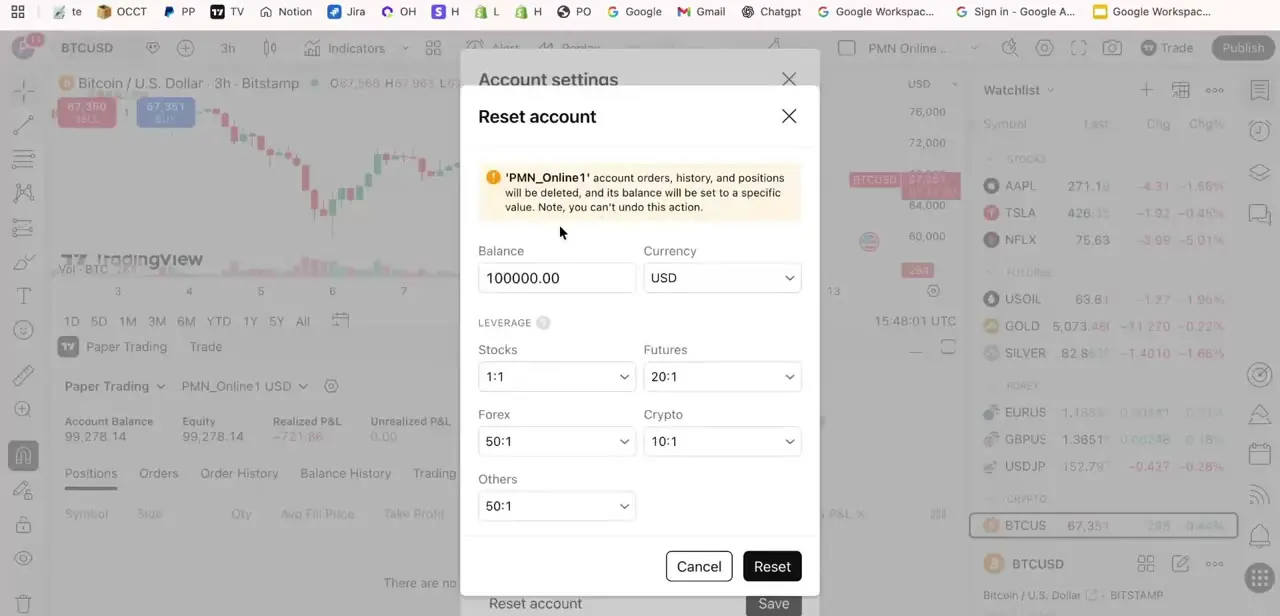
Before your first trade, open Account settings to configure the account. You can reset it entirely, wiping orders, history, and positions and resetting the balance to a value you choose, and set separate leverage ratios per asset class (stocks, futures, forex, crypto). This matters because a fresh account's default leverage may not match what a live broker gives you: testing a strategy at 50:1 forex leverage when your real broker offers 10:1 teaches the wrong lessons.
03Place an order
Click a symbol on your watchlist to load it, then use Buy or Sell at the top of the order ticket. TradingView supports four order types here: Market (fills immediately at the best available price), Limit (fills only at your price or better), Stop (turns into a market order once a trigger price is hit), and Stop-Limit (a trigger price that then submits a limit order instead of a market one). Which one fits depends on whether you want the fill guaranteed or the price guaranteed; you can't have both.
04Attach a stop loss and take profit
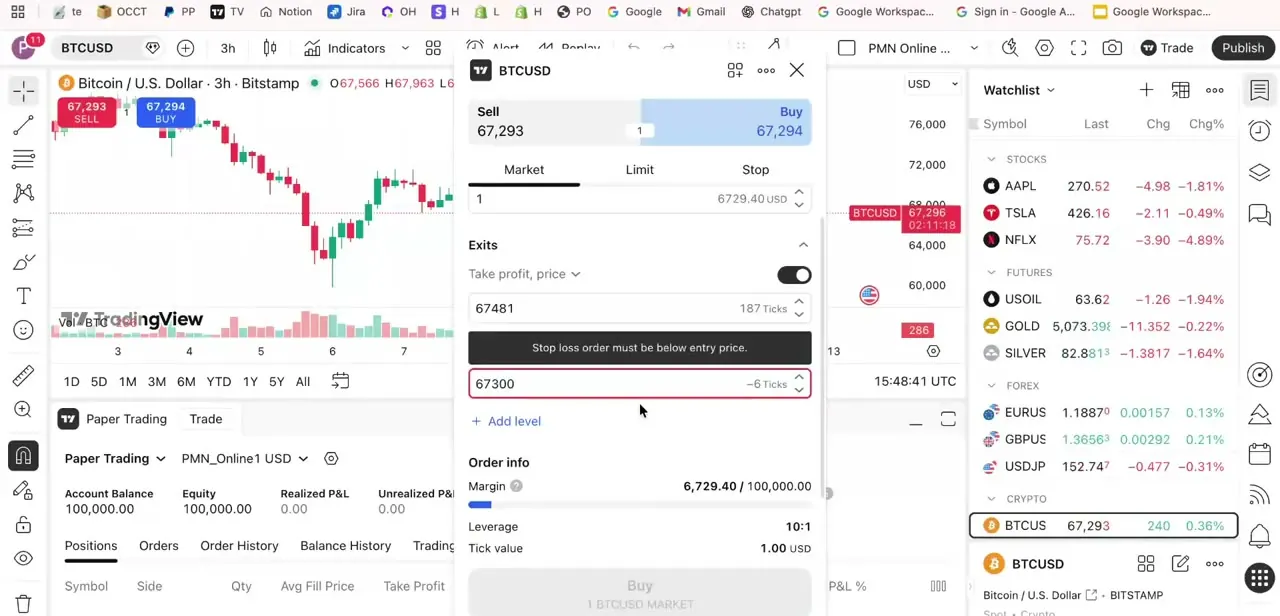
The order ticket's Exits section lets you turn on a take-profit price and a stop-loss price, either as an exact price or in ticks from your entry. TradingView validates these as you type; a stop loss on a long position has to sit below your entry, and it will flag a price that doesn't.
Set both and you have a bracket order: once either the stop or the target fills, TradingView automatically cancels the other, so you're never left with a stray exit order after the position closes. The order info panel shows margin usage and leverage in real time as you set the size.
05Track positions, orders, and results
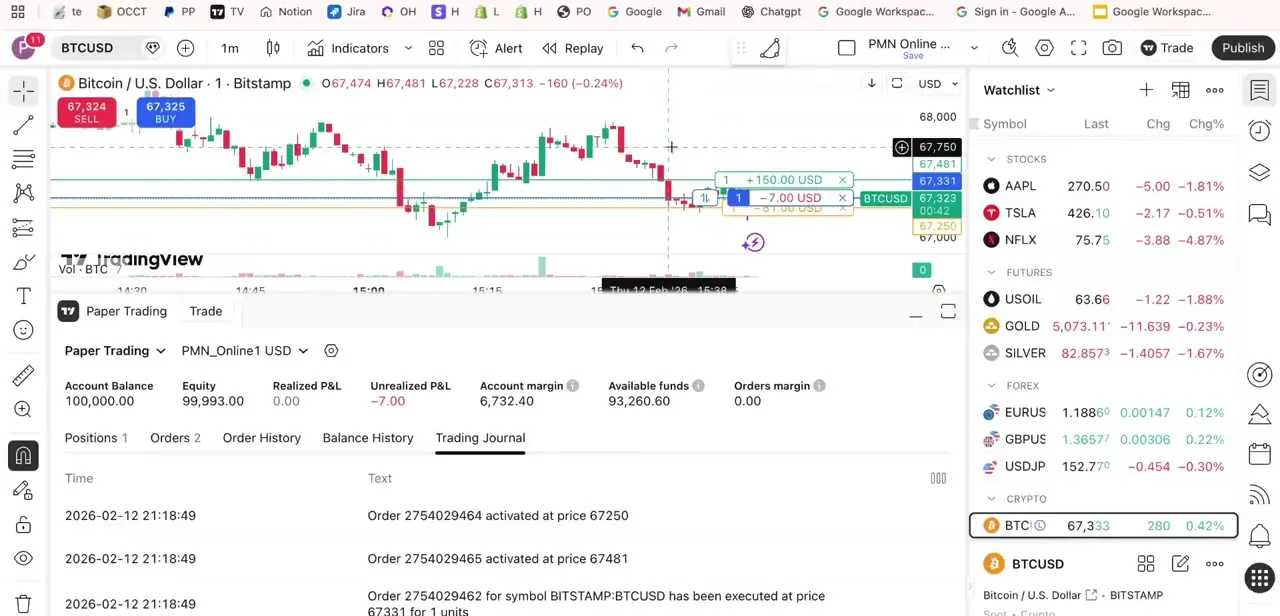
Once a trade fills, the bottom panel switches to Positions, with running Account Balance, Equity, Realized P&L, and Unrealized P&L updating as price moves. Orders and Order History log every fill and pending order, and Trading Journal keeps a timestamped record of activations and executions, useful for reviewing a session afterward instead of relying on memory.
06Fix the panel when it's not visible
TradingView's own documentation for collapsed panes gives two ways back in. Hold Ctrl (Windows) or Cmd (Mac) and double-click anywhere inside the collapsed bottom pane to restore it.
If a Collapse Pane button is visible in the pane's corner, clicking it toggles the same thing (turn its visibility on under Chart Settings > Canvas if you don't see it). If that doesn't bring the tab back, check that a different broker isn't already selected in the panel instead of Paper Trading. As a last resort, reset the chart layout to TradingView's default: this only affects which panels and toolbars show, not your paper account, balance, or trade history, and it clears most layout conflicts a saved session can carry over.
When it doesn't work
The Paper Trading tab is missing from the bottom of the chart
Why: The bottom pane is collapsed, which can happen from an accidental drag or shortcut.
Fix: Hold Ctrl/Cmd and double-click inside the collapsed pane, or use the Collapse Pane button in its corner if it's enabled in Chart Settings > Canvas.
The panel is visible but shows a different broker, not Paper Trading
Why: Another connected broker is currently selected in the trading panel's broker list.
Fix: Open the broker dropdown at the top of the panel and select Paper Trading, powered by TradingView.
Nothing above works and the layout still looks wrong
Why: A saved custom layout is carrying panel-visibility settings from a previous session.
Fix: Reset the chart layout to TradingView's default. It doesn't touch your paper account balance or trade history, only which panels are shown.
A stop-loss or take-profit price gets rejected when submitting
Why: The price is on the wrong side of your entry, for example a stop above entry on a long position.
Fix: Adjust the price so the stop sits below entry (long) or above entry (short), which is what TradingView's validation is checking for.
Frequently asked questions
Is Paper Trading free on TradingView?
Yes, on every plan including the free Basic tier. You choose your own starting balance when you set up or reset the account.
Does Paper Trading use real market prices?
Yes. It fills against live or near-real-time market prices while simulating the trade with virtual funds instead of real money.
What order types can I use in Paper Trading?
Market, Limit, Stop, and Stop-Limit. Market and Stop guarantee a fill; Limit and Stop-Limit guarantee a price, at the risk of not filling at all if the market moves past it.
What happens when I set both a stop loss and a take profit?
That's a bracket order. When either one fills, TradingView automatically cancels the other, so a closed position doesn't leave a stray exit order behind.
Why is my Paper Trading panel not showing up?
Almost always a collapsed bottom pane. Hold Ctrl/Cmd and double-click inside it to restore, or reset the chart layout to default if that doesn't work.
Can I reset my paper trading balance?
Yes, from Account settings. Resetting clears orders, history, and positions and lets you set a new starting balance and leverage for each asset class.
Sources and last check
Click path and screens come from a recorded walkthrough. Plan availability, order types, and the panel-collapse mechanism were checked against TradingView's official pricing page and Help Center in September 2026. That check firmed up the original article's vague "check your plan" answer on cost (confirmed free on Basic), added the Stop-Limit order type and bracket cancellation behavior the original didn't mention, and replaced the original's generic "look for a thin bar" panel fix with TradingView's documented Ctrl/Cmd-double-click shortcut.
About the author

Impran M N
I've been hooked on technology for as long as I can remember — especially the new tools and AI apps that seem to land every other week. Easy Tech Tuts is where I write up whatever I've just worked out: I do the task in the real product, record the screen, and turn it into the guide I wish I'd found first.



