Easy Tech Tuts
How to Set Up Trailing Stop Loss on Tradingview, Can you fix Trailing SL Button Not Showing 2026
By Impran M NLast checked against official docs
People go looking for a trailing stop button on TradingView and conclude the platform does not have one. There is no button.
Trailing Stop is an option inside the Stop Loss bracket in the order panel: you click Stop Loss, and it is in the dropdown that opens. The second half of the problem is that the dropdown entry is not guaranteed to be there.
A trailing stop is an order type your broker has to support, and TradingView passes through whatever each integration exposes. Tradovate, to take one documented example, does not offer it at all.
So two traders on the same platform, same chart, same symbol, will honestly report opposite experiences. This guide covers where the setting lives, what the distance costs you, how to confirm the stop is stepping up instead of sitting still, and how to work out which of the four reasons is behind a missing option.
Before you start
- A broker account connected to TradingView. Trailing stops are placed through the broker, so a chart with no trading connection has no order panel to put one in.
- A broker whose TradingView integration supports the Trailing Stop order type. TradingView's compare brokers page is where that gets checked, and support differs between brokers and sometimes between account types at the same broker.
01Know what the distance is buying you
A fixed stop sits at a price until you drag it. A trailing stop is defined by a distance behind the position, and it moves that distance along as price goes your way.
TradingView's own description is a stop that "automatically moves a set distance behind your position as long as the price moves in your favor", and freezes at its highest achieved level when the trend turns. If price then reaches the frozen level, the trade closes.
Their worked example: buy at $100 with a 5% trailing stop, price runs to $120, the stop has followed up to $114. That $6 gap is not a rounding detail, it is the deal.
The distance you pick is the amount of open profit you agree to give back on every pullback. Set it tight and ordinary noise closes the position early.
Set it wide and you hand back a large slice of the move before the exit triggers. TradingView names both failure modes explicitly, which is a fair signal that neither one is rare.
02Connect a broker, and check it supports the order type first
The trading panel docks under the chart, sharing tab space with Pine Editor and Paper Trading. Once an account is attached it shows balance, equity, realised and unrealised P&L, and a Positions table with Take Profit and Stop Loss as live columns.
Note those two columns now, because the Stop Loss value in that row is the thing you will watch change later. Before connecting anything, check the broker offers trailing stops through TradingView.
This is not a detail you can work around afterwards. TradingView's documentation states plainly that Tradovate's integration does not include Trailing Stop.
Forex.com's does. OANDA's requires a V20 account.
The compare brokers page carries the current list. Read it before you fund an account, not after.

03Open the order panel and click Stop Loss
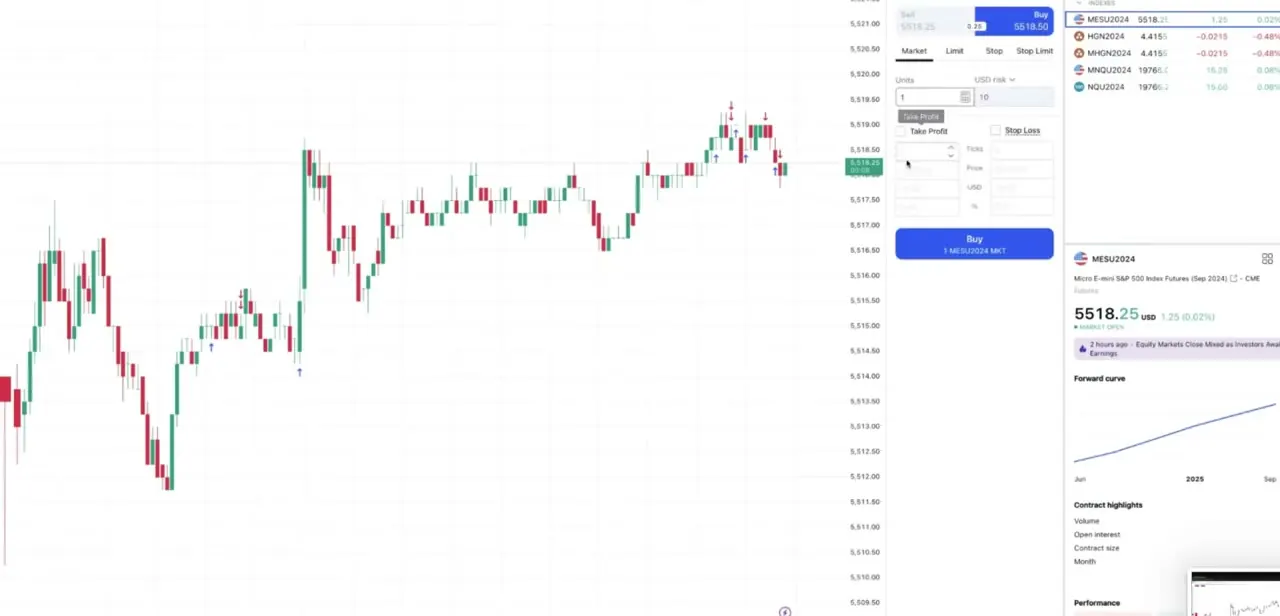
Clicking Buy or Sell on the chart, or the Trade button, opens the order panel. Across the top sit the order types your broker supports, typically Market, Limit, Stop and Stop Limit.
Below them are Units, a risk field, and the Take Profit and Stop Loss brackets with sub-fields for ticks, price, currency amount or percent. The trailing stop is not among the order types along the top, and this is where most people give up.
Click the Stop Loss bracket itself. TradingView's instruction is to "click on the Stop Loss bracket order" and then "select Trailing Stop from the dropdown menu".
The dropdown is the whole mechanism. If Trailing Stop is not in that list, the answer is in the final step of this guide, and no other setting in TradingView will add it.
04Set the trailing distance
With Trailing Stop selected, specify the distance. The units on offer come from the broker: on Forex.com through TradingView you can express it in "pips, absolute price, percentage, and money that you are willing to risk", and TradingView's general documentation works its examples in percentages.
Futures tickets tend to talk in ticks and points. On choosing a number, the useful principle is that the distance should reflect how much the instrument normally moves, not how much loss feels tolerable.
A common approach is to size it against the recent average range of one candle on your trading timeframe, so the stop sits outside routine chop. Round numbers on liquid contracts, exactly 10 or 20 ticks, tend to be crowded.
And widen the trail through high-volatility sessions and scheduled news, since a stop order fills at the next available price and a gap can take you out well below the level you set. Whether you can attach one to a position that is already open depends entirely on the broker.
Some allow it. TradingView's Tradovate documentation goes the other way: Stop Loss and Take Profit levels can only be added when placing the order in the order panel, and using right-click and Modify Order on a live order shows both greyed out. Find out which behaviour your broker has on a small position before you rely on it.
05Confirm the stop is really trailing
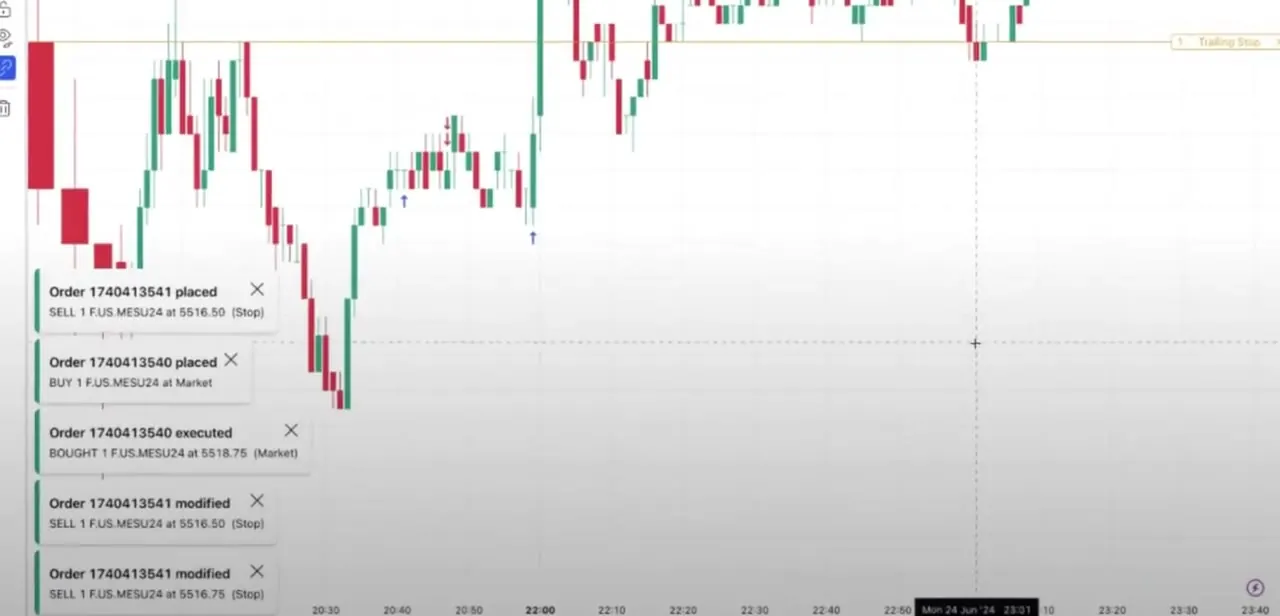
Once armed, the stop draws as its own labelled line and the order log records every adjustment. What you want to see in the log is one order ID being modified repeatedly at improving prices: a sell stop placed at one level, modified a tick higher, then higher again.
That stream of modifications is the trailing mechanism working. If the line sits on the chart while price makes new highs and the log shows nothing, the order went in as a plain stop. Check this on the first trade you use it on, not on the one that matters.
06When Trailing Stop is missing from the dropdown
Four causes, in the order worth checking. Broker support comes first and settles most cases.
The order type is issued by the broker, so an integration that does not carry it will never render the option. TradingView says so directly about Tradovate.
Check the broker's entry on TradingView's compare brokers page before assuming anything is broken. Account type is second.
OANDA's trailing stops need a V20 account, which is a good illustration of the general pattern: the same broker can expose different order types to different account tiers, and demo or paper accounts often carry a reduced set. The instrument is third.
Order-type availability varies by market within a single broker, and outside regular trading hours some symbols accept fewer types. Fourth, check you are looking in the right place.
Trailing Stop lives in the Stop Loss bracket dropdown, not in the row of order types across the top of the panel. Plenty of "missing button" reports are this.
If all four check out, reconnect the broker account instead of reloading the chart. The list of available order types is negotiated when the connection is established, so a refresh redraws the same stale list.
When it doesn't work
The order types across the top of the panel show no trailing option
Why: Trailing Stop is not one of the top-level order types. TradingView files it inside the Stop Loss bracket.
Fix: Click the Stop Loss bracket in the order panel and open its dropdown. Select Trailing Stop there, then specify the distance.
Trailing Stop is genuinely absent from the Stop Loss dropdown
Why: The broker's integration does not expose that order type, or your account tier does not. TradingView documents Tradovate as not supporting it, and OANDA as requiring a V20 account.
Fix: Check the broker on TradingView's compare brokers page. If the integration does not carry it, no TradingView setting will add it, and the choice is a different broker or managing the exit manually.
The stop line is on the chart but never moves
Why: The order was submitted as a fixed stop. A working trailing stop shows repeated modifications to the same order ID in the log as price advances.
Fix: Cancel and re-place, confirming Trailing Stop is selected in the Stop Loss dropdown before submitting. Verify from the order log, not from the chart line.
You cannot attach a trailing stop to a position that is already open
Why: Some integrations only accept brackets at order placement. On Tradovate, TradingView documents that Stop Loss and Take Profit can only be added in the order panel when placing the order, and appear greyed out under Modify Order afterwards.
Fix: Set the bracket when you enter. If you need to switch an existing position onto a trail and the broker will not allow it, closing and re-entering is the only route, and it carries the spread and slippage of a fresh entry.
Frequently asked questions
Where is the trailing stop loss button on TradingView?
There is no separate button. Open the order panel, click the Stop Loss bracket order, and select Trailing Stop from the dropdown that appears. Then specify the trailing distance.
Why is Trailing Stop not showing for me?
Almost always because the connected broker's integration does not offer that order type, or your account tier does not. TradingView states that Trailing Stop is not available on its Tradovate integration, and that OANDA's requires a V20 account. Check the broker on TradingView's compare brokers page.
What units can I set the trailing distance in?
That depends on the broker. Through Forex.com, TradingView lists pips, absolute price, percentage, and a money amount you are willing to risk. TradingView's general documentation works its examples in percentages, and futures tickets typically use ticks or points.
Can I add a trailing stop to a position that is already open?
Broker-dependent, and not safe to assume. TradingView's Tradovate documentation says Stop Loss and Take Profit levels can only be added when placing the order in the order panel, and that Modify Order shows them greyed out on an existing order. Test it on a small position before relying on it.
Does a trailing stop guarantee I exit at that price?
No. It sends a stop order, which fills at the next available price. In fast markets or around news the fill can be materially worse than the level shown.
How does the trailing stop behave when price reverses?
It stops moving. TradingView describes it as freezing at its highest achieved level once the trend reverses, and the trade closes automatically if price reaches that level.
Sources and last check
The panel layout and click path come from a walkthrough recorded in 2025. In September 2026 the placement flow, the supported units, and the broker dependency were re-checked against TradingView's own help pages and blog. That check corrected two things this guide previously got wrong: Trailing Stop is chosen from the dropdown on the Stop Loss bracket, not found among the order types along the top of the panel, and attaching a trail to an already-open position is broker-specific, not generally possible (TradingView documents Tradovate as not allowing it). The named broker examples are quoted from TradingView's pages listed below and can change without notice; the compare brokers page is the current source. Nothing here is trading advice.
- TradingView: Introduction to trailing stops (official)
- TradingView: How do I place a Trailing Stop order? (official)
- TradingView: Can I place a Trailing Stop order? (Tradovate, official)
- TradingView: Can I add Stop Loss / Take Profit levels on the chart? (official)
- TradingView Blog: Trailing stop in Forex.com (official)
About the author

Impran M N
I've been hooked on technology for as long as I can remember — especially the new tools and AI apps that seem to land every other week. Easy Tech Tuts is where I write up whatever I've just worked out: I do the task in the real product, record the screen, and turn it into the guide I wish I'd found first.