 Easy Tech Tuts
How To Take Partial Profit in TradingView, Close Part Position Only 2026
By Impran M NLast checked against official docs
Closing an entire trade the moment it turns green means giving up any further upside if the move keeps running. TradingView's partial close option splits the difference: it lets you bank profit on a slice of a position while leaving the rest open to capture more of the trend.
This guide walks through the exact clicks using TradingView's paper trading feature, so you can practice the workflow on a simulated BTCUSD trade before you ever touch a live account. By the end you'll know where the partial close toggle lives, the setting that has to be off before it will even appear, and what to check before you confirm.
Before you start
- A TradingView account with at least one open position, on paper trading or a connected live broker
- One-click trading switched off in Settings → Trading — TradingView only shows the partial-close checkbox when order confirmation is on
01Open a chart and watch your open position
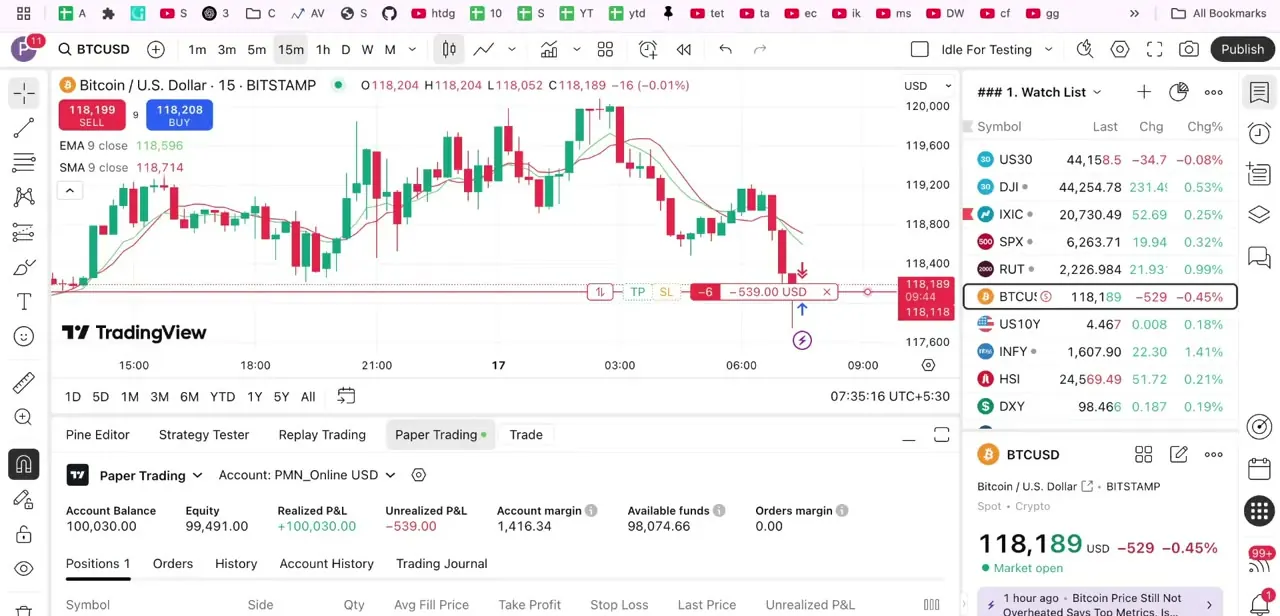
Once you're logged in and a chart is loaded, an open position shows up directly on the price axis: you'll see the SELL and BUY price buttons on the left plus a small TP/SL tag tracking your live profit or loss in the account's quote currency. In the example here, a short position on BITSTAMP:BTCUSD is running at a loss of a few hundred dollars as price chops around the 118,000 level.
This on-chart view is useful for watching a trade, but it isn't where you'll find the partial close control. For that you need to open the account panel underneath the chart.
02Make sure One-click trading is off
The partial-close checkbox only appears when TradingView is asking you to confirm actions before it sends them. Open Settings (the cog icon in the top right of the chart), go to the Trading tab, and check that One-click trading is switched off.
TradingView's own support page for partial closes still calls this setting "Instant order placement," an older name for the same toggle. With it left on, every close, including a partial one, executes the moment you click, and the confirmation window where the partial-close option lives never opens.
03Switch to Paper Trading and open your positions
Click Paper Trading in the tab row above the chart (alongside Pine Editor, Strategy Tester, and Replay Trading) to expand the account panel. This gives you Account Balance, Equity, Realized and Unrealized P&L, and Available funds across the top, with a Positions tab below listing every open trade with its symbol, side, quantity, and live P&L. Paper trading mirrors the real order flow without risking money, which makes it the right place to rehearse a partial close before doing it on a funded account.
04Click into the position you want to trim
From the Positions list, click the row for the trade you want to partially close. In this example that's the short position of 6 units on BTCUSD.
Clicking a position (or its on-chart marker) brings up the position's action menu instead of immediately closing anything, so there's no risk of accidentally flattening the whole trade with a stray click. This is also a good moment to glance at the Unrealized P&L column and confirm you're about to act on the right symbol, especially if more than one position is open at once.
05Toggle Partial close and set the amount
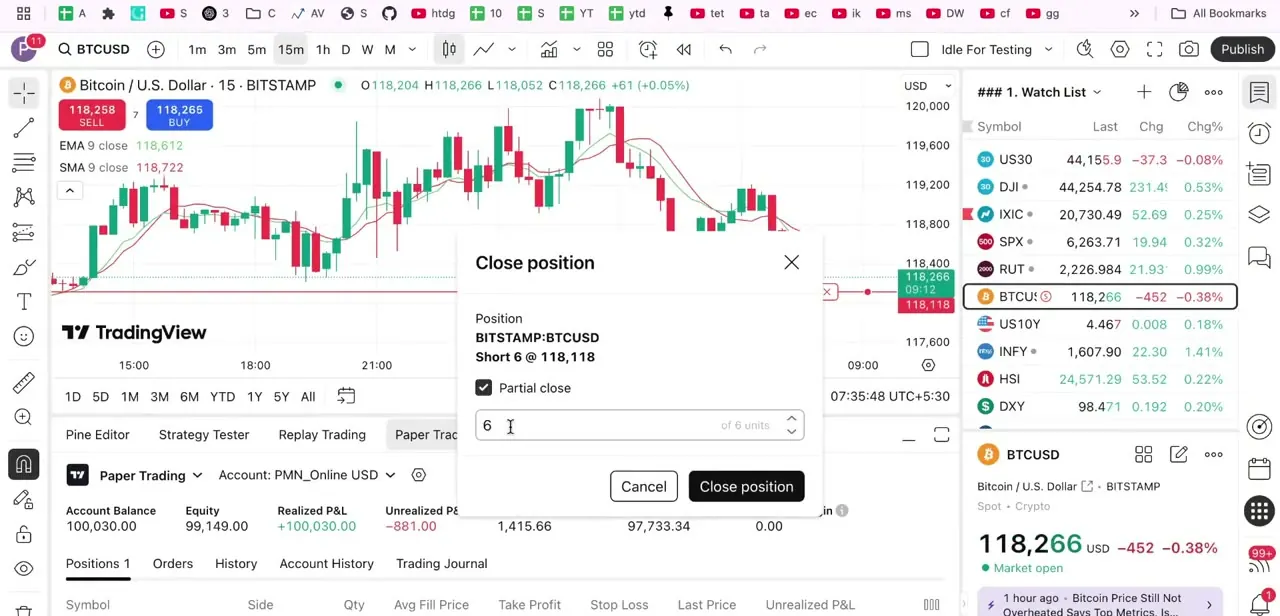
The Close position dialog opens with the position's details at the top (symbol, side, size, and entry price) and a Partial close checkbox just below. Checking it swaps the simple Cancel/Close position choice for a quantity field showing how many units you're closing "of" the total position size.
Type or use the up/down arrows to pick the portion you want to exit. Leaving it at the full amount closes everything, so the number entered here is what determines how much stays open afterward.
06Confirm and check the position afterward
With the quantity set the way you want, click Close position to execute. TradingView immediately reduces the position size and books the realized P&L on the closed portion, while the remainder stays open under the same entry and stop levels unless adjusted.
Head back to the Positions tab to confirm the new, smaller size is showing correctly and that your stop loss still makes sense relative to the reduced quantity. A stop sized for the original position can leave you over- or under-hedged once part of the trade is gone.
When it doesn't work
The Partial close checkbox never shows up in the close window
Why: One-click trading (called "Instant order placement" on TradingView's own partial-close support page) is switched on, so closes execute immediately with no confirmation window. It can also mean the connected broker doesn't support partial closes at all.
Fix: Turn One-click trading off in Settings → Trading. Paper trading always supports partial closes once it's off; if the checkbox still doesn't appear on a live account after disabling it, the broker is the reason.
The whole position closed instead of just a slice of it
Why: Partial close was left unchecked, or the quantity field still showed the full position size, when Close position was clicked.
Fix: Before confirming, check that Partial close is ticked and the quantity field shows a number smaller than the total position size.
The stop loss looks wrong for the size of position left over
Why: TradingView doesn't automatically resize an attached stop loss when part of a position is closed; it keeps the level and size it had before.
Fix: Open the remaining position after the partial close and adjust the stop manually to match the smaller size.
Frequently asked questions
Can I take partial profit on a live TradingView trade, not just paper trading?
Yes, on connected broker accounts that support it, but not every broker does. TradingView's own documentation notes that if a broker doesn't support partial close, the option simply won't appear on the confirmation window. Paper trading always supports it, which is why it's the safer place to practice the steps first.
Why don't I see a Partial close checkbox when I try to close a position?
The most common reason is One-click trading being switched on in Settings → Trading. That setting skips the confirmation window entirely, and the checkbox lives inside that window. Turn it off and try again; if it's already off, the connected broker likely doesn't support partial closes.
How do I decide how much of my position to close?
That comes down to your own risk management and profit targets; some traders close half, others close a smaller portion to keep more upside exposure.
Does partially closing a position cost extra fees?
Any fees depend on your connected broker's commission structure, since TradingView itself doesn't charge separately for the partial close action.
What happens to my stop loss after I partially close a position?
It stays attached to the remaining open portion at its original level and size. TradingView doesn't resize it automatically, so check it manually and adjust it to match the smaller position.
Sources and last check
Click path and screens come from a walkthrough recorded on TradingView's paper trading panel. The requirement to disable One-click trading (which TradingView's own partial-close article still calls "Instant order placement") before the Partial close checkbox appears was added, and the broker-support caveat corrected, after re-checking TradingView's official Help Center documentation in September 2026.
About the author

Impran M N
I've been hooked on technology for as long as I can remember — especially the new tools and AI apps that seem to land every other week. Easy Tech Tuts is where I write up whatever I've just worked out: I do the task in the real product, record the screen, and turn it into the guide I wish I'd found first.



