 Easy Tech Tuts
How to Short in TradingView Paper Trading Easily 2026
By Impran M NLast checked against official docs
Shorting is the trade most beginners get wrong first, because the profit and loss run opposite to everything their instincts expect: your stop sits above the entry, your target sits below it, and the loss has no natural ceiling. TradingView's built-in Paper Trading account is a reasonable place to build that muscle memory, since it runs on live market data with a simulated balance.
This guide walks the whole loop: switching the account on, opening the order ticket, submitting a short with a proper size, attaching the two exit levels, and reading the open position while it moves against you. Everything below happens inside a normal TradingView chart, with no broker connection and nothing at risk.
01Know what you're doing when you short
A short position sells an instrument you don't own, intending to buy it back cheaper. You profit when the price falls and lose when it rises, which flips the geometry of every risk control you've learned on long trades.
It also creates the one asymmetry that matters: a long can only fall to zero, while a short can be squeezed upward without limit, so the loss side is theoretically unbounded. That's why practising it on a simulated account first is worth the time; the mechanics are simple, but the reflexes are not.
02Open the Paper Trading panel on your chart
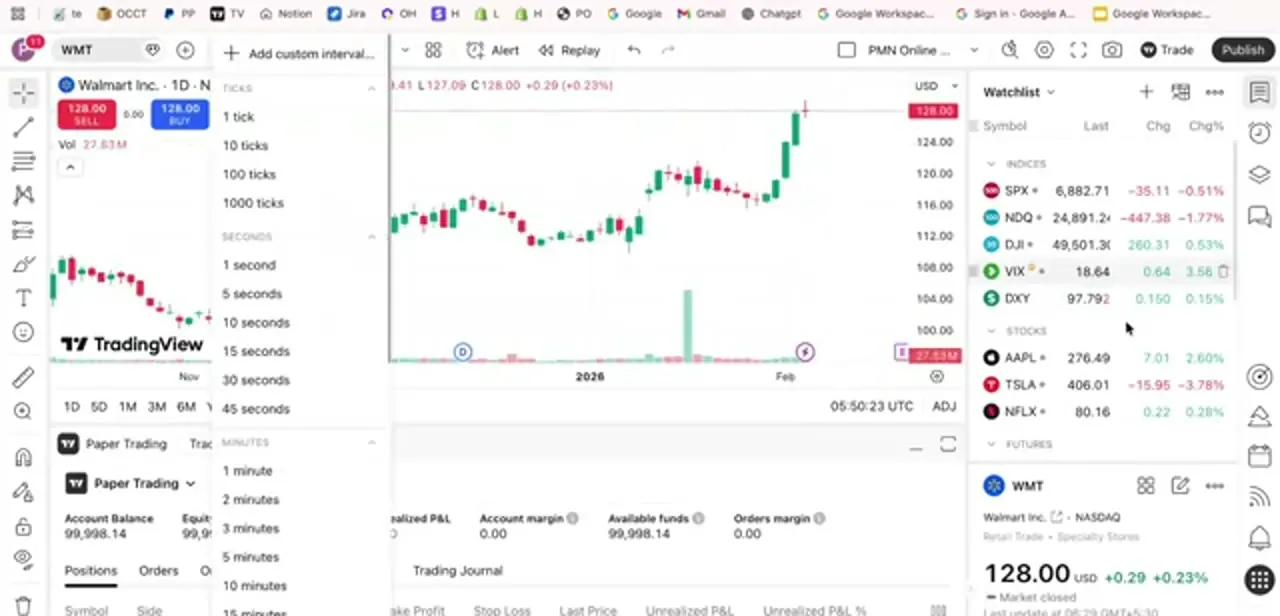
Open any chart on TradingView and look at the bottom of the window for the Trading Panel. Select Paper Trading by TradingView from the broker list and connect.
The panel loads a simulated account with a starting balance of $100,000 in virtual funds, alongside a row of live figures: Account Balance, Equity, Realized P&L, Unrealized P&L, Account margin, Available funds and Orders margin. Underneath sit the tabs you'll live in: Positions, Orders, Order History, Balance History and Trading Journal. Because the panel is docked to the chart, the account follows you as you switch symbols, so you can set your interval and instrument first and the paper account stays connected.
03Open the order ticket and choose Sell
With the symbol loaded, open the order ticket, either the Trade button at the top right of the chart, or the red SELL block in the top-left price widget. Both get you there.
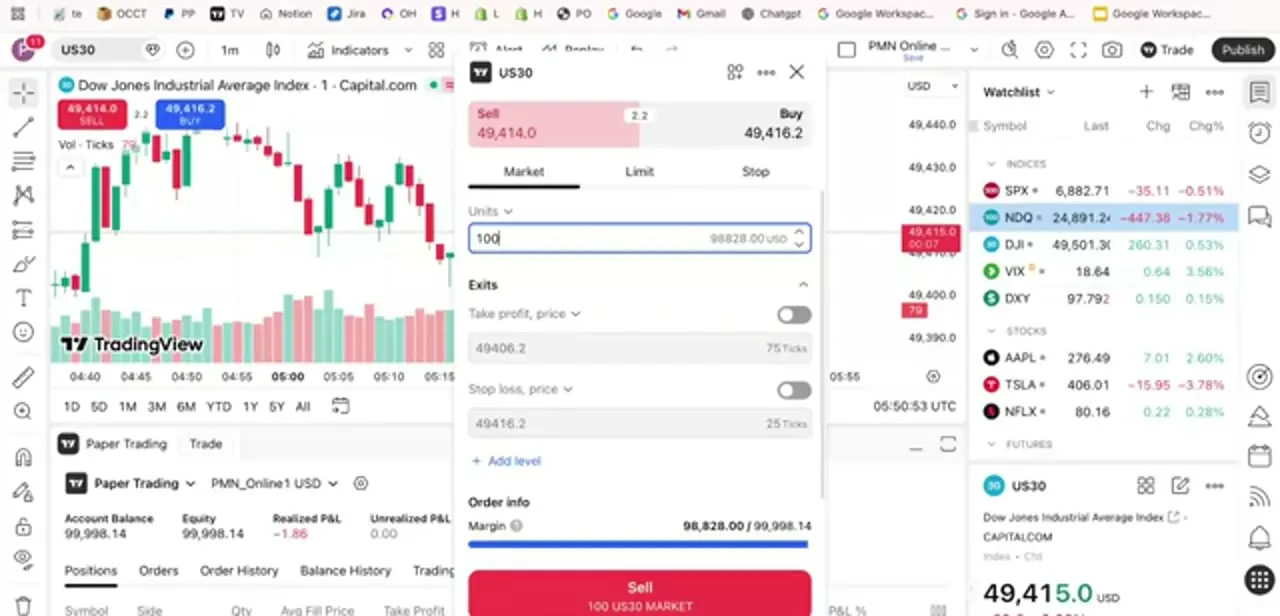
The ticket splits at the top into a red Sell price and a blue Buy price with the spread shown between them; for a short you work from the Sell side, which fills at the lower of the two. Below that sit three order types.
Market fills immediately at the current price. Limit waits for a better, higher price before selling.
Stop triggers a short only once price breaks down through a level you set. Market is the right choice while you're learning the flow, since it gives you an open position to watch straight away.
04Size the position before you touch anything else
The Units field decides how the trade will feel. Watch the Order info block underneath as you type: it shows the margin this order will consume against your balance, and on a leveraged index instrument a seemingly modest 100 units can eat almost the entire account, leaving only a few hundred in Available funds.
That's the single most useful lesson paper trading teaches, since a size that leaves no free margin gets liquidated by a move that a properly sized position would have shrugged off. Set the units so the margin bar stays well short of full, and treat any order that consumes most of your funds as a mistake even in simulation.
05Attach take profit and stop loss before submitting
Under Exits, add a level and set both Take profit, price and Stop loss, price, each with a suggested distance measured in ticks from your entry. On a short, the two invert from what you may be used to: take profit sits below your entry price, because that's where the trade wins, and stop loss sits above it, because that's where the trade is wrong.
TradingView treats the pair as linked in Paper Trading. Deleting one side removes the other, and filling one cancels the other automatically, so don't expect to keep a lone take profit or stop loss running on its own. Then press the red Sell button at the bottom, which restates the whole order (side, size, symbol and order type) as a final check before it fills.
06Read and manage the open short
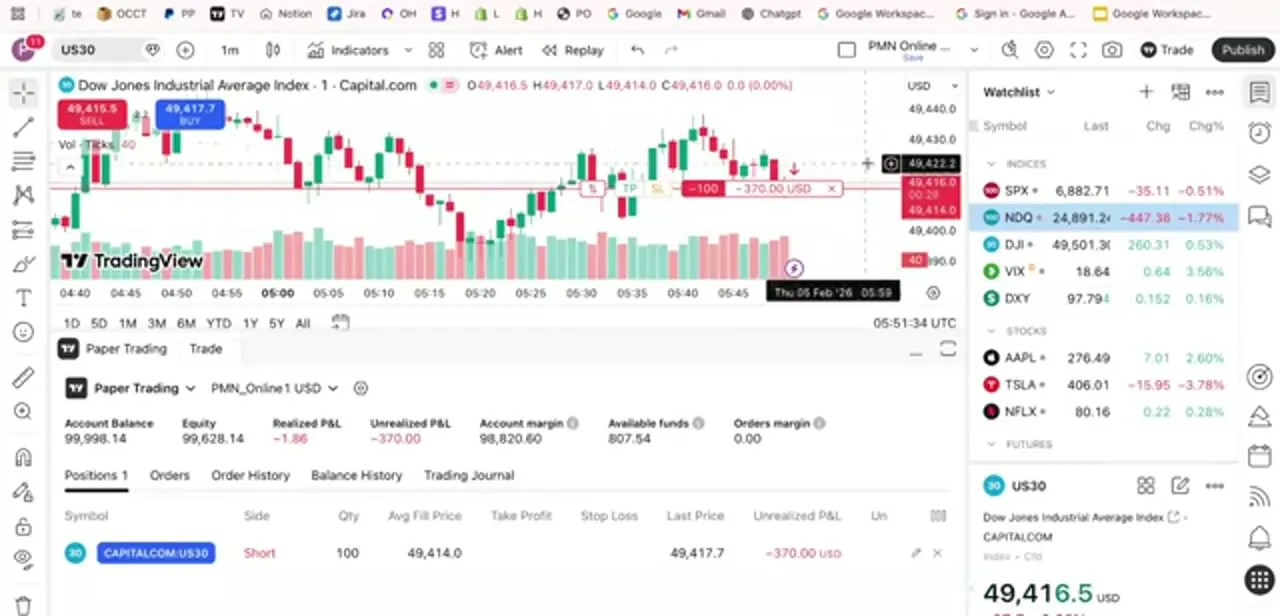
Once filled, the position appears under the Positions tab with Side listed as Short, along with Qty, Avg Fill Price, Last Price and a live Unrealized P&L. When the last price sits above your fill price, that P&L is negative, which is normal and correct behaviour for a short in a rising market.
TradingView also draws the position on the chart itself, with the entry line plus the TP and SL markers and a running money figure, so you can see exactly how much room is left before either exit triggers. Close manually with the small x on the position row, or leave the two exit orders to do the job. Either way, check Order History and the Trading Journal afterwards; reviewing why a stop was hit is where the practice converts into skill.
When it doesn't work
I removed my stop loss and the take profit vanished too
Why: Paper Trading links take profit and stop loss as a single exit pair, so removing or filling one side removes the other.
Fix: Add a fresh pair rather than trying to keep just one exit condition running, or manage the position manually if you only want a single exit.
My short filled at a worse price than the chart showed
Why: A market order fills at the Sell side of the spread, which sits below the Buy price, and paper trading fills against live data, so a fast-moving symbol can slip between the click and the fill.
Fix: Expect a small gap between the chart's last price and your fill on volatile symbols, and use a Limit order instead if the exact entry price matters.
The Units field won't let me size the position as large as I want
Why: The Order info block caps the size by how much margin your paper balance can support for that instrument.
Fix: Reduce the units, or reset the paper account to a larger starting balance from the gear icon next to Paper Trading in the panel.
Frequently asked questions
Is TradingView Paper Trading free?
Yes. Paper Trading is a built-in simulated broker available from the trading panel on any chart, at no cost and with no broker account required.
What's the starting balance, and can I change it?
It starts at $100,000 in virtual funds. Click the gear icon next to Paper Trading in the panel, choose Reset Paper Trading Account, and enter a different starting balance; this wipes existing positions and history, and can't be undone.
Where do the stop loss and take profit go on a short trade?
The stop loss goes above your entry price and the take profit goes below it, the reverse of a long position. The order ticket shows both as prices and as a tick distance from entry, and treats them as one linked pair.
Why is my short showing a loss immediately after opening?
Two reasons. You sell at the lower Sell side of the spread, so you start slightly behind, and any upward tick after that adds to the unrealized loss because a short profits only when price falls.
How much can I lose on a short position?
In theory there's no cap, since price can keep rising indefinitely. That's why a stop loss matters more on shorts than on longs, and why position size should leave plenty of free margin.
Does paper trading use real market prices?
Yes. Fills come from live market data for the symbol on the chart, so the price action, spread and P&L behave like a real account; only the money is simulated.
Sources and last check
Click path and screens come from a recorded walkthrough. The starting balance, the reset procedure, the broker's exact name, and the linked take-profit/stop-loss behaviour were re-checked against TradingView's official support articles in September 2026. That check corrected the starting balance from an approximate figure to the exact $100,000 default, added the reset instructions, and added the paired-exit behaviour that the previous version didn't mention.
About the author

Impran M N
I've been hooked on technology for as long as I can remember — especially the new tools and AI apps that seem to land every other week. Easy Tech Tuts is where I write up whatever I've just worked out: I do the task in the real product, record the screen, and turn it into the guide I wish I'd found first.



