 Easy Tech Tuts
How to share your Chart on TradingView 2026 in form of Image, Tweet Link, Download Easily
By Impran M NLast checked against official docs
A trade setup is only useful to other people if you can get it out of your own workspace, and TradingView bundles every way to do that behind a single camera icon in the chart toolbar. From there you can grab a downloadable image, copy the chart straight to your clipboard, generate a live link that mirrors your exact indicators and drawings, or post it to X without leaving the page. This guide follows that flow on a real Dow Jones chart, from the toolbar icon through to what the shared, published version actually looks like on the other end.
01Open the chart you want to share
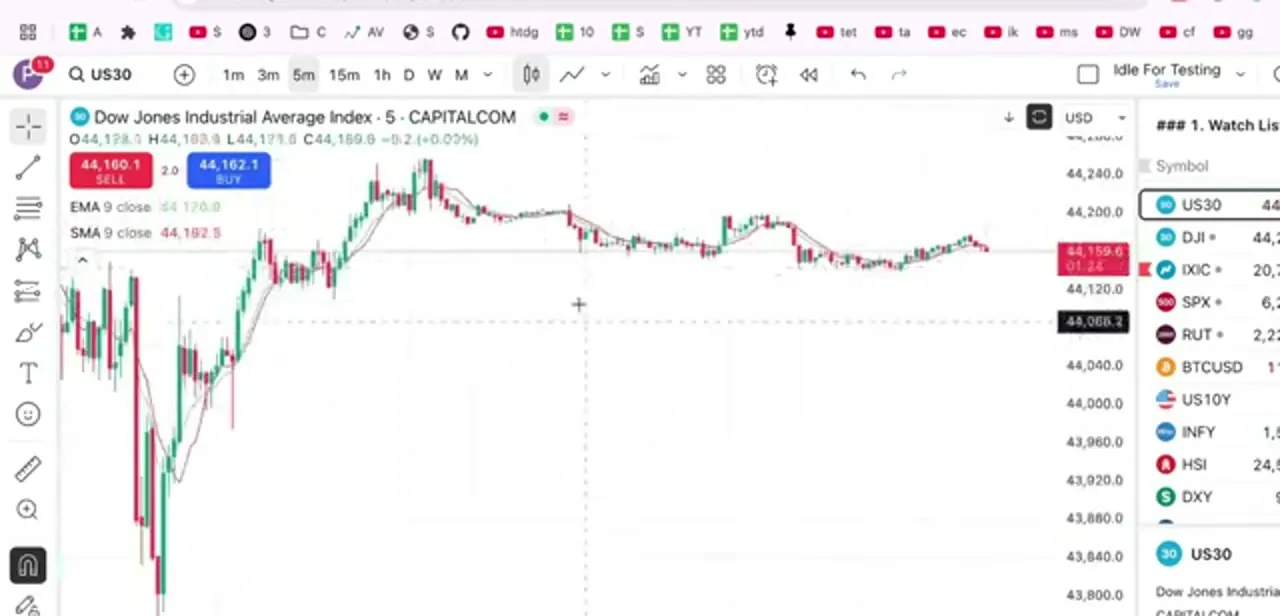
Pull up the chart with your setup on it: indicators, trendlines, watchlist, whatever you want the recipient to see. In this example it's a Dow Jones Industrial Average (US30) chart on CAPITALCOM with a 9-period EMA and SMA plotted, inside a workspace named 'Idle For Testing.' Whatever is currently drawn and visible on the chart is what gets captured in the snapshot, so tidy up any stray drawings first.
02Find the camera icon in the toolbar
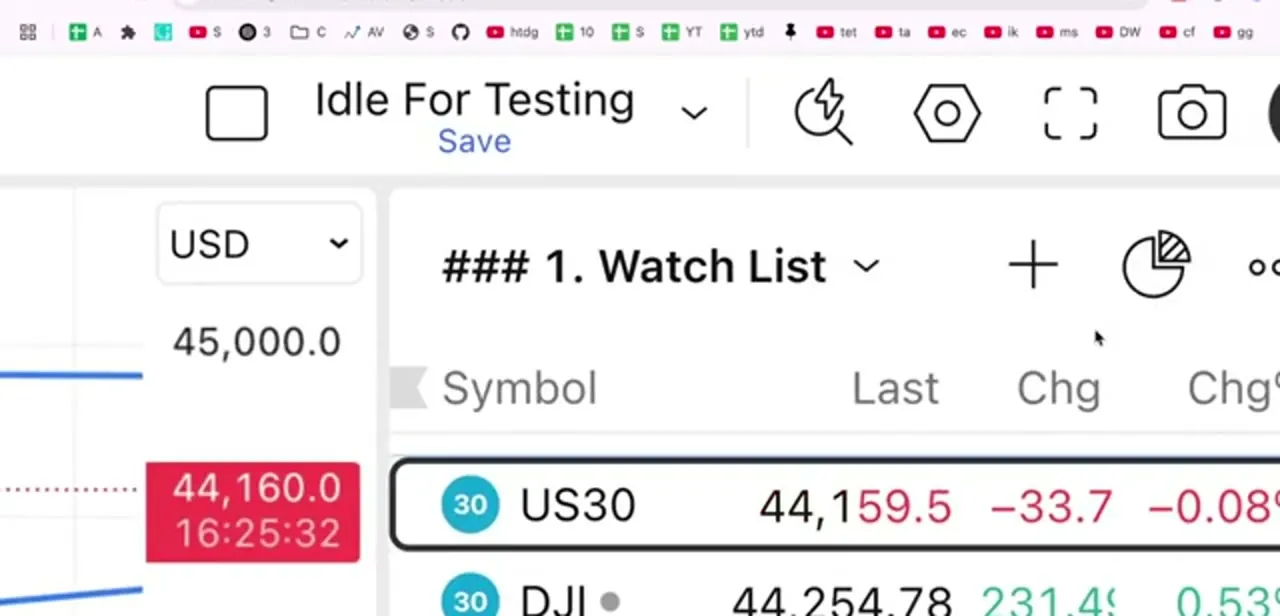
Look at the row of icons above the chart, next to the workspace name and Save link: a magnifying glass, a hexagon-shaped settings icon, a fullscreen icon, and a camera icon at the far right. That camera icon is the entry point for every sharing option TradingView offers. None of it lives in the main left-hand drawing toolbar or the symbol search bar.
03Open the Chart Snapshot menu
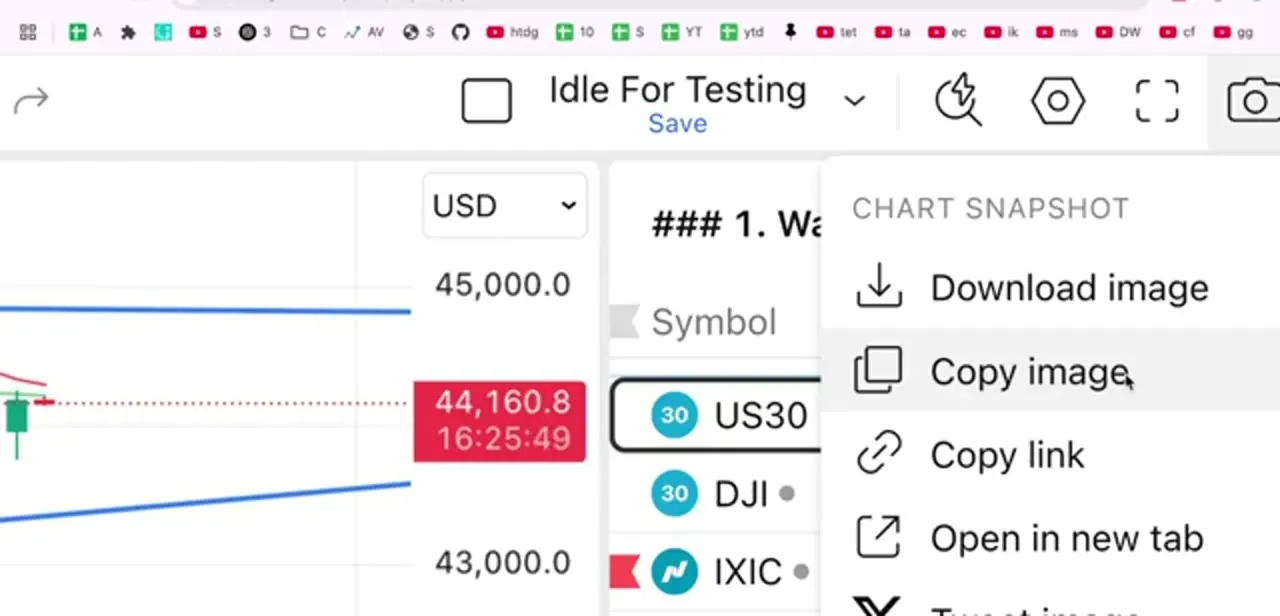
Click the camera icon and a Chart Snapshot panel drops down. TradingView's own support documentation describes the same set of options as saving the chart image to your device, copying the chart image to your clipboard, copying a link to the chart, and sending it directly to X (the platform's help articles still note this as 'ex-Twitter'). Each does something different with the same underlying snapshot, so the choice comes down to where you want the chart to end up: a saved file, your clipboard, a URL, or a post.
04Download or copy the image directly
Choose Download image for a saved picture file on your device, useful for attaching to an email, dropping into a presentation, or uploading manually somewhere that doesn't accept pasted images. Choose Copy image instead to skip the file entirely and paste the chart straight into a chat app, document, or forum post that supports pasting from the clipboard.
05Copy a link to the live chart
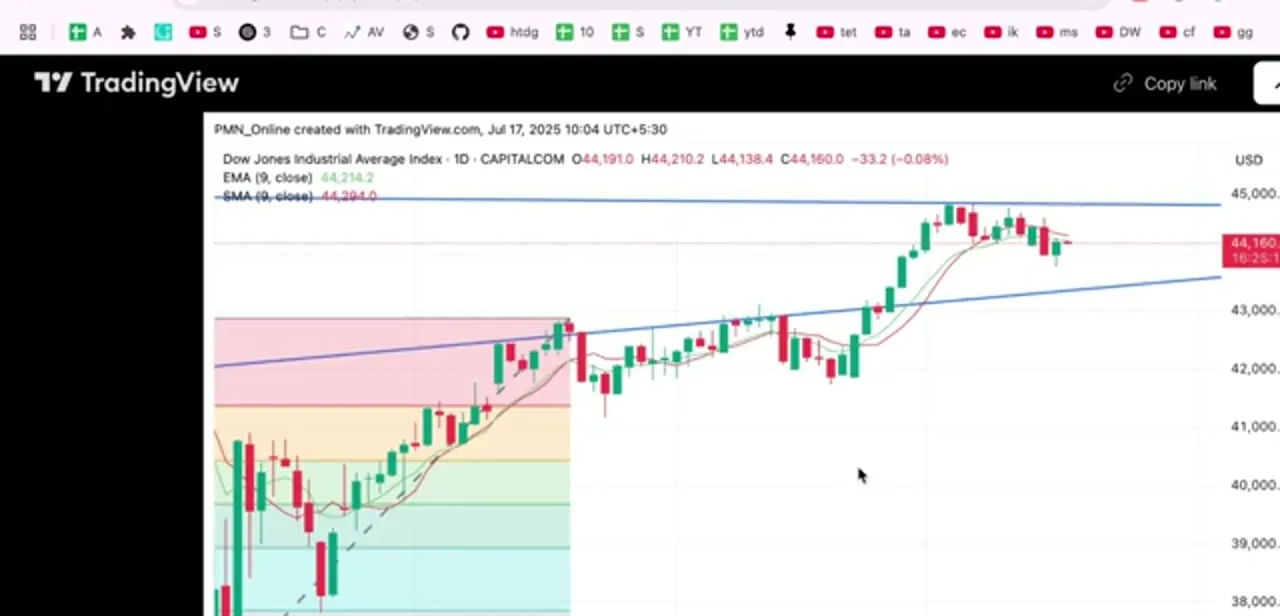
Copy link (or Open in new tab) generates a published, view-only version of your chart hosted on TradingView's own domain, with a header naming the account that created it, the timestamp it was generated, and its own Copy link button on that page. Anyone who opens it sees the same indicators, price levels, and drawings you had on screen, in the same interactive format, not a flat image. That makes it the better option when you want someone to explore the chart instead of just glance at it.
06Post the chart to X if you're sharing publicly
If the goal is a public post, the same Chart Snapshot menu can send the current chart straight to X, attaching it to a new post composer where you can add your own commentary before publishing. It saves the step of downloading the image and re-uploading it by hand, which matters if you're sharing setups often and don't want the extra round trip every time.
When it doesn't work
A link shared earlier doesn't reflect changes made to the chart since
Why: Copy link captures the chart as it looked at that moment. Later edits to your live workspace don't update an already-published snapshot.
Fix: Generate a fresh link with Copy link whenever viewers need to see the chart's current state.
Pasting a copied chart image doesn't work in some apps
Why: Copy image places the snapshot on the system clipboard as an image; the destination app has to support pasting images, not just text.
Fix: If pasting fails, use Download image instead and attach the file directly.
Frequently asked questions
Where is the sharing option on TradingView?
Click the camera icon in the chart's top toolbar, next to the workspace name and Save link, to open the Chart Snapshot menu with every sharing option.
Can I share a chart without downloading it?
Yes. The Copy image option in the Chart Snapshot menu copies the chart to your clipboard so you can paste it directly into a message or document without saving a file first.
Can others view my chart as a live link?
Yes. Copy link or Open in new tab generates a published version of your chart hosted on TradingView.com, showing the same indicators and drawings in the same interactive format.
Can I post my chart directly to X from TradingView?
Yes. The same Chart Snapshot menu can send your current chart straight to X without leaving the page; TradingView's own help articles still label this option 'ex-Twitter.'
Does the shared link show who created the chart, and does it expire?
It shows a header naming the creating account along with the exact date and time it was generated. TradingView's documentation says the link doesn't expire, so it stays valid whenever you need to reference it.
Sources and last check
Click path and all three screenshots come from a walkthrough recorded in 2025. The Chart Snapshot menu's wording was re-checked against TradingView's own 'How to share a snapshot' support article in September 2026, which describes the social-sharing option as posting directly to X instead of Twitter. The recording predates that terminology change; the underlying feature is unchanged.
About the author

Impran M N
I've been hooked on technology for as long as I can remember — especially the new tools and AI apps that seem to land every other week. Easy Tech Tuts is where I write up whatever I've just worked out: I do the task in the real product, record the screen, and turn it into the guide I wish I'd found first.



