 Easy Tech Tuts
How to Reset Tradingview Settings to Default, Change Chart, Candle Style to Original 2026 Easily
By Impran M NLast checked against official docs
If custom indicators, drawings, or color tweaks have left your TradingView chart looking nothing like the clean layout you started with, you don't need to rebuild it from scratch. TradingView has dedicated commands for wiping a chart back to its defaults. This guide covers the right-click reset menu that clears drawings and indicators in one move, and the Symbol tab in Settings, not Canvas, which is where candle colors, price precision, and timezone live.
01Start from your current chart so you know what's changed
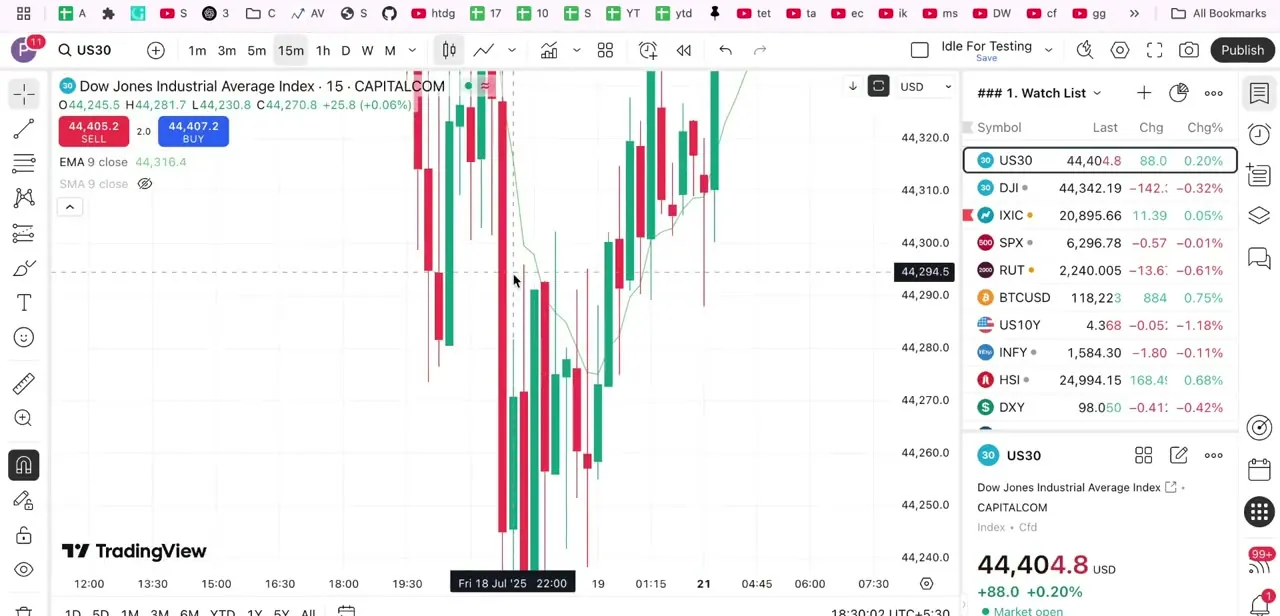
Before resetting anything, look at your chart as it currently sits: indicator panels stacked under the price action, an EMA and SMA line overlaid on the candles, and the watchlist docked on the right showing your other tracked symbols. Knowing what's on the chart, which indicators and which drawings, makes it easier to decide whether you want a full reset or just to strip back a few specific additions.
02Right-click the chart for the reset menu
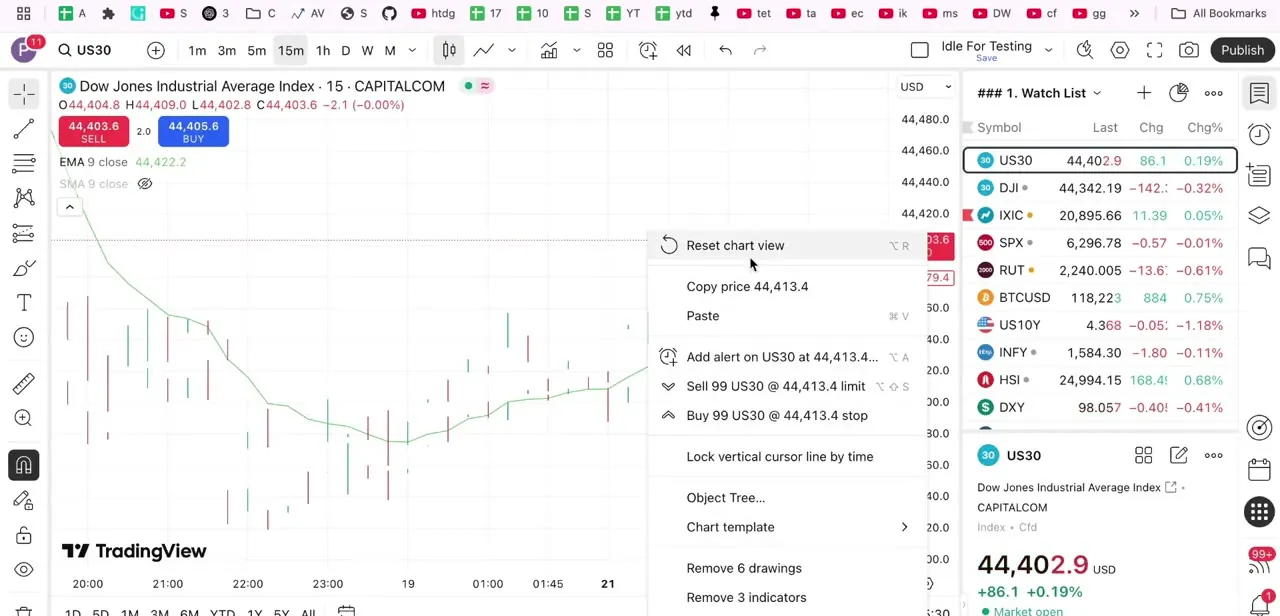
Right-clicking anywhere on the chart canvas opens a context menu with the commands that matter most for a cleanup: Reset chart view at the top, and further down, Remove drawings and Remove indicators, each listing the exact count currently applied, for example "Remove 6 drawings" or "Remove 3 indicators." Reset chart view only snaps the zoom and scale back to fit what's on screen; it doesn't touch indicators, drawings, or any other settings, so use it first if the chart just looks zoomed or scrolled oddly instead of visually cluttered. TradingView's left-side toolbar also has a combined "Remove Drawings & Indicators" option if you'd rather clear both in a single click.
03Clear indicators and drawings from that same menu
Click Remove indicators to strip every indicator currently applied to the chart in one action, and Remove drawings to clear any trendlines, shapes, or annotations you've added. Removing an indicator only deletes that instance from the chart; it doesn't remove your access to anything you've purchased or added to your library, and you can reapply it any time.
Drawings are a little different: whether a removal stays scoped to this one chart depends on each drawing's sync setting, since a drawing set to layout or global sync gets removed everywhere it was synced, not just here. And once you switch away from a chart, TradingView can't restore drawings you deleted from it, so double-check before clearing a symbol you're not currently looking at.
04Reset the candlestick style in the Symbol tab
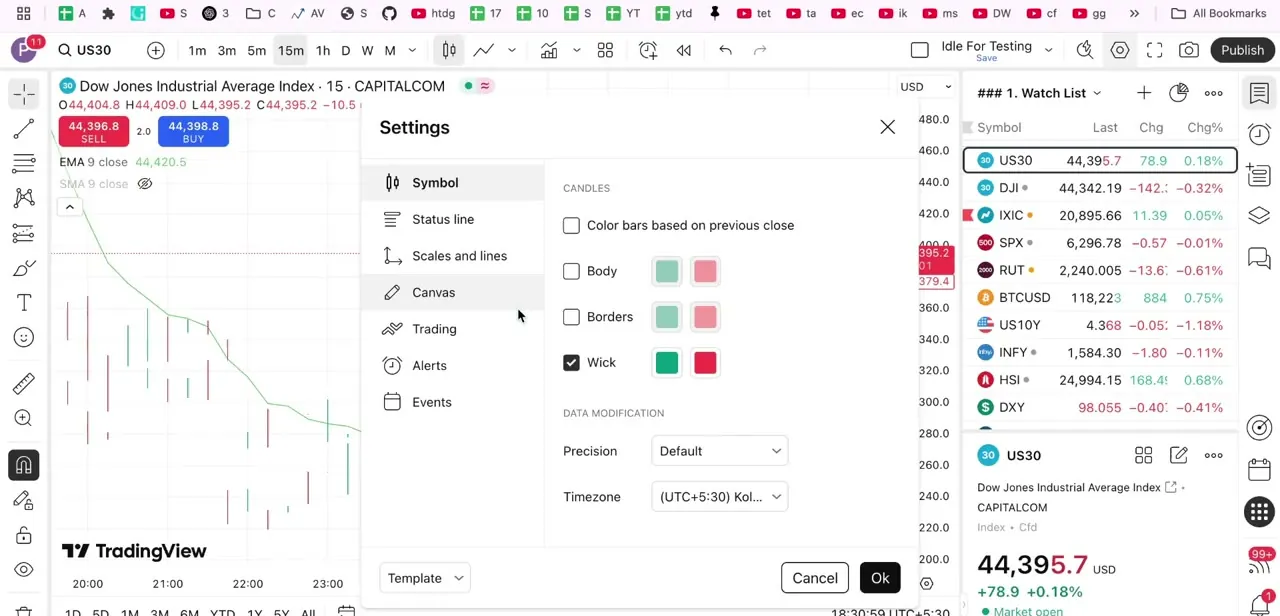
Open Settings and go to the Symbol tab, which is where candle appearance lives: separate checkboxes for Body, Borders, and Wick, each with its own up/down color swatches, plus a "Color bars based on previous close" option that changes how TradingView decides whether a candle counts as up or down. If your candles have been recolored or resized from a template you applied earlier, this is the panel to fix it in; toggle the boxes back on and set the color swatches to TradingView's standard green and red. The Canvas tab, easy to guess as the right spot, controls the chart's background, grid lines, and watermark instead.
05Check precision and timezone in the same tab
Further down the Symbol tab, past the candle color options, are Precision and Timezone. Precision controls how many decimal places prices display with; leave it on Default unless you're trading an asset that needs more granularity.
Timezone is worth double-checking specifically, since a chart set to the wrong region will still look visually correct but report candle open and close times that don't match your local clock, which throws off session-based analysis. You don't need to open Settings just for this: clicking the clock at the bottom right of the chart opens the same timezone control directly.
06Reapply a template or save your reset as the new default
Once the chart looks the way you want, the Template tab in Settings lets you save this configuration so new charts open with it automatically, instead of inheriting whatever customizations you had before. If you'd rather keep experimenting without committing, click Cancel or Ok without saving a template; your reset still applies to the current chart either way, it just won't carry forward to new ones.
| Tab | What it controls |
|---|---|
| Symbol | Candle body, border, and wick colors; "Color bars based on previous close"; price precision; timezone |
| Canvas | Background color, grid lines, watermark, pane separator, crosshair, scale text, buttons, margins |
From TradingView's own support documentation, checked in September 2026.
When it doesn't work
Candle colors, precision, and timezone aren't under Canvas
Why: They never were. Canvas controls background, grid lines, and watermark; candle appearance, precision, and timezone all live in the Symbol tab.
Fix: Open Settings and click Symbol instead. The Candles section is near the top, with Precision and Timezone further down the same tab.
A deleted drawing won't come back, even with undo
Why: TradingView can't restore a drawing deleted from a chart or symbol that isn't currently displayed. Undo only works for the chart you're actively viewing.
Fix: Don't rely on undo after switching charts; if a drawing was deleted from a symbol you're no longer viewing, it has to be recreated manually.
Removing drawings from one chart also removed them elsewhere
Why: The drawings had layout or global synchronization turned on, which propagates deletions to every chart they were synced to, not just the one you cleared.
Fix: Right-click a drawing and check its sync setting before a bulk removal if you want the change scoped to a single chart.
Frequently asked questions
Can I reset TradingView settings without losing my saved layouts?
Yes, in most cases. Removing indicators and drawings from the right-click menu, or resetting candle colors in Settings, only affects the chart you're viewing, unless a drawing has layout or global sync turned on, in which case removing it also removes it from every chart it was synced to.
Does resetting TradingView settings work the same on mobile?
The core commands, resetting the chart view and clearing indicators or drawings, are available on both desktop and mobile, though the menus you tap through to reach them differ by platform.
Will resetting my chart remove indicators I paid for?
No. Removing an indicator from a chart only clears that instance from the chart's current view. It doesn't remove your access to anything you've purchased or added to your account, and you can reapply it any time.
Where do I change the candlestick colors specifically?
Open Settings and go to the Symbol tab, not Canvas. The Candles section there has separate color controls for Body, Borders, and Wick, each with an up-candle and down-candle swatch.
Where are the Precision and Timezone settings?
Both are in the Symbol tab, below the candle color options. Timezone also has a shortcut: click the clock at the bottom right of the chart to open the same control without opening Settings.
Why would I want to reset TradingView to its default settings?
A reset clears clutter built up from applying indicators, drawings, and color tweaks over time, giving you a simpler, more focused chart. It's useful both for a fresh start and for troubleshooting when a chart is displaying something unexpected.
Sources and last check
Click paths and screens come from a walkthrough recorded in July 2025. Where candle colors, precision, and timezone live was re-checked against TradingView's own support documentation in September 2026, which corrected the original draft: those settings are in the Symbol tab, not Canvas, which the original draft had wrong throughout. The drawing-synchronization behavior and the note that deleted drawings on an unviewed chart can't be restored both come from TradingView's official documentation on how layouts, charts, and drawings interact.
- TradingView Support: Introduction to candlestick charts and patterns (official)
- TradingView Support: Is there a way to change chart timezone or clock time? (official)
- TradingView Support: I want to change the number of decimals on the scale (official)
- TradingView Support: How to configure your Supercharts (official)
- TradingView Support: How can I remove all drawings & indicators from the chart? (official)
- TradingView Support: Layouts, charts, drawings, indicators, and their interaction (official)
About the author

Impran M N
I've been hooked on technology for as long as I can remember — especially the new tools and AI apps that seem to land every other week. Easy Tech Tuts is where I write up whatever I've just worked out: I do the task in the real product, record the screen, and turn it into the guide I wish I'd found first.



