 Easy Tech Tuts
How to set up Atm in Tradingview like Ninja Trader Advanced Trade Management to put SL & Target
By Impran M NLast checked against official docs
NinjaTrader traders coming to TradingView often go looking for an "ATM strategy" toggle and don't find one, because TradingView doesn't ship a feature by that name. What it does have is a per-order Take Profit and Stop Loss section built into the order ticket itself, which, once a broker is connected, gives almost the same outcome: a stop and a target attached to the trade before you ever click Buy. This guide shows where those fields live, how to scale out with more than one exit level, and how to save the whole setup as a reusable preset instead of rebuilding it every trade.
01Connect a broker that supports order-level risk management
The bracket-style behavior comes from the broker integration, not from TradingView's charting layer. Open the panel at the bottom of the chart and connect a supported account; Binance, OANDA, and TradeStation are common choices.
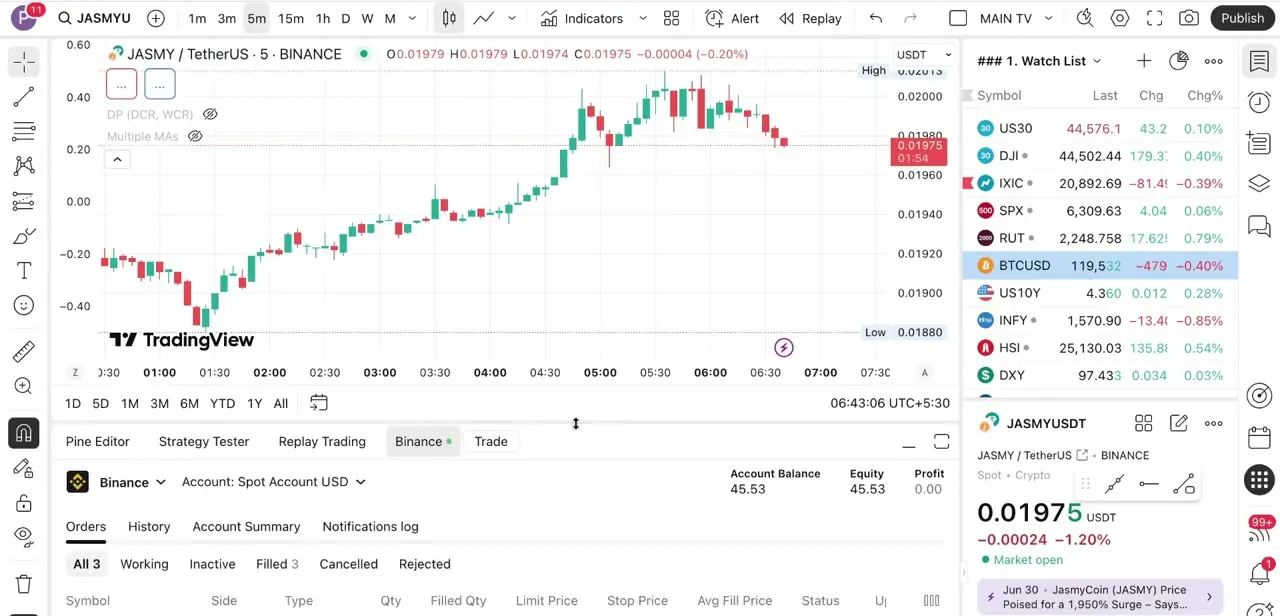
Not every broker exposes the same fields, though: TradingView's own order-ticket documentation notes that its published field list reflects Paper Trading, and real integrations vary in which of Ticks, Price, USD, and percent they surface. The panel shows account balance, equity, and open orders next to the chart, so risk exposure and price action sit in the same view instead of separate windows.
02Open the order ticket and set your units
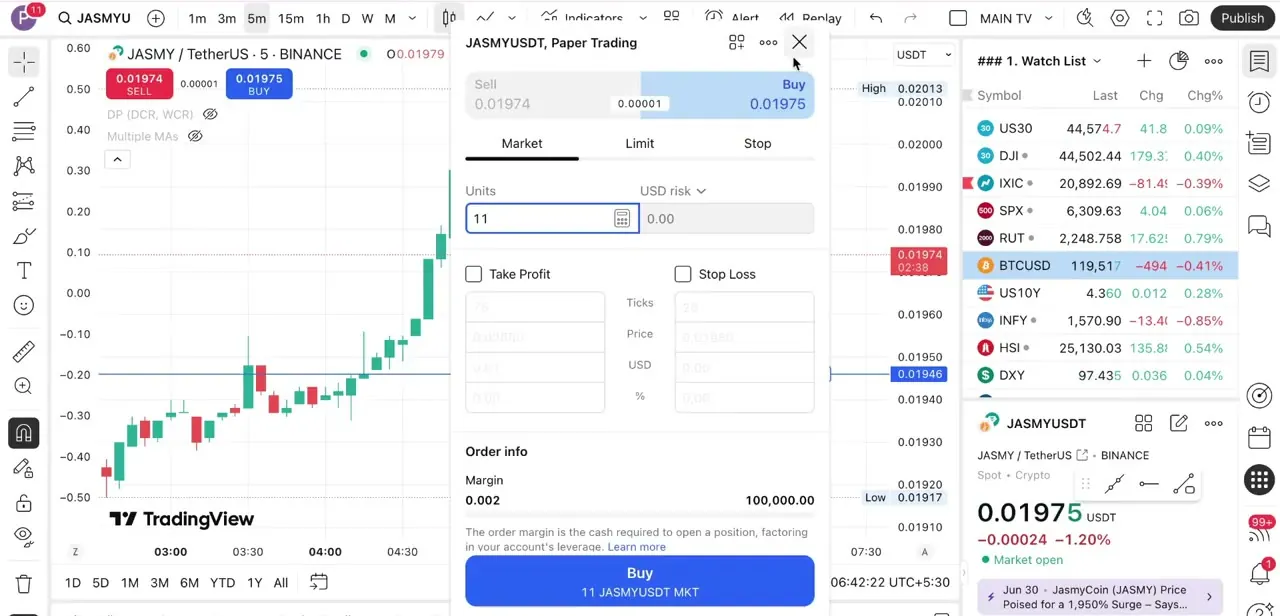
Click into a Buy or Sell action to open the order ticket, which slides out over the right side of the chart. Start with Units, the size of the position, and TradingView calculates margin and total order value live as you type. Market, Limit, and Stop sit as tabs across the top, and the risk fields set up next apply the same way regardless of which one is picked.
03Attach Take Profit and Stop Loss before you confirm
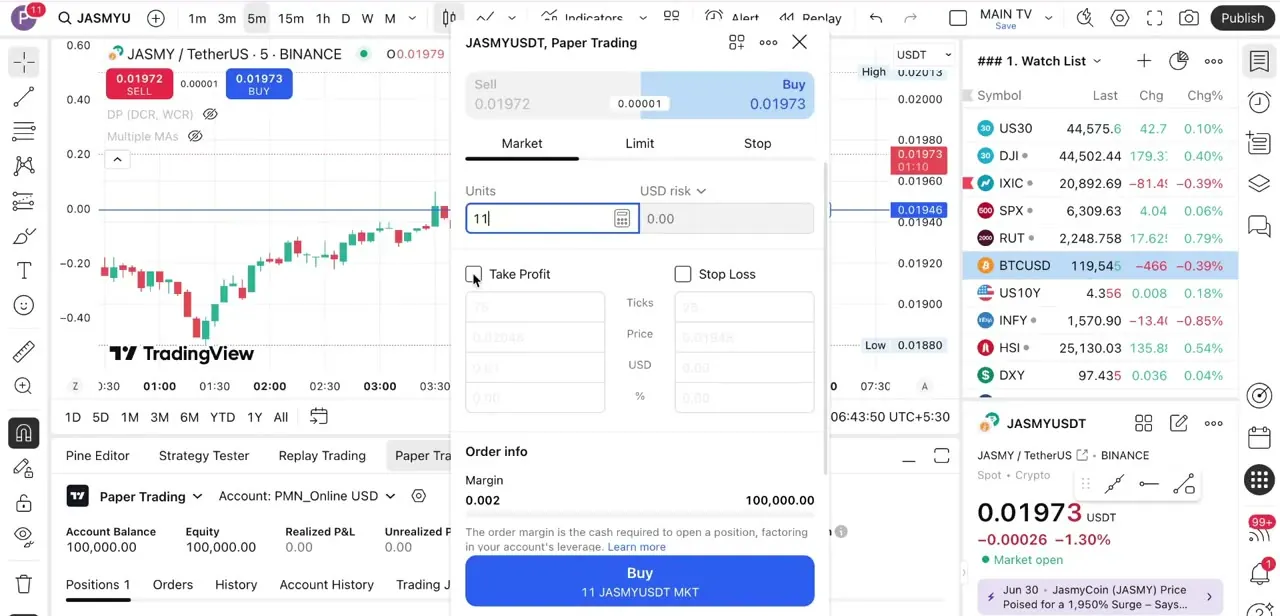
Below Units are two checkboxes, Take Profit and Stop Loss, each expanding into its own set of inputs for ticks, price, or a USD or percentage value. Check both, fill in a target and a stop, and they submit as part of the same order.
This is the mechanism that stands in for NinjaTrader's ATM behavior inside TradingView, even without a feature carrying that name. Because the fields accept ticks, price, or percentage, a risk-to-reward ratio can be standardized across instruments that trade at very different price scales instead of recalculating it by hand each time.
04Watch the order and balance update in the panel below the chart
Once an order is working, the panel beneath the chart tracks it under Orders, next to Account Balance, Equity, and unrealized profit, all updating in real time as price moves. This is also where a bracket gets modified or canceled after it's live, if the market shifts and the original stop or target no longer makes sense.
05Layer in multiple exit levels for a closer ATM match
A single Take Profit and Stop Loss is the default, but TradingView also supports scaling out, closer to what NinjaTrader's ATM templates do with staged targets. Clicking Add level in the Exits section of the order ticket adds further exit levels with their own quantity and price; TradingView's Paper Trading account supports up to four levels, and each one always comes as a paired Take Profit and Stop Loss, so deleting one side of a pair removes the other. Combine that with a default risk-to-reward ratio, commonly 1:2 as a starting point, applied to the stop and target distance on every trade instead of eyeballing levels in the moment.
06Practice the setup in Paper Trading first
TradingView's built-in Paper Trading account uses the exact same order ticket and the same Take Profit, Stop Loss, and Add level controls as a live broker connection, which makes it the place to rehearse this workflow before committing real funds. Switch the account selector from the live broker to Paper Trading for a simulated balance with identical mechanics: same fields, same bracket behavior, zero real risk while the habit of checking both boxes on every entry gets built.
07Save the setup as an Order preset
Rebuilding the same Units, Take Profit, and Stop Loss on every trade is unnecessary. TradingView has a dedicated Order presets feature: fill in the order ticket the way it's wanted, click the Order presets button in the ticket, choose Save Order preset, and name it.
Saved presets apply from a menu inside the order ticket or from a preset button that appears next to the chart's Buy/Sell buttons, so the whole bracket setup carries forward the next time an entry is placed. For anyone who wants entries and exits to trigger automatically instead of manually clicking Buy each time, Pine Script alerts can layer webhook-driven logic on top of this same bracket setup as a separate, more advanced step.
When it doesn't work
The connected broker doesn't show the same Take Profit / Stop Loss fields
Why: TradingView's order-ticket documentation reflects Paper Trading; real broker integrations vary in which fields (ticks, price, USD, percent) they expose.
Fix: Check that broker's specific TradingView integration notes, or confirm the workflow first in Paper Trading, where the full field set is guaranteed.
Only one Take Profit and one Stop Loss show up, not a scaled-out exit
Why: Multiple exit levels are a separate control, the Add level button in the Exits section, not the default single-TP/single-SL checkboxes.
Fix: Click Add level to add further exit levels. Paper Trading supports up to four, always in a paired Take Profit / Stop Loss.
The risk setup doesn't carry over to the next trade
Why: Filling in the order ticket manually each time saves nothing. Only a saved Order preset persists between trades.
Fix: Use the Order presets button in the order ticket to save the configuration, then apply it from the preset menu or the Buy/Sell buttons on the chart.
Frequently asked questions
Does TradingView have a built-in ATM strategy feature like NinjaTrader?
No. TradingView has no feature by that name, but the order ticket's Take Profit and Stop Loss checkboxes, available once a supported broker is connected, produce a similar bracket-order outcome.
Which brokers support this Take Profit / Stop Loss setup?
Binance, OANDA, and TradeStation are common connected brokers that surface these fields. TradingView's own documentation notes that its field list is written against Paper Trading, so exactly which fields (ticks, price, USD, percent) a given broker exposes can vary; check that broker's integration notes if something looks different.
Can I test this without risking real money?
Yes. Switch the account selector to Paper Trading for the identical order ticket and Take Profit/Stop Loss fields against a simulated balance, which is a safe way to build the habit before trading live.
Can I scale out with more than one target, like NinjaTrader's ATM?
Yes. Click Add level in the Exits section of the order ticket to add further exit levels. Paper Trading supports up to four, each one a paired Take Profit and Stop Loss.
Can I save this setup so I'm not rebuilding it every trade?
Yes. TradingView has a dedicated Order presets feature: save the configured order ticket as a named preset, then apply it from the order ticket's preset menu or the preset button next to the chart's Buy/Sell buttons.
Sources and last check
Screens and click path come from a screen recording of a connected Binance account; the order-ticket fields (Units, Ticks/Price/USD/%, Take Profit, Stop Loss) match the captured frames. Broker names, the Take Profit/Stop Loss mechanics, and the multiple-exit-level and Order-preset features were checked in September 2026 against TradingView's official support articles on the order ticket, multiple TP/SL levels, percent/dollar risk fields, and order presets. The original draft implied every connected broker exposes identical fields and did not mention the Add level (multi-exit) control or the Order presets feature; both were added from TradingView's documentation.
- TradingView Help: What is an order ticket? (official)
- TradingView Help: Multiple take profit and stop loss levels (official)
- TradingView Help: I'd like to set my Take Profit and Stop Loss in dollar terms and as a percentage of my account balance (official)
- TradingView Help: What are order presets? (official)
About the author

Impran M N
I've been hooked on technology for as long as I can remember — especially the new tools and AI apps that seem to land every other week. Easy Tech Tuts is where I write up whatever I've just worked out: I do the task in the real product, record the screen, and turn it into the guide I wish I'd found first.



