 Easy Tech Tuts
How to Set TradingView Time Zone Easily 2026
By Impran M NLast checked against official docs
When your chart's clock and axis timestamps don't match your local market hours, the time zone setting is the fix, and it's easy to overlook because the chart still loads and looks normal; the times are just labeled against a different clock. This guide covers where the time zone control lives on a TradingView chart, what changing it does and doesn't affect, and the difference between Exchange time and your own local time zone. It's aimed at intraday and swing traders who want their session times to read correctly before they trust any time-based analysis.
01Start from a live chart
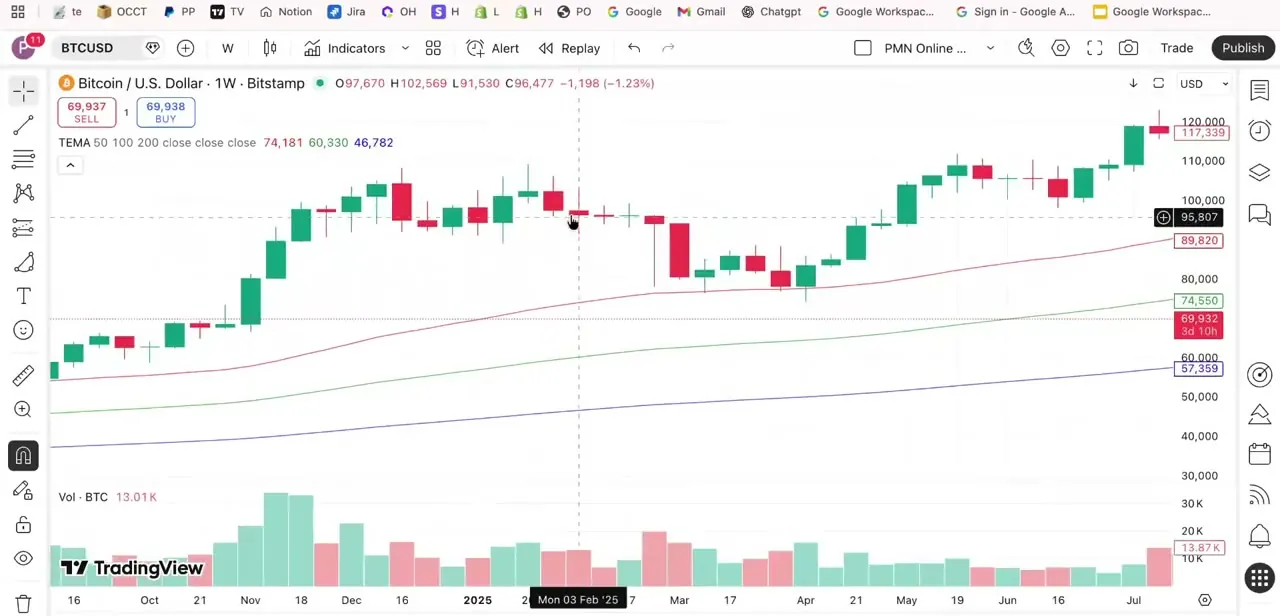
Open any symbol on TradingView. The example here uses BTCUSD on the weekly timeframe with TEMA moving averages plotted.
Locate the timestamp control in the bottom-right corner of the chart, next to the price scale: a small clock-style control that's easy to miss among the drawing tools and indicator panel, and the entry point for every time zone change on the chart. You can also reach the same setting from the gear icon at the top of the chart, under Chart settings, in the Symbol tab.
02Open the time zone list
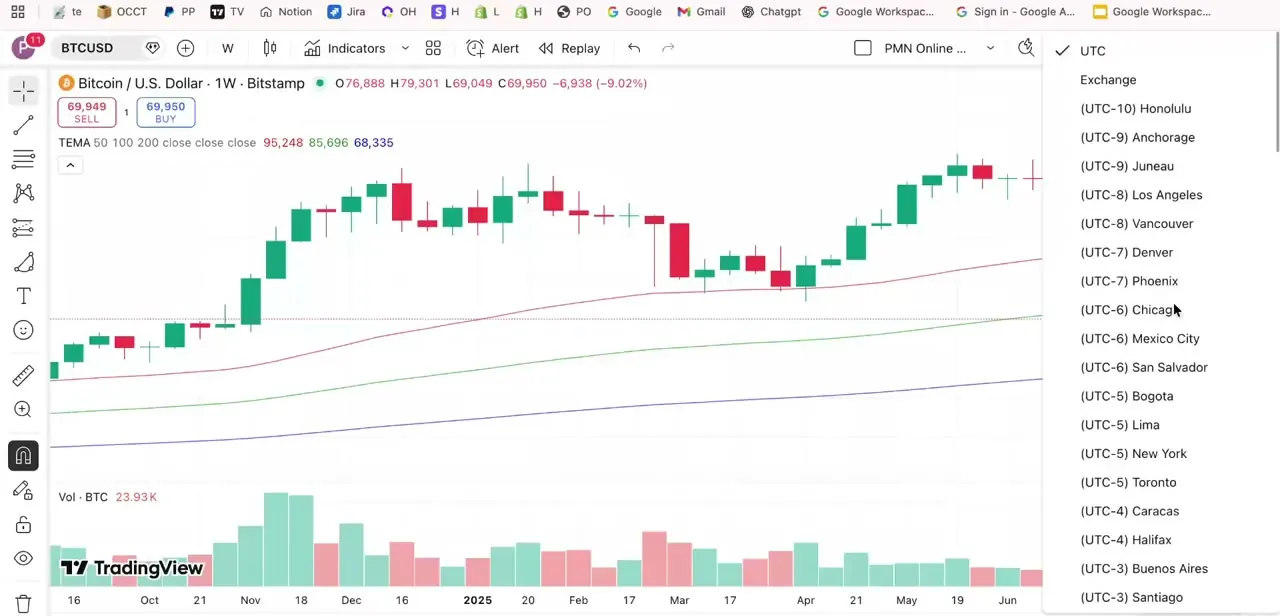
Clicking that timestamp control opens a dropdown list of time zones, starting with UTC and Exchange at the top and followed by a long list of cities grouped by UTC offset: Honolulu, Anchorage, Los Angeles, Denver, Chicago, New York, and onward through every major offset. The current selection carries a checkmark, so you can confirm what your chart is set to before changing anything.
03Choose Exchange time or your local time zone
Selecting Exchange sets the chart to the local time of whatever venue the symbol trades on, Bitstamp in this example, or NYSE hours for a US stock, the standard choice if you're timing entries around a specific market's open and close. Selecting a city instead, like New York or Chicago, displays times converted to that zone, more convenient if you think in your own local time and don't need to track exchange-specific session boundaries precisely.
04See what the display changes
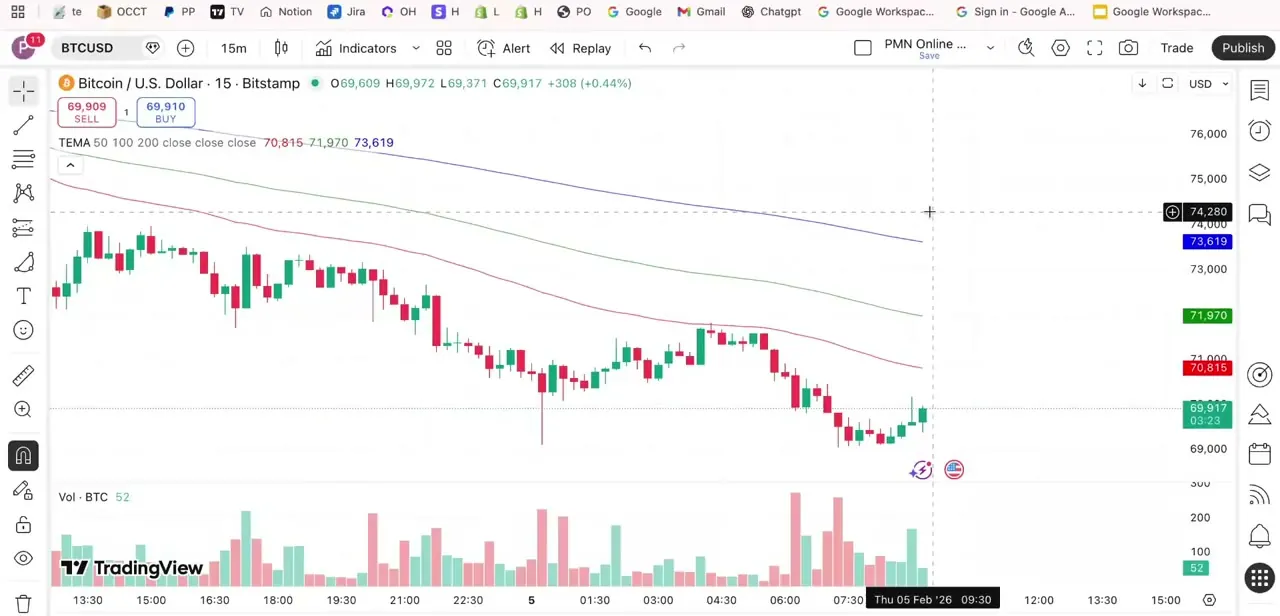
After picking a time zone, switch to a lower timeframe like 15 minutes and check the x-axis timestamps at the bottom of the chart: they now read in the zone you selected, and the readout near your cursor confirms the exact time of any candle you hover over. This is a relabeling, not a data change. TradingView's own Pine Script documentation describes the chart time zone as a visual preference for how the chart displays time, not something that recalculates or regroups the underlying candles.
05Know what stays fixed to the exchange, not your display zone
Daily and weekly candles are grouped by session boundaries that belong to the instrument's exchange, not your chart's display setting. Switching your personal time zone doesn't move a candle to a different calendar day, and it doesn't touch Pine Script time functions, alert timing, or session-based indicators, which use the exchange's own time zone regardless of what the chart displays. If a daily candle's close looks like it's attributed to the wrong day, that's a question about the exchange's session hours, not something the time zone dropdown controls.
06Avoid mixing time zones across tools
A common mistake is setting TradingView's display to one time zone while a broker platform, alert service, or trading journal runs on another. Session-based indicators, economic calendar alerts, and manually logged trade times can drift out of sync with what your chart shows if they're not aligned. Once you've picked a display time zone in TradingView, standardize on the same one everywhere else you track time-sensitive market activity, and remember that Pine Script alerts and indicators follow the exchange's time zone regardless of your display choice.
When it doesn't work
A daily candle still looks like it closed on the 'wrong' day after changing the time zone
Why: Candle grouping and session boundaries are fixed to the instrument's exchange time zone. The chart's display time zone is a visual setting only and doesn't change it.
Fix: Switch to the Exchange time zone if you want the display to match the venue's own session hours, rather than expecting your personal zone to change the grouping.
An alert or session-based indicator fires at an unexpected time after changing the chart's time zone
Why: Session-based indicators and Pine Script time functions use the instrument's exchange time zone by default, regardless of what the chart displays.
Fix: Check the indicator or alert's own time zone parameter instead of assuming it follows the chart's display setting.
Two chart layouts in the same account show different times for the same candle
Why: Time zone is set per chart layout, not account-wide, so different layouts can carry different settings at once.
Fix: Set a default time zone in your TradingView profile if you want new charts to start from the same zone, and check each layout individually for existing ones.
Frequently asked questions
Why do my candles look shifted after changing symbols?
Different symbols trade on different exchanges with their own local hours, so the Exchange time zone option shows a different clock for each one. It's worth rechecking your time zone setting after switching symbols if you rely on Exchange time.
Should I use exchange time or my local time zone?
This comes down to preference. Traders timing entries around a specific market's open and close often prefer Exchange time for consistency with that venue's hours; others prefer their own local time for everyday convenience.
Does the time zone setting affect indicator calculations or candle grouping?
No. TradingView's own Pine Script documentation describes the chart's time zone as a visual preference: it changes how times are displayed on the axis and clock, not the underlying data. Candle grouping, session boundaries, and indicator or alert calculations all use the instrument's exchange time zone regardless of what your chart displays.
Will my time zone setting be saved for future sessions?
Yes, per chart layout, so different layouts can carry different time zones at once. You can also set a default time zone in your TradingView profile, which new charts will start from.
Where exactly is the time zone control on the chart?
Click the small timestamp control in the bottom-right corner, next to the price scale, or open Chart settings from the gear icon and use the Time Zone field under the Symbol tab. Both reach the same UTC, Exchange, and city-based list.
Does changing the display time zone move my candles to a different day?
No. That grouping is fixed to the instrument's exchange time zone. Changing your personal display setting relabels the axis and clock; it doesn't reassign which session or calendar day a candle belongs to.
Sources and last check
Screens and click path come from a walkthrough recorded in 2026. What the time zone setting changes, and what it doesn't, was re-checked in September 2026 against TradingView's own Pine Script documentation and Help Center, which state that the chart's time zone is a visual preference: it relabels the axis and clock but does not move candles to a different day, regroup sessions, or affect indicator and alert calculations. That correction replaces this guide's earlier claim that changing time zone can shift which day a daily or weekly candle closes on.
About the author

Impran M N
I've been hooked on technology for as long as I can remember — especially the new tools and AI apps that seem to land every other week. Easy Tech Tuts is where I write up whatever I've just worked out: I do the task in the real product, record the screen, and turn it into the guide I wish I'd found first.



