 Easy Tech Tuts
How to Resize Charts on TradingView, Easy Shortcuts to Reset to Default View 2026
By Impran M NLast checked against official docs
It takes about two scroll-wheel nudges and one accidental drag to turn a clean TradingView chart into squeezed candles and an off-screen price axis. TradingView builds in shortcuts that undo almost any layout mistake: a right-click reset (or the Alt+R shortcut) that restores default zoom and scale, and a border-drag system for resizing panels on purpose. This guide covers both, plus a related shortcut, double-clicking inside a panel, that does something entirely different and trips people up if you confuse the two.
01Open the chart you want to adjust
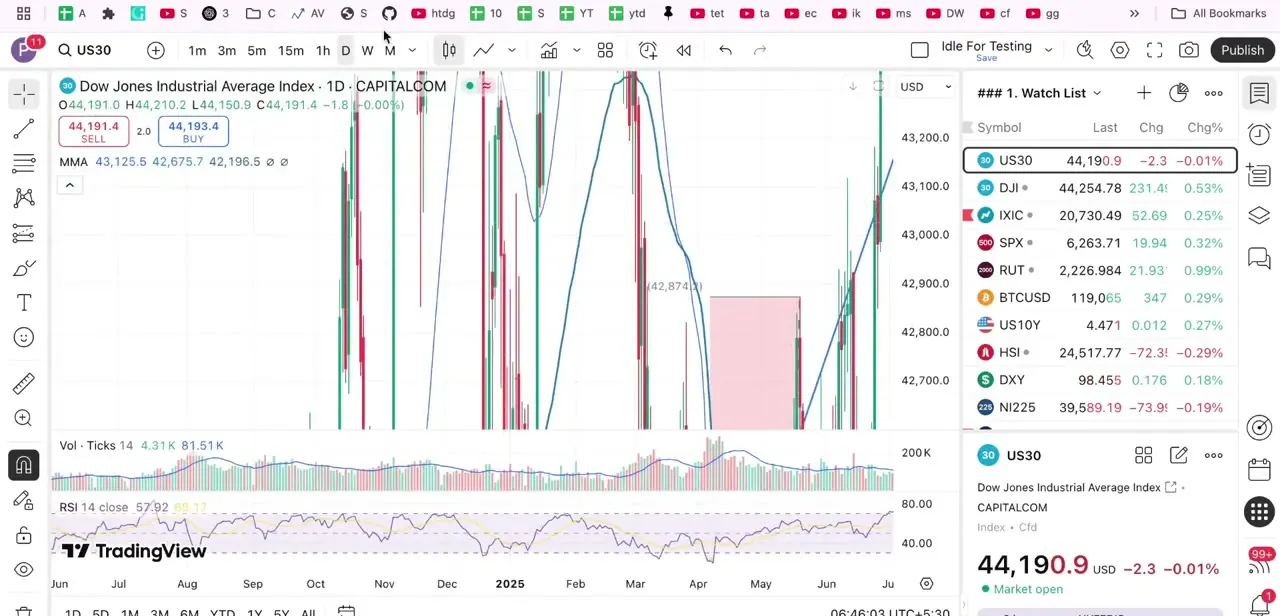
Start from any chart in your TradingView layout. In this walkthrough it's the Dow Jones Industrial Average (US30) on the 1D timeframe, with the watchlist docked on the right and volume and RSI panels stacked below the price chart.
Nothing needs to be selected first; the reset and resize tools work on whichever chart currently has focus. If the layout has zoomed in tight enough that candles look stretched and recent price action has scrolled off to one side, that's the state these shortcuts are built to fix.
02Right-click the chart, or skip straight to Alt+R
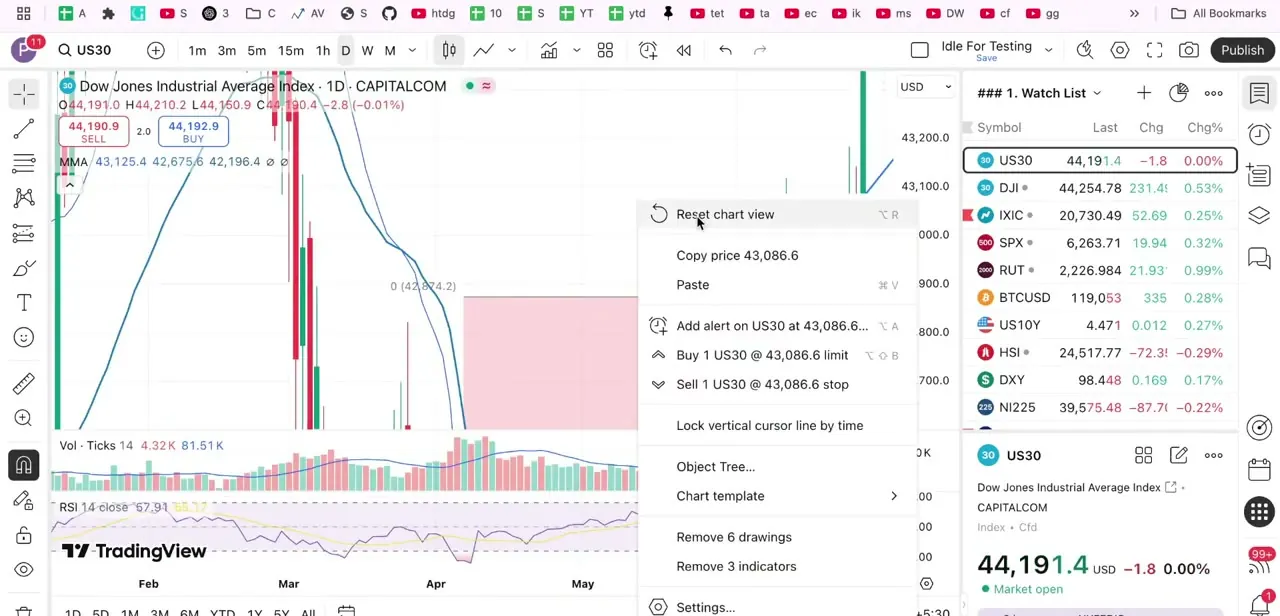
Right-click anywhere on the price area, not on the toolbar or the watchlist. This opens a context menu with chart-specific actions: copying the price under your cursor, pasting, adding an alert or a trade order at that price level, working with drawings, and, near the top, Reset chart view.
The menu lists a shortcut next to it: Alt+R on Windows, Option+R on a Mac. That's worth memorizing if this comes up often, since it skips the menu entirely.
03Click Reset chart view
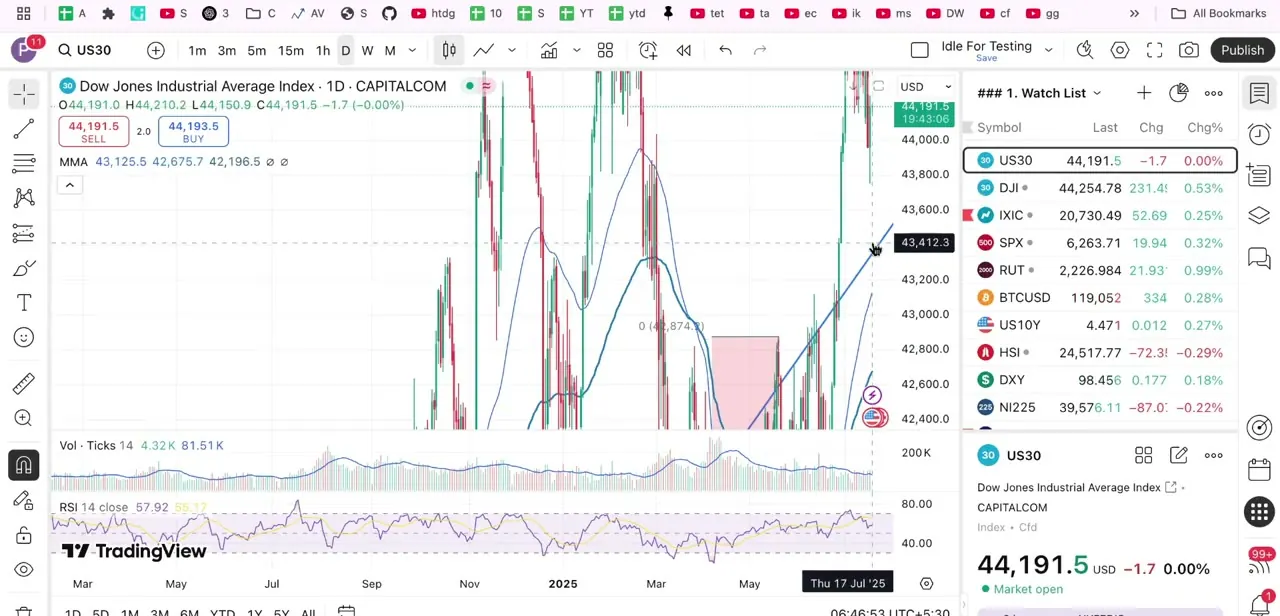
Selecting Reset chart view snaps the chart back to its default zoom level and time range, centering the most recent candles and restoring the price axis to a normal scale. This only touches the visual framing. It doesn't delete drawings, remove indicators, or change underlying settings, so it's a safe first move whenever a chart looks off after scrolling or zooming: you zoomed in to inspect a candle and now can't find your way back out.
04Resize a panel by dragging its border, or move several at once
When you want a different size on purpose, more room for the price panel, less for volume, hover over the border between two panels, or between the chart and the watchlist, until the cursor changes to a resize arrow, then click and drag. Dragging the line between the price chart and the RSI panel gives the candles more vertical space at the expense of the indicator panel. Holding Shift while dragging moves several borders at the same time, per TradingView's own layout documentation, which is faster than adjusting each panel one at a time when a whole layout needs rebalancing.
05Undo a resize, and don't confuse it with maximizing a panel
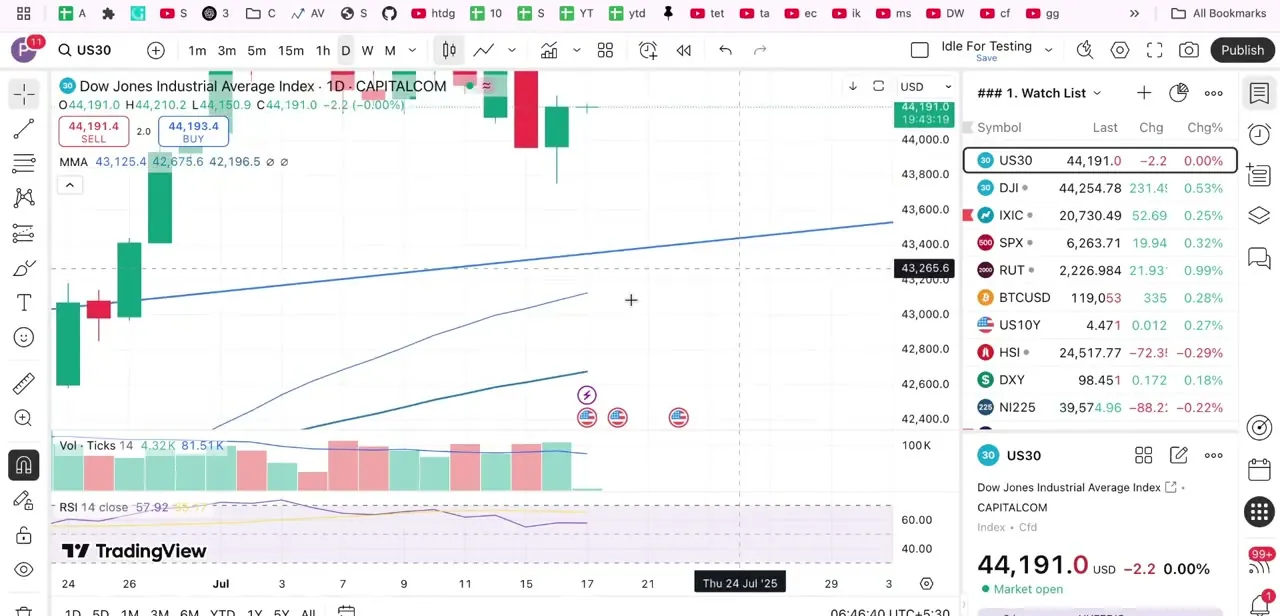
Double-click the same border you dragged, and TradingView returns it to its default state instantly. That's a narrower tool than Reset chart view: it only affects panel proportions, not zoom or time range, so reach for it specifically when a resize, not a zoom, is what needs undoing.
One thing to keep straight: double-clicking on a border resets it, but double-clicking inside a panel, on the chart or indicator area itself, not the dividing line, maximizes that panel to fill the whole chart area instead. Holding Ctrl (Cmd on a Mac) while double-clicking inside a panel collapses it instead. Three different clicks, three different results, and it's easy to land the wrong one if the cursor isn't exactly on the border.
06Know which shortcut fixes which problem
These solve different problems, so keep them straight: Reset chart view (right-click, or Alt+R) fixes zoom and scroll position. Double-clicking a border fixes panel size.
Double-clicking inside a panel maximizes it, and adding Ctrl or Cmd collapses it. If a chart looks wrong after scrolling and zooming, reach for the reset first.
If a panel is the wrong size because a drag went too far, double-click that border instead. None of these touch indicators, drawings, or saved chart data. They're purely visual, which makes them safe to use freely while finding a layout that works.
When it doesn't work
Double-clicked inside a panel expecting it to reset, and it took over the whole screen instead
Why: Double-clicking inside a pane's content area maximizes it. That's a separate action from double-clicking the border between two panes, which resets that border to default.
Fix: Double-click inside the panel again (or use its maximize icon) to restore it, then double-click the border itself if size was the actual problem.
Pressed Ctrl+R expecting a reset, and nothing happened
Why: TradingView's chart-reset shortcut is Alt+R (Option+R on a Mac), not Ctrl+R, a combination that gets misquoted in a lot of unofficial guides. It also only fires while the chart itself has focus.
Fix: Click into the chart first, then press Alt+R, or right-click and choose Reset chart view directly.
Resetting several panels one at a time is slow after a layout got dragged out of shape
Why: Each border resizes and resets independently by default.
Fix: Hold Shift while dragging to move multiple borders together instead of adjusting each one separately.
Frequently asked questions
What's the keyboard shortcut to reset a TradingView chart?
Alt+R on Windows, Option+R on a Mac. It does the same thing as right-clicking the chart and choosing Reset chart view.
How do I resize a chart panel?
Hover over the border between two panels, or between the chart and the watchlist, until the cursor changes, then click and drag.
Is there a shortcut to undo a resize?
Double-click the same border that was dragged. That's different from double-clicking inside a panel, which maximizes it instead of resetting its size.
Can I resize multiple panels at once?
Yes. Hold Shift while dragging to move several borders together, according to TradingView's own layout documentation.
Will resetting the chart delete my indicators or drawings?
No. Reset chart view only restores zoom, scroll position, and scale. It doesn't remove indicators, drawings, or any saved chart data.
Does this work the same way on mobile?
TradingView's documentation notes that a double tap on a border returns charts to their default position on mobile, the same idea as the desktop double-click.
Sources and last check
The right-click Reset chart view screenshot itself shows the Option+R shortcut glyph, confirmed against TradingView's official Charting Library shortcuts documentation as Alt+R (some unofficial guides misquote this as Ctrl+R, which was checked and rejected). The double-click-border-reset behavior, the Shift-drag-multiple-borders tip, and the fact that double-clicking inside a panel maximizes it instead of resetting it came from TradingView's own support article on resizing layout charts, re-checked in September 2026. The maximize-versus-reset distinction was not in the original draft and is added here since the two are easy to trigger by mistake.
About the author

Impran M N
I've been hooked on technology for as long as I can remember — especially the new tools and AI apps that seem to land every other week. Easy Tech Tuts is where I write up whatever I've just worked out: I do the task in the real product, record the screen, and turn it into the guide I wish I'd found first.



