 Easy Tech Tuts
How to Reset TradingView Paper Trading Easily 2026
By Impran M NLast checked against official docs
After a string of practice losses or a testing session, starting fresh in TradingView Paper Trading can reset your mindset along with your balance. This guide covers opening the Paper Trading panel, closing out open positions first, running the reset, and choosing a new starting balance and leverage setup for your next round of practice. It's aimed at beginners and strategy testers who want a clean slate without hunting through menus to find it, and it also covers the one alternative TradingView offers if you'd rather not erase your history at all.
01Open the Paper Trading panel
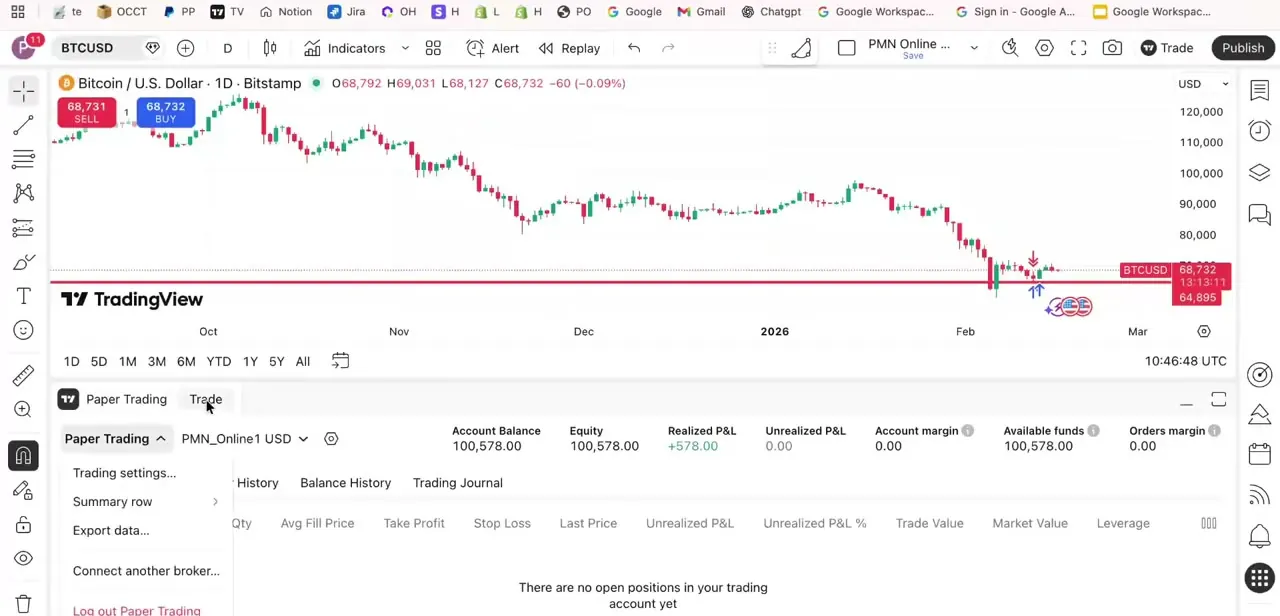
With a chart open on TradingView, look for the Paper Trading tab docked at the bottom of the screen next to Trade. Clicking it expands a panel showing your simulated account: its name, current Account Balance, Equity, Realized and Unrealized P&L, and available funds, plus tabs for Positions, Orders, Order History, Balance History, and Trading Journal.
Click the small caret next to the "Paper Trading" label at the top left of the panel (not the account-name dropdown beside it, which switches between accounts if you have more than one). That opens a menu with Trading settings, Summary row, Export data, Connect another broker, and Log out Paper Trading. Trading settings is where the reset option lives; TradingView's own documentation describes reaching account settings through a gear icon next to the account name, and this menu is that same destination.
02Close any open positions first
Before resetting, check the Positions tab for anything still open. TradingView's reset wipes the account's orders, history, and positions outright, so there's no strict need to close trades manually first.
Doing it anyway gives you a clean read on how your last session performed before that data disappears for good. If the panel already shows "There are no open positions in your trading account yet," you're clear to move straight to the reset.
03Run the account reset
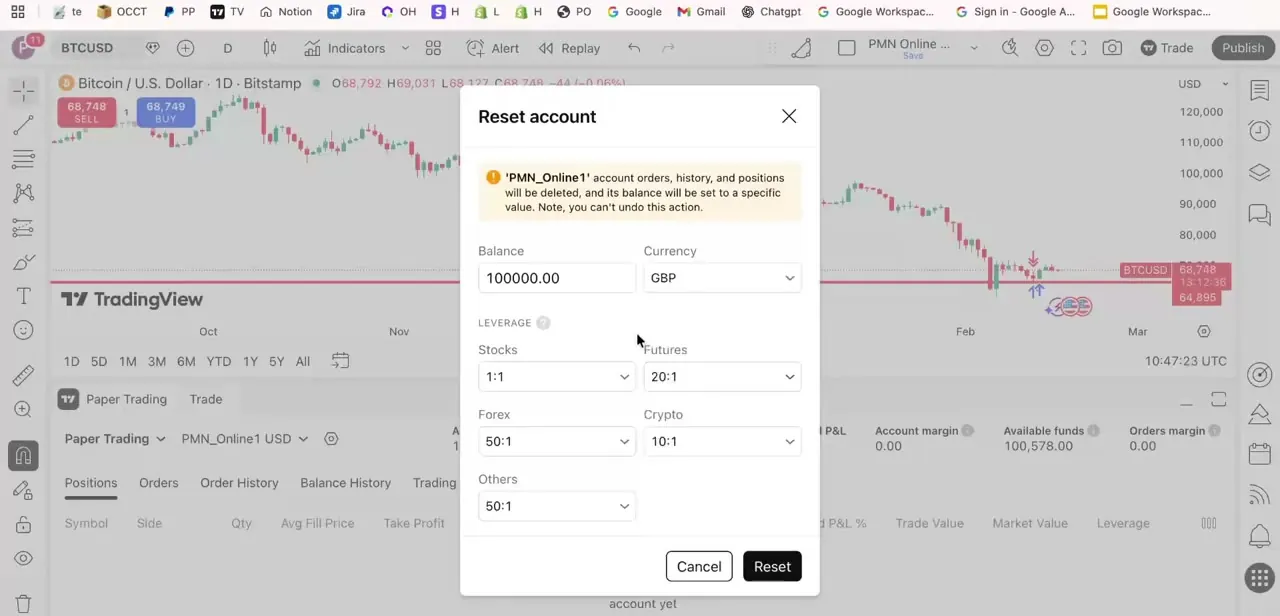
Selecting Trading settings, then Reset account opens a dialog with a clear warning: the account's orders, history, and positions will be deleted, its balance will be set to whatever value you enter, and the action can't be undone. Enter a Balance and pick a Currency, then set leverage separately for Stocks, Futures, Forex, Crypto, and Others if you want different simulated leverage than your last setup. Click Reset to confirm, or Cancel to back out.
04Confirm the balance reset
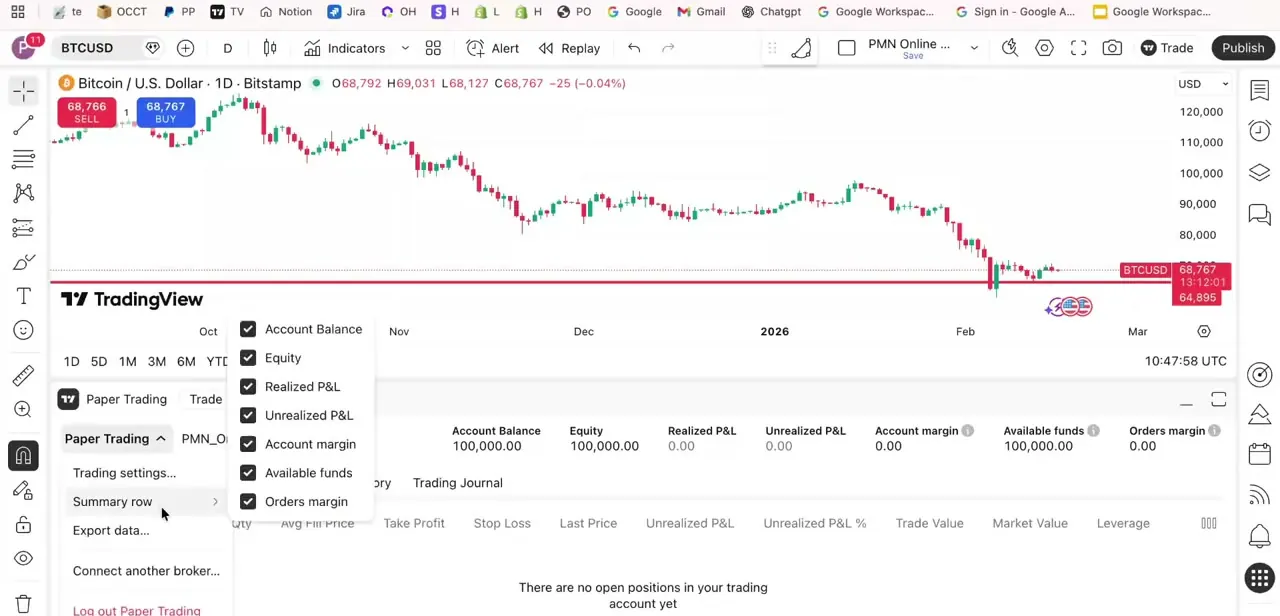
After confirming, the panel's Account Balance and Equity figures should immediately show the new starting number, with Realized P&L, Unrealized P&L, and margin figures back at zero. The Summary row menu, opened from the small icon in the corner of the panel, lets you toggle which figures show in that row, which is a fast way to check the reset landed across balance, equity, and margin without opening each tab.
05Keep your history instead of resetting, if you'd rather
A reset is permanent and deletes everything on that account. If you want a fresh account without losing the record of your last one, TradingView supports connecting more than one Paper Trading account at once, each with its own balance and currency. Use Connect another broker in the panel menu to add a second simulated account instead of wiping the first.
06Set better rules before your next session
A reset is a good moment to fix habits, not just numbers. Decide your position size as a fixed percentage of the new balance instead of picking round numbers on the fly, and set a hard rule for how much of the account you're willing to risk on a single trade before you place it.
Paper trading carries no real financial consequence, so it's tempting to oversize positions just to see what happens. Resist that. The value of practicing here is building habits that transfer to a live account.
When it doesn't work
There's no "Reset account" option visible anywhere
Why: It isn't in the account-name dropdown. It sits inside Trading settings, itself opened from the caret next to the "Paper Trading" panel label, not the account switcher next to it.
Fix: Open the panel menu from the "Paper Trading" caret, choose Trading settings, and Reset account is listed there.
The reset menu item doesn't appear at all, even under Trading settings
Why: Usually a rendering hiccup: the panel hasn't fully refreshed, or a browser extension is interfering with TradingView's layout.
Fix: Refresh the page, or close and reopen the Paper Trading panel from the bottom bar. If it's still missing, try a different browser or temporarily disable ad blockers and script blockers.
I reset the account and now my old trade history is gone
Why: This is expected. TradingView's reset deletes orders, history, and positions permanently and can't be undone.
Fix: Nothing recovers a completed reset. Next time, connect a second Paper Trading account instead if you want to keep the old one's history intact.
Frequently asked questions
Do I need to close open trades before resetting Paper Trading?
Not strictly. The reset deletes all orders, history, and positions regardless. Closing them first just lets you review how your last session performed before that data is gone.
Will resetting Paper Trading affect my real trading account?
No. Paper Trading is a separate simulated account, and resetting it has no effect on any real-money trading account.
Where exactly is the reset option?
Open the Paper Trading panel, click the caret next to the "Paper Trading" label (not the account-name dropdown beside it), and choose Trading settings. Reset account is listed there.
Can I choose my own starting balance and currency when resetting?
Yes. The Reset account dialog lets you set a custom Balance and Currency, plus separate leverage for stocks, futures, forex, crypto, and other instruments.
Is there a way to start over without deleting my old paper trading history?
Yes. Instead of resetting, connect a second Paper Trading account from the panel menu. Each account keeps its own balance, currency, and history, so the old one stays intact.
How often can I reset my Paper Trading balance?
There's no published limit on how often you can reset, since it's designed for repeated practice sessions. Just remember each reset is final.
Sources and last check
Click path and dialog contents come from a walkthrough recorded on the Paper Trading panel, cross-checked frame by frame against the screenshots. The account-settings entry point was re-checked against TradingView's official help articles in September 2026: those articles describe reaching leverage and reset settings through a gear button next to the account name, which corrected this guide's earlier claim that the account-name dropdown itself opens the reset menu. The same check surfaced the multiple-account alternative to resetting, which the guide previously didn't mention.
About the author

Impran M N
I've been hooked on technology for as long as I can remember — especially the new tools and AI apps that seem to land every other week. Easy Tech Tuts is where I write up whatever I've just worked out: I do the task in the real product, record the screen, and turn it into the guide I wish I'd found first.



