 Easy Tech Tuts
How to Paste Code in TradingView Easily 2026
By Impran M NLast checked against official docs
Pasting Pine Script into TradingView is simple in theory: open the editor, paste, save. In practice the default template it starts you with trips people up if you don't clear it first, and a script that looks fine can still fail to apply if you skip the Add to chart step. This guide walks through the real flow on an AAPL daily chart, from the blank Pine Editor with its placeholder script, through pasting a full custom RSI indicator, to seeing that indicator plotted underneath the price chart.
Before you start
- A TradingView account. The free Basic plan is enough to write, save, and apply your own scripts.
- The Pine Script code you want to paste, already copied to your clipboard
01Open the Pine Editor
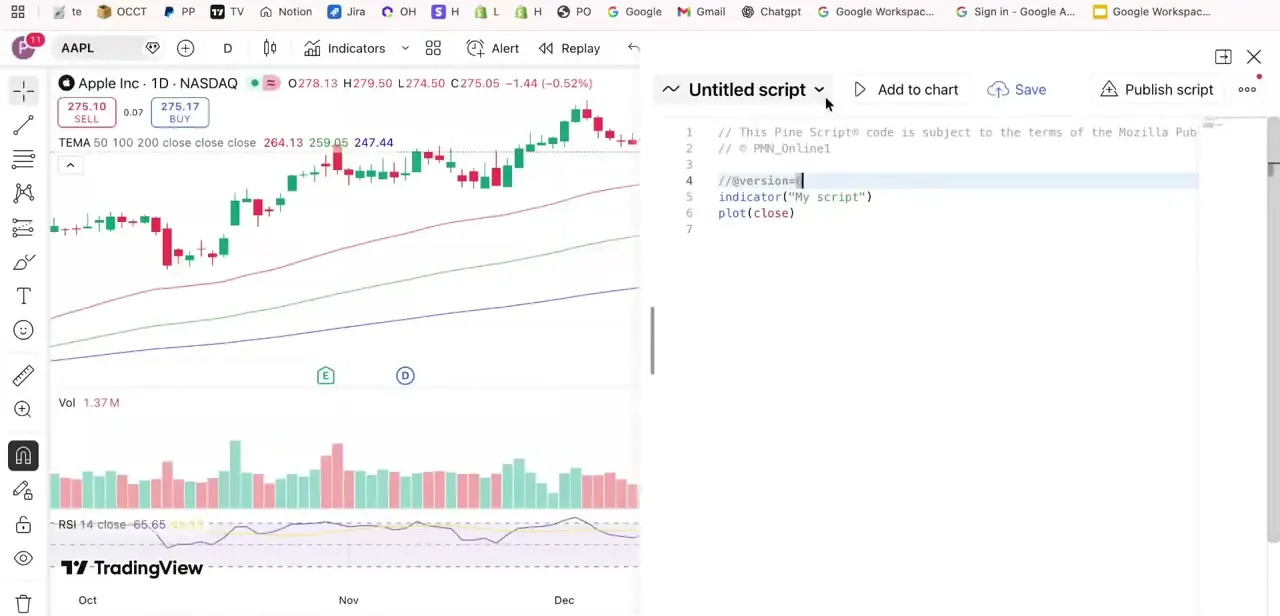
From any TradingView chart, open the Pine Editor panel. It appears on the right side of the screen with its own toolbar: a script name field defaulting to "Untitled script," plus Add to chart, Save, and Publish script buttons along the top.
Before you've written or pasted anything, TradingView pre-fills a default template with a license comment, an //@version tag, an indicator("My script") declaration, and a single plot(close) line. Treat that template as a placeholder, not something to work around: it's there to be replaced.
02Clear the template and paste your code
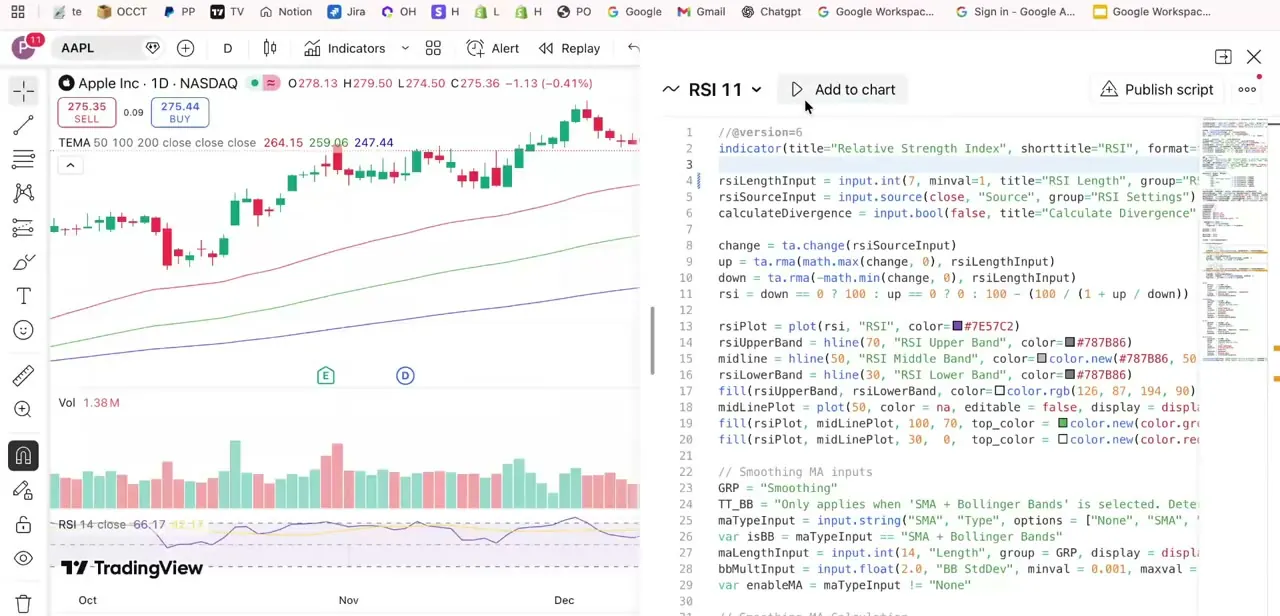
Select all the text in the default template (Cmd/Ctrl+A works fine inside the editor) and delete it, then paste your own Pine Script code in its place. In this example, the pasted script is a full custom RSI indicator: an //@version=6 tag, an indicator() call with a title, shorttitle, and format, followed by input definitions for RSI length, source, and a divergence toggle, and the RSI calculation logic below that.
The editor applies syntax highlighting and line numbers as you paste. That's a quick visual check the paste landed cleanly and not as a single unformatted blob.
03Watch for paste artifacts
The most common reason a pasted script won't compile is formatting picked up from wherever the code was copied: smart quotes instead of straight quotes, extra indentation, or invisible characters from a word processor or chat app. If the script came from a website or a chat tool instead of a plain-text source, scan the first few lines for anything that looks visually off before saving. That's usually where a bad paste shows up first.
04Save the script
Click Save and give the script a clear, descriptive name instead of leaving it as "Untitled script." That name is what shows up later in your list of personal scripts if you want to reopen or reuse it, and it saves time once you have several custom indicators saved and need to find the right one quickly.
05Add it to your chart
Click Add to chart in the Pine Editor's toolbar. TradingView compiles the script and, if it succeeds, plots it directly on your active chart.
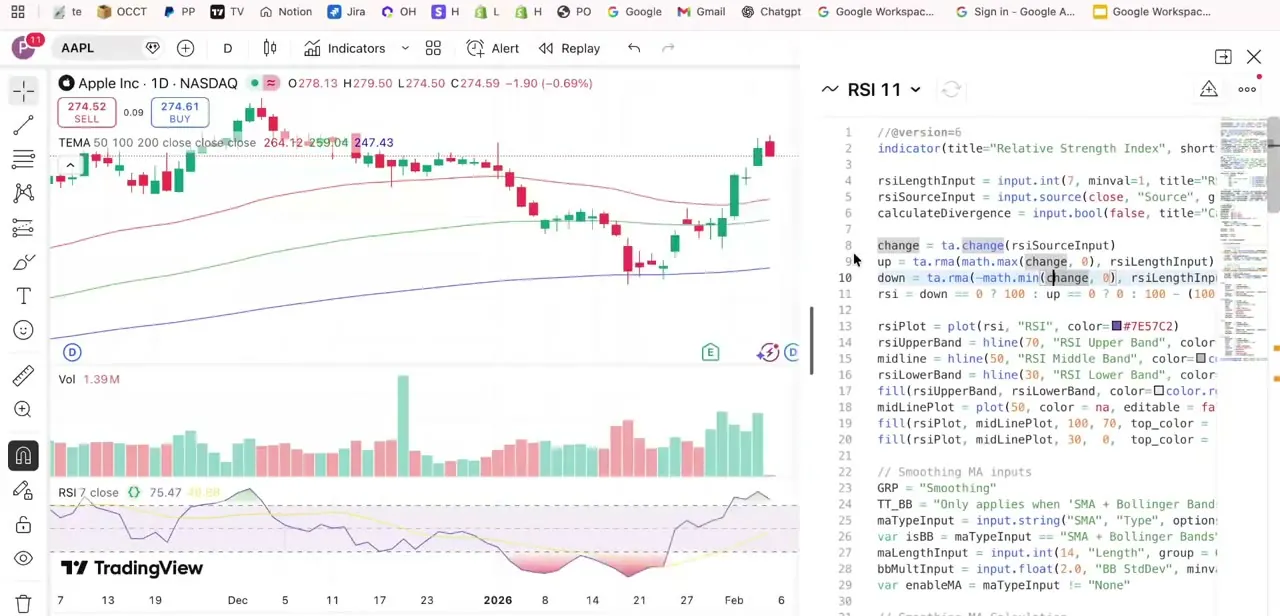
In this case, a new RSI panel appears below the price chart alongside the existing volume and RSI panels already there. If the script has an error, TradingView flags it with an error indicator instead of failing silently, so check the editor for a highlighted line if nothing appears on the chart. On the free Basic plan, this step can also produce nothing because the chart already has its maximum of two indicators; the plan table below covers that limit.
06Confirm it's working as expected
Once the script is on the chart, watch it update as you move your cursor across candles. Values like RSI length and close price should update live, which confirms the script is calculating from your data and not just displaying static lines. If something looks wrong, it's usually faster to go back to the editor and re-check your input values than to re-paste the whole script from scratch.
| Plan | Indicators per chart |
|---|---|
| Basic (free) | 2 |
| Essential | 5 |
| Plus | 10 |
| Premium | 25 |
From TradingView's official pricing page, September 2026. This limits how many indicators can be active on one chart at once; it doesn't limit how many scripts you can write or save in the Pine Editor.
When it doesn't work
The script won't compile after pasting
Why: Formatting picked up from the copy source: smart quotes instead of straight quotes, extra indentation, or invisible characters from a word processor or chat app.
Fix: Re-copy from a plain-text source if possible, and check the specific line TradingView flags in the editor rather than re-reading the whole script.
Add to chart does nothing and shows no error
Why: The chart already has the maximum number of indicators for your plan; Basic allows only 2 per chart.
Fix: Remove an existing indicator from the chart, or move to a plan with a higher per-chart limit.
The compiler complains about the version tag or a function that used to work
Why: The script was written for an older Pine Script version and the //@version tag wasn't updated to match the syntax actually used.
Fix: Confirm the //@version number at the top of the script matches the syntax it uses, and consult the Pine Script docs for that version's changes if a function is flagged as unknown.
Frequently asked questions
Why won't my pasted Pine Script compile?
Usually a version mismatch, a missing declaration line, or extra characters such as smart quotes picked up from copying the code out of a website or chat app instead of a plain-text source.
Do I need to clear the default template before pasting?
Yes. The Pine Editor opens with a placeholder script: a version tag, an indicator() call, and a basic plot line. Select it all and delete it before pasting your own code, or you'll end up with mixed or broken code.
What's the difference between an indicator and a strategy in Pine Script?
Indicators display analysis on a chart. Strategies simulate trades with entries and exits so you can backtest performance.
Do I need a paid plan to use the Pine Editor?
No. Writing, saving, and applying your own Pine Script is available on TradingView's free Basic plan. The plan controls how many indicators can be active on one chart at once, not whether you can use the editor.
Can I edit a script after pasting it?
Yes. Edit the code directly in the Pine Editor, then save again or click Add to chart to update the version already applied to your chart.
Nothing happens when I click Add to chart, and there's no error. What's wrong?
Check how many indicators are already on the chart. The free Basic plan caps out at 2 per chart, so TradingView won't add a third until you remove one or upgrade.
Sources and last check
Screens and code come from a recorded TradingView session pasting a custom RSI script on an AAPL chart. The default template's version tag and the Save/Add to chart workflow were checked against TradingView's own Pine Script documentation in September 2026. The indicator-per-chart limits in the plan table were checked against TradingView's official pricing page the same month. No factual errors turned up in this article; the changes are the added citations, the plan-limit table, and the troubleshooting entries.
About the author

Impran M N
I've been hooked on technology for as long as I can remember — especially the new tools and AI apps that seem to land every other week. Easy Tech Tuts is where I write up whatever I've just worked out: I do the task in the real product, record the screen, and turn it into the guide I wish I'd found first.



