 Easy Tech Tuts
How to Hide Indicator Name in Tradingview Easily 2026
By Impran M NLast checked against official docs
A chart running several indicators can quickly fill up with title text and status-line labels stacked in the corner, making it harder to read the price action underneath. This guide covers two ways to clear that clutter in TradingView: a chart-wide setting that hides every indicator's name at once, and a per-indicator setting for when you only want to quiet down one of them. Neither disables the indicators themselves; they keep calculating exactly as before.
01See what indicator labels look like by default
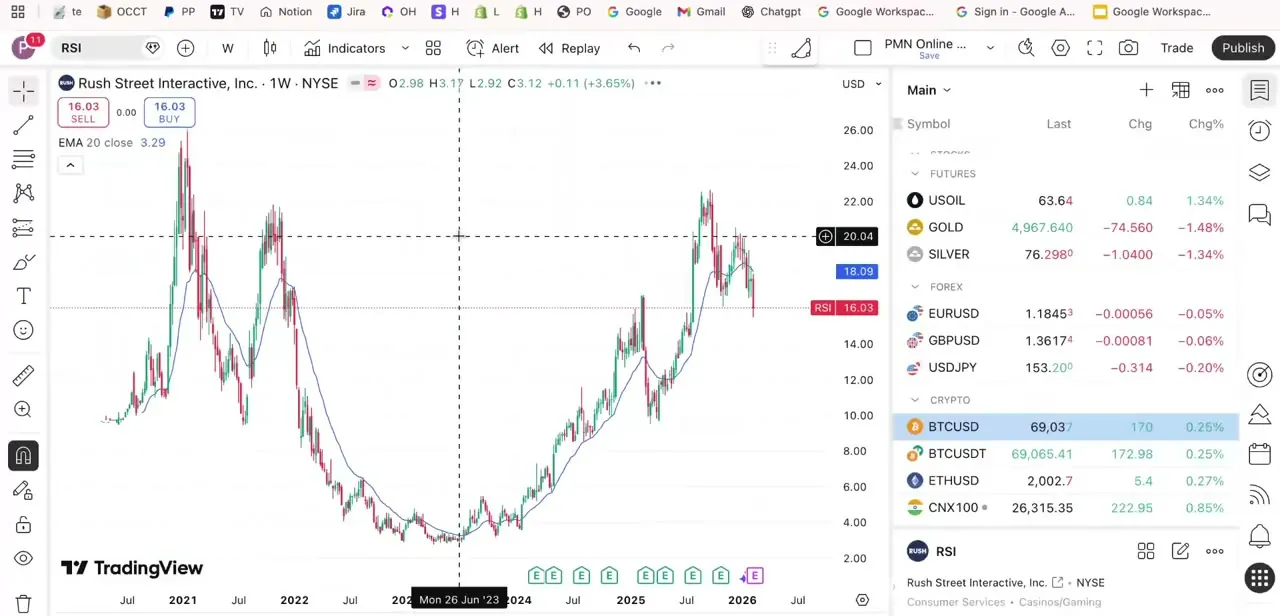
With a couple of indicators active (an EMA overlaid on price and a moving-average-cross signal plotted as arrows), the top-left corner of the chart fills up fast. Each indicator writes its name and current value on its own line: "EMA 20 close 3.29", "MovingAvgCross 9 1", and so on, stacking downward as more get added. On a chart running several tools at once, this label stack alone can cover a meaningful chunk of the price pane.
02Open the chart's Status Line settings
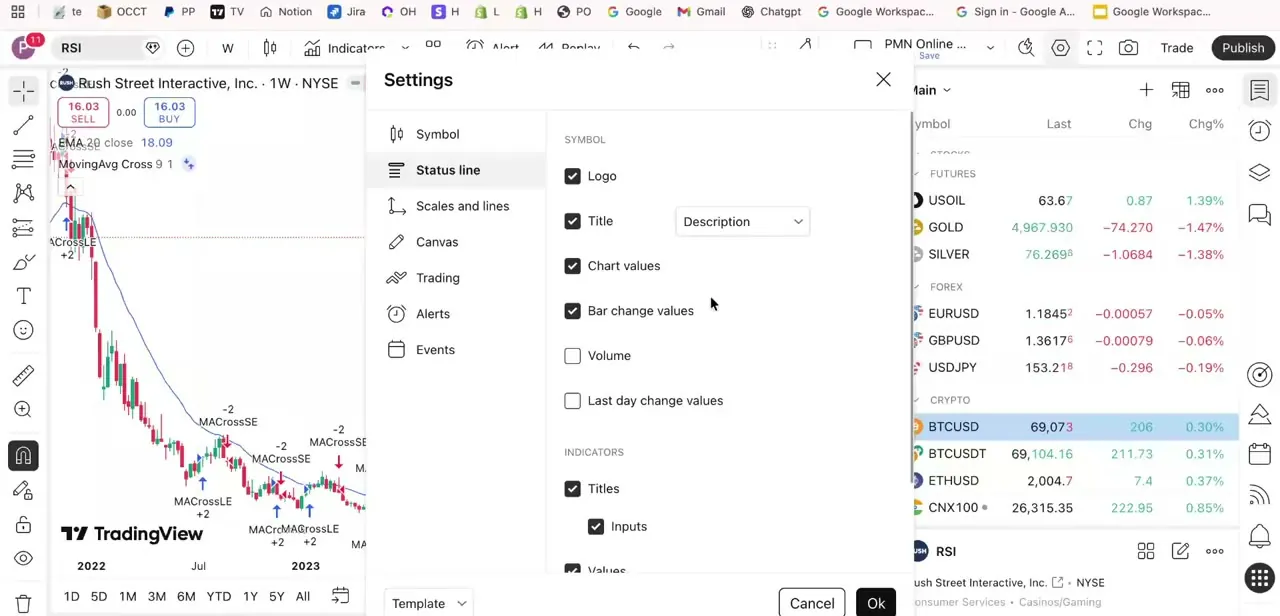
Right-click anywhere on the chart and choose Settings, or click the gear icon in the top toolbar, then open the Status Line tab. This is the tab that controls what text sits docked in the corner of the chart, including everything indicators write there.
TradingView also has a faster, blunter shortcut for the same corner: hovering over the legend reveals a small plus/minus toggle that collapses the whole label block in one click. That's fine for a quick look, but it hides titles and values together and doesn't remember your choice, so it's not a substitute for the settings below if you want a specific combination kept.
03Uncheck Titles and Values under Indicators
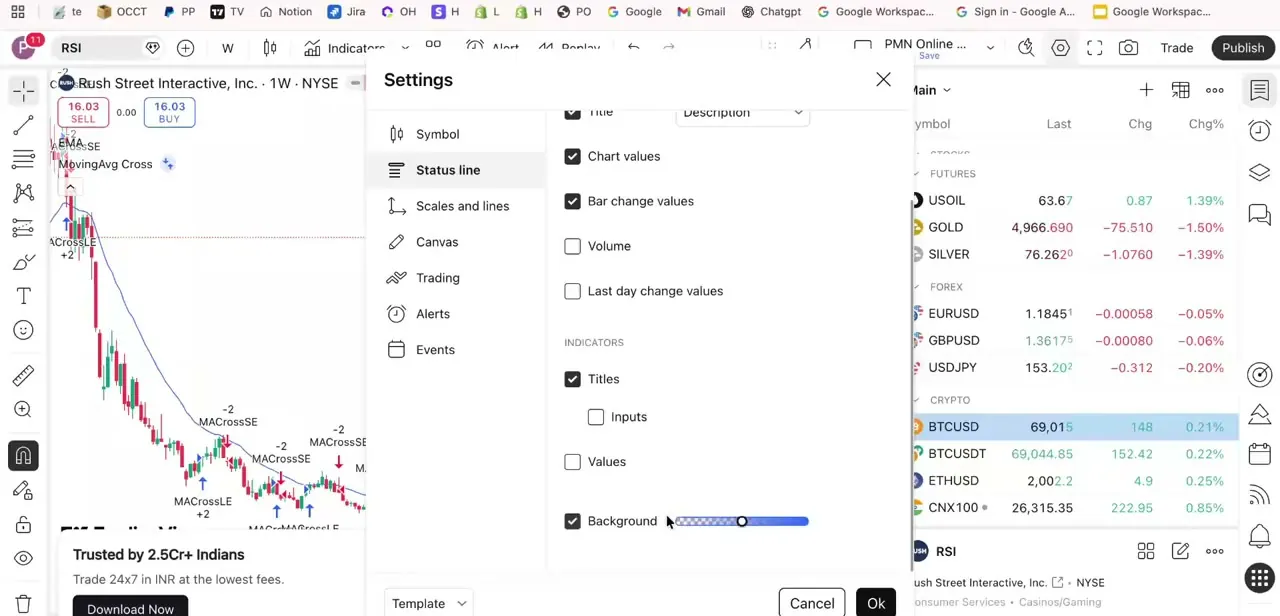
Scroll to the Indicators section within Status Line and you'll find two relevant checkboxes: Titles, which controls whether each indicator's name and input arguments print on the chart, and Values, which controls the live numeric readout. Uncheck Titles and its Inputs sub-checkbox disappears with it, since there's no title line left for it to attach to.
Leave Values checked if you still want the live number without the name cluttering the same line. Click OK to apply.
04Confirm the labels are gone
With Titles and Values both unchecked, the same chart that had "EMA 20 close" and "MovingAvgCross 9 1" stacked in the corner now shows just the indicator lines and signal markers, with no text label attached. The indicators are still fully active and calculating in the background; only what gets printed on screen has changed.
05Hide just one indicator's label instead of all of them
The Status Line panel above is chart-wide: turning off Titles hides every indicator's name at once. If you only want to quiet one indicator and keep the rest labeled, that setting lives somewhere else.
Open that specific indicator's own settings (hover over it in the legend and click its gear icon), go to the Style tab, and uncheck "Labels on the price scale" and "Values in the status line". Those two checkboxes are separate from the chart-wide Status Line panel and apply only to that indicator.
06Save the layout so it sticks
Save your layout from the toolbar so the hidden-label configuration persists the next time you open that chart. This setting lives with the layout, not your account, so a different saved layout keeps its own separate Titles and Values preference.
When it doesn't work
Titles are unchecked in Status Line settings, but one indicator's name still shows
Why: That indicator has its own "Labels on the price scale" or "Values in the status line" option turned on in its own Style tab, which is a separate setting from the chart-wide Status Line panel.
Fix: Open that indicator's own settings (hover over it in the legend, click the gear icon), go to Style, and uncheck those two boxes as well.
The labels are back after reopening TradingView
Why: Status Line settings are saved per chart layout, not per account. A different or unsaved layout loads its own Titles/Values state.
Fix: Re-apply the change on that layout and save it explicitly. Don't assume it carries over to every chart you open.
Frequently asked questions
Will hiding the indicator name affect how it functions?
No. Hiding the Titles or Values label in Status Line settings only changes what's displayed. It doesn't change how the indicator calculates or behaves.
Can I hide labels for all indicators at once, or just one?
Both. The Titles and Values checkboxes under Status Line settings apply to every active indicator on the chart at once. To hide just one indicator's label while keeping the rest visible, use that indicator's own Style tab instead.
Is there a quicker way to temporarily hide all labels?
Yes. Hovering over the legend reveals a plus/minus toggle that collapses the whole label block in one click, but it hides titles and values together and doesn't save as a preference the way the Status Line settings do.
Does this setting reset when I reload TradingView?
Not if you save your layout after making the change. Load a different layout, though, and it can carry its own separate setting.
Why would I want to hide indicator names?
Hiding titles reduces visual clutter, especially with multiple indicators running, making it easier to focus on price and key signals instead of a stack of label text in the corner.
Sources and last check
Click path and screens come from a recorded walkthrough of the chart-wide Status Line settings. The mechanism, plus the separate per-indicator method (that indicator's own Style tab) and the quick legend toggle, were checked against TradingView's own support articles in September 2026. The per-indicator method was added; the original write-up only covered the chart-wide toggle.
About the author

Impran M N
I've been hooked on technology for as long as I can remember — especially the new tools and AI apps that seem to land every other week. Easy Tech Tuts is where I write up whatever I've just worked out: I do the task in the real product, record the screen, and turn it into the guide I wish I'd found first.



