 Easy Tech Tuts
How to Find TradingView ID Easily 2026
By Impran M NLast checked against official docs
TradingView doesn't issue a separate numeric account ID. When a support agent, a broker's connection form, or a script's setup instructions ask for your "TradingView ID," what they want is your username, the same string that shows up in your account menu and in your profile URL.
This guide covers where to find it: the account menu, your public profile page, and, for anyone who needs to rule out a hidden formatting difference, a quick check in the browser's developer tools. It also covers what TradingView's own help pages say about changing that username later, since two of them don't agree on how many times you're allowed to.
01Open TradingView and find your account icon
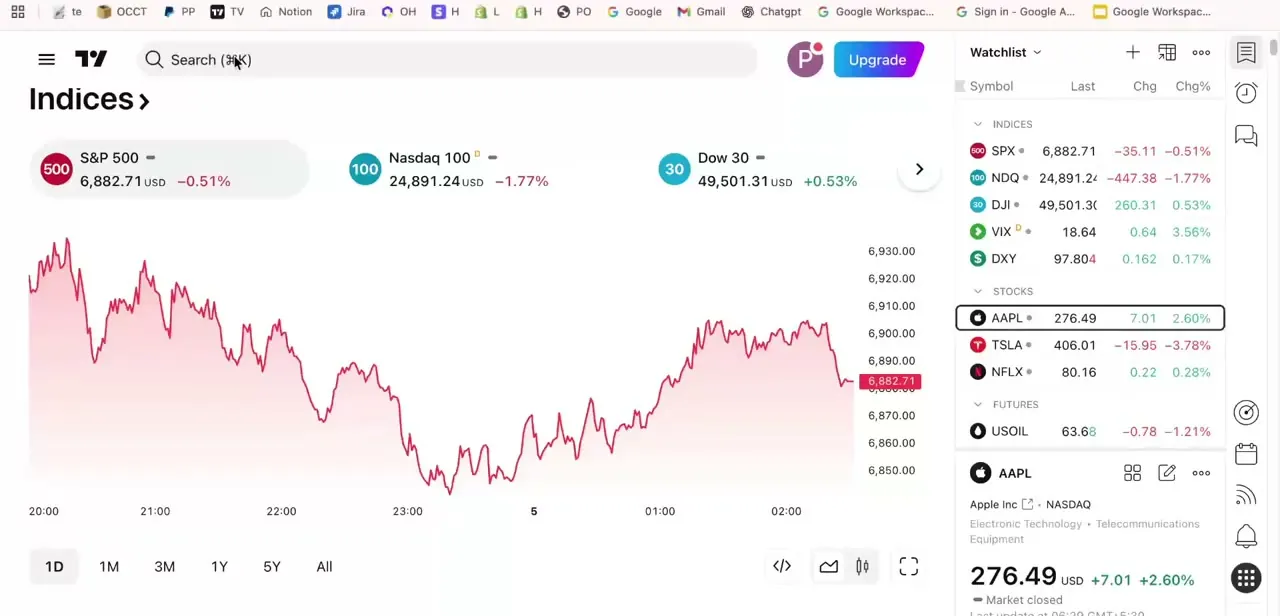
Log in at tradingview.com and look at the top-right corner of any page. Your account avatar sits there as a small colored circle with your initial, next to the Upgrade button.
This icon is your entry point for everything account-related, including the username that functions as your TradingView ID. It's the same spot on a chart page, the markets homepage, or a symbol page: the one consistent place to start.
02Open the account menu
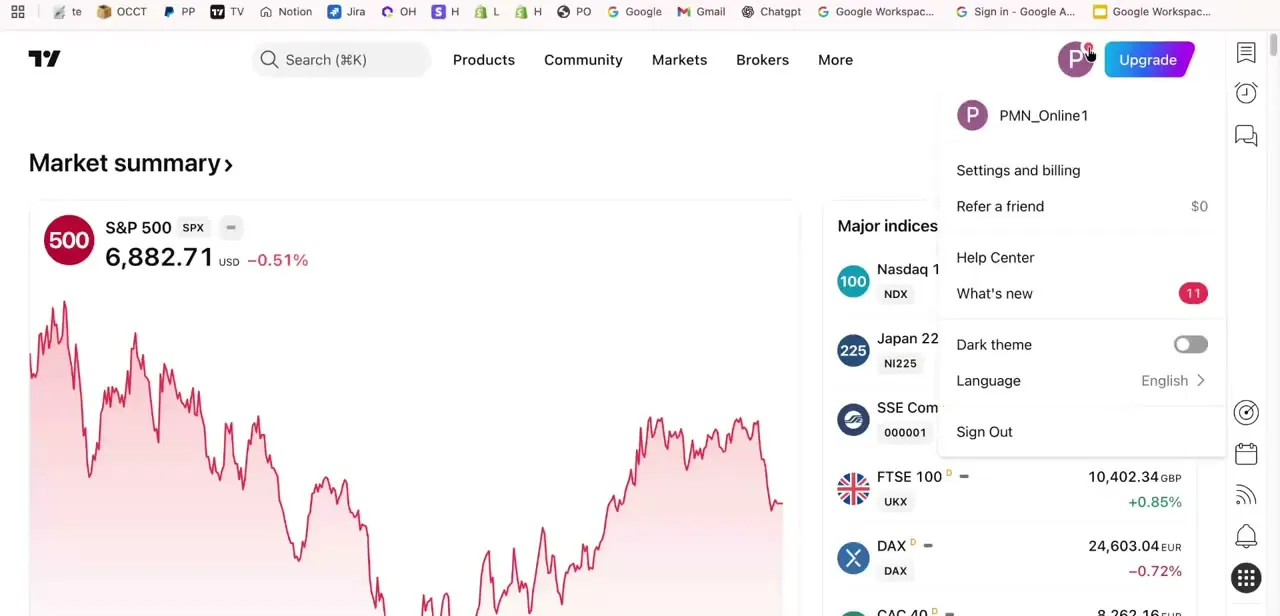
Click your avatar icon to open the account dropdown. This menu shows your display name at the top, in this example "PMN_Online1", along with links to Settings and billing, Refer a friend, Help Center, and Sign Out, plus toggles for dark theme and language. The name shown here at the top of the menu is your TradingView username, and for the vast majority of purposes, support tickets, broker connection forms, sharing your account with someone else, this is the "ID" people are asking for.
03Visit your public profile page
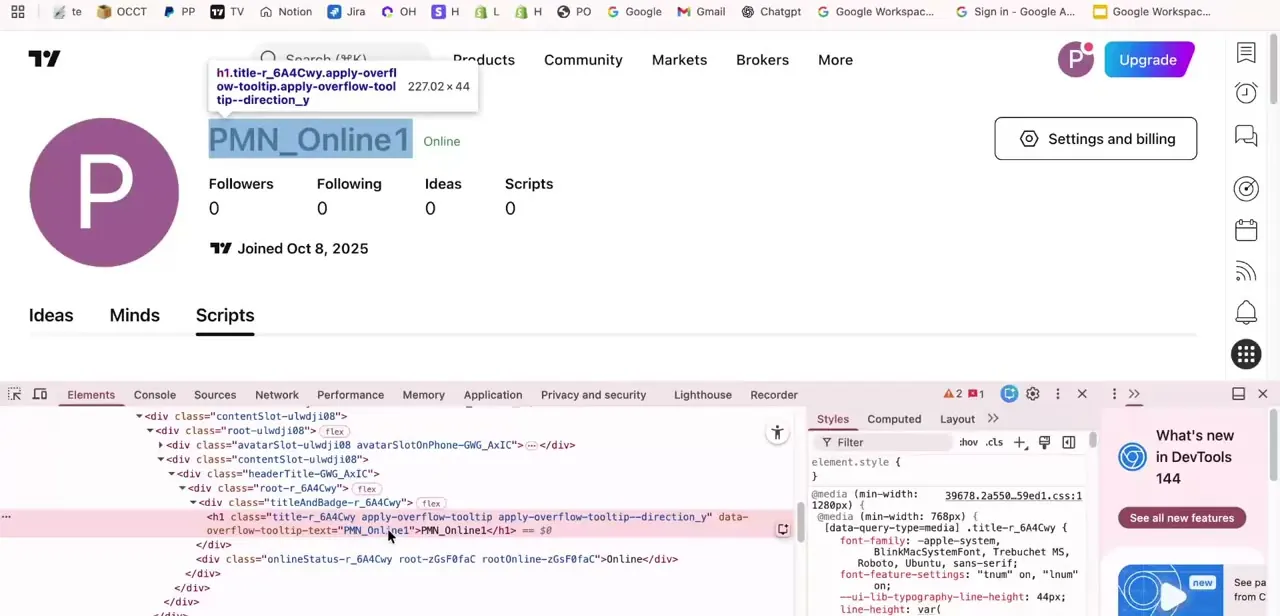
Click your username in the dropdown, or navigate to tradingview.com/u/yourusername/, to land on your public profile. The username appears again here as a large heading above your Followers, Following, Ideas, and Scripts counts, along with your join date. This profile URL is what you copy and share when someone asks for your TradingView link: for scripts you've published, for a broker verifying your account, or for support staff looking up your account by name instead of email.
04Confirm the exact ID string if a script or integration needs it
Some scripts, indicator integrations, and broker connection forms ask for the ID as an exact string. Right-click your username on the profile page and choose Inspect to open the browser's developer tools.
The element panel shows the username sitting inside an h1 heading tag as plain text, with no extra numeric identifier nearby. That confirms the whole string is what's displayed on the page: there's no separate hidden identifier to look for.
05Copy and share it correctly
When a form or support agent asks for your TradingView ID, give your full profile URL instead of the bare username, which removes any ambiguity about capitalization or which platform you mean. Triple-click the username on your profile page to select it cleanly, or copy the URL from your browser's address bar while on your profile. Avoid typing it from memory for anything account-critical like a broker link; a single mistyped character can send the wrong account into someone else's system.
When it doesn't work
TradingView says the username you want is already taken
Why: Usernames must be unique across the platform, and TradingView also rejects names containing "admin", "moderator", or "tradingview", or using characters other than English letters, numbers, underscores, and hyphens.
Fix: Pick a different username that clears those restrictions.
The username-change option won't let you change it again
Why: TradingView caps how many times you can change a username, but its own help pages give different numbers: the account-creation guide says one change is allowed after signup, while the dedicated username-change article says two.
Fix: If you believe you should still have a change available, contact TradingView support directly instead of assuming the interface is wrong.
A bookmarked or shared profile link stops working after you rename
Why: The profile URL is built from the username itself (tradingview.com/u/yourusername/), so changing the username changes the URL.
Fix: Update any saved links, broker forms, or bios to the new URL after renaming.
Frequently asked questions
Is my TradingView ID the same as my username?
Yes. TradingView doesn't issue a separate numeric account ID; the username shown in your account menu and on your profile page is what support requests, broker integrations, and script sharing all mean by "ID."
Why do I need my TradingView ID?
It's commonly needed for support requests, connecting broker integrations, or sharing scripts and profiles with other users. Providing your full profile link instead of just the username avoids confusion.
How many times can I change my username?
TradingView's own help pages disagree: the account-creation guide says it can be changed once after signup, while the separate username-change article says twice. Either way there's a cap, and usernames may only use English letters, numbers, underscores, and hyphens, with no reserved words like "admin" or "tradingview".
Where do I find my ID on mobile?
Open your profile from the account menu in the TradingView mobile app. Your username is displayed the same way as on desktop, at the top of your profile page.
Is there a hidden numeric ID behind my TradingView username?
No numeric ID is documented anywhere in TradingView's official Help Center. Checking the profile page's HTML shows the username as the only identifying text tied to the profile heading, and changing the username also changes your profile link, since the URL is built from it.
Sources and last check
Click path and screens come from a recorded walkthrough. The username-change limit, character restrictions, and reserved-word rules were checked against TradingView's official Help Center in September 2026. Two of TradingView's own pages give different numbers for how many times a username can be changed (one, per the account-creation guide, versus two, per the dedicated username-change article), so this guide reports both instead of picking one. No TradingView documentation describing a numeric ID distinct from the username was found.
About the author

Impran M N
I've been hooked on technology for as long as I can remember — especially the new tools and AI apps that seem to land every other week. Easy Tech Tuts is where I write up whatever I've just worked out: I do the task in the real product, record the screen, and turn it into the guide I wish I'd found first.



