 Easy Tech Tuts
How To Enlarge Candles On Tradingview, Make Candlesticks Bigger & Bolder Easily 2026
By Impran M NLast checked against official docs
Thin, cramped candlesticks make price action genuinely harder to read, especially once you've layered indicators like a 200 EMA or a moving average on top and the chart gets busy. TradingView's default candle rendering works fine at a glance, but zoomed out or on a smaller screen it can leave individual candles barely distinguishable from each other. This guide covers what actually changes candle size in TradingView (it isn't a width slider), where the real control lives in Settings, and how to keep the same bolder look consistent across your charts.
01Start from the default candle view
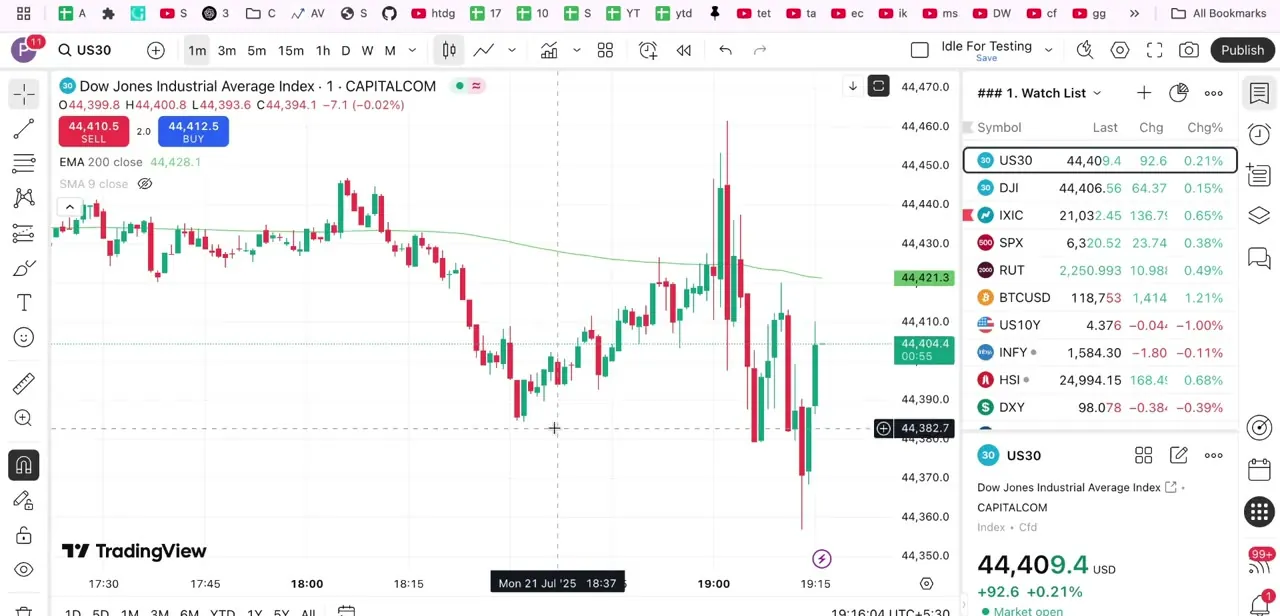
On a fresh chart at a lower timeframe, TradingView's default candlesticks are noticeably narrow: functional for reading direction and general shape, but each individual candle takes up only a sliver of horizontal space, especially with a watchlist docked on the side eating into your chart width. This is the baseline most people are trying to fix, candles that are technically readable but require squinting or zooming in constantly during active analysis.
02Turn off Thin Bars to make candles bolder
TradingView doesn't have a slider that directly sets candle body width or border thickness. The control that actually changes how bold each candle looks is a checkbox called Thin Bars, and it's on by default.
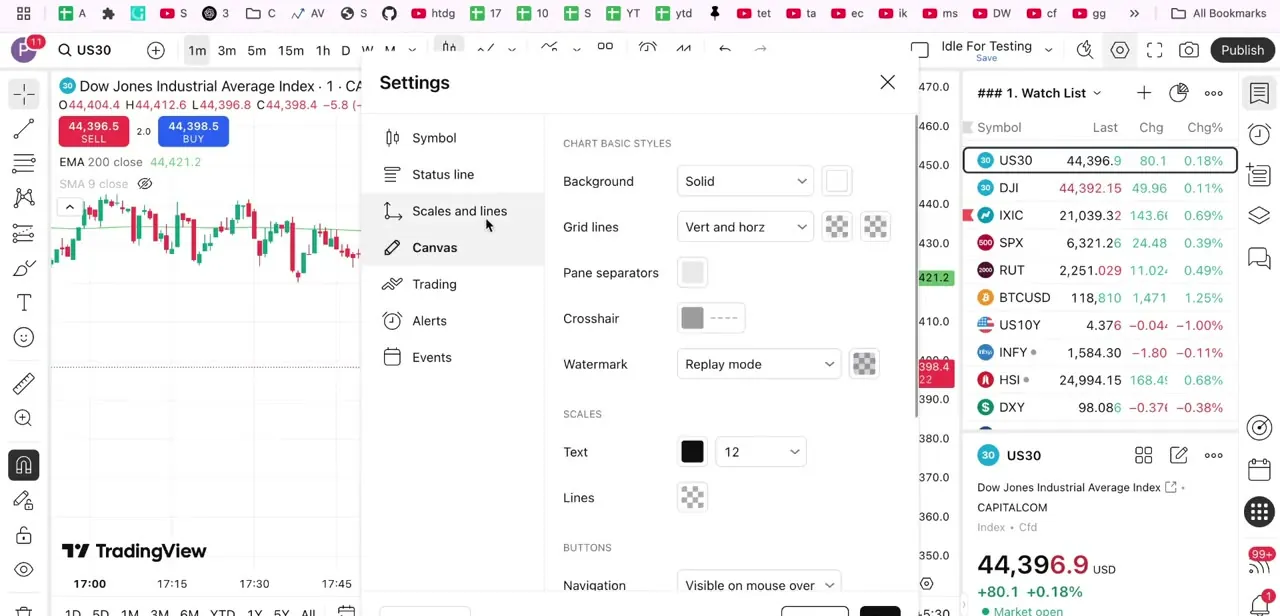
Open Settings (right-click the chart, or use the gear icon in the toolbar) and go to the Symbol tab, where chart-type-specific options live, including the Candles section with Body, Borders, and Wick colors. Thin Bars sits among these options.
Switch it off and every candle renders as a bolder shape instead of the thin, precise line TradingView draws by default. There's a trade-off.
In Thin Bars mode, the open and close price notches sit exactly at their price level. Turn it off and that notch can span more than one price step, so you lose a little precision in exchange for a candle that reads more easily from a distance.
03Zoom in for the biggest size jump
Turning off Thin Bars makes each candle bolder, but the fastest way to make candles bigger is still zooming in. Hold Ctrl (or Cmd on Mac) and scroll, press Ctrl and the Down arrow, or drag the edge of the time axis at the bottom of the chart.
Fewer candles fit in the same width, so each one gets proportionally wider. Combine this with Thin Bars off for the boldest result. There's a balance point: zoom in too far and you lose the broader trend context you'd otherwise catch by seeing more candles at once.
04Compare the result against your original view
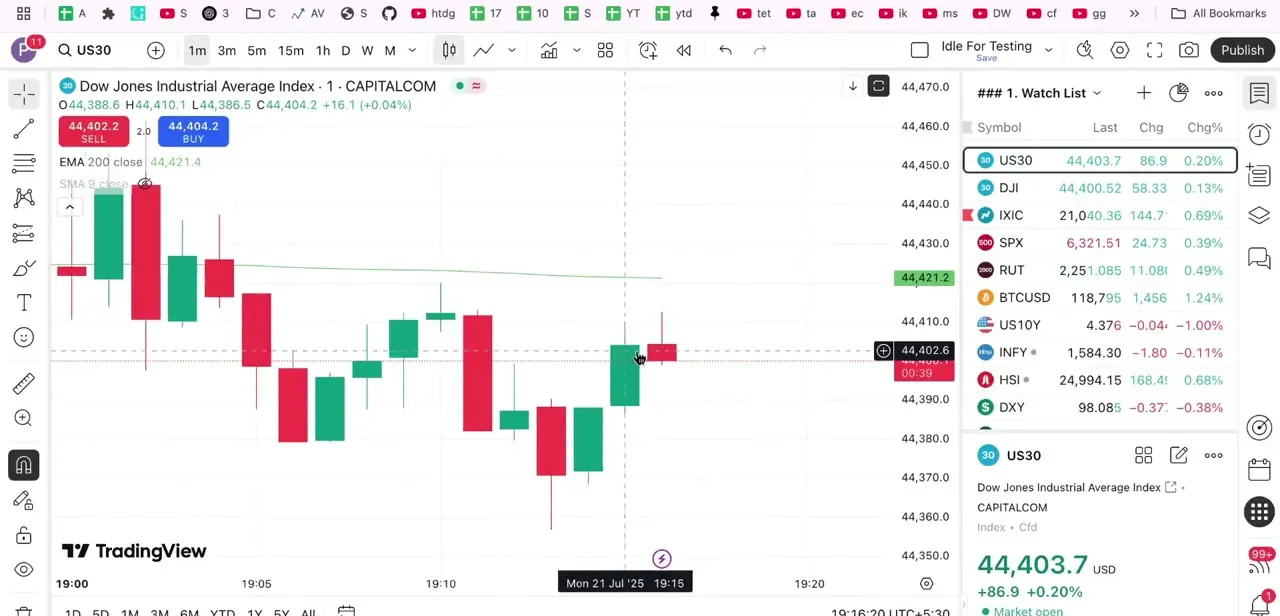
After turning off Thin Bars and zooming in, the same price action reads completely differently: each candle is a clearly separated block of color instead of a thin line, and bullish versus bearish direction is obvious without leaning toward the screen. This is the practical test of whether you've gone far enough. If you can tell direction and relative size at a normal viewing distance without zooming further, it's doing its job.
05Pick contrast-friendly colors for your theme
Bolder candles make color contrast matter more, not less, since a poorly chosen bullish or bearish color now covers more pixels. The Body, Borders, and Wick colors live in the same Symbol tab as Thin Bars.
On a dark theme, brighter greens and reds read better than the muted defaults; on a light theme, slightly deeper, more saturated tones hold up against the white background without washing out. Set these separately for whichever theme you trade in most, since a color that looks fine in daylight testing can be harder to read once you switch to a night theme.
06Save the look as a template for consistency
Once you're happy with the Thin Bars setting, zoom level, and color combination, use the Template option at the bottom of the Settings panel to save it, so every new chart you open inherits the same bold candle styling instead of reverting to TradingView's defaults. Zoom itself isn't part of a template, so you'll still adjust that per chart.
If you also trade from the mobile app, repeat the Thin Bars and color adjustments there too. Settings aren't shared automatically between desktop and mobile, though the underlying options are the same on both.
| Thin Bars | What you see | Best for |
|---|---|---|
| On (default) | Precise open and close notches at their exact price level; a thinner, more delicate rendering | Reading exact price levels off an individual bar |
| Off | A bolder rendering; the open and close notch can span more than one price step | Scanning direction and shape quickly, especially zoomed out or on a small screen |
Per TradingView's official support article on why bars render thin by default, checked September 2026.
When it doesn't work
There's no width or thickness slider anywhere in Settings
Why: TradingView doesn't offer a numeric body-width or border-thickness control. The setting that actually changes candle boldness is the Thin Bars checkbox, combined with however far you've zoomed in.
Fix: Uncheck Thin Bars in the Symbol tab and zoom in with Ctrl+scroll, or by dragging the time axis, instead of hunting for a width field that doesn't exist.
Candles look thicker, but the exact open and close point is harder to read off the bar
Why: That's the trade-off Thin Bars controls: the notch is drawn precisely at the open/close level when it's on, and can cross more than one price step once it's off.
Fix: Re-enable Thin Bars if you need to read exact levels directly off the bar, and rely on zooming alone for size, or hover the candle for the exact OHLC values in the tooltip.
The bolder look doesn't show up on the mobile app
Why: Desktop and mobile chart settings aren't shared automatically.
Fix: Repeat the Thin Bars toggle and color choices in the mobile app's own chart settings.
Frequently asked questions
Why do my candlesticks look too thin on TradingView?
That's TradingView's default: a setting called Thin Bars, turned on by default, draws the open and close notch precisely at its price level, which produces a thinner line. It lives in the chart's Symbol tab and can be switched off.
How do I actually make candles bigger on TradingView?
There's no direct width slider. Turn off Thin Bars in the Symbol tab for a bolder shape, then zoom in with Ctrl+scroll (or drag the time axis) so fewer candles occupy the same width. The two combined give the biggest visual change.
Does turning off Thin Bars affect indicator accuracy?
No. It's a purely visual setting. Price action is easier to read, but indicators like RSI, MACD, or moving averages are calculated on the same underlying data regardless of how candles are drawn.
Can I make candles bigger on the TradingView mobile app?
Yes, similar Thin Bars and color options exist in the mobile app, but you'll need to set them up separately since settings aren't shared automatically between desktop and mobile.
What color contrast works best for reading candlesticks at night?
Brighter, higher-saturation colors against a dark chart background tend to be easier to distinguish than the muted defaults. Set this separately from whatever you use on a light theme, since the Body, Borders, and Wick colors are configured per theme.
Sources and last check
Screens and click path come from a walkthrough recorded in 2025. The candle-sizing mechanism was re-checked against three official TradingView pages in September 2026, and that check found this guide's central claim was wrong: TradingView has no numeric body-width or border-thickness control. The setting that actually bolds candles is the Thin Bars checkbox in the Symbol tab, combined with zooming in; this guide previously described a width and border-thickness slider living under the Canvas tab, which does not match TradingView's own documentation of that tab (chart-wide background and grid styling only) or of the Symbol tab (where Body, Borders, Wick colors and Thin Bars actually live). The steps, the table, and the FAQ were rewritten around the corrected mechanism.
About the author

Impran M N
I've been hooked on technology for as long as I can remember — especially the new tools and AI apps that seem to land every other week. Easy Tech Tuts is where I write up whatever I've just worked out: I do the task in the real product, record the screen, and turn it into the guide I wish I'd found first.



