 Easy Tech Tuts
How to Delete TradingView Layouts Easily 2026
By Impran M NLast checked against official docs
Anyone who tests more than one strategy on TradingView ends up with a graveyard of saved layouts: half-finished setups, one-off experiments, copies of copies with names that meant something six months ago. They clutter the layout switcher and, on the lower plans, count against a small saved-layout limit that's stricter than most people expect.
Deleting one takes seconds once you know the control lives in the chart's top toolbar, not in account settings. This guide shows where that control is, how deletion works, and what to check before removing something you can't get back.
01Find the layout name in the chart toolbar
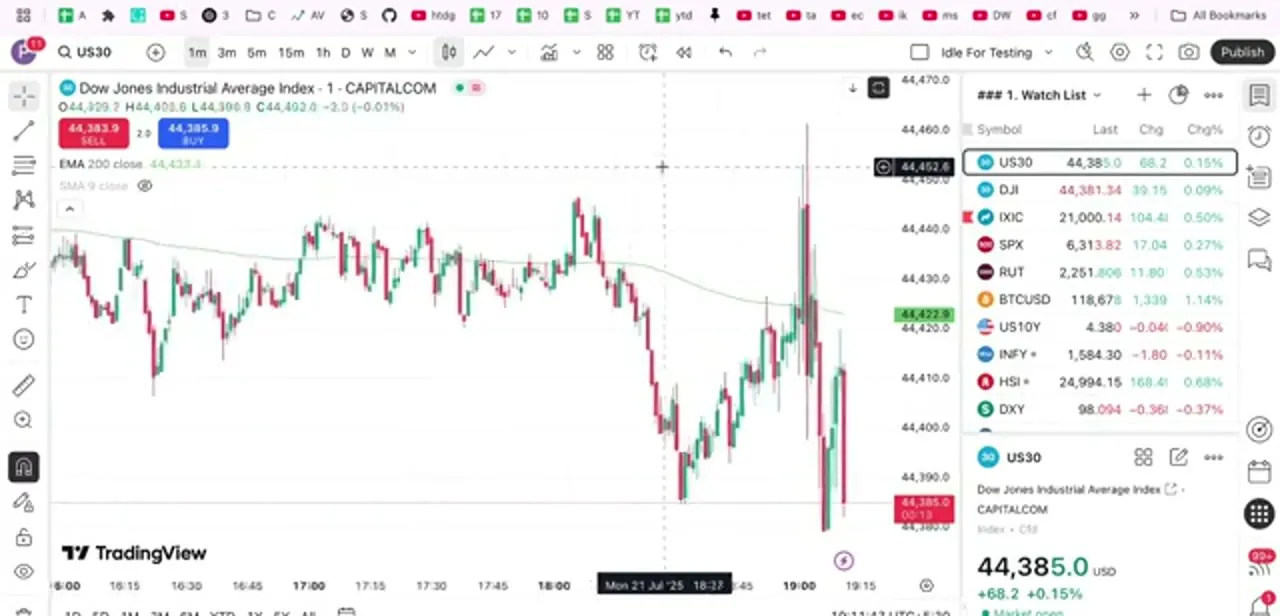
Open any chart on TradingView and look along the top toolbar, to the right of the timeframe buttons and drawing tools. The name of the currently loaded layout sits there next to a small cloud icon; in a working account it might read something like "Idle For Testing" instead of anything descriptive.
That name is also a button. Everything to do with saving, renaming, copying, and deleting layouts hangs off it, which is why searching your profile or account settings for a layout manager turns up nothing.
02Open the layout menu, then the full Layouts manager
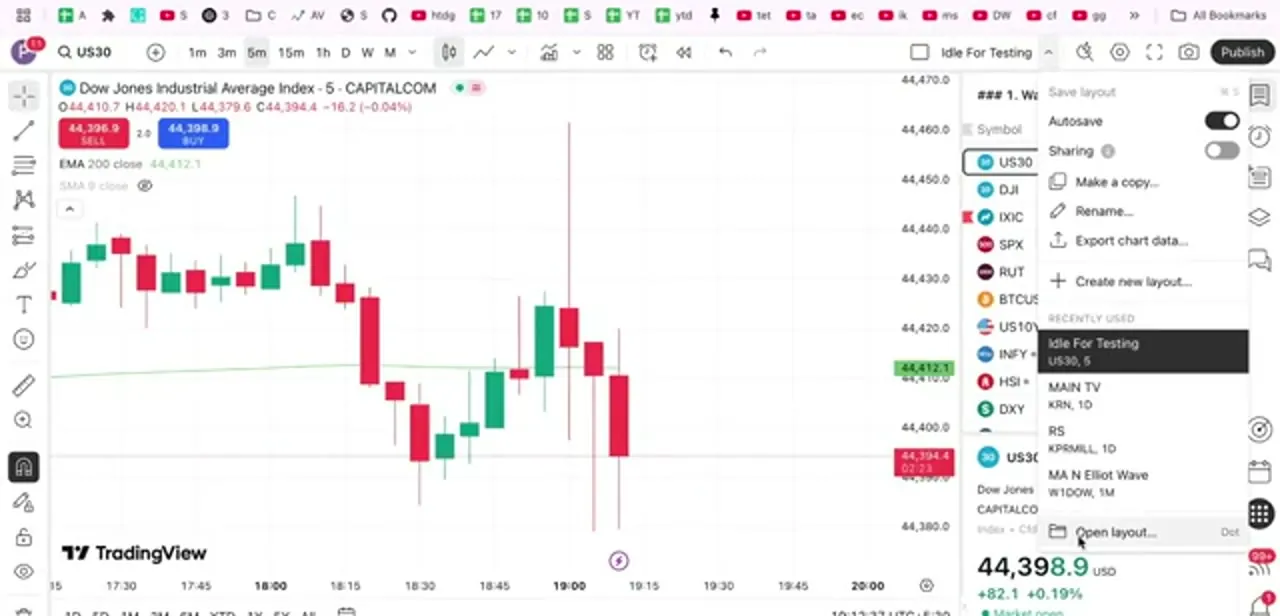
Clicking the layout name drops down a menu. At the top are actions for the layout you're currently in: Save layout, an Autosave toggle, Sharing, Make a copy, Rename, and Export chart data, followed by Create new layout.
Below that, under Recently used, TradingView lists the handful of layouts you've opened most recently with their symbol and timeframe. That list is a shortcut, not your full collection, so don't worry if the one you're hunting for isn't there.
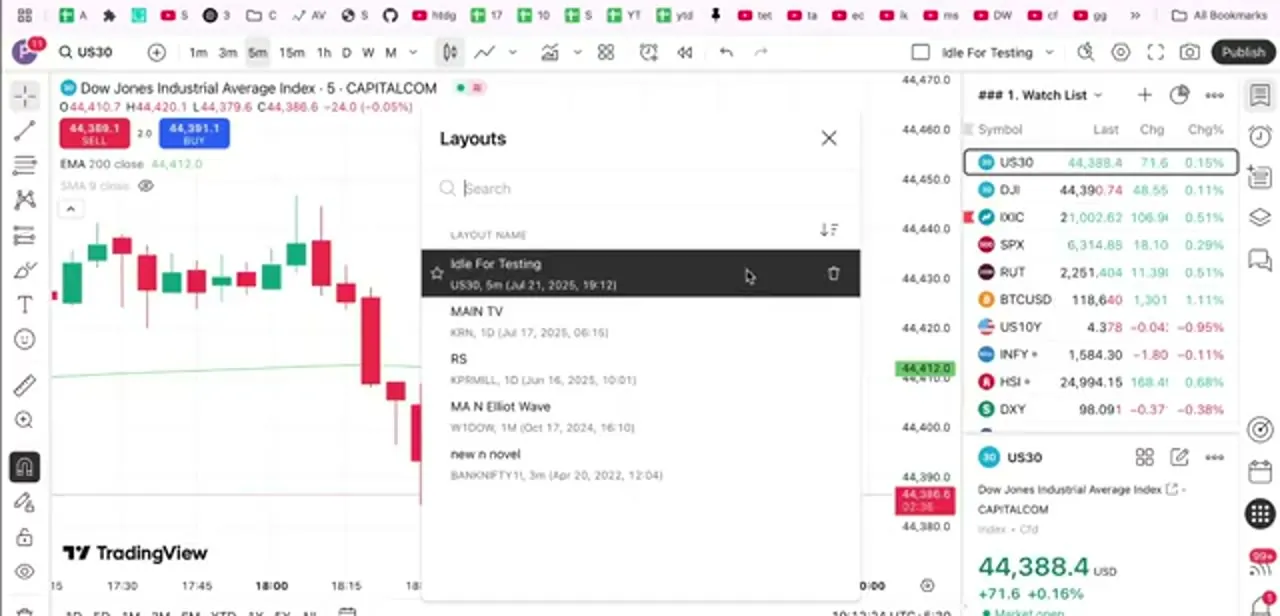
At the bottom of the dropdown is Open layout, and choosing it opens the Layouts dialog: TradingView's own help center calls this the "Manage layouts" list. It shows every layout attached to your account, with a search box and a sort control, and each row carries the layout's symbol, timeframe, and last-saved date.
03Delete the layouts you don't need
Hover over a row in the Layouts list and a trash icon appears on the right, alongside a star for marking favorites. Click it and confirm to remove that layout.
There's no multi-select here; TradingView deletes one at a time, so a proper clear-out is a short session of repeated clicks, not one bulk action. Deletion is permanent: a removed layout doesn't go to any kind of recycle bin, and the drawings, indicator settings, and templates saved inside it go with it. If a layout has work you might want later, use Make a copy or Export chart data first, or turn on global drawing sync so your drawings survive even if the layout they were saved in gets deleted.
04Know your plan's actual layout limit
Housekeeping matters more than the free Basic plan lets on: it allows exactly one saved layout, and TradingView's current pricing page puts Essential at five, Plus at ten, and Premium at ten as well. Even the top Ultimate plan caps out at ten.
There's no unlimited tier for saved layouts, so if TradingView refuses to save a new one, you've hit that ceiling, not a bug, and clearing out something old is the fix. Rename what survives a clear-out while you're in there: asset class and purpose beat version numbers, so "Crypto swing" reads better in three months than "Chart 3" does.
When it doesn't work
TradingView refuses to save a new layout
Why: You've hit your plan's saved-layout limit: one on Basic, five on Essential, ten on Plus, Premium, and Ultimate alike.
Fix: Delete an unused layout from the Layouts manager first, or upgrade to a plan with more room, keeping in mind that even Ultimate tops out at ten.
A layout got deleted by mistake and there's no way to get it back
Why: TradingView removes layouts permanently with no recycle bin; the drawings and indicator settings inside go with it.
Fix: There's no recovery after the fact. Before deleting anything you're unsure about, use Make a copy or Export chart data on it first.
Drawings vanished along with a deleted layout
Why: Those drawings were saved inside that specific layout instead of synced across all of them.
Fix: Turn on global drawing sync for anything you want to keep, so it stays available on other layouts even if one gets deleted.
Frequently asked questions
Where is the delete option for a TradingView layout?
Click the layout name in the chart's top toolbar, choose Open layout at the bottom of the dropdown, then hover the layout you want to remove in the Layouts dialog and click the trash icon on its row.
Can I recover a chart layout after deleting it?
No. Deletion is permanent and takes the drawings and indicator settings saved in that layout with it. Use Make a copy or Export chart data first if there's anything you might want back.
How many layouts can I save on each TradingView plan?
One on the free Basic plan, five on Essential, and ten on Plus, Premium, and even Ultimate. There's no plan with unlimited saved layouts, so a refused save means you've hit that number, not a fault.
Can I delete several layouts at once?
Not in the Layouts manager; there's no multi-select. You delete them one row at a time, which is quick but tedious for a long backlog.
Can I delete layouts from the TradingView mobile app?
Yes. Layouts live on your account, not on a device, so the layout list in the mobile app shows the same collection, and removing one there removes it everywhere.
Sources and last check
Click path and screens come from a recorded walkthrough. Re-checked against TradingView's own help article on deleting a layout and its live pricing page in September 2026. The pricing check corrected the claim that paid tiers scale up to an unlimited number of saved layouts: the current comparison table caps every tier, including Ultimate, at ten.
About the author

Impran M N
I've been hooked on technology for as long as I can remember — especially the new tools and AI apps that seem to land every other week. Easy Tech Tuts is where I write up whatever I've just worked out: I do the task in the real product, record the screen, and turn it into the guide I wish I'd found first.



