 Easy Tech Tuts
How to Create Order Presets in TradingView, Save Risk to Reward Easily 2026
By Impran M NLast checked against official docs
Typing the same units, risk percentage, and stop distance into the order ticket before every single trade is the kind of friction that leads to mistakes when the market is moving fast. TradingView's order ticket keeps those fields on one screen, and once units, percent risk, and a stop are filled in, a dedicated Order presets feature lets the whole configuration be saved and reapplied in a click instead of rebuilt from scratch. This guide walks through filling in the ticket, then turning that into an actual saved preset.
Before you start
- A TradingView account with either Paper Trading or a connected broker active, since the order ticket only appears once one of those is available
01Open a chart and get your bearings
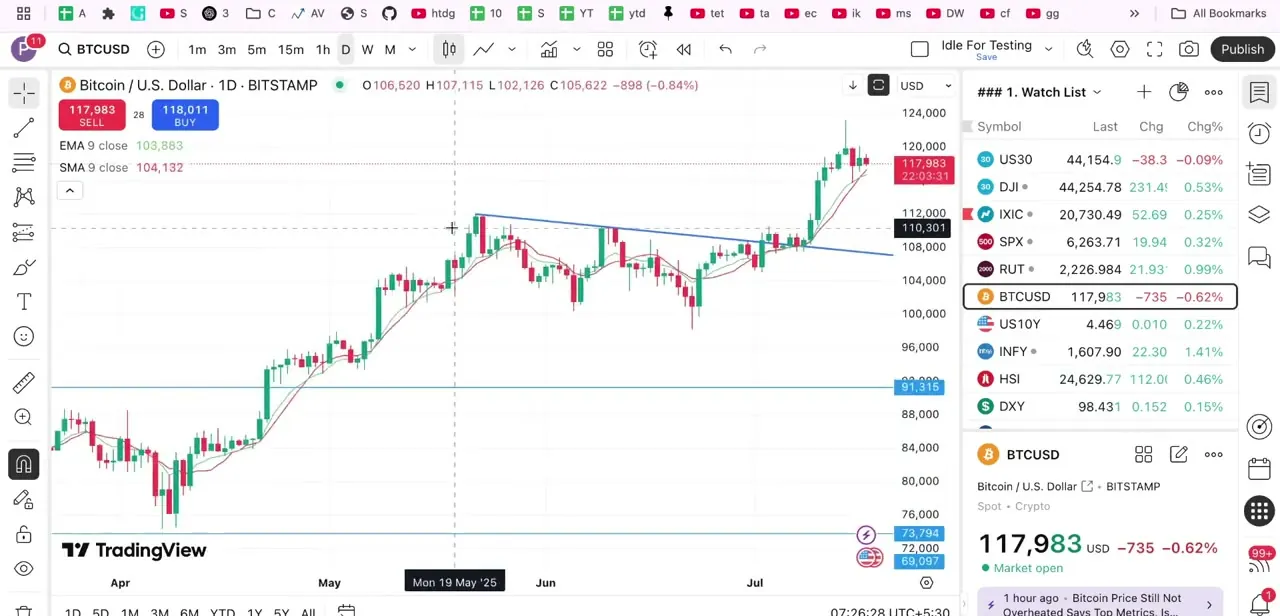
Start from a normal TradingView chart with your symbol loaded — the example here is BTCUSD on the daily timeframe, with EMA and SMA lines plotted so the trend context is visible before any order gets placed. The buy and sell price boxes in the top left update live, and this is also where you'd switch timeframes to plan an entry against a different chart resolution than the one currently open.
02Open the trading panel and pick your order type
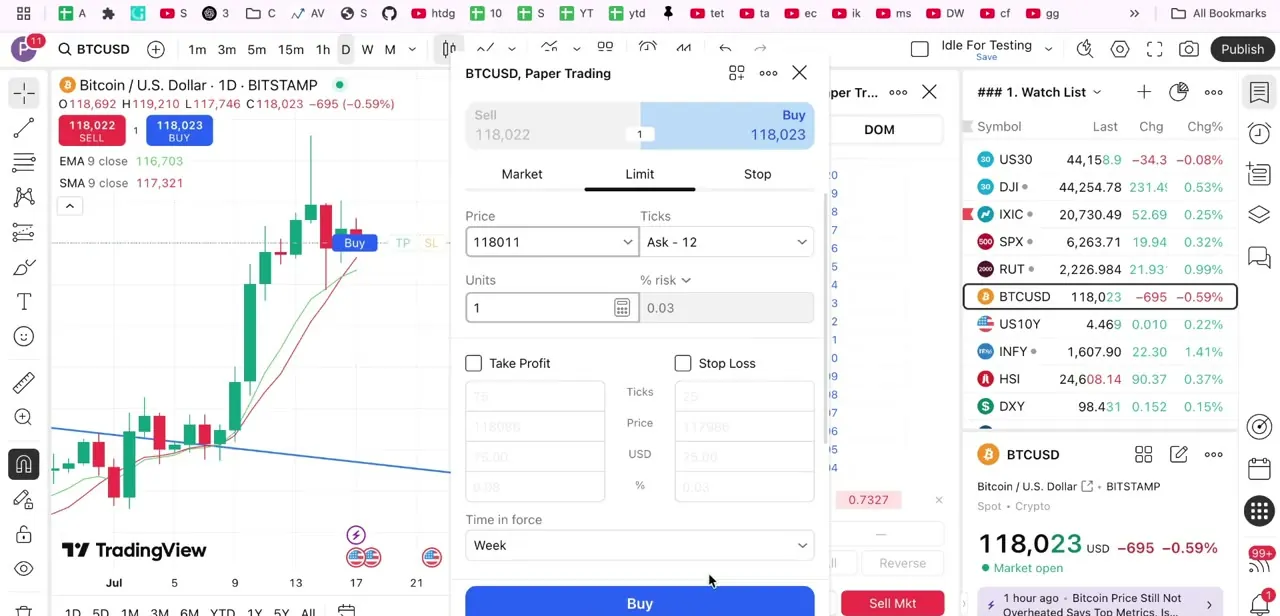
Click the trade button, or click directly on the Buy or Sell price box, to slide out the order ticket over the chart. Across the top are three order types: Market, Limit, and Stop.
Limit is the one to use for an exact entry price instead of whatever the market offers right now. With Limit selected, a Price field and a Ticks field appear, setting the entry as a specific price or as a number of ticks away from the current ask.
03Set your Units and switch to percent risk
The Units field controls position size directly, but the more useful field next to it is the dropdown showing "% risk". This turns position size into a risk-based calculation instead of a fixed number worked out by hand. With a small Units value and no stop set yet, the risk percentage sits near zero, a cue that position size and the eventual stop loss are linked and need to be set together, not independently.
04Attach a Stop Loss and Take Profit, and let TradingView calculate the rest
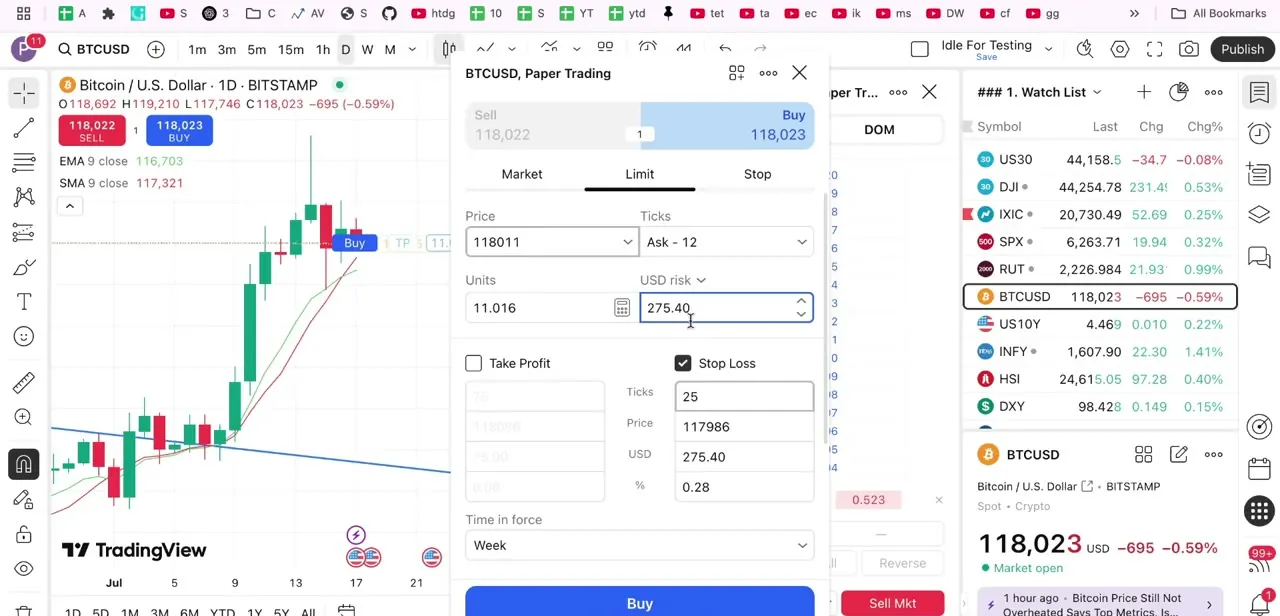
Check the Stop Loss box below Units, and four linked fields appear: Ticks, Price, USD, and percent. Enter the stop in whichever unit is most natural, ticks away from entry or a hard price, and TradingView fills in the rest.
In this example, a 25-tick stop against a 118011 entry price works out to a 117986 stop price, a 275.40 USD risk, and 0.28% of account equity, all calculated the moment the stop is entered. Take Profit sits right next to Stop Loss and works the same way, with whichever field gets filled in first driving the rest. Setting both before submitting is what turns this into a genuine reusable configuration instead of a one-off entry.
05Confirm Time in force and place the order
Below the risk fields is Time in force, defaulting to Week for a limit order that stays working until it fills or gets canceled; change this if the order should expire sooner. Once everything checks out, the Buy or Sell Mkt button at the bottom submits the order with units, entry, stop, and target attached as one package, exactly as configured.
06Turn it into an Order preset
TradingView has a dedicated Order presets feature for exactly this situation: instead of retyping the same units, percent risk, and stop distance next time, click Order presets inside the order ticket, choose Save Order preset, and give it a name. The saved preset then appears in the ticket's preset menu, and once one exists, a matching preset button also appears next to the chart's Buy/Sell buttons for one-click reuse.
In the "placing orders without confirmation" mode, the hotkeys Shift+B and Shift+S place an order with the applied preset directly. TradingView caps saved presets at 10 per user, and presets are unique to each connected broker or account, so a different connection starts with its own fresh set of 10.
When it doesn't work
There's no obvious way to save the current order setup
Why: The Order presets button lives inside the order ticket itself and only appears once the ticket is open, easy to miss if you're looking at the chart toolbar instead.
Fix: Open the order ticket (Buy/Sell or Trade), then look for Order presets near the top of the ticket and choose Save Order preset.
TradingView won't let me save another preset
Why: Saved presets are capped at 10 per user, and the count is unique to each connected broker or account.
Fix: Delete a preset that's no longer used, or switch to a different broker account, which starts with its own set of 10.
The Take Profit / Stop Loss fields look different on my connected broker than they do here
Why: TradingView's own documentation for these fields is written against Paper Trading; real broker integrations vary in which of Ticks, Price, USD, and percent they expose.
Fix: Check the exact fields available for that broker, or build and test the preset in Paper Trading first, where the full field set is guaranteed.
Frequently asked questions
What is an order preset on TradingView?
A saved, named configuration of the order ticket: order type, price, units, percent risk, Take Profit, Stop Loss, and time in force, created with the Order presets button and reapplied later from a menu, a chart button, or a keyboard shortcut.
Where do I set my risk percentage?
In the order ticket, next to Units, there's a dropdown that can be switched to "% risk." Combined with a Stop Loss entry, TradingView calculates the exact ticks, price, and USD amount that correspond to the chosen percentage.
How many order presets can I save?
Up to 10 per user, according to TradingView's own documentation, and that count is separate for each connected broker or account, so a different connection gets its own fresh set of 10.
Can I test this without risking real money?
Yes. The same order ticket, risk fields, and Order presets feature work identically on a Paper Trading account, so sizing trades by percent risk can be practiced with simulated funds first.
Sources and last check
Screens and click path come from a screen recording of a BTCUSD Paper Trading order ticket; the Units, % risk, and Ticks/Price/USD/% Stop Loss numbers match the captured frames exactly. The original draft claimed TradingView has no dedicated way to save an order template. That was wrong: TradingView has a named Order presets feature (Order presets button, Save Order preset, a 10-preset-per-broker cap, and Shift+B/Shift+S hotkeys), confirmed in September 2026 against TradingView's official support articles on order presets and the linked blog post. The final step and two FAQ entries were rewritten to describe that feature in place of the earlier 'TradingView remembers your last-used settings' claim, which the recording never demonstrated.
About the author

Impran M N
I've been hooked on technology for as long as I can remember — especially the new tools and AI apps that seem to land every other week. Easy Tech Tuts is where I write up whatever I've just worked out: I do the task in the real product, record the screen, and turn it into the guide I wish I'd found first.



