 Easy Tech Tuts
How to Copy TradingView Indicator Script 2026 Easily
By Impran M NLast checked against official docs
Not every indicator on TradingView lets you copy its Pine Script the same way. It depends on the access type the author chose: open, protected, or invite-only, and even TradingView's own built-in indicators handle this differently from what you might expect.
A few built-ins have no visible source at all, because they aren't written in Pine to begin with. This guide covers opening the Indicators panel, finding the source-code icon on a chart, and what happens when you try to edit a script that isn't yours yet. It's for Pine Script learners and strategy developers who want to study or adapt existing indicators without guessing at menus.
01Open the Indicators panel and see how scripts are organized
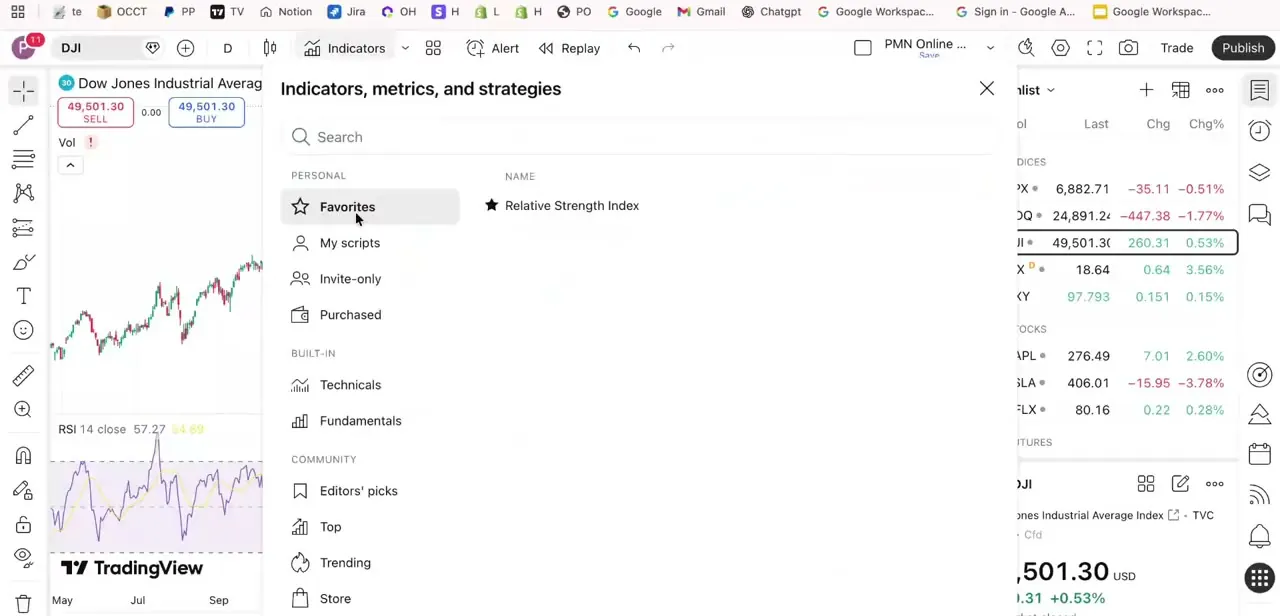
From any chart, click Indicators to open the full library. TradingView splits everything into three groups: Personal (your Favorites, My scripts, Invite-only access, and Purchased indicators), Built-in (Technicals and Fundamentals that ship with TradingView itself), and Community (Editors' picks, Top, Trending, and the Store).
Where a script lives here is a preview of your access to it. One sitting under My scripts is fully yours to edit, while one under Invite-only or Purchased has restrictions the moment you try to look inside.
02Add the indicator and look for its source-code icon
Add the indicator to your chart, then hover over its name in the chart legend. A curly-braces icon, {}, appears there for scripts written in Pine, and clicking it opens the Pine Editor with the full source below the chart.
If no {} icon shows up at all, the script either has no accessible code because it wasn't written in Pine (TradingView names its Volume Profile and Chart Pattern tools as examples), or the author published it as protected or invite-only and deliberately hid the code. Either way, that's a boundary to respect rather than work around.
03Recognize that even built-in scripts open as read-only
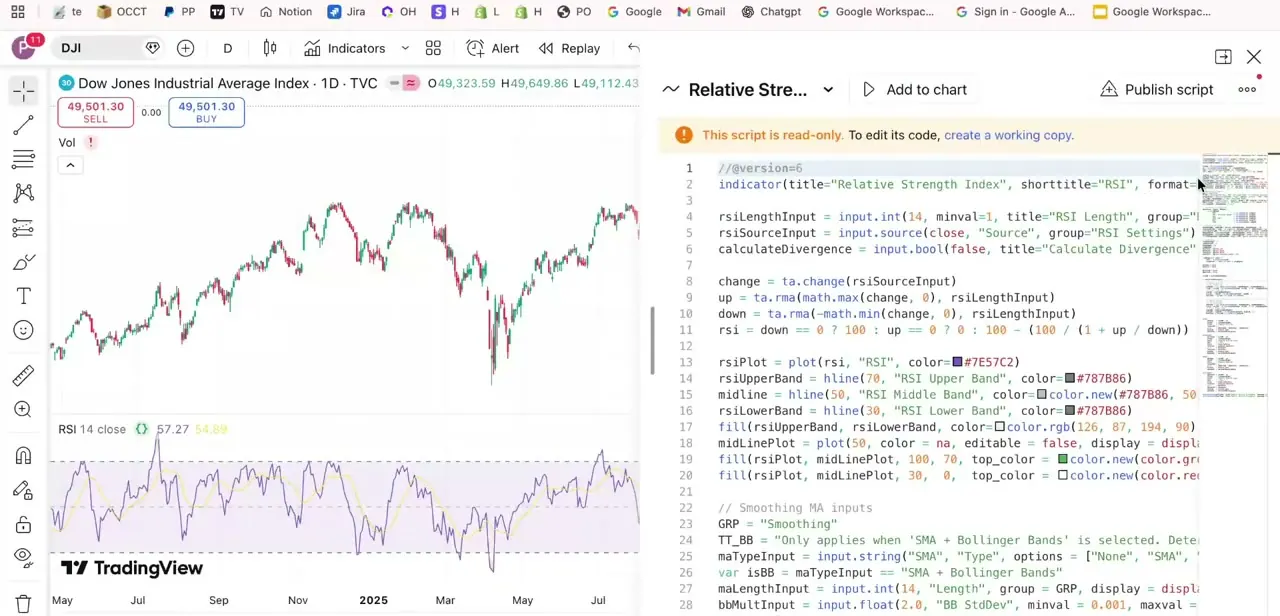
Opening the source of a built-in indicator like Relative Strength Index doesn't drop you into an editable file. The Pine Editor pane opens with a banner reading "This script is read-only.
To edit its code, create a working copy," with a gray background and every line visible but locked against direct edits. TradingView keeps its official indicators as a stable reference, so it wants an explicit fork rather than an accidental change to the version everyone else is using.
04Create a working copy before you touch anything
Click "create a working copy" and TradingView duplicates the script into your own My scripts library, fully editable. Changes here never touch the original built-in or community script; you're working on your own fork, with the formatting, comments, and input groupings intact exactly as the author wrote them. From here it behaves like any script you wrote from scratch: rename it, change the RSI length default, adjust colors, or layer your own logic on top.
05Save your copy and start editing in the Pine Editor
Save the working copy under a name that won't be confused with the original, such as "RSI (my version)", so it doesn't get mixed up once you have several forks running. From there the Pine Editor works like a normal code environment: change an input, apply it, and the chart updates so you can see the effect immediately. That feedback loop is the real reason to copy a script in the first place; reading Pine code teaches less than changing one number and watching the plot move.
06Handle protected and invite-only scripts appropriately
If the {} icon and "create a working copy" are both missing, the author published the script as protected or invite-only, and there's no legitimate workaround. For a protected script, anyone can add it to a chart and use it, but only the author can see the code.
For invite-only, TradingView restricts even chart access to people the author has approved, and the code itself never reaches a viewer's browser; it stays on TradingView's servers. Publishing something as invite-only requires the author to hold a Premium plan, though that requirement is on their end, not yours as a viewer. For a script you can't get into, the realistic paths are asking the author for access, buying it if they sell it, or studying a comparable open-source alternative in the Community section and building your own version of the concept instead of the exact code.
When it doesn't work
No {} source-code icon appears when hovering over an indicator's name
Why: Either the indicator isn't written in Pine at all (TradingView's own Volume Profile and Chart Pattern tools are examples with no accessible source), or the author published it as protected or invite-only.
Fix: Check whether the indicator is a Pine-based script under Built-in or Community; if it is and the icon is still missing, treat it as protected or invite-only rather than assuming a bug.
Reused open-source code gets a script rejected or reported
Why: TradingView's publishing rules require crediting the original author and require the reused code to be a portion of a script with real, substantive additions, not a re-skin. Reusing someone's open code also generally requires publishing your version as open source too.
Fix: Credit the original author in the description, add enough original work that the reuse is a small part of a larger script, and keep the publication open unless you have the original author's written permission to close it.
Frequently asked questions
Can I copy any indicator's script on TradingView?
No. Only open scripts and Pine-based built-in indicators generally let you view the full source code. Protected and invite-only scripts hide the code entirely, and a handful of built-ins like Volume Profile aren't written in Pine at all, so they have no source to view.
What does it mean if there's no {} source-code icon?
Either the indicator isn't Pine-based to begin with, or the author restricted it as protected or invite-only. Both look the same from the outside: no icon, no source.
Why can't I edit a built-in indicator like RSI directly?
TradingView opens even its own built-in indicators as read-only. A banner prompts you to "create a working copy"; clicking it forks the script into your own My scripts library, where it becomes fully editable.
Is it legal to copy and reuse someone else's open-source Pine Script?
TradingView's publishing rules allow reusing open-source code if you credit the original author, add substantial original work rather than cosmetic changes, and generally keep your own publication open source too, unless the author gives written permission otherwise.
Can I ever see the code behind an invite-only script I've been given access to?
No. Invite-only protects the code as well as the use. The script never reaches your browser as readable source; only the author can see it, regardless of who they've granted chart access to.
Sources and last check
Click path and screens come from a walkthrough recorded in 2025. In September 2026 the access-type terminology, the source-code icon, and the reuse rules were re-checked against TradingView's own support articles. That check corrected the menu description for opening source code (a {} icon on hover, not a three-dot title-bar menu), added that some built-ins such as Volume Profile have no Pine source at all, aligned terminology to TradingView's actual open/protected/invite-only labels, and replaced a vague legality answer with the publishing rules' actual attribution and open-source requirements.
About the author

Impran M N
I've been hooked on technology for as long as I can remember — especially the new tools and AI apps that seem to land every other week. Easy Tech Tuts is where I write up whatever I've just worked out: I do the task in the real product, record the screen, and turn it into the guide I wish I'd found first.



