 Easy Tech Tuts
How to connect Vantage to TradingView, Add Vatnage Broker Easily 2026
By Impran M NLast checked against official docs
Trading straight from a TradingView chart is faster than bouncing between your broker's platform and your charting software, and Vantage, the broker formerly known as Vantage FX, is one of the options TradingView lets you link directly. Once the two are connected, you can see your live balance in the corner of the chart, place trades against candles you're already looking at, and keep your account in sync without opening a second tab.
The process is short, but the steps aren't obvious the first time: Vantage isn't one of the brokers TradingView shows you by default, and the login screen has a wrinkle about account types that trips people up. This guide walks through finding Vantage in TradingView's broker list, signing in to authorize the connection, and clearing the two errors people hit most often.
Before you start
- A TradingView account with a chart open
- A Vantage trading account using the "Vantage TradingView" account type, not a standard Vantage account
01Open TradingView and load a chart
Everything happens inside the normal TradingView chart workspace. There's no separate app or settings page to hunt for.
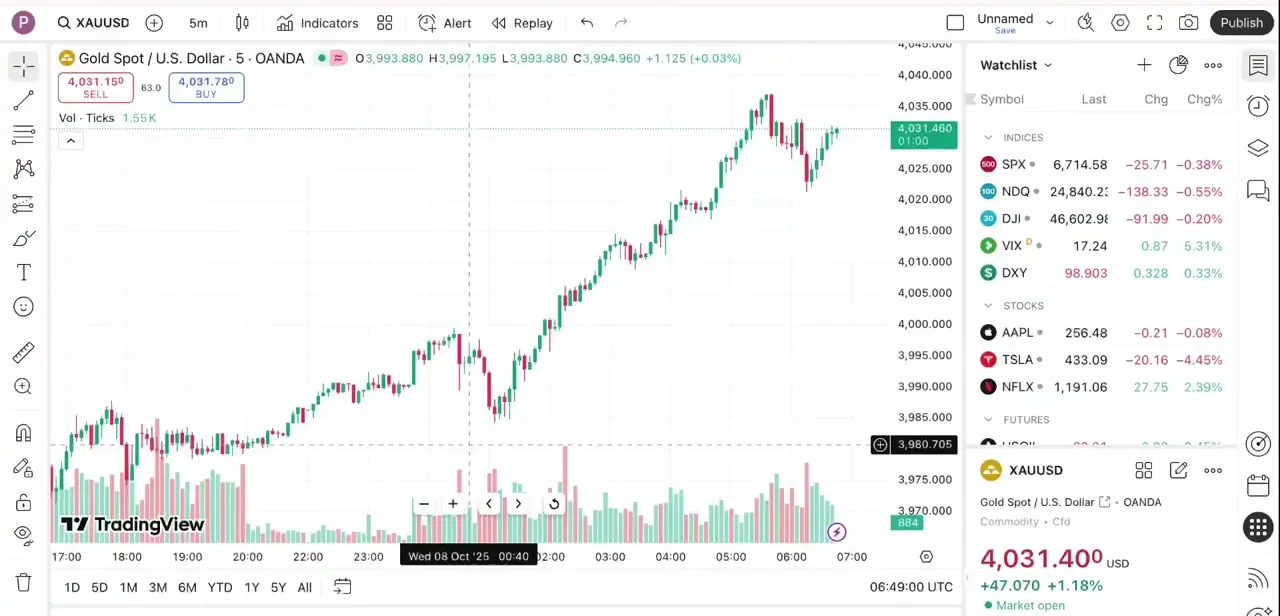
In this example the chart is loaded to Gold Spot / U.S. Dollar (XAUUSD) on the OANDA feed, with the watchlist docked on the right showing indices like SPX and NDQ alongside individual stocks.
The toolbar along the bottom of the window, the row with the magnifying glass, gear, and camera icons, is also home to the panel that manages broker connections, so it helps to have a chart open before you go looking for it. You don't need a particular symbol or timeframe to connect a broker; any live chart works.
02Open the Trading Panel and find Vantage in the full broker list
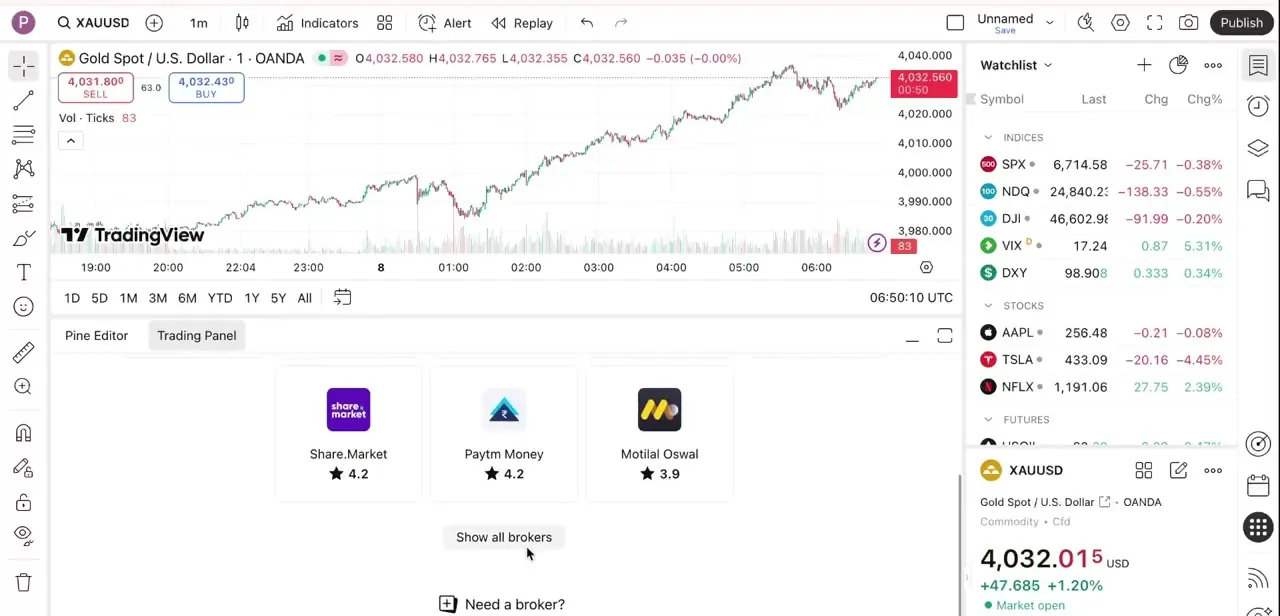
Below the chart, click over to the Trading Panel tab next to Pine Editor. TradingView surfaces a short row of featured brokers here, in this case Share.Market, Paytm Money, and Motilal Oswal, each shown with a star rating, plus a "Show all brokers" button and a "Need a broker?" link for people without one yet.
Vantage isn't in that featured row, which is exactly the moment people assume it isn't supported and give up. It is supported; it's just one entry in the full list rather than one of the handful TradingView promotes by default.
Click "Show all brokers" to open the complete directory, then search or scroll to Vantage. Selecting it hands you off to Vantage's own connection page instead of keeping you inside TradingView, which is normal: every broker integration works this way, since the login has to happen on the broker's side. On mobile the same connection lives behind the broker icon in the chart toolbar instead of a Trading Panel tab, but it leads to the same search-and-select flow.
03Sign in to your Vantage account to authorize the link
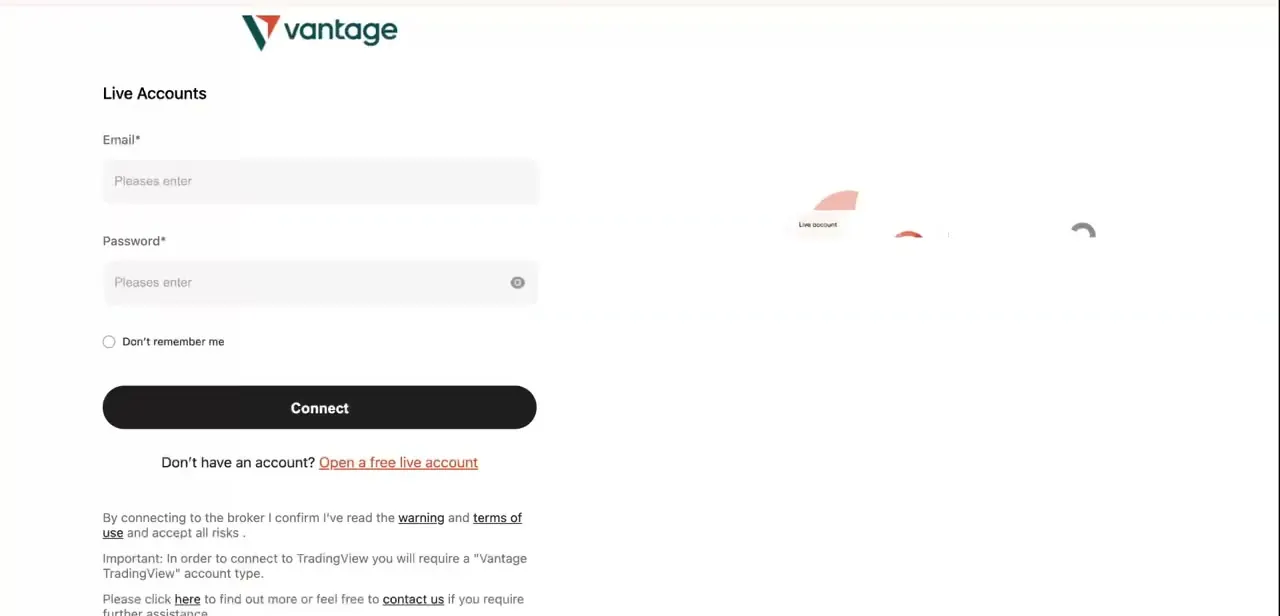
Vantage opens a "Live Accounts" login screen asking for the email and password on your Vantage account. Enter your Vantage credentials as normal; this is the same login you'd use on Vantage's own site, not a separate TradingView password.
The page also flags something worth reading before you type anything: connecting requires a "Vantage TradingView" account type specifically, so if you signed up for a standard Vantage account without picking that type, you may need to open a new one or convert your existing account first. There's also a confirmation that you've read Vantage's warning and terms of use, which you agree to by clicking Connect.
Which account connects, demo or live, depends entirely on which set of credentials you enter; the login screen doesn't force one over the other. Connecting a demo account first is the safer move if this is your first time: it proves the whole chain works, login, authorization, balance sync, before any real money is on the line.
04Verify the connection with a small test trade
Once you click Connect, head back to TradingView's Trading Panel and confirm the broker status now shows connected instead of the earlier list of options. Your account balance and available leverage should appear in the panel, pulled live from Vantage.
Deposits and withdrawals still happen through Vantage directly; TradingView only mirrors the balance and lets you place the trades. Before trading normally, place one small test trade from the chart and watch that it fills and the balance updates.
That single test catches most connection problems immediately instead of during a real trade later. If it doesn't connect cleanly, the two failure modes below cover almost every case.
When it doesn't work
TradingView says Vantage isn't available in your region
Why: Vantage rolled out its TradingView integration to clients in what it calls "serviceable regions," not everywhere at once. This is a Vantage eligibility decision, not a TradingView setting.
Fix: Check your account's region eligibility with Vantage support directly. There's nothing to configure around this from TradingView's side.
"Failed to connect account" when authorizing
Why: Either the Vantage credentials entered are wrong, or the account being connected isn't the "Vantage TradingView" account type the integration requires.
Fix: Confirm you're using your current Vantage login, then confirm the account type. Open a new Vantage TradingView account, or convert your existing one, and retry the connection from TradingView's broker list.
Frequently asked questions
Why does TradingView say Vantage is not available in my region?
Vantage rolled out its TradingView integration to clients in serviceable regions rather than everywhere at once. If your account's region isn't covered, that's a Vantage eligibility decision. Confirm it with Vantage support before troubleshooting the connection further.
Can I connect both a demo and live Vantage account to TradingView?
Yes. Which one connects depends on which set of credentials you enter at login, so you can test with a demo account before switching to a live one.
Will my account balance update in real time once connected?
Yes, balance, margin, and open positions sync from Vantage once the connection is verified. Deposits and withdrawals still happen through Vantage directly; TradingView doesn't handle either.
What should I do if TradingView fails to connect my Vantage account?
Double-check your Vantage login credentials, then confirm the account is the "Vantage TradingView" type the integration requires rather than a standard Vantage account. Retry the connection from TradingView's broker list afterward.
Do I need a special Vantage account to connect to TradingView?
Yes. Vantage's connection screen requires a "Vantage TradingView" account type. A standard Vantage account may need to be converted or a new one opened before the link will work.
Is this an official integration, or a workaround?
Official. Vantage announced the integration directly, and the connection happens through TradingView's own broker list, not a third-party plugin or unofficial bridge.
Sources and last check
Screen recording and click path come from a walkthrough in 2025. The "Vantage TradingView" account-type requirement, the region-based eligibility, and the fact that deposits and withdrawals stay on Vantage's side were cross-checked against TradingView's own announcement of the Vantage integration in September 2026. Vantage's own help-center article about this specific connection returned a blocked (403) response when fetched directly, so on-screen wording like exact button labels and error text reflects the original recording rather than an independent re-check against Vantage's docs. No factual error surfaced in this pass; the changes here are the deposits/withdrawals and official-integration additions, moving the two errors into a structured troubleshooting section, and a restructure from seven steps to four.
About the author

Impran M N
I've been hooked on technology for as long as I can remember — especially the new tools and AI apps that seem to land every other week. Easy Tech Tuts is where I write up whatever I've just worked out: I do the task in the real product, record the screen, and turn it into the guide I wish I'd found first.



