 Easy Tech Tuts
How to connect MT4 or MT5 to TradingView, Use tradingview with metatrader 4 & 5, Bridge Guide 2026
By Impran M NLast checked against official docs
TradingView and MetaTrader solve different problems. TradingView is where most traders do their charting and analysis, while MT4 and MT5 remain the execution terminals a lot of brokers still require.
TradingView doesn't treat MetaTrader as a native broker, so there's no simple toggle that links the two. This guide covers what TradingView's built-in broker connections offer, why MetaTrader isn't among them, and how third-party bridge tools fill that gap so a TradingView alert can trigger an order in your MT4 or MT5 terminal.
Before you start
- A TradingView plan of Essential or higher. Webhook notifications, which this bridge method depends on, aren't available on the free Basic plan.
- A MetaTrader account logged into a live broker server, not just the demo environment
- An account with a bridge service such as PineConnector, since TradingView and MetaTrader don't connect to each other directly
01Check what TradingView's Trading Panel connects to natively
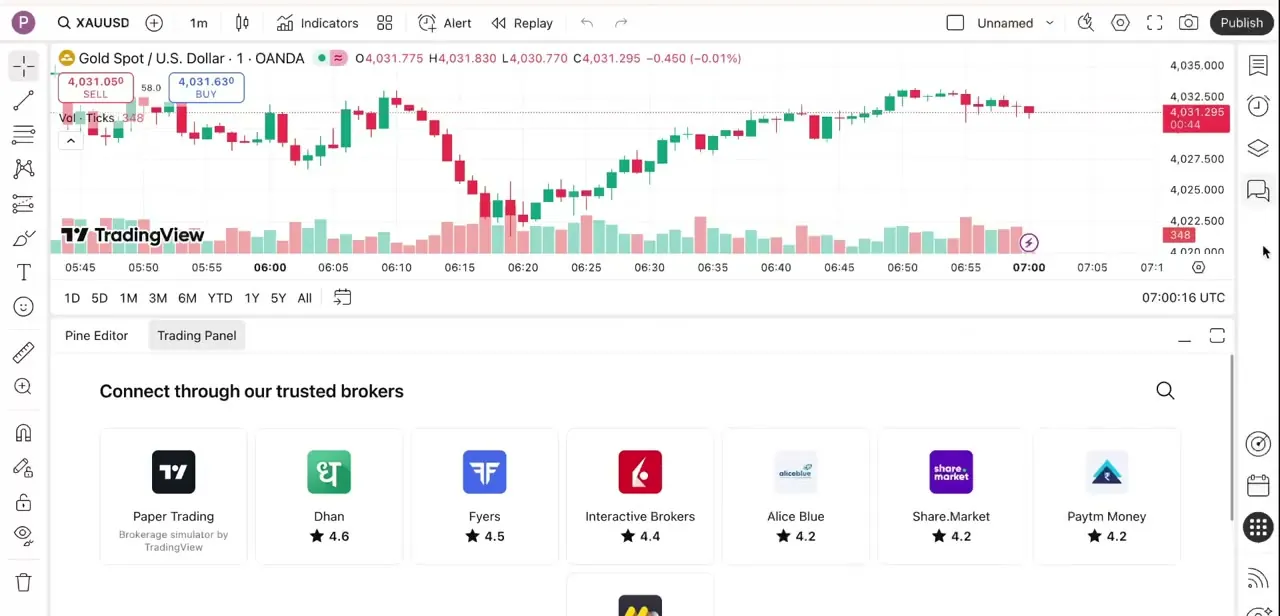
Open any chart in TradingView and switch to the Trading Panel tab beneath it. This is where the platform's native broker integrations live.
Under "Connect through our trusted brokers" you'll see a grid of options: TradingView's own Paper Trading simulator, then real brokers such as Dhan, Fyers, Interactive Brokers, Alice Blue, Share.Market, and Paytm Money, each with a star rating. This panel is TradingView's real, working bridge to live execution, but MetaTrader isn't one of the listed partners. That's exactly why MT4 and MT5 users need a different route.
02Confirm your MetaTrader account is broker-ready first
Before touching any connector, log into MT4 or MT5 directly and confirm the account is active, funded appropriately for your testing, and connected to a live server through your broker, not just the demo environment. Bridge tools relay signals into whatever terminal session is running, so if MetaTrader itself isn't logged in and connected to your broker's server, nothing forwarded from TradingView has anywhere to land.
03Set up alerts inside TradingView
Since the Trading Panel doesn't cover MetaTrader, the workaround is TradingView's alert system. From the toolbar, open Alert and build a condition off an indicator, a price level, or a strategy signal, exactly as you would for a normal notification.
The difference is what happens next: instead of just popping up on your screen, this alert becomes the trigger a bridge service listens for and turns into an order. Creating a webhook alert (as opposed to a plain pop-up or email one) needs at least TradingView's Essential plan.
04Install a bridge tool's Expert Advisor and connect it
Services like PineConnector, and comparable webhook-based connectors such as Metaconnector, sit between the two platforms. You install a small Expert Advisor (EA) inside MetaTrader, then point your TradingView alert's webhook URL at the bridge service, which translates the incoming signal into an order the EA executes.
For PineConnector specifically, the MT4 setup means copying the EA file into the terminal's Experts folder, ticking Allow DLL imports under Tools > Options, adding the provider's webhook URL to the allowed WebRequest list, then attaching the EA to a chart with Allow live trading enabled in its Common tab. The green "AutoTrading" indicator at the top of the terminal has to be on, or the EA won't be able to place anything regardless of what TradingView sends it. Each provider's exact settings differ, so follow their current setup docs instead of assuming every bridge configures identically.
05Match the exact alert message format the bridge expects
Bridge tools parse the text in your TradingView alert message to know what order to place, so the message has to follow the connector's syntax precisely. PineConnector's documented format is a strict sequence: License ID, then command, then symbol, then optional parameters, separated by commas, for example 60123456789,buy,EURUSD,vol_lots=0.1 or 60123456789,sell,GBPJPY,vol_dollar=50,sl_pips=20. A message with the fields out of order, or with the license ID malformed, is rejected outright and won't even appear in the bridge's signal log, so a silent failure here can look identical to nothing happening at all.
06Test the full path with a small trade before trusting it
Fire a test alert and confirm it appears correctly in your MetaTrader terminal before connecting the bridge to a strategy that trades unattended. Check that the symbol, direction, and size all landed as expected, and watch for any sync delay between the alert firing and the order appearing. Only after a clean test or two should you let the bridge run against a live strategy, since a misconfigured connector can place trades faster than you can catch a mistake.
When it doesn't work
TradingView won't let a webhook URL be added to an alert
Why: Webhook notifications are only available on TradingView's Essential plan and above. The free Basic plan can create alerts but can't send them to a webhook.
Fix: Upgrade to Essential or a higher plan before setting up the bridge.
The bridge's signal log shows nothing, even though the alert fired in TradingView
Why: PineConnector rejects malformed messages silently. A wrong field order, a missing comma, or a mistyped license ID never appears in the log at all.
Fix: Re-check the message against the required License ID, Command, Symbol, Parameters order, with no stray spaces or extra commas.
The signal reaches the bridge but MetaTrader never places the trade
Why: AutoTrading (or Allow Algo Trading on MT5) is switched off in the terminal, or Allow DLL imports and the provider's WebRequest URL weren't enabled when the EA was attached.
Fix: Confirm the AutoTrading indicator is green in the terminal toolbar, and recheck the EA's Common tab settings and the allowed WebRequest URL list.
Frequently asked questions
Can TradingView connect directly to MetaTrader without third-party tools?
No. TradingView's native Trading Panel lists brokers like Interactive Brokers, Dhan, and Alice Blue, but MetaTrader isn't among them, so a bridge tool or webhook connector is required to link the two.
Does my TradingView plan matter for this?
Yes. Webhook notifications, which any bridge tool relies on, require TradingView's Essential plan or higher. They aren't included on the free Basic plan.
Is PineConnector free to use?
No. PineConnector runs on its own monthly subscription with no free trial, according to its current pricing page, and recommends trying the base plan for a first month before committing long-term. Pricing and tiers change, so check the provider's current plans before signing up.
Does this bridge setup work for both MT4 and MT5?
Most bridge and connector tools support both, though the MetaTrader-side installation (Expert Advisor settings, permitted URLs) differs slightly between MT4 and MT5, so follow the version-specific setup guide.
Why does my alert message get ignored by the bridge?
The most common cause is field order: PineConnector expects License ID, then command, then symbol, then parameters, in that exact sequence. A message that breaks this order is rejected without appearing in the signal log, which can look like the alert never fired at all.
Is connecting TradingView to MetaTrader risky?
It can be, since a bridge places live orders automatically once configured. Test with a small trade and confirm the symbol, direction, and size match before relying on it for real capital.
Sources and last check
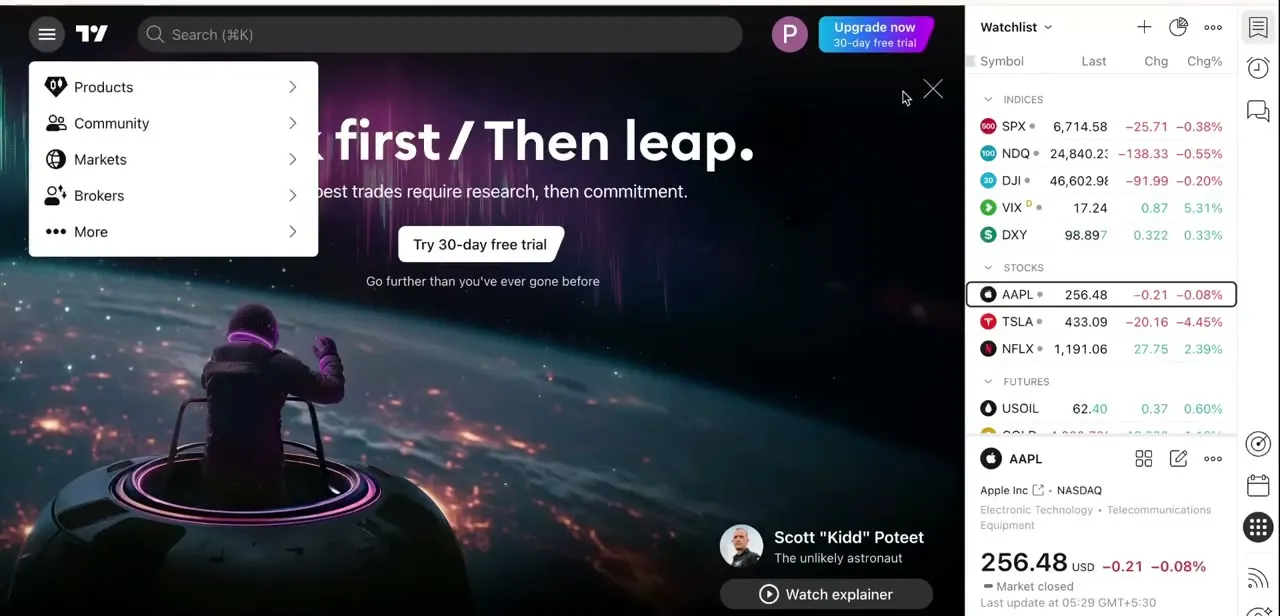
The Trading Panel broker list and the TradingView product menu come directly from screenshots of the actual accounts. The plan-tier gate on webhook alerts was checked against TradingView's official pricing page in September 2026 and added, since the original article didn't mention it, and a Basic-plan reader would hit a dead end at the alert step without knowing why. The alert syntax, field order, rejection behavior, and MT4 terminal settings (AutoTrading, Allow DLL imports, the WebRequest allowlist) were checked against PineConnector's own documentation at docs.pineconnector.com. The pricing figures found during research varied between sources, so this pass avoided quoting specific dollar amounts and pointed to the provider's own pricing page instead.
About the author

Impran M N
I've been hooked on technology for as long as I can remember — especially the new tools and AI apps that seem to land every other week. Easy Tech Tuts is where I write up whatever I've just worked out: I do the task in the real product, record the screen, and turn it into the guide I wish I'd found first.



