 Easy Tech Tuts
How To Close Your Trade In Pieces Using TradingView and book Partial Profit or Loss
By Impran M NLast checked against official docs
Exiting an entire position at once is rarely the smartest move. Sometimes you want to bank part of a winning trade while giving the rest room to run, or trim risk without abandoning a setup you still believe in.
TradingView's trading panel has a built-in way to do exactly that: a partial close option tucked inside the same window you'd use to exit completely, though it only shows up once one particular setting is turned off. This guide walks through an actual open Dow Jones (US30) position on paper trading, from the moment it's live on the chart to the exact form field where you tell TradingView how many units to close and how many to leave running.
Before you start
- Instant order placement turned off, under Settings on the chart's upper toolbar, in the Trading tab. TradingView only shows the Partial close checkbox in the close confirmation dialog when this is off.
- A broker connection that supports partial closes. TradingView's own paper trading account does, but not every connected live broker offers the option.
01Open your chart with the position already live
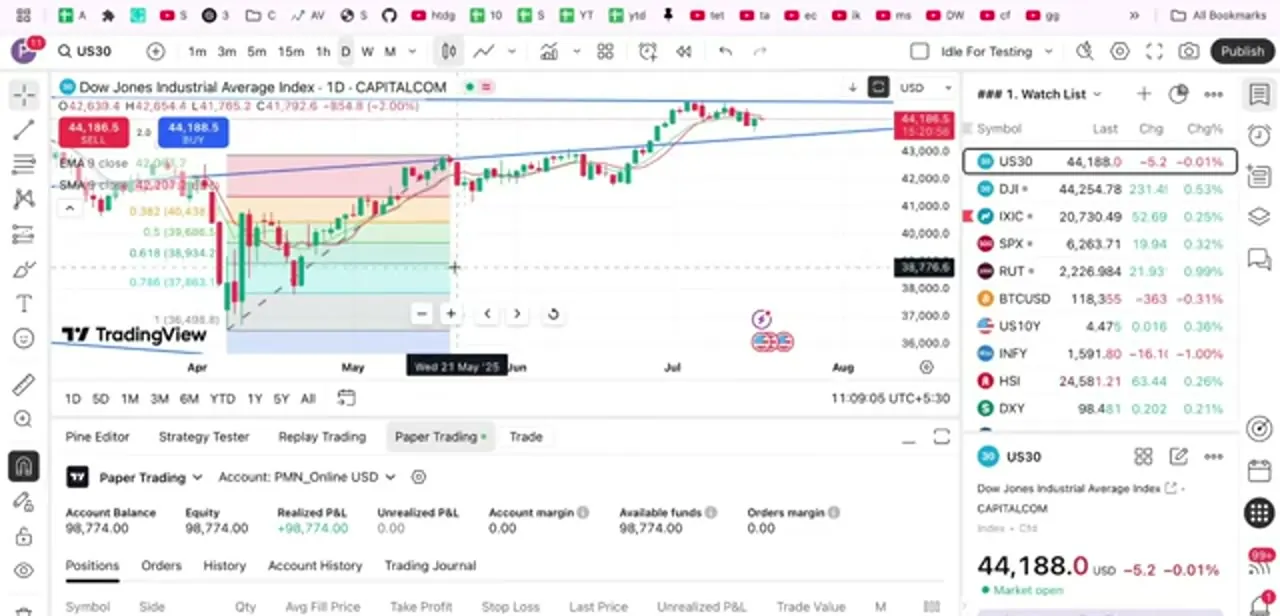
Once you're logged into TradingView and a trade is open, the chart itself becomes your control panel: you'll see the entry line, a running buy/sell price ticker, and the paper trading account summary docked underneath. In this example the account is a Paper Trading account labeled PMN_Online, holding a long position on CAPITALCOM:US30 (the Dow Jones index). The tabs along the bottom (Positions, Orders, History, Account History, Trading Journal) are where you manage anything you have open, and Positions is the one you'll use here.
02Locate the position on the Positions tab
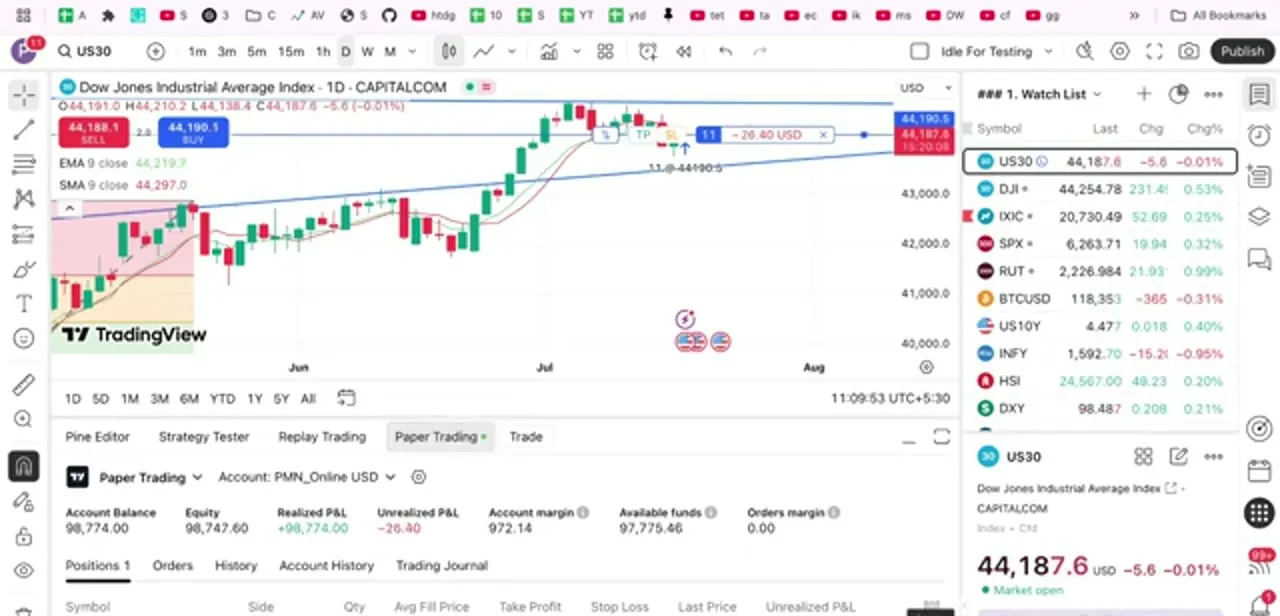
Click the Positions tab at the bottom of the chart to see your open trade listed with its symbol, side, quantity, and live unrealized profit or loss. On the chart, the same position shows up as a horizontal line running from your entry price, with small TP and SL markers and a live P&L badge next to it.
In this case the trade is 11 units long at 44,190.5, sitting a little underwater. That badge on the chart and the row in the Positions tab are two doors to the same place, so you can trigger a close from whichever one is in front of you.
03Open the Close position window
Click the small X next to the position's P&L badge on the chart, or use the equivalent close control in the Positions row, and a Close position dialog pops up over the chart. It confirms exactly what you're about to touch: the symbol, the side, and the size, so you're not guessing which trade you're closing when you have more than one open at once.
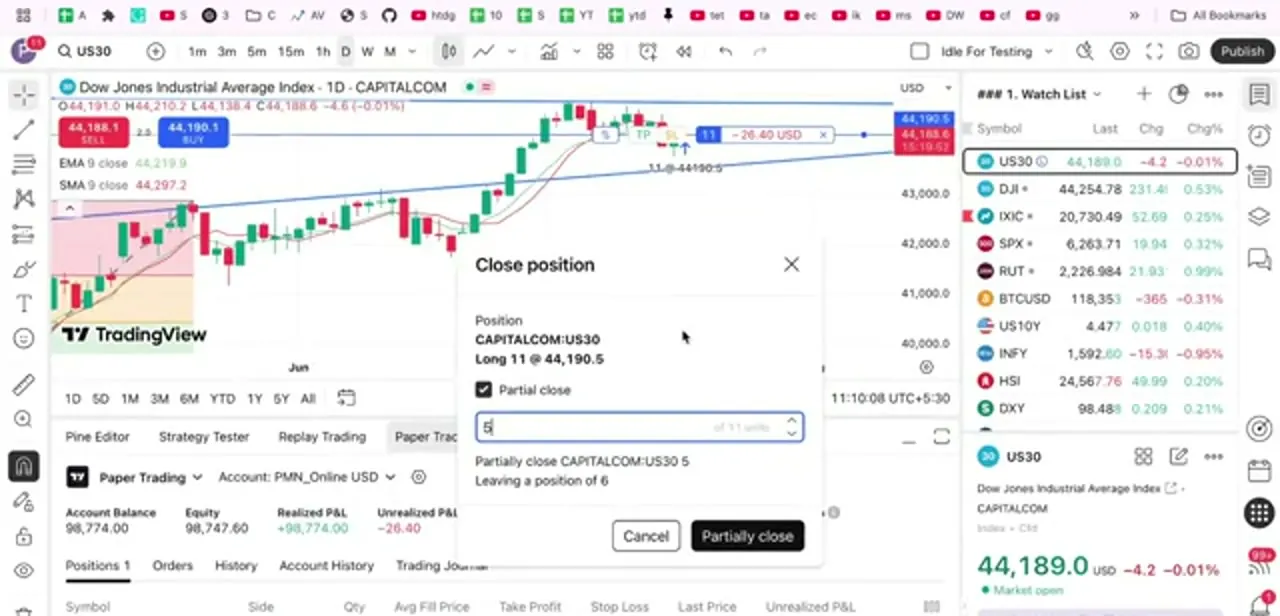
If Instant order placement is still on, TradingView skips this dialog and closes the full position immediately with no partial option, so check that setting first if nothing pops up. This is the window where the partial close option lives, so don't close it yet even if your first instinct is to just hit close and be done.
04Turn on Partial close and set your quantity
Inside the dialog, tick the Partial close checkbox and a quantity field appears showing how many units are eligible out of the total position size. In the example, the position is 11 units and the field is set to 5, with a line underneath spelling out the math directly: "Partially close CAPITALCOM:US30 5 - Leaving a position of 6." That confirmation line is worth reading every time, since it's your last check that the split you're about to execute is the one you intended, before any money moves.
05Confirm the partial close
With the quantity set, click the Partially close button instead of Cancel. TradingView immediately books the realized profit or loss on the portion you closed. You'll see it reflected in the Realized P&L figure on the account panel, while the remaining units stay open under the same position, still tracking against your original take-profit and stop-loss unless you adjust them separately.
06Check what's left running
Head back to the Positions tab and you'll see the size of the trade has updated to reflect the smaller remaining quantity, with a fresh unrealized P&L figure calculated only on those leftover units. This is the moment to decide whether to leave the stop and target where they are, tighten the stop toward breakeven now that some profit is locked in, or repeat the partial close process again later if the trade keeps moving your way.
When it doesn't work
The Close position dialog has no Partial close option
Why: Instant order placement is turned on, which closes positions immediately without showing a confirmation dialog at all.
Fix: Open Settings on the chart's upper toolbar, go to the Trading tab, and turn Instant order placement off.
Partial close still doesn't appear after turning off Instant order placement
Why: The connected broker doesn't support partial closes. The feature depends on the broker integration, not just the TradingView interface.
Fix: Confirm with your broker whether partial closes are supported on that account type. TradingView's built-in paper trading account always supports it, which is why it's used in this guide.
Frequently asked questions
Can I close only part of an open trade on TradingView?
Yes. Open the Close position dialog for the trade, tick the Partial close checkbox, and enter how many units you want to close. The rest stays open under the same position.
Why would I close a trade in pieces?
It lets you lock in some profit or cut some risk while keeping the remainder of the position open in case the move continues in your favor.
Why don't I see a Partial close checkbox when I try to close a trade?
Two likely reasons: Instant order placement is still turned on in Settings under the Trading tab, which skips the confirmation dialog entirely, or your connected broker doesn't support partial closes. TradingView's own paper trading account supports the feature; not every live broker connection does.
Does partial closing use a separate order ticket?
No. It's the same Close position window you'd use for a full exit; checking Partial close just adds a quantity field so you can specify less than the whole size.
What happens to my stop loss and take profit after a partial close?
They stay attached to whatever quantity remains open. You can leave them as they are or edit them separately once the remaining size is smaller.
Can I do more than one partial close on the same position?
Yes, you can repeat the process as many times as you like until the position is fully closed, scaling out in stages instead of all at once.
Sources and last check
Click path and screens come from a walkthrough recorded on a live TradingView paper trading account in 2025. Re-checked against TradingView's own help center articles on partial position close in September 2026, which surfaced a prerequisite the original walkthrough didn't mention: the Partial close checkbox only appears when Instant order placement is turned off under Settings, and even then only if the connected broker supports partial closes. That prerequisite, plus the two related troubleshooting entries, have been added.
About the author

Impran M N
I've been hooked on technology for as long as I can remember — especially the new tools and AI apps that seem to land every other week. Easy Tech Tuts is where I write up whatever I've just worked out: I do the task in the real product, record the screen, and turn it into the guide I wish I'd found first.



