 Easy Tech Tuts
How To Change Leverage On Tradingview Paper Trading, Set it to Maximum 2026 Easily
By Impran M NLast checked against official docs
TradingView's paper trading account simulates positions with borrowed buying power, and leverage is set separately for each asset class instead of as one global number. That per-class setup is where people get confused, because the setting sits inside an account settings panel that's easy to miss under the main chart, and TradingView only lets you view current leverage there.
Changing it takes a full account reset. This guide shows where that panel is, what the leverage options for stocks, futures, forex, and crypto look like, and why the reset step isn't optional.
01Switch to the Paper Trading tab
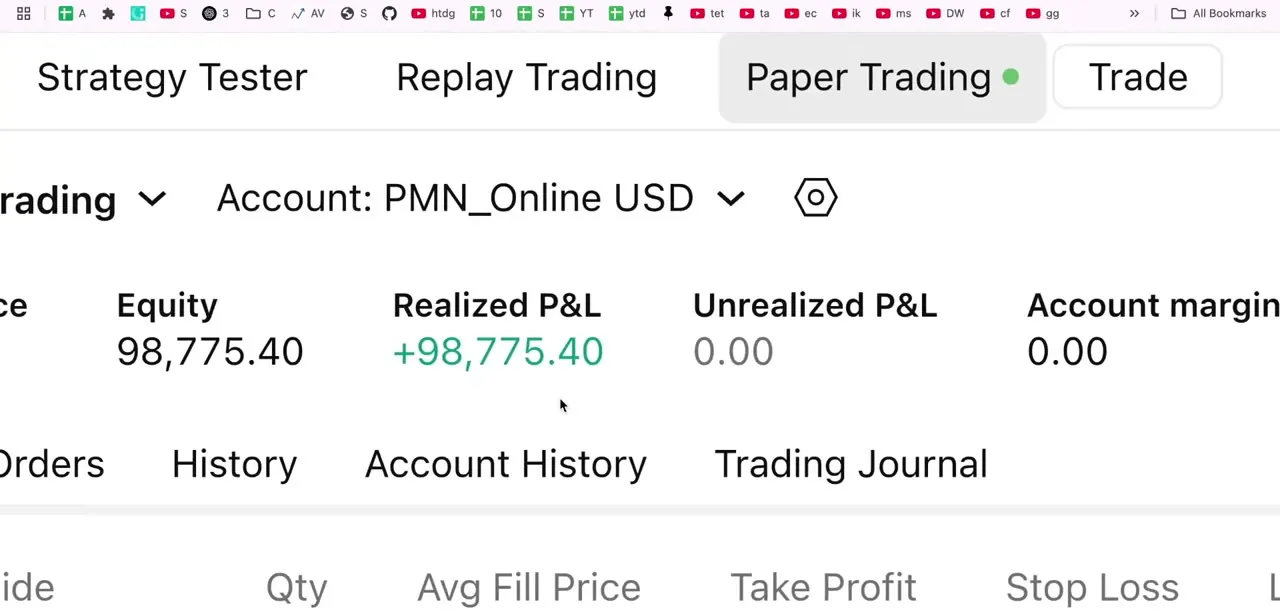
Below your chart, TradingView shows a row of trading modes: Strategy Tester, Replay Trading, Paper Trading, and Trade. Click Paper Trading to activate it; a green dot appears next to it once selected. This opens the paper account panel, showing an Account dropdown (defaulting to a name like Account: PMN_Online USD), Equity, Realized P&L, Unrealized P&L, and Account margin figures, plus tabs for Orders, History, Account History, and Trading Journal.
02Open your account settings
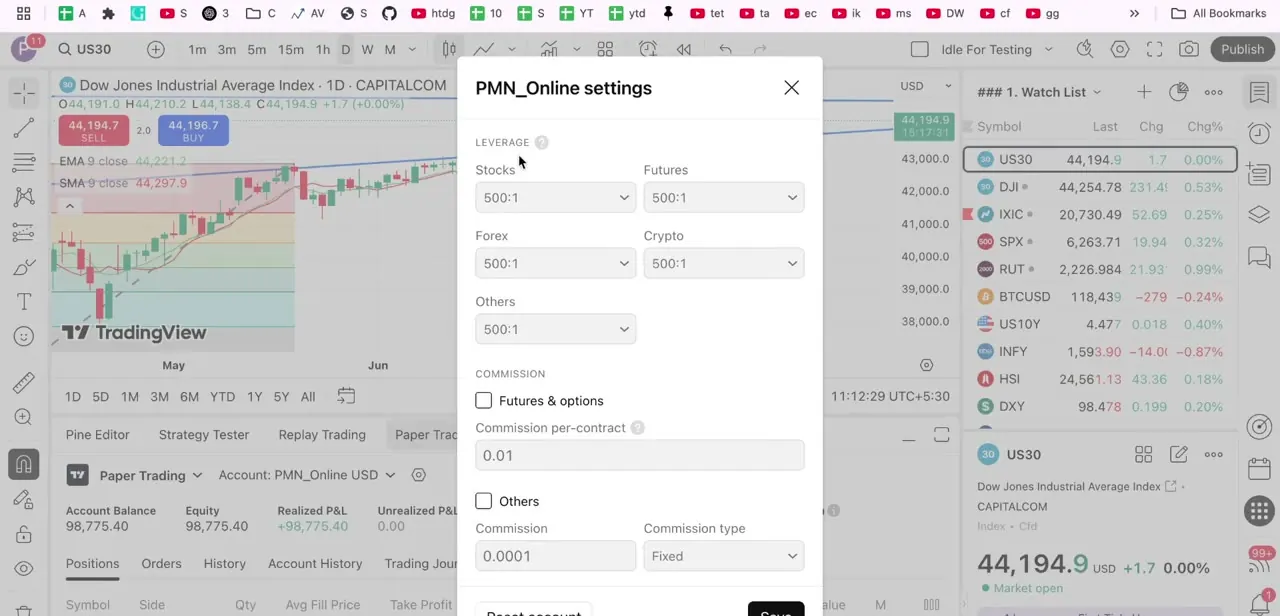
Next to the Account dropdown, a small settings icon opens the panel for that specific paper account. Clicking it brings up a modal titled with the account's name and "settings." TradingView's own documentation is explicit that this view is read access, not an edit screen: you can check the leverage currently set on an account from here at any time, but this modal alone won't let you change it.
03Review leverage by asset class
The settings modal has a Leverage section broken into categories: Stocks, Futures, Forex, Crypto, and Others, each with its own dropdown showing a ratio like 500:1. These are independent settings; bumping Forex leverage doesn't touch what Futures or Crypto use.
Below Leverage, a Commission section lets you turn on a per-contract commission for futures and options, calculated as number of contracts times the commission you set, charged on both opening and closing a position. That only matters if you want the simulated results to reflect realistic trading costs.
04Note your target leverage for each class
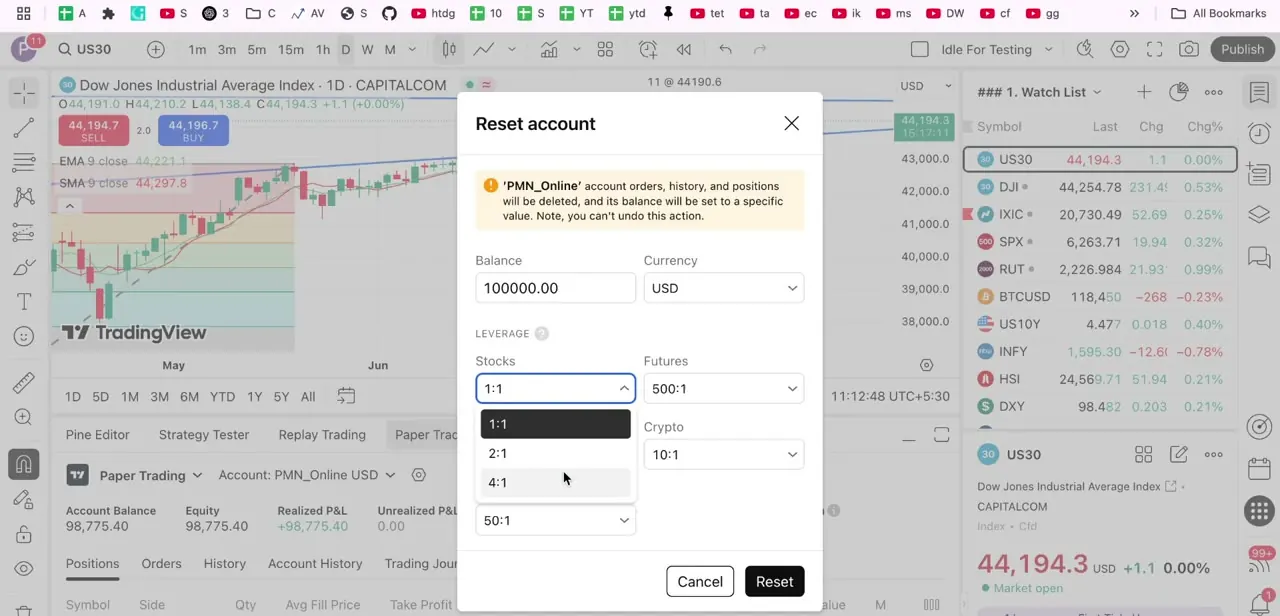
Click any of the dropdowns and a list of ratios appears: options like 1:1, 2:1, 4:1, and 50:1 are visible before the list continues further, up to higher ratios such as 500:1 depending on the asset class. A low ratio like 1:1 or 2:1 mirrors a cash account with no borrowed buying power.
A high ratio stress-tests how a leveraged position would behave, position sizing included, with no real capital involved. Since this screen can't save a change directly, treat it as a reference for what you want to set during the reset in the next step.
05Reset the account to apply the new leverage
TradingView only allows leverage changes through Reset account, which carries its own Balance, Currency, and Leverage fields. The dialog warns this can't be undone: resetting clears existing orders, history, and open positions on that account.
Set the Balance (the default for a new account is 100,000 USD, but the reset lets you pick your own), confirm the Currency, dial in leverage per asset class, and click Reset. The account comes back with the balance and leverage you just set, zeroed-out P&L, and no order history, a clean slate for testing the new leverage without prior trades in the way.
When it doesn't work
The leverage dropdowns in account settings won't let me save a new value
Why: TradingView's account settings modal is a view of the current leverage, not an editor. Leverage can only be changed by resetting the account.
Fix: Use Reset account instead, and set the leverage you want there; note that this also clears history and open positions.
An order won't execute even though there seems to be enough balance
Why: TradingView shows a margin progress bar when placing an order; if the required margin exceeds available funds it turns red and the order is blocked, even if total equity looks sufficient on the account panel.
Fix: Check the Order info panel's margin bar before placing the order, and reduce size or increase leverage for that asset class if it's showing red.
Resetting to change leverage also wiped my trade history
Why: This is expected behavior: TradingView's reset flow that applies new leverage also deletes existing orders, history, and open positions on that account.
Fix: There's no way around this for a single account. Use a second paper account (the Account dropdown supports more than one) to preserve history you still need while testing a different leverage on a fresh one.
Frequently asked questions
Can I change leverage on TradingView's paper trading account?
Yes, leverage is set per asset class (Stocks, Futures, Forex, Crypto, Others), but only by resetting the account. The account settings panel, reachable via the settings icon next to the Account dropdown, only shows the leverage currently in effect; it doesn't let you edit it directly.
Why do I need to reset my account to change leverage?
TradingView's own documentation states leverage can only be changed by resetting all account settings. Resetting also clears existing orders, history, and positions, so the account matches the new settings with nothing left over.
Is paper trading leverage the same as live trading leverage?
No. TradingView states plainly that it doesn't provide real margin trading services and only simulates broker behavior for practice. Actual leverage on a live account depends on your real broker's rules and regulatory limits, which are usually more restrictive.
Does changing leverage cost anything?
No. Paper trading, including creating accounts and resetting leverage, is available on every TradingView plan and doesn't require a paid subscription.
Where do I find the leverage option?
Open the Paper Trading tab, click the settings icon next to your account name to see current leverage by asset class, then use Reset account to actually change it.
Sources and last check
Click path and screens come from a walkthrough recorded earlier in 2025. Re-checked against TradingView's official Paper Trading documentation in September 2026: the core claim in the original guide was already correct (leverage can be viewed in account settings but changed only via reset), so this pass tightened the wording around that distinction rather than correcting an error, added the commission-per-contract mechanics and the margin-bar behavior from TradingView's own articles, and added citations that weren't present before.
About the author

Impran M N
I've been hooked on technology for as long as I can remember — especially the new tools and AI apps that seem to land every other week. Easy Tech Tuts is where I write up whatever I've just worked out: I do the task in the real product, record the screen, and turn it into the guide I wish I'd found first.



