 Easy Tech Tuts
How to Change Font Size in TradingView 2026 Easily
By Impran M NLast checked against official docs
Small chart text is easy to ignore until you're presenting a setup to someone else or squinting at price labels on a laptop screen across the room. TradingView lets you resize that text without touching a single indicator, and the control lives in the same Settings panel you'd use to change the chart's background or grid. This guide shows exactly where that font size control sits and what it looks like before and after you bump the number up.
01Open the chart you want to adjust
Load any symbol on TradingView's chart view. The example here uses the Dow Jones Industrial Average (US30) on a 5-minute timeframe, but the font settings apply the same way regardless of what you're charting. The toolbar along the top holds the timeframe selector and chart-type icons, and the gear-style settings icon near the top right is what you'll use next.
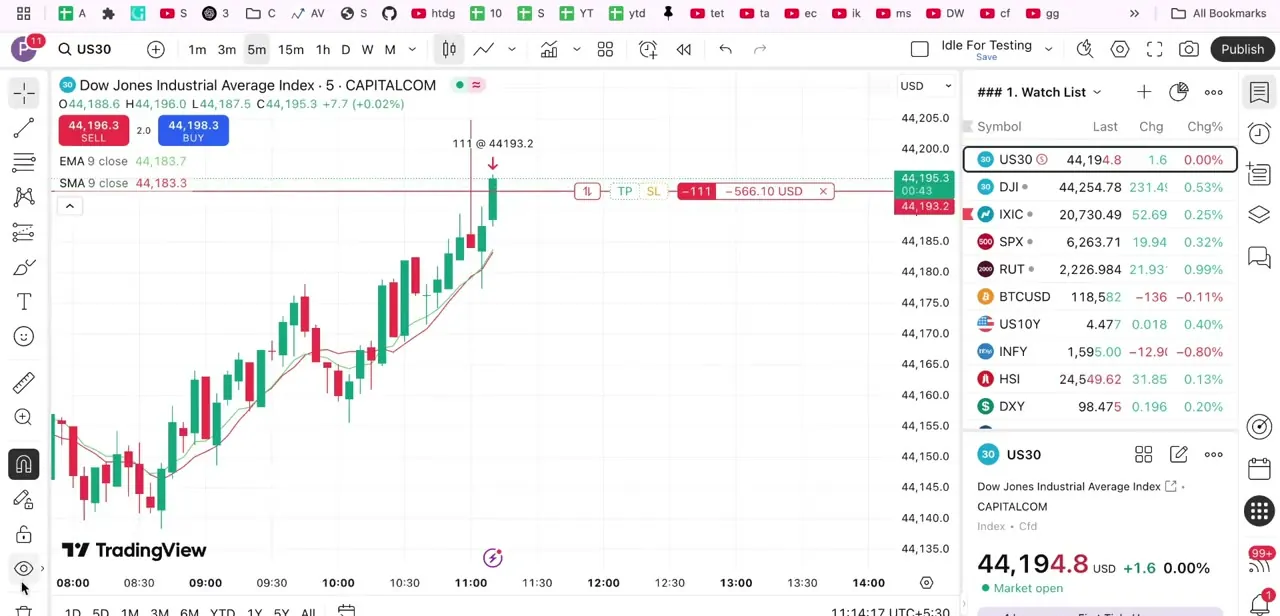
02Open chart Settings and go to Canvas
Click the settings icon and a Settings window opens as an overlay on top of your chart, with a vertical list of tabs down the left side: Symbol, Status line, Scales and lines, Canvas, Trading, Alerts, and Events. Text formatting for the chart itself isn't under Status line despite that being one of the first tabs listed. It sits under Canvas, a couple of items further down; TradingView's own configuration guide places scale-label formatting there too.
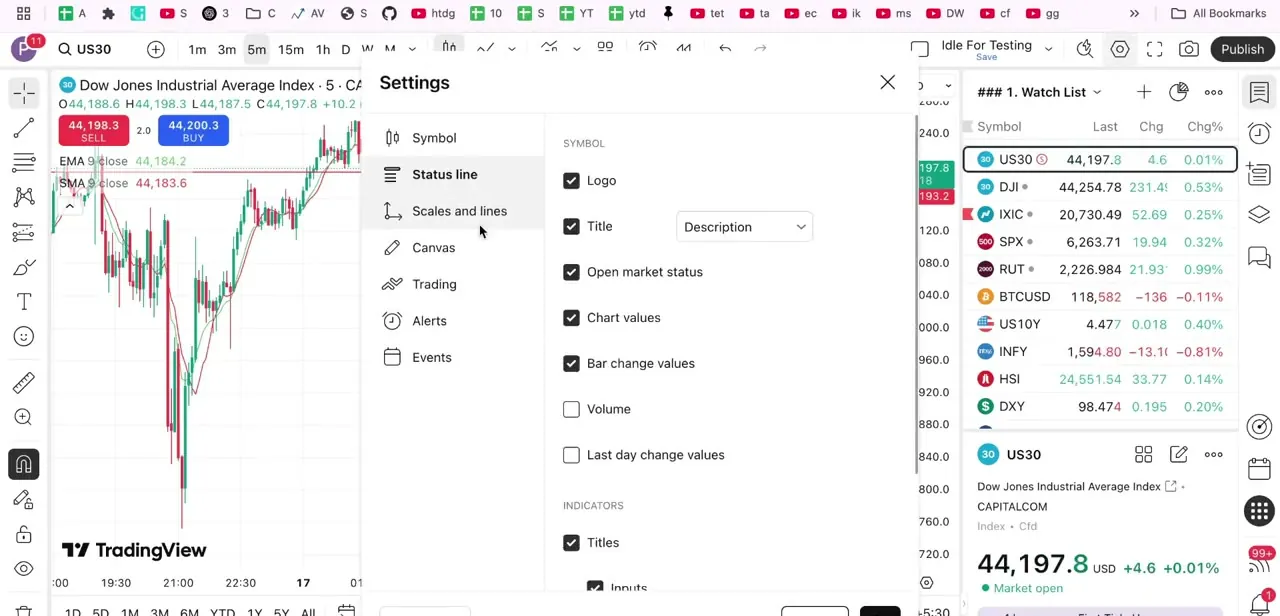
03Find the Text size field under Scales
Click Canvas, then scroll to the Scales section. Here you'll find a Text row with a small color swatch and a number field beside it, and that number is the font size applied to the price and time labels along your chart's edges.
In this recording it showed 22, which is a saved value for that layout, not a fixed default everyone starts on. Clicking the dropdown lets you pick a different value from the list instead of typing one freehand.
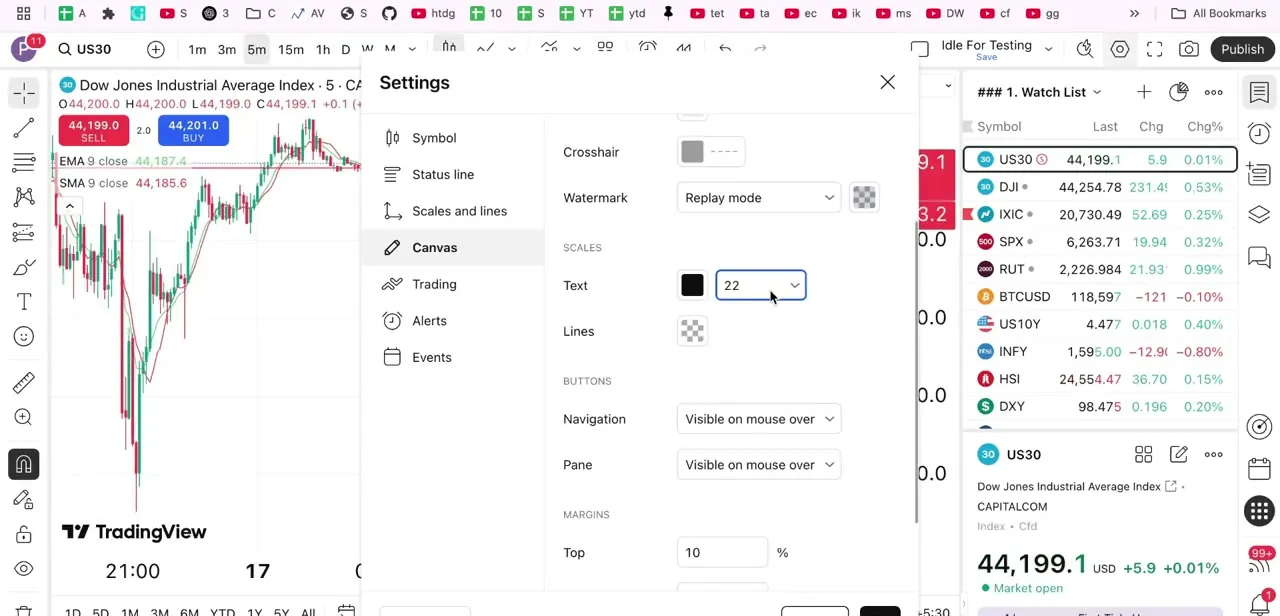
04Increase the size and watch it apply live
Select a larger value from the Text dropdown, and the change reflects immediately on the chart behind the Settings panel. You don't need to close the window to see the result.
Pushing the number up to something like 40 makes a noticeable difference for screen recordings or presentations. For regular day-to-day trading, a more moderate increase usually keeps the chart from feeling cramped.
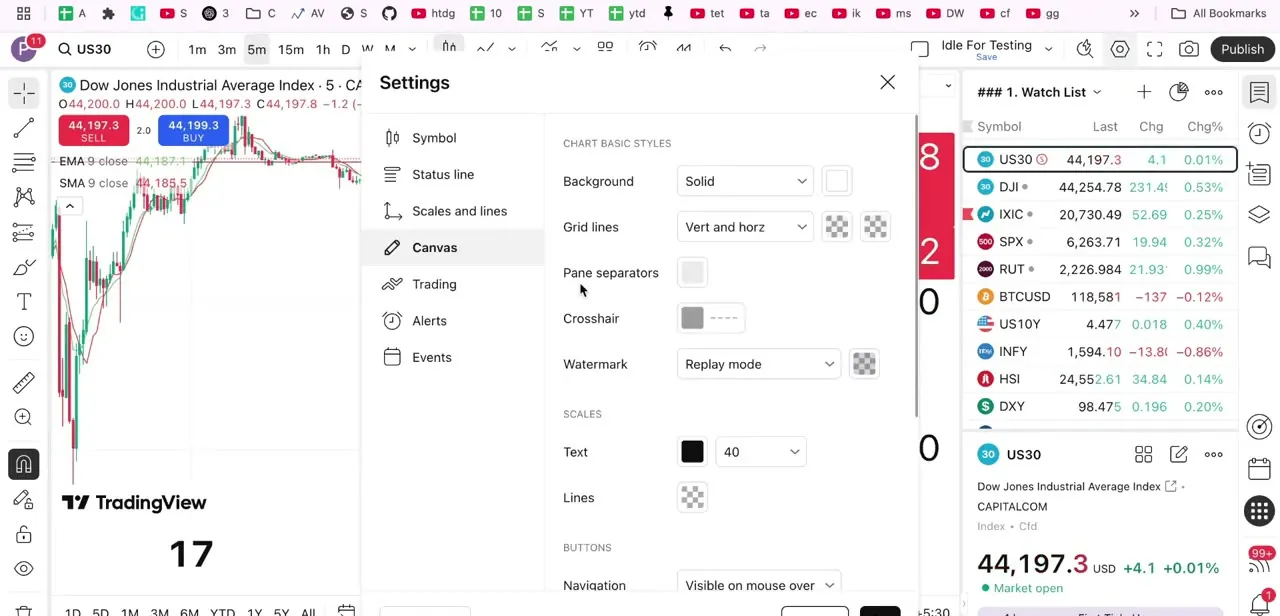
05Adjust contrast, then close the panel to keep it
Right next to the size dropdown is a color swatch for that same text. If you've switched to a lighter or darker chart background under the Canvas tab's own background controls, revisit this swatch afterward.
Text that was legible on a dark background can wash out on a light one, and the reverse is just as true. TradingView applies each change as you make it, so once size and color look right, close the Settings overlay with the X in its top corner. The new font size is saved to that specific chart layout going forward.
When it doesn't work
The text still looks small on a different chart or tab
Why: TradingView saves this setting per chart layout, not as one global preference, so a change made on one layout doesn't carry over to another.
Fix: Repeat the change on each layout you use, or set up the size you want on a layout you save and reopen as your starting point.
Indicator names or value labels stayed the same size after raising Scales Text
Why: The Scales Text field controls the price and time axis labels specifically, not the text an individual indicator draws on the chart.
Fix: Open that indicator's own settings and check its Style tab for a separate label or line-value size option.
The larger text is harder to read, not easier
Why: Size went up but the color swatch next to it wasn't revisited, so contrast against the current chart background is poor.
Fix: Pick a color from that same swatch with stronger contrast against your background color.
Frequently asked questions
Where do I change font size on TradingView?
Open chart settings via the gear icon, then go to the Canvas tab and look under the Scales section for the Text field, which controls the font size of your price and time labels.
Can I change font color as well as size?
Yes. The same Text row in the Canvas tab's Scales section has a color swatch right next to the size dropdown, so you can adjust both together.
Does this affect all annotations on my chart?
No. The Scales Text setting controls only the price and time axis labels. TradingView's own documentation for the Text drawing tool confirms that a manually placed text annotation has its own separate font size, set in that annotation's own property dialog.
Why does my chart text look too small by default?
TradingView doesn't publish one universal default: the number you see is whatever was last saved to that chart layout. If it looks cramped on a large display, or you're presenting or recording your screen, raising the Scales Text value a notch or two is the fix, and it applies immediately.
Sources and last check
Settings-panel tab order, the Canvas > Scales > Text location, and the on-screen values (22, then 40) come directly from the recorded screenshots. Re-checked against TradingView's official Supercharts configuration guide, its Text drawing tool documentation, and its layouts guide in September 2026; no error turned up in the original click path, but the claim that 22 is a fixed default was softened to reflect that it's a per-layout saved value, and the article now notes explicitly that this setting is saved per chart layout rather than account-wide.
About the author

Impran M N
I've been hooked on technology for as long as I can remember — especially the new tools and AI apps that seem to land every other week. Easy Tech Tuts is where I write up whatever I've just worked out: I do the task in the real product, record the screen, and turn it into the guide I wish I'd found first.



