 Easy Tech Tuts
How to Allow Tradingview on Tradovate, Enable Add on to buy sell directly 2026
By Impran M NLast checked against official docs
Trading from TradingView's charts while your orders execute through Tradovate's zero-commission futures desk sounds like it should be one toggle, but the permission for it lives in a settings menu most traders never open. This guide walks through turning on the TradingView Add-On inside Tradovate, granting TradingView access from the correct screen, and confirming the link works before you route real orders through it. It also covers why the integration doesn't add a separate monthly fee, and why testing with Paper Trading first is worth the extra five minutes.
Before you start
- A Tradovate account with trading permissions enabled (live or demo)
- A TradingView account, free or paid
01Open Settings inside your Tradovate account
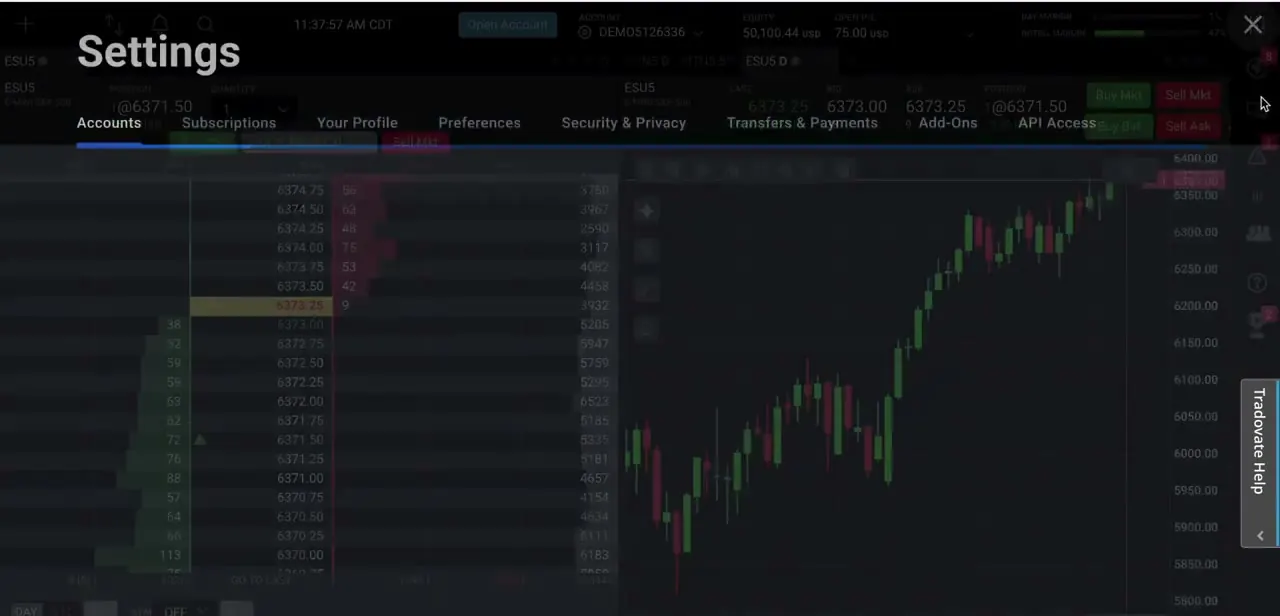
Log into Tradovate and open Settings from the trading platform. You'll land on a tabbed menu covering Accounts, Subscriptions, Your Profile, Preferences, Security & Privacy, Transfers & Payments, Add-Ons, and API Access.
The TradingView connection isn't under Preferences or API Access, which is where people usually look first; it's specifically under Add-Ons. This menu is also where you manage your Tradovate subscription tier and any other platform integrations you add later.
02Grant TradingView access from Add-Ons
Inside the Add-Ons tab, find TradingView Integration and enable it. This is the step that authorizes TradingView to place orders through your Tradovate account.
If you skip it and try to log into Tradovate directly from TradingView first, you'll hit an error stating TradingView has not been entitled to access your account, pointing you back to this same Add-Ons section. TradingView's own support documentation gives the identical fix: open Settings, select Add-on, and enable it there. Seeing that error just means the two platforms are already talking; only the permission is missing.
03Connect Tradovate from the TradingView side
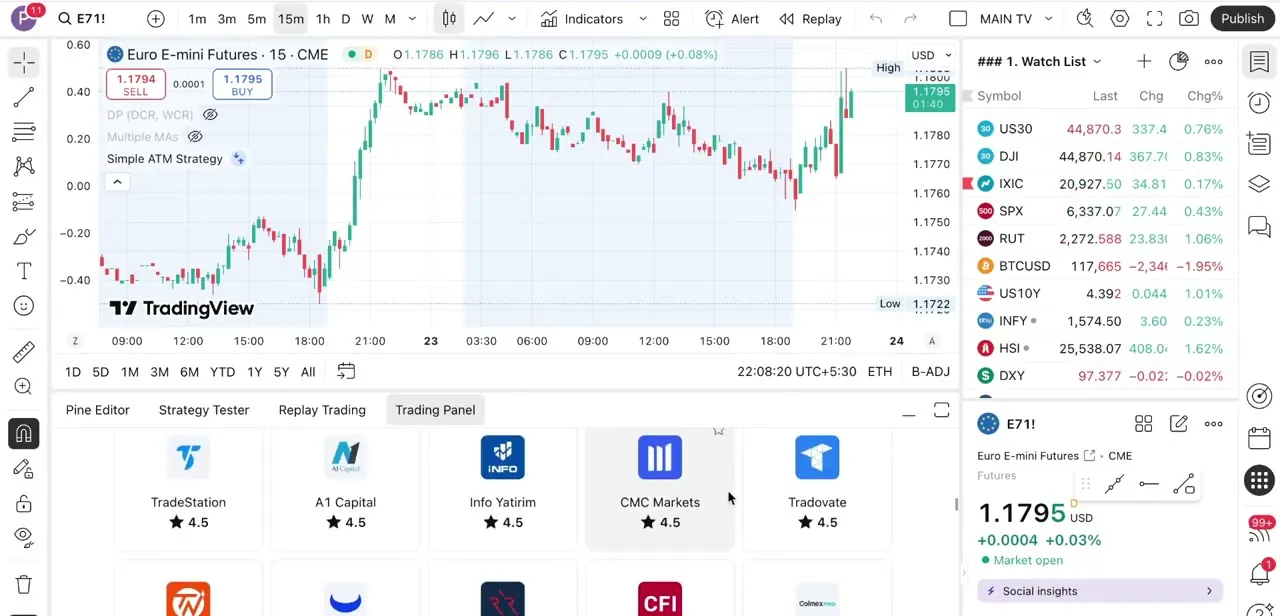
Back in TradingView, open the Trading Panel at the bottom of a chart and look for Tradovate among the broker connections listed there, alongside names like TradeStation, CMC Markets and Info Yatirim. Click through the Tradovate tile and log in with your Tradovate credentials when prompted. Once connected, TradingView's Trading Panel becomes a live extension of your Tradovate account: positions, watchlists and your selected instrument all sync between the two.
04Place Market, Limit, and OCO orders from the chart
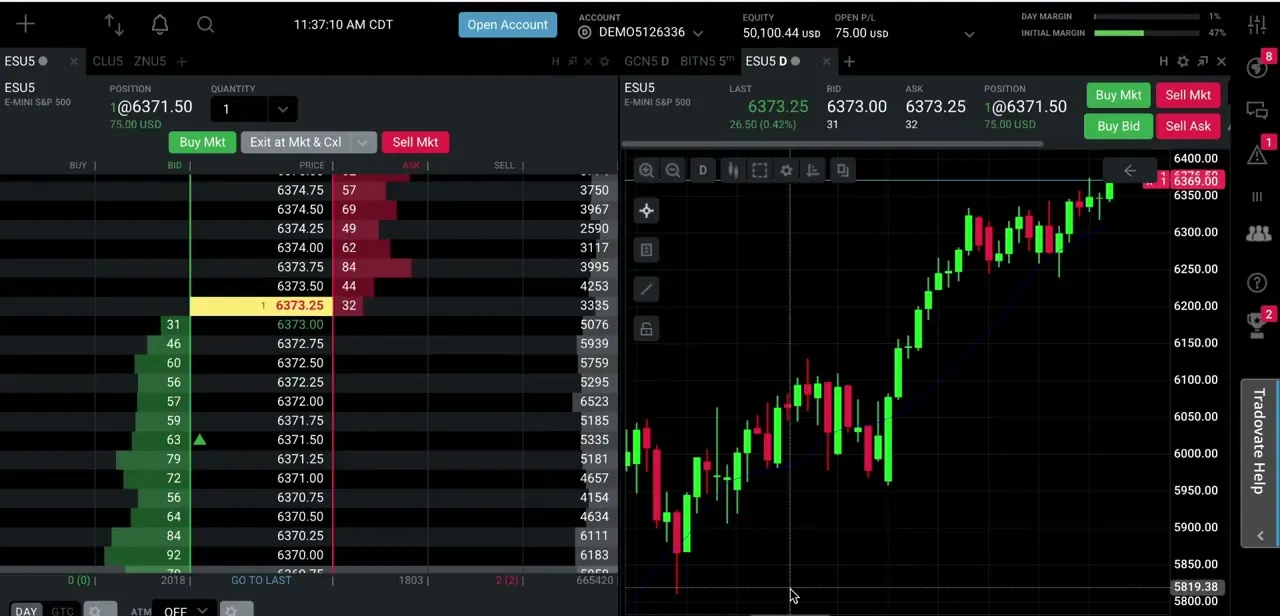
With the accounts linked, you can trade the same instrument from either platform and see it reflected in both. Tradovate's own interface still shows the full order ticket, live DOM ladder and position details, useful for checking exactly what TradingView just sent through. Market orders fill immediately at the current price, Limit orders wait for your specified level, and OCO (one-cancels-other) orders let you set a stop and a target that cancel each other the moment either fills.
05Test the connection with Paper Trading first
Before routing real money through the integration, switch to Paper Trading in Tradovate and run through a handful of Market, Limit and OCO orders from TradingView to confirm they land correctly. This catches the two most common issues early: a permission that didn't fully save, or an order type that doesn't behave the way you expected, without any financial downside. Once a few paper trades fill and cancel as intended, you can switch back to your live account with confidence the routing works.
When it doesn't work
TradingView says it has not been entitled to access your account
Why: The Add-on hasn't been enabled in Tradovate yet. This is the standard error before permission is granted.
Fix: Log into Tradovate, go to Settings, select Add-on, and enable TradingView Integration there. TradingView's own support page gives this same fix for the error.
A $9.99/month charge quoted in older guides doesn't show up on your Tradovate bill
Why: Tradovate's TradingView integration doesn't carry a separate add-on fee any more; that figure is outdated.
Fix: Check Subscriptions in Tradovate's settings if you want to confirm your overall plan cost. The TradingView Add-On itself shouldn't appear as its own line item.
Orders placed from TradingView don't show up in Tradovate
Why: The permission was granted on only one side: Add-Ons enabled in Tradovate but Tradovate never connected as a broker inside TradingView's Trading Panel, or the reverse.
Fix: Confirm both directions are set up, then test with a small Paper Trading order before trying it live.
Frequently asked questions
Does the TradingView Add-On cost extra on Tradovate?
No. Tradovate lists TradingView as a partner integration with no order routing fees, available on every Tradovate pricing plan. Guides that mention a separate monthly charge for this add-on are out of date.
Can I place Market, Limit, and OCO orders from TradingView?
Yes. Once the add-on is enabled and your accounts are linked, you can submit Market, Limit, and OCO orders directly from the TradingView chart.
Why does TradingView say it's not entitled to access my account?
That error means TradingView reached Tradovate but the Add-on hasn't been switched on yet. Log into Tradovate, open Settings, select Add-on, and enable TradingView Integration there.
Is it safe to link my TradingView account to Tradovate?
The integration passes order instructions between the two platforms without exposing your Tradovate login to TradingView directly.
Should I test the integration before trading live?
Yes. Paper Trading lets you confirm orders route correctly before you commit real funds.
Sources and last check
Click path and screens come from a recorded walkthrough. The add-on's cost and the entitlement-error fix were checked against Tradovate's own integrations and pricing pages and TradingView's support page in September 2026 - that check corrected this guide's earlier claim of a $9.99/month fee, which Tradovate's own page contradicts by stating the TradingView integration carries no order routing fees on any plan.
About the author

Impran M N
I've been hooked on technology for as long as I can remember — especially the new tools and AI apps that seem to land every other week. Easy Tech Tuts is where I write up whatever I've just worked out: I do the task in the real product, record the screen, and turn it into the guide I wish I'd found first.



