Easy Tech Tuts
How to Setup Products and Prices in Stripe, Add Recurring Subscription Price Type Easily 2026
By Impran M NLast checked against official docs
Checkout, invoices, and customer billing in Stripe all trace back to how a product and its prices are set up, which makes this the part worth getting right before building anything on top of it. This guide walks through the Product catalog in the Stripe dashboard, where the recurring-versus-one-time choice lives, and a constraint on editing prices later that catches people who expect to fix a typo the way they would in a spreadsheet.
01Sign in to your Stripe dashboard
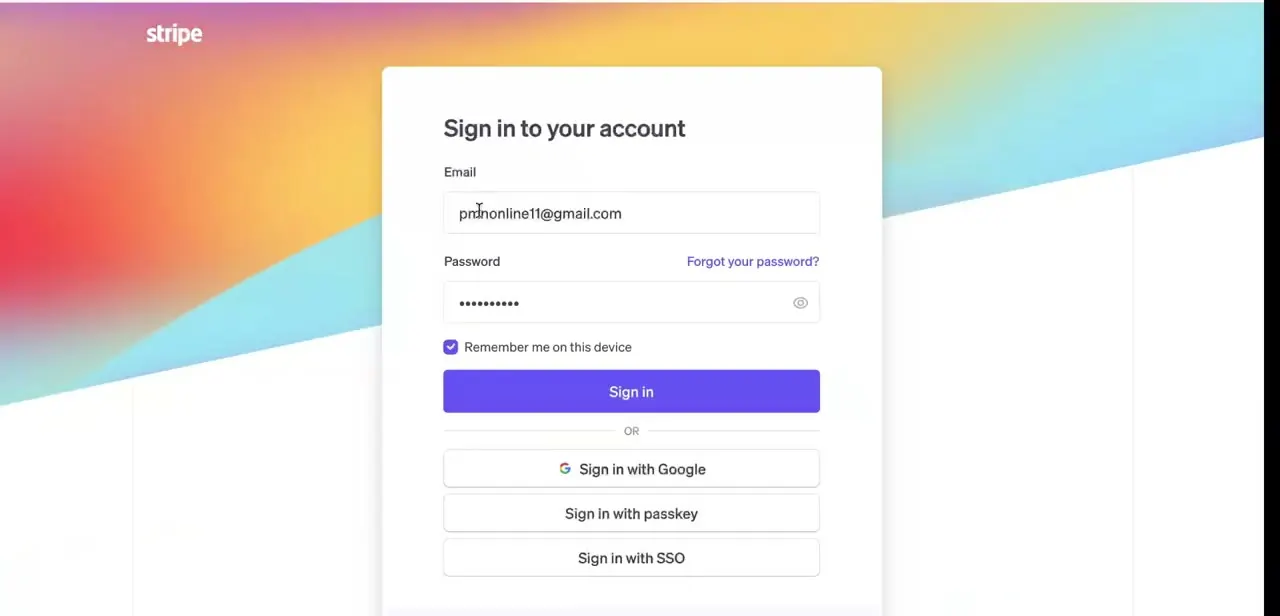
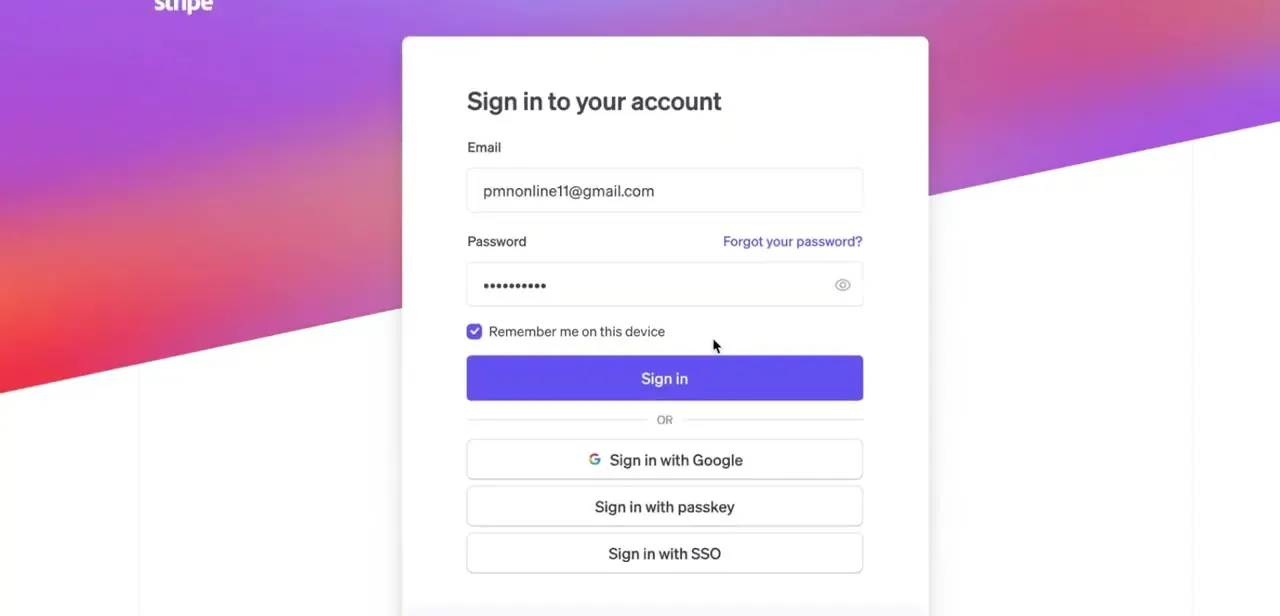
Go to Stripe and sign in with your account email and password, or with Google, a passkey, or SSO if your account uses one of those. Product and price management lives inside the dashboard, not on Stripe's public marketing pages, so this is the first real step regardless of which pricing model you're building toward.
02Open Product catalog and start a new product
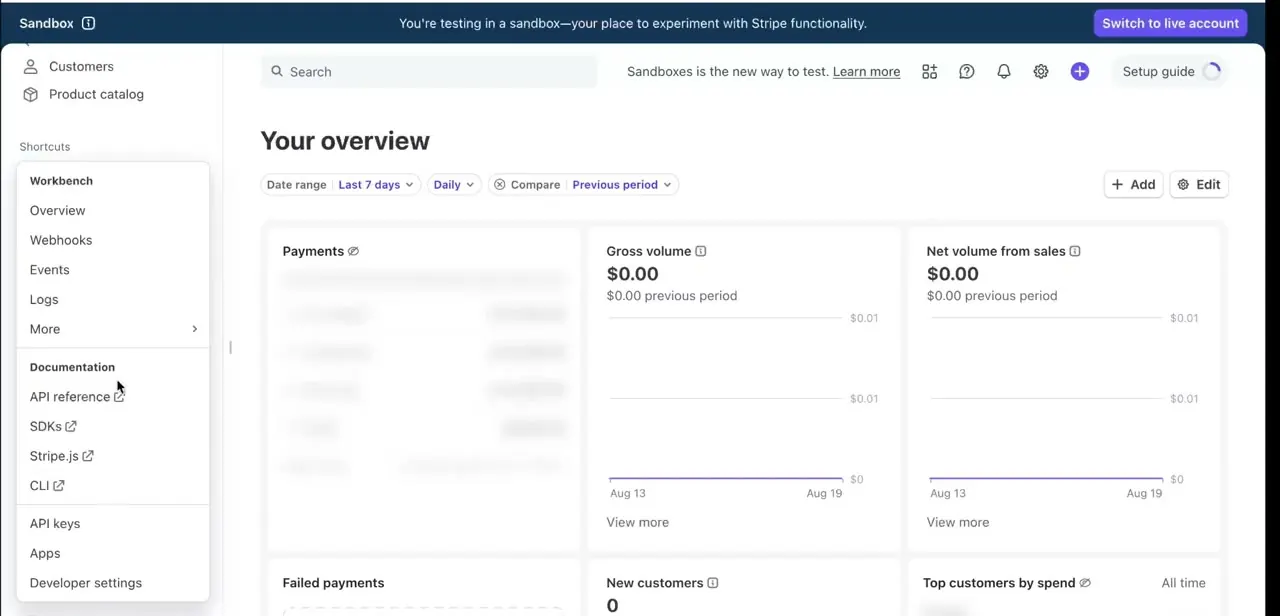
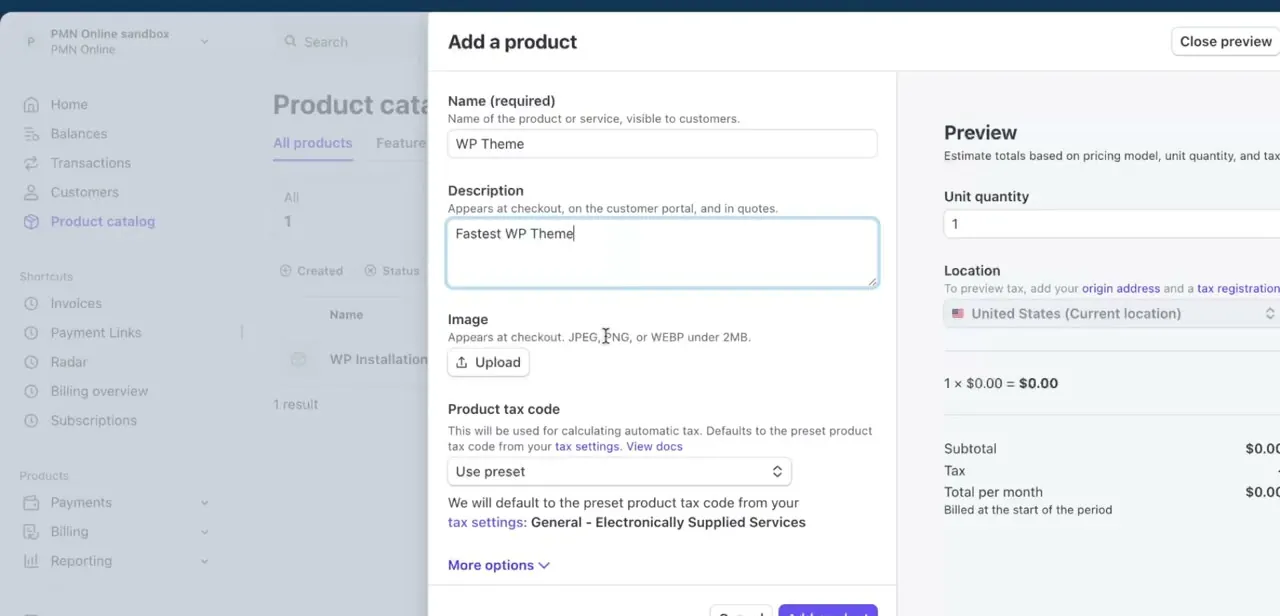
In the left-hand menu, click Product catalog, then start adding a new entry. The Add a product panel opens with a live Preview alongside it, a fast way to sanity-check a price before saving.
Fill in Name, which is what customers see at checkout, in the customer portal, and on quotes, and add a Description if you want more context to show alongside it. You can also upload a product image; Stripe's own limit is a JPEG, PNG, or WEBP file under 2MB, and the image shows up at checkout.
03Set the product tax code, if you use Stripe Tax
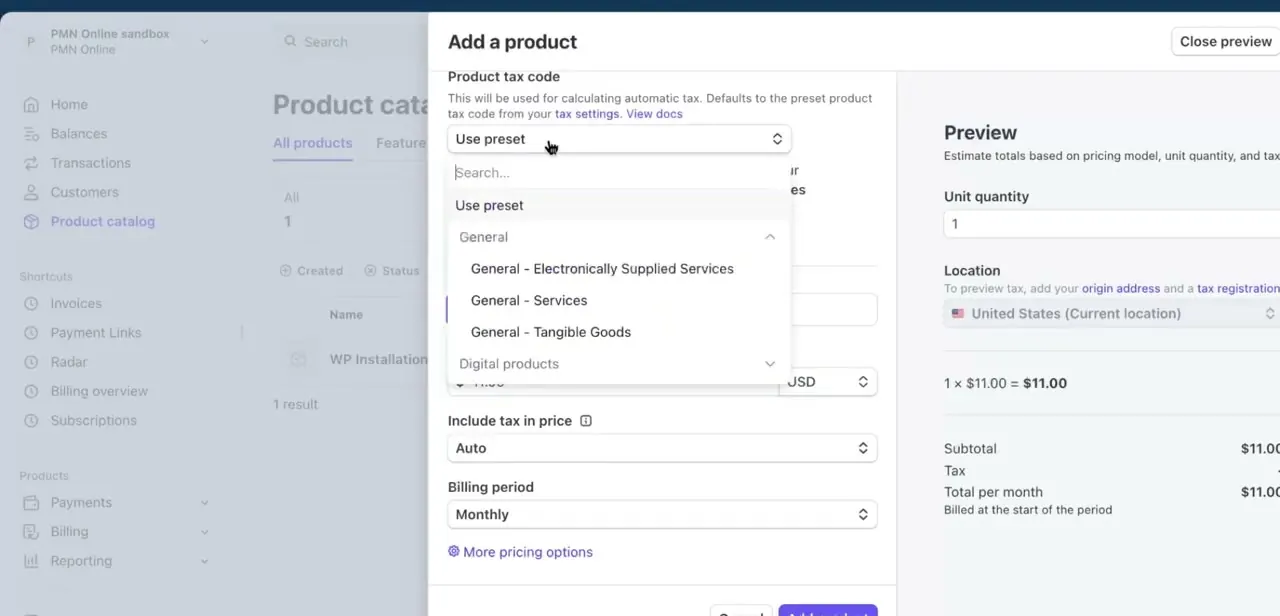
Below the image upload, Product tax code controls how Stripe calculates automatic tax for this item, but only if Stripe Tax is turned on for your account. If it isn't, this field has nothing to act on and can be skipped.
When it does apply, the dropdown opens a searchable list grouped into categories like General (with sub-options such as Electronically Supplied Services, Services, and Tangible Goods) and Digital products. Leaving it on Use preset defaults to your account's general tax settings; picking the closest matching category here keeps automatic tax calculations accurate for that specific product from the start.
04Choose Recurring or One-off pricing
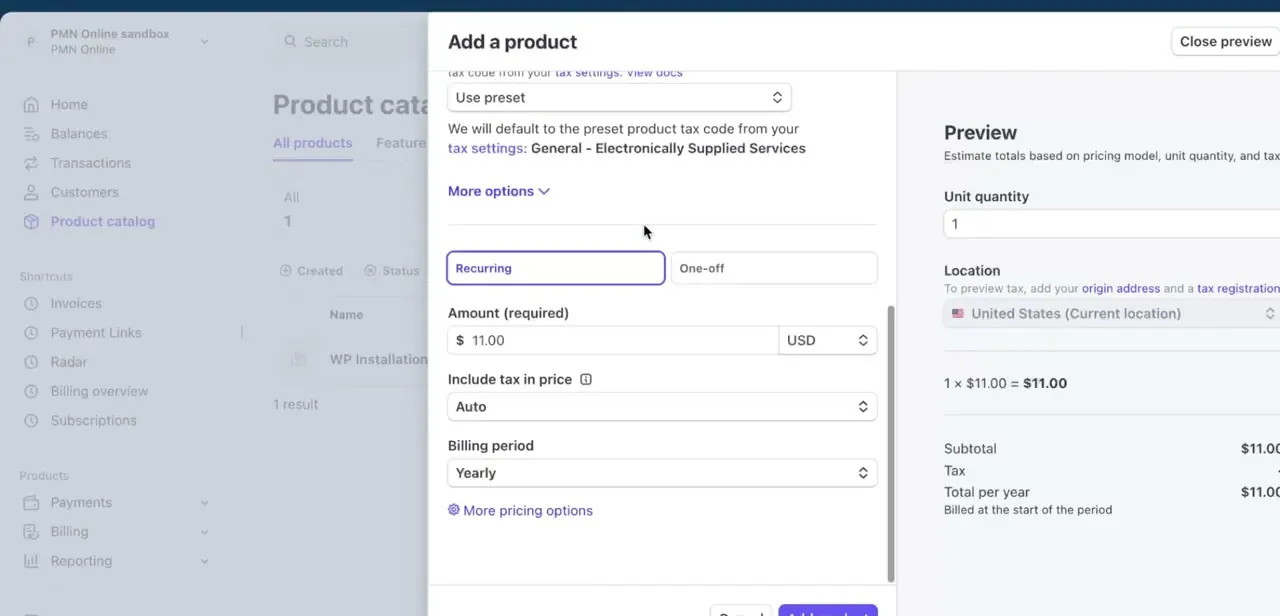
The pricing section splits into two tabs: Recurring and One-off. Recurring turns a product into a subscription.
Set the Amount (say, $11.00 USD) and a Billing period such as Monthly or Yearly, and Stripe charges the customer on that schedule until they cancel. One-off charges the amount a single time with no repeat billing, the right choice for a digital download or a one-time service fee.
One constraint worth knowing before you save: once a price exists, you can't edit its amount, in the dashboard or through the API. Stripe only lets you update a price's metadata, nickname, and active status afterward. Get the amount right here; the fix later is a new price, not a correction to this one.
05Decide between monthly and yearly billing
For a subscription, the billing period has real business consequences beyond the checkout label. Monthly billing lowers the barrier to a first purchase and creates more frequent renewal touchpoints.
Yearly billing improves cash flow up front and tends to reduce churn, since customers commit for longer. Nothing stops you from creating both a monthly and a yearly price on the same product, so customers can pick what fits.
06Add more prices, or fix one you got wrong
A product isn't limited to one price. Return to it later and add another: a Recurring monthly price alongside a Recurring yearly one, say, or a One-off price next to a subscription for customers who'd rather pay once.
Each price gets its own ID, so your checkout or billing code references whichever one applies. Fixing a wrong amount works the same way: create the new price, set it as the product's default price, then archive the old one instead of trying to edit it. Archiving stops it from being offered again without breaking the historical record for anyone already on it.
07Connect the price to checkout or a customer
With the product and its price saved, put them to use: add the price ID to a Stripe Checkout session or Payment Link, or attach it directly to a customer record if you're billing outside a storefront flow. Recurring prices need a subscription created against the customer; one-off prices can be charged through a simple payment.
Test the flow before sending it to real customers. A wrong billing period is much easier to catch here than after someone's been charged.
When it doesn't work
There's no way to edit a price's amount after saving it
Why: This is by design. Stripe prices are immutable once created; only metadata, nickname, and active status can be changed afterward.
Fix: Create a new price with the correct amount, set it as the default price on the product, and archive the old one.
Delete product is unavailable for a product with no active prices left
Why: Stripe still won't delete a product that has any price attached to it, even an archived one. Only a product with zero associated prices can be deleted.
Fix: Delete the price first (only possible if it was never used), or leave the product archived instead of trying to delete it. Stripe keeps a record of both for historical transactions.
Picking a Product tax code doesn't seem to change anything at checkout
Why: Product tax code only affects calculations when Stripe Tax is enabled on the account. With it off, the field is saved but has nothing to act on.
Fix: Turn on Stripe Tax in account settings first if per-product tax categories need to matter.
Frequently asked questions
What's the difference between one-time and recurring prices in Stripe?
In the Add a product panel, One-off charges a customer once with no repeat billing, while Recurring bills them automatically on a set Billing period, Monthly or Yearly for example, until the subscription is canceled.
Can one product have both a one-time and recurring price?
Yes. A single product can carry multiple prices, such as a Recurring monthly price and a One-off price, each with its own ID referenced separately at checkout.
Can I change a price's amount after I've created it?
No. Stripe only lets you edit a price's metadata, nickname, and active status once it's saved. To change an amount, create a new price and archive the old one; you can't delete a price that's already been used.
Do I need to write code to set up products and prices?
No. Both can be created entirely from the Add a product panel in the dashboard, including the Recurring/One-off toggle, amount, and billing period. Code only comes in once you connect the price to your own checkout flow.
How do I bill customers on a monthly vs. annual cycle?
When adding a Recurring price, use the Billing period dropdown to choose Monthly or Yearly, among other intervals. You can create separate prices for each interval on the same product to offer both.
Why does Stripe ask for a Product tax code?
It determines how Stripe calculates automatic tax for that item, but only matters if Stripe Tax is turned on for your account. If it is, a specific category like Digital products keeps calculations accurate instead of falling back to your account's generic preset.
Sources and last check
Click path and screens come from a walkthrough recorded in August 2026. The pricing-model steps, the 2MB image limit, and the tax-code behavior were re-checked against Stripe's official documentation in September 2026, which is also where the price-immutability constraint and the archive-before-delete rule came from. Neither appeared in this article before.
About the author

Impran M N
I've been hooked on technology for as long as I can remember — especially the new tools and AI apps that seem to land every other week. Easy Tech Tuts is where I write up whatever I've just worked out: I do the task in the real product, record the screen, and turn it into the guide I wish I'd found first.