Easy Tech Tuts
How to Set up Subscription Payment Plans on Stripe, Create Recurring Payments Easily 2026
By Impran M NLast checked against official docs
Subscriptions power everything from SaaS tools to membership sites, and Stripe's Sandbox mode lets you build and test the whole flow with real pricing before a single live charge happens. The part that trips people up is where the recurring price lives: Stripe sets it on the product itself, not on the subscription you create afterward. This guide covers creating a subscription product with its recurring price, testing it in Sandbox, and connecting it to a real checkout, plus a couple of Stripe's stricter rules, like the fact that a subscription can be cancelled or paused but never deleted.
01Create a product with a recurring price
In your Stripe dashboard, open Product catalog and add a new product for recurring billing, not a one-time charge. The recurring price, meaning both the amount and the billing interval such as monthly or yearly, gets set right here, on the product, not later when you create a subscription. Give the product a clear name and description; that's what shows up on the customer's invoice every cycle, and a vague name is a common source of "what is this charge" support tickets.
02Open Billing, then Subscriptions
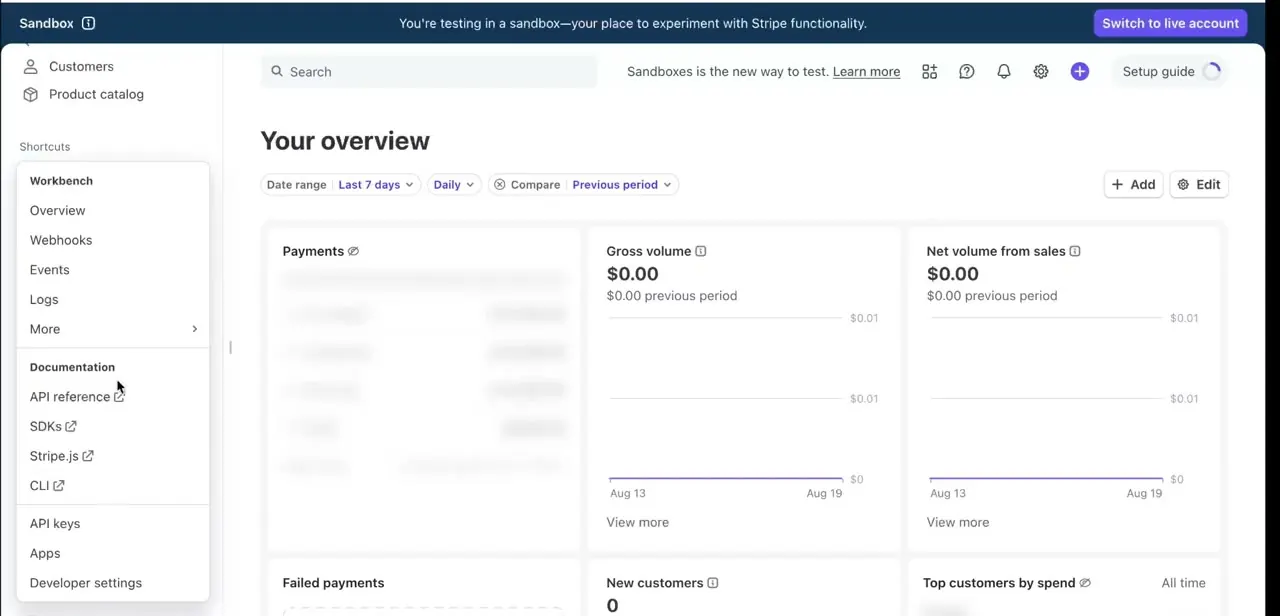
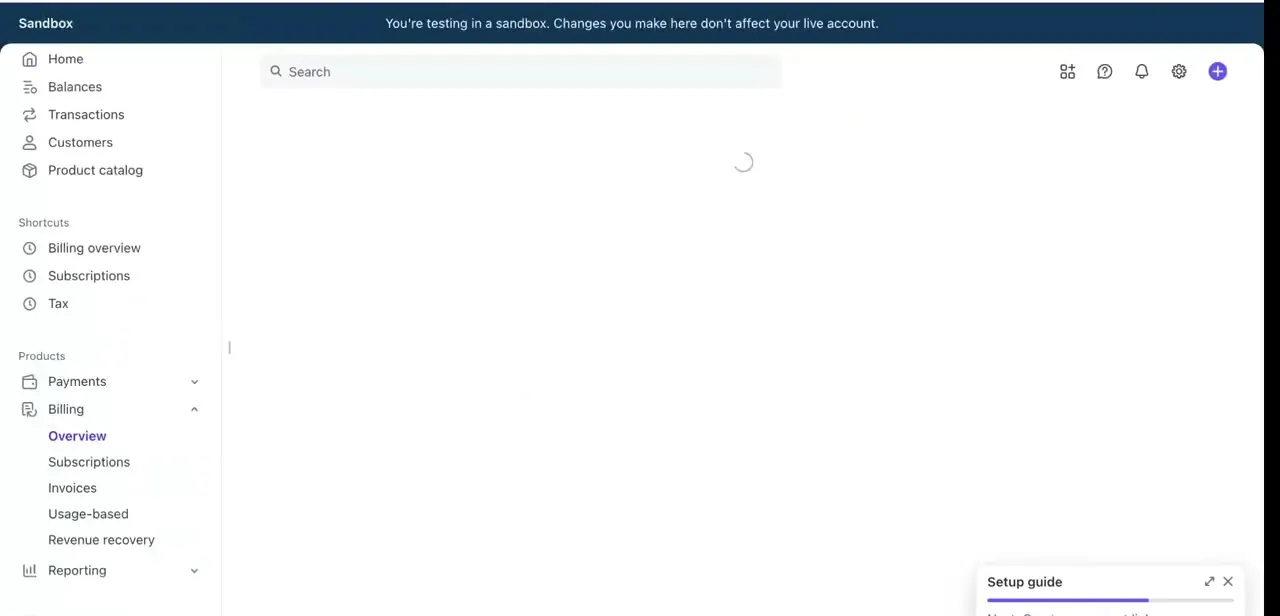
From the left sidebar, expand Billing and select Subscriptions. Check the banner across the top confirming you're in Sandbox mode; changes made here don't touch live customers, so it's the safe place to build your first subscription flow.
03Create a test subscription and select your priced product
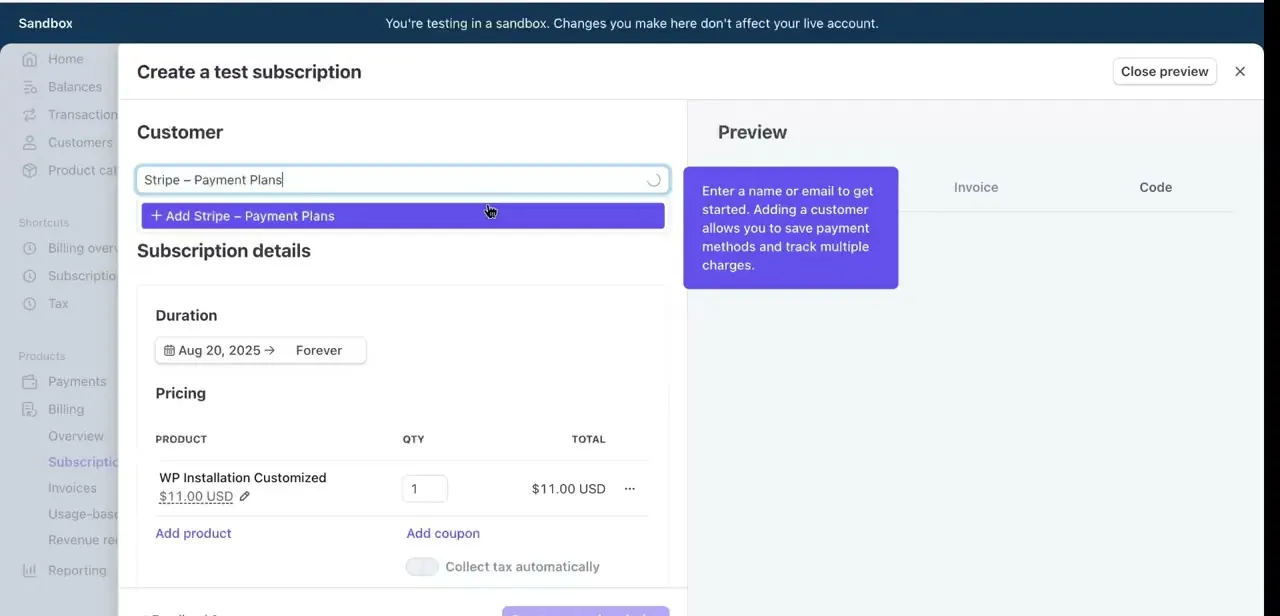
Click Create subscription, find or add a customer, then add your product. Stripe only lets you select products that already carry a recurring price, so this step is choosing the price you set earlier, not configuring one from scratch. Confirm the quantity and total look right, and use Add coupon here if you're testing a promotional rate.
04Set the billing start date
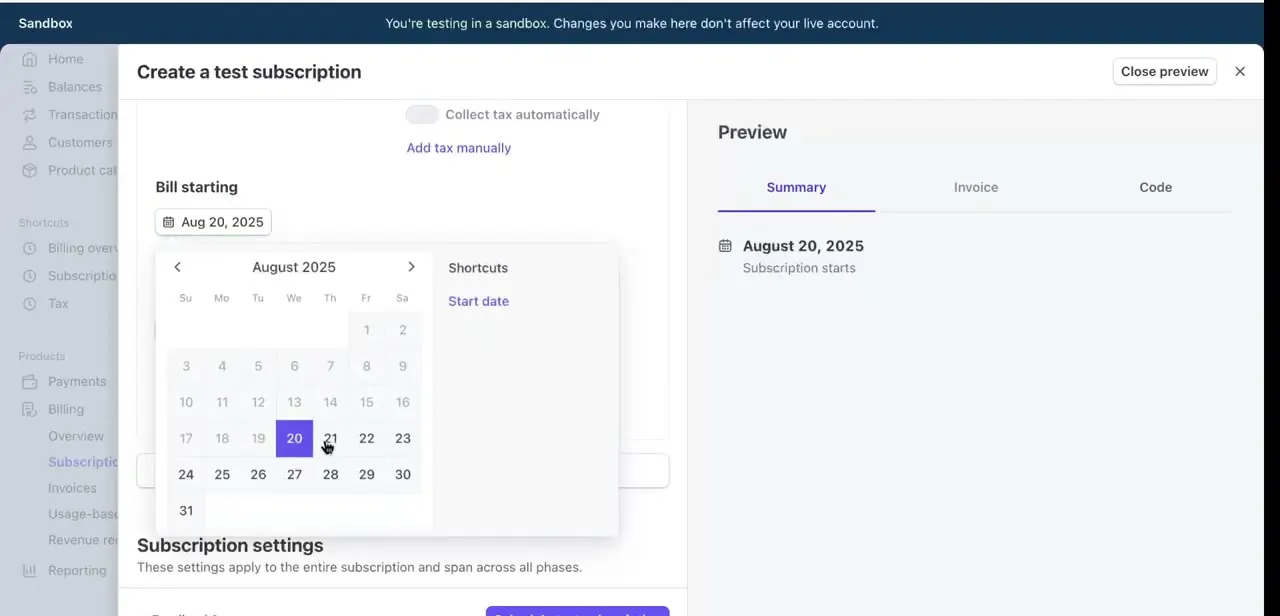
Scroll to Bill starting and pick the date the first invoice should go out. Stripe defaults to today but lets you choose any future date, which helps if you're onboarding a customer mid-cycle. This same date controls every later invoice too, so it's worth setting correctly the first time instead of adjusting it once customers are already subscribed.
05Connect the price to a real checkout
Once the recurring price exists on your product, link it to a Stripe Checkout session or a Payment Link so customers can subscribe from your site instead of through the dashboard. Walk through the checkout yourself in Sandbox first, the same way you tested the subscription itself.
06Test fully, then switch to Live mode
Run through the whole flow in Sandbox: create a test subscription, confirm the invoice generates, and cancel one to confirm billing stops. There's no delete option for a subscription in Stripe, only cancel or pause, so cancel is the button to look for either way. Once everything behaves as expected, toggle from Sandbox to Live mode; your product and pricing setup carries over and starts processing real payments.
When it doesn't work
There's no way to delete a subscription
Why: Stripe doesn't support deleting a subscription at all, only cancelling or pausing it.
Fix: Use Cancel subscription, immediately, at period end, or on a custom date, from the subscription's overflow menu.
A product doesn't show up when creating a subscription
Why: Subscriptions can only use products that already have a recurring price attached; a one-time price isn't selectable here.
Fix: Edit the product in Product catalog and add a recurring price before trying again.
Invoices are generating on the wrong date
Why: The billing cycle date, set when the subscription was created, controls every future invoice, not just the first one.
Fix: Update the billing cycle date on the subscription directly instead of waiting for a later cycle to self-correct.
Frequently asked questions
Can I delete a subscription in Stripe?
No. Stripe only lets you cancel or pause a subscription; there's no delete option at all.
Where do I actually set the recurring price?
On the product itself, in Product catalog, when you first create it. Creating a subscription later just selects a price that already exists.
Does Stripe Billing cost extra?
Yes, it carries its own fee on top of standard payment processing. Check Stripe's Billing pricing page for current rates.
Should I test subscriptions before going live?
Yes. Stripe's Sandbox mode lets you build and run a full test subscription, including pricing, billing start date, and invoicing, before switching to Live mode.
How do I switch from Sandbox to Live mode?
Toggle from Sandbox to Live mode in the dashboard once you've confirmed everything works; your product and pricing configuration carries over.
Where do I set the billing start date for a subscription?
Inside the Create subscription flow, the Bill starting field offers a calendar picker and defaults to the current day if you don't change it.
Sources and last check
Click path and screens come from a recorded walkthrough in Stripe's Sandbox. The order of operations (the recurring price is set on the product, not the subscription), the billing-cycle behavior, and the fact that subscriptions can only be cancelled or paused, never deleted, were checked against Stripe's official documentation in September 2026. That check corrected how this guide previously described the pricing step and added the cancel-versus-delete distinction it left out.
About the author

Impran M N
I've been hooked on technology for as long as I can remember — especially the new tools and AI apps that seem to land every other week. Easy Tech Tuts is where I write up whatever I've just worked out: I do the task in the real product, record the screen, and turn it into the guide I wish I'd found first.