Easy Tech Tuts
How to Set Up a Stripe Account Test Mode Easily 2026
By Impran M NLast checked against official docs
Before you charge a real customer, you should be able to run a payment through your Stripe integration and watch it succeed, fail, and get declined, all without touching a real bank account. That's what Stripe's test environment is for.
In 2026 it's built around "sandboxes" rather than a single Test Mode toggle, and the two aren't quite the same thing: a sandbox is an isolated copy of your account, and Stripe now lets you run several of them side by side. This guide covers creating your account, finding your default sandbox, what changed from the old Test Mode, and using test cards to simulate payments before you go live.
01Create your Stripe account
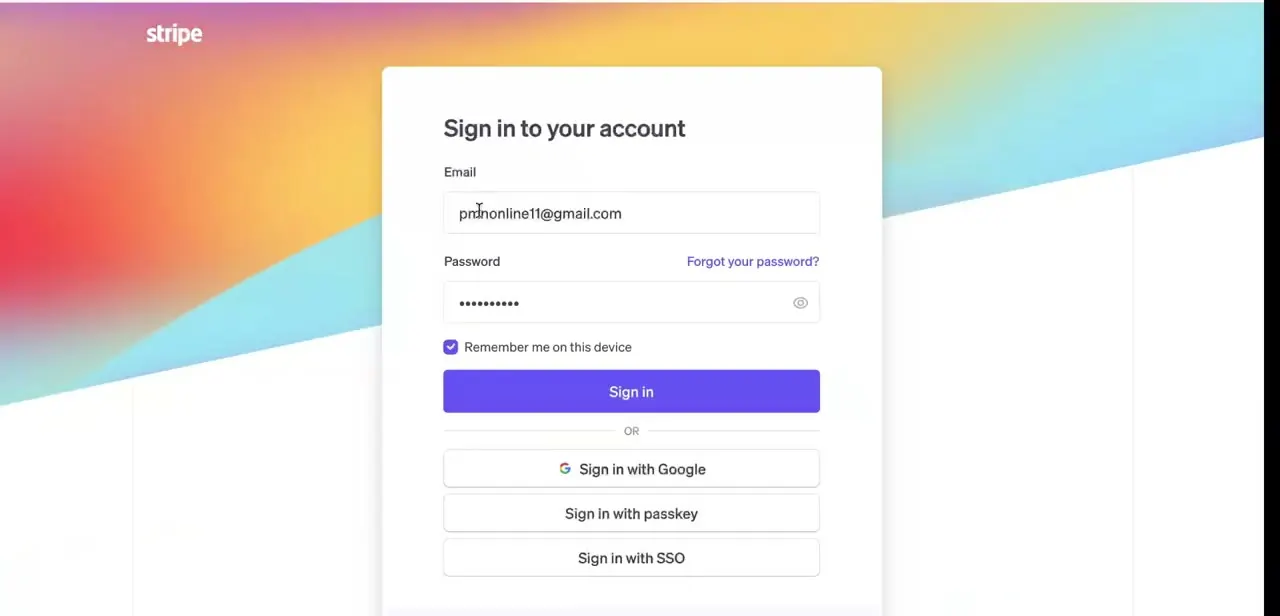
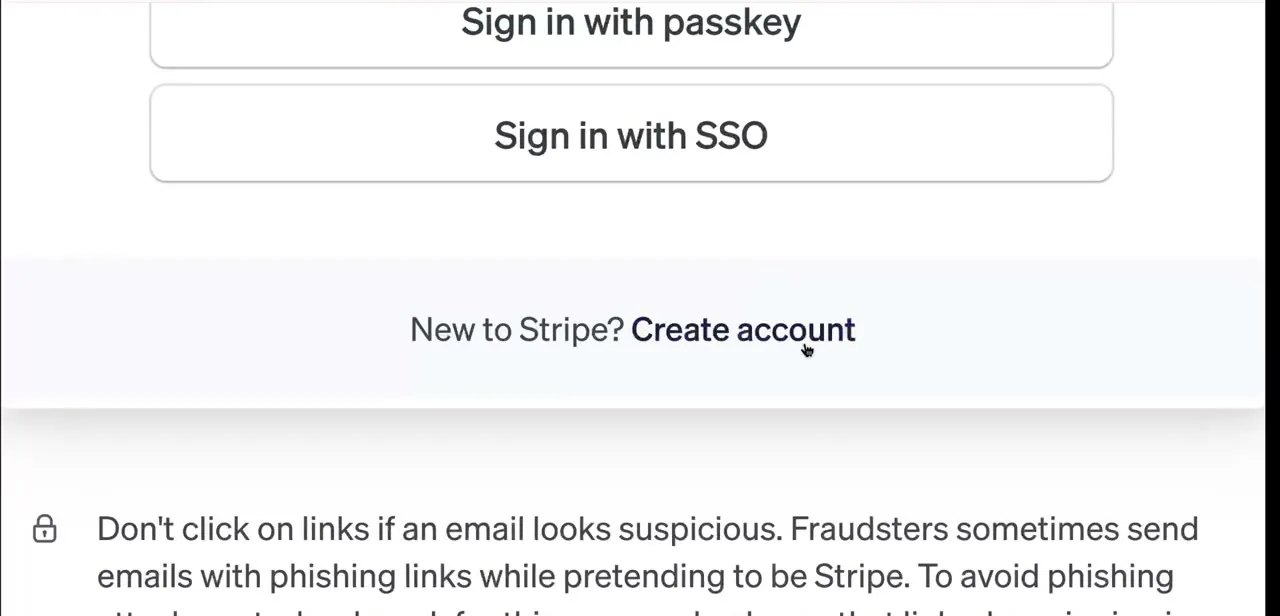
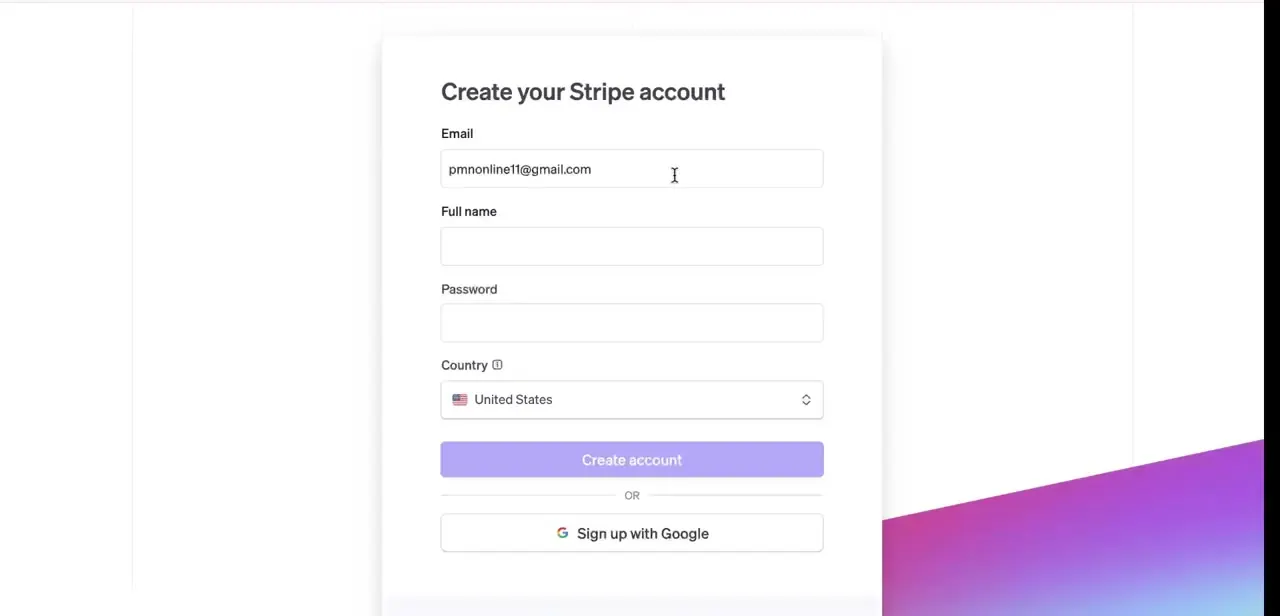
Head to stripe.com and start the signup form. You'll enter an email, your full name, a password, and your country.
Stripe uses the country to determine which payment methods and payout currencies are available later, so pick the one your business operates in, not wherever you happen to be sitting when you sign up. You can also sign up with a Google account instead of typing a password. Once submitted, Stripe creates your account and drops you straight into the dashboard.
02Land in your default sandbox
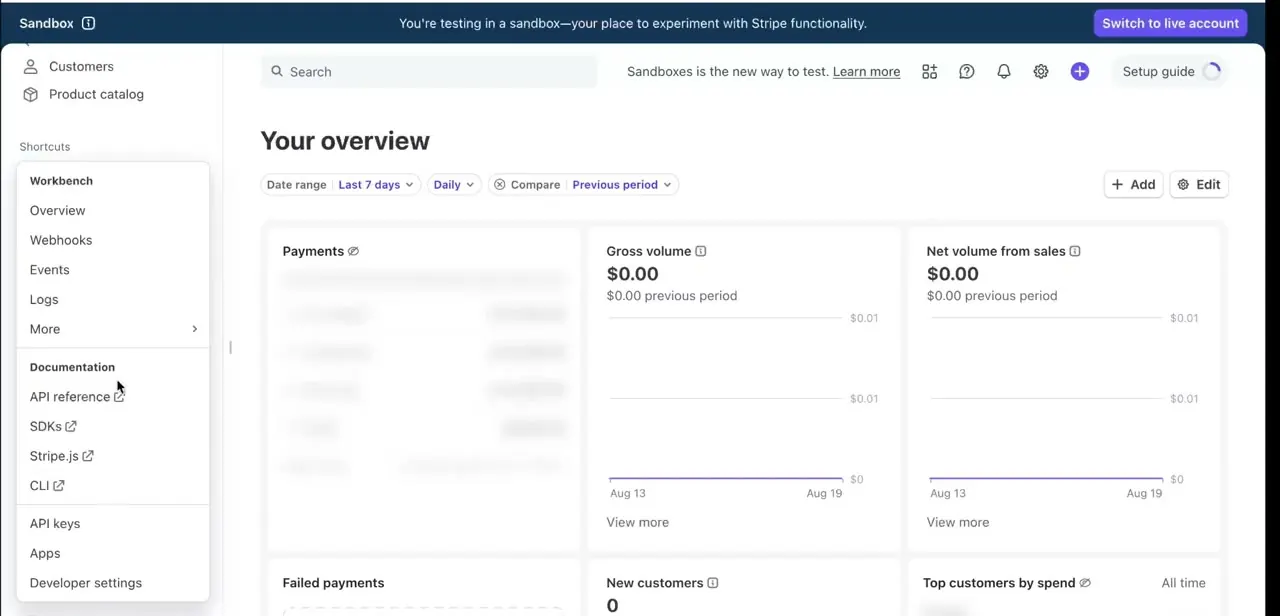
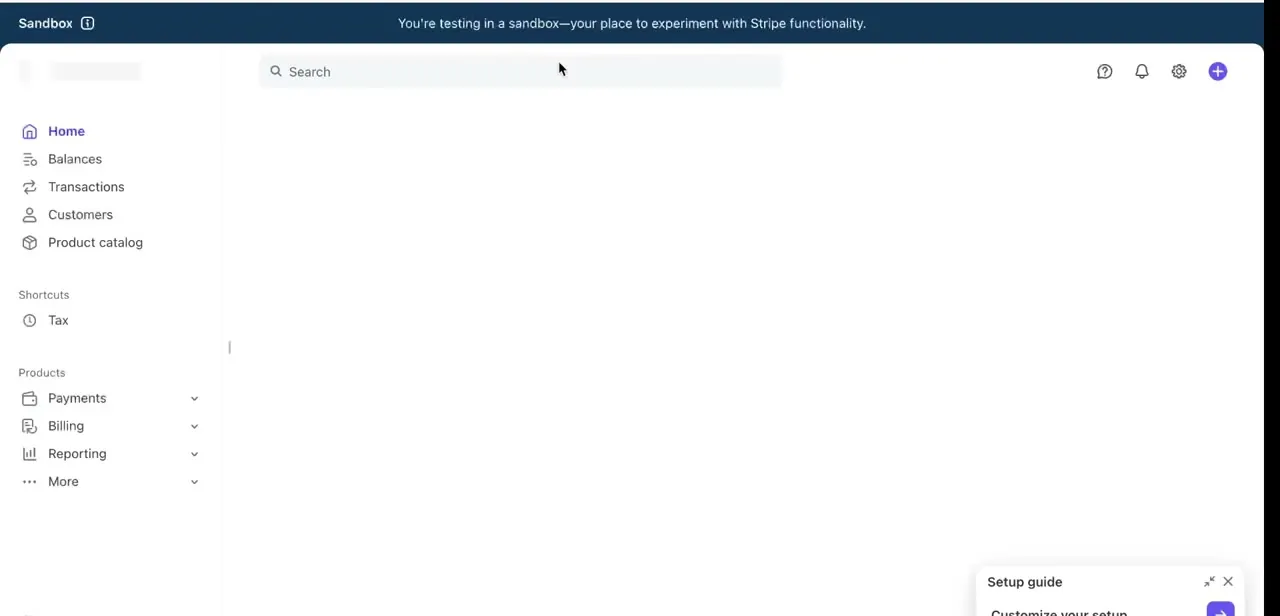
New Stripe accounts open into a sandbox by default. A dark banner across the top of the dashboard confirms it: "You're testing in a sandbox, your place to experiment with Stripe functionality." Creating products, running payments, and making API calls here stays fully separated from your live account, so you can build and break things while your integration is still in progress with zero risk of an accidental real charge.
03Get comfortable in the sandbox dashboard
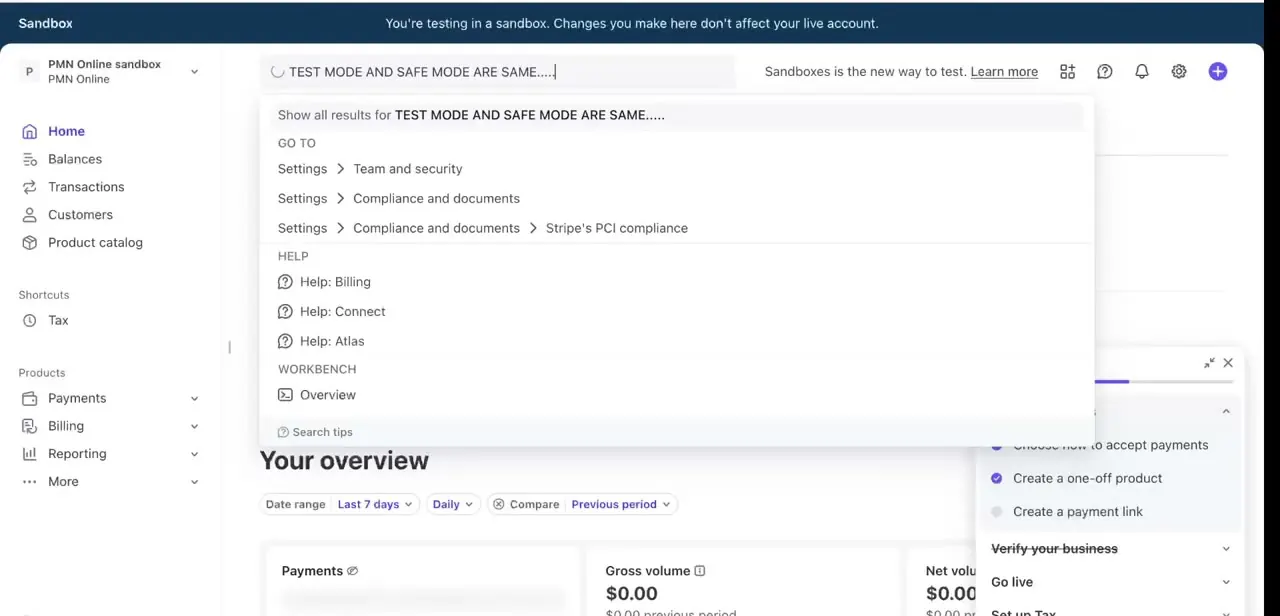
The sandbox uses the same layout as your live dashboard: Home, Balances, Transactions, Customers, and Product catalog down the left side, with Payments, Billing, and Reporting grouped underneath. Your Overview panel shows zeroed-out gross and net volume until you start running test transactions, which is expected. It's a blank environment built for you to fill with fake activity.
04Know that a sandbox is not just a renamed Test Mode
Stripe's own documentation is specific about this: the default sandbox you land in is what it calls your "test mode sandbox", the direct successor to the old single Test Mode toggle. But it's no longer the only option.
From the account picker in the dashboard, a Sandboxes menu lets you create general sandboxes, isolated environments you can spin up separately for local development, CI, or handing to an outside contractor, up to five per account, each with its own data and its own API keys. Stripe's guidance for new integrations is to use a general sandbox rather than the legacy test mode sandbox. Keep using the test mode sandbox mainly if an existing integration already depends on it, or if a feature you need doesn't yet support general sandboxes.
05Locate your test API keys
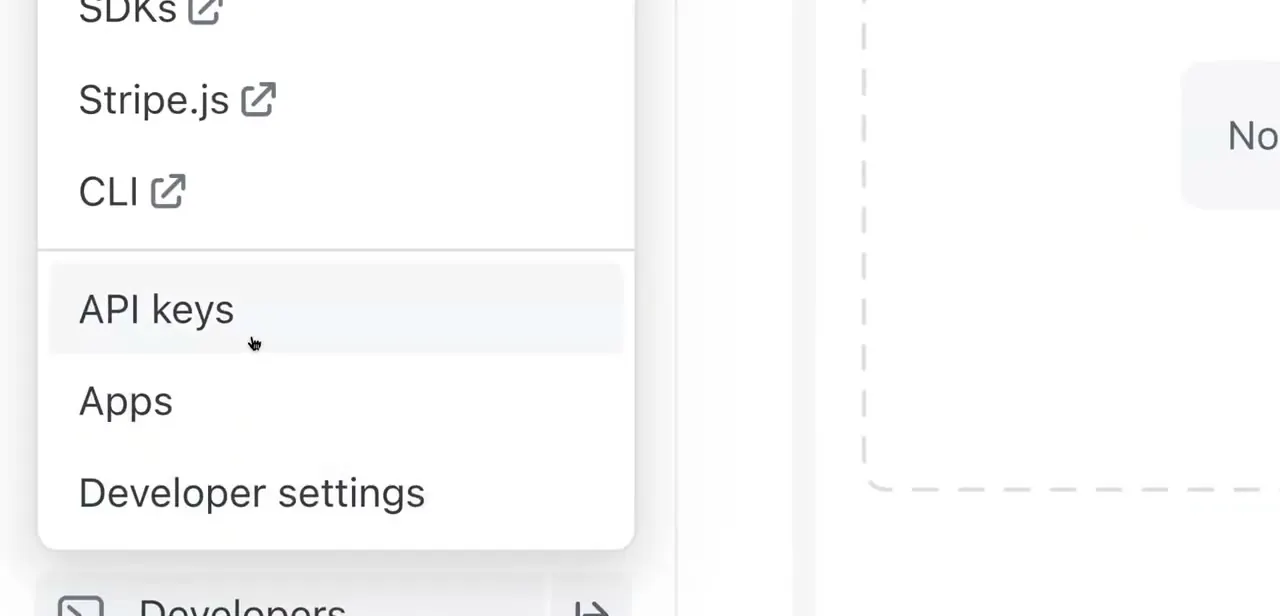
API keys live under Developers in the dashboard menu, scoped to whichever sandbox you currently have open. Test secret keys start with sk_test_ and test publishable keys with pk_test_, so it's obvious at a glance which environment a key belongs to.
A key copied from one sandbox won't authenticate against another, including the legacy test mode sandbox, since each is a separate environment. Use these keys anywhere your checkout or backend code needs to talk to Stripe during development, and never mix a live key into a test integration or the other way round.
06Simulate payments with Stripe's test cards
Stripe publishes a standard set of test card numbers that only work with test keys, and they're what you use to exercise your checkout flow. 4242 4242 4242 4242 simulates a successful payment with any future expiry date and any three-digit CVC. Other published numbers trigger specific failures, so you can confirm your checkout handles a decline as well as it handles success.
Run several of these through your integration before calling it done. A checkout that only works when everything goes right isn't ready for real customers.
07Switch to live mode when you're ready
Once your integration behaves correctly against test cards, move to live mode from the same account using the toggle in the dashboard, which swaps you out of sandbox testing and into real payment processing. At that point you need your live API keys instead of the test ones.
Live and sandbox data stay completely separate, so none of your test transactions or fake customers carry over. Before flipping the switch, connect a bank account for payouts; that's required to actually receive money from live payments.
| Card number | Result |
|---|---|
| 4242 4242 4242 4242 | Successful payment |
| 4000 0000 0000 0002 | Generic decline |
| 4000 0000 0000 9995 | Decline: insufficient funds |
| 4000 0000 0000 0069 | Decline: expired card |
Use any future expiry date and any 3-digit CVC. From Stripe's official testing documentation; only works with test keys, never in live mode.
When it doesn't work
A test card gets rejected even though I'm using the right number
Why: You're in live mode. Test cards only work with test API keys; Stripe's own terms prohibit testing with real card details in live mode, and the reverse is blocked too.
Fix: Switch back to a sandbox before running test cards, and only use real cards once you've flipped to live mode.
An API key I copied doesn't authenticate
Why: Test keys are scoped to the specific sandbox they came from. A key from one sandbox, or from the legacy test mode sandbox, doesn't work in a different one.
Fix: Open the exact sandbox you're integrating against and copy the key from that sandbox's own Developers > API keys page.
Data from an old integration is missing in a new sandbox
Why: General sandboxes are fully isolated from each other and from the test mode sandbox by design, so nothing carries over automatically.
Fix: Keep using the same sandbox for a given integration, or recreate the specific test data you need inside the new one.
Frequently asked questions
Does Stripe's test mode use real money?
No. A sandbox simulates transactions using published test card numbers so you can confirm your checkout works without spending or receiving real money.
Are test API keys different from live keys?
Yes. Test keys are prefixed sk_test_ or pk_test_ and only work inside a sandbox. Live keys use sk_live_ / pk_live_ and only work once you've switched to live mode.
Is a Stripe sandbox the same as the old Test Mode?
Not exactly. The account you land in by default is what Stripe calls your test mode sandbox, the successor to the old toggle. But Stripe now also offers general sandboxes, up to five per account, each fully isolated with its own data and API keys. New integrations should use a general sandbox rather than the test mode sandbox.
What card number do I use to test a successful payment?
4242 4242 4242 4242, with any future expiry date and any three-digit CVC. Stripe also publishes numbers for generic declines, insufficient-funds declines, and expired cards, listed in the table above.
Can I switch back and forth between sandbox and live mode?
Yes, at any time from your dashboard. Test and live data never mix, so switching back to a sandbox won't show any real transactions, and switching to live won't show your test ones.
How many sandboxes can one Stripe account have?
Up to five general sandboxes, in addition to the account's original test mode sandbox, and all of them are free to use.
Sources and last check
Click path and screens come from a recorded walkthrough of a fresh account's default sandbox. Re-checked against Stripe's official documentation in September 2026, which corrected the article's earlier framing of "sandbox" as simply a renamed Test Mode: Stripe now distinguishes general sandboxes (up to five per account, isolated, recommended for new integrations) from the legacy test mode sandbox. The generic-decline, insufficient-funds, and expired-card test numbers were also added from Stripe's testing documentation; the article previously described these scenarios without giving the actual numbers.
About the author

Impran M N
I've been hooked on technology for as long as I can remember — especially the new tools and AI apps that seem to land every other week. Easy Tech Tuts is where I write up whatever I've just worked out: I do the task in the real product, record the screen, and turn it into the guide I wish I'd found first.