Easy Tech Tuts
How to Send Automatic Receipts for Payments in Stripe, Send Email for Renewal Easily 2026
By Impran M NLast checked against official docs
Manually emailing customers every time they pay or renew a subscription doesn't scale, and Stripe already has this built in. The settings just sit in two different places: a Customer emails page that controls receipts for payments and refunds, and a separate Billing page that handles subscription renewal and trial notices. This guide covers both, plus a detail that trips people up when they go to check their work: Stripe's sandbox doesn't send these emails to just any test address.
Before you start
- A completed business profile. Stripe requires a legal business name, support address, support email, and privacy policy URL on file before receipts show that information instead of a placeholder.
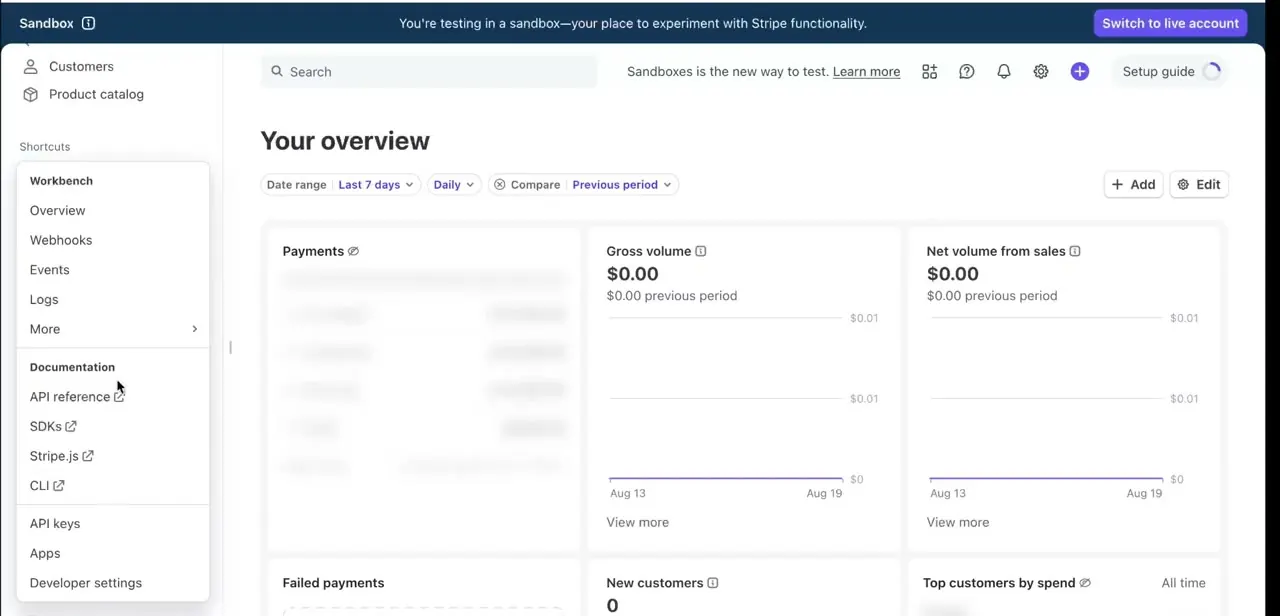
01Open Settings in the Stripe dashboard
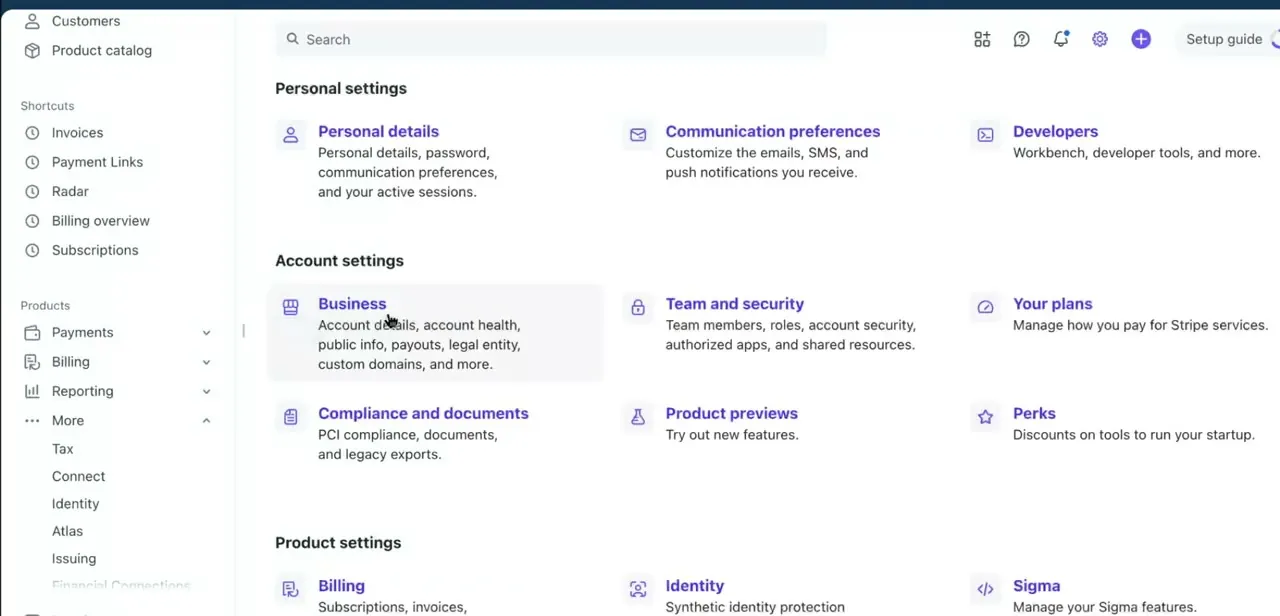
From any page in the dashboard, the gear icon opens Settings. Receipt and renewal controls aren't under one "Notifications" heading.
They're split: payment and refund receipts sit under Business, subscription renewal and trial emails sit under Billing. That split is the main reason people go looking in the wrong place first.
02Turn on receipt emails for payments and refunds
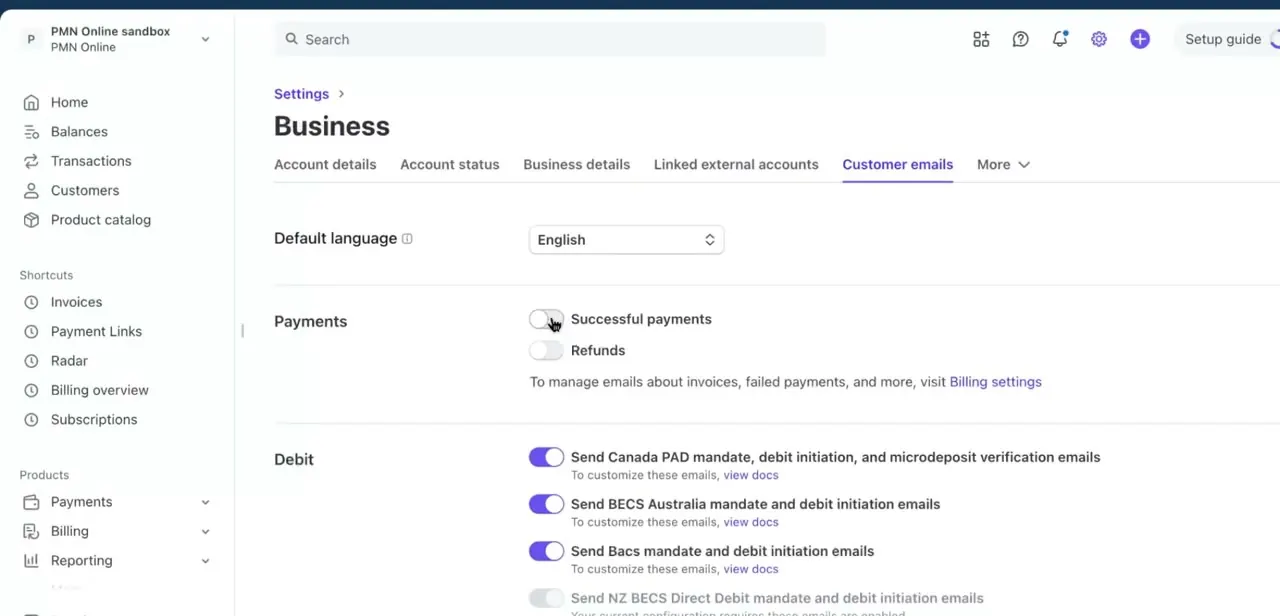
Under Business, open Customer emails. Under a Payments heading you'll find two toggles: Successful payments and Refunds.
Both are off in a fresh account, which is why new stores are often surprised nobody got a receipt after the first sale. Turn on Successful payments and every completed charge emails the customer a receipt automatically; a failed or declined payment sends nothing, since there's no successful charge to attach a receipt to. Turn on Refunds too, though it only fires when the original charge is tied to a stored customer record with an email on file, not on every refund regardless of how the payment was made.
03Notice what else lives on this page
Scrolling past the payment toggles, the same Customer emails page holds region-specific debit notices too: Canada PAD mandate emails, BECS Australia mandate emails, Bacs mandate emails, and NZ BECS Direct Debit emails, several on by default. These aren't receipts.
They're legally required advance notices for direct-debit payment methods (Bacs, for instance, requires telling the customer two days before a payment is collected). Leave them on unless your business genuinely never processes those payment methods.
04Enable renewal and billing emails for subscriptions
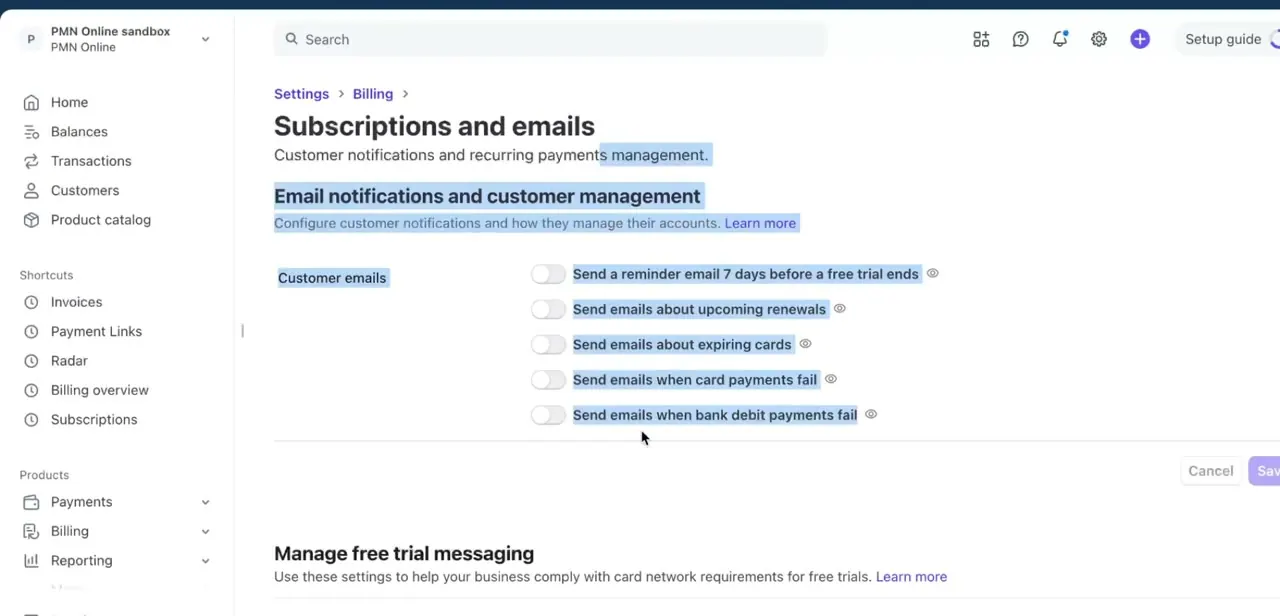
Renewal reminders live separately, under Settings → Billing. The page there covers customer emails for recurring billing: a reminder seven days before a free trial ends, a notice before an upcoming renewal, a warning roughly a month before a card on file expires, and failure notices when a recurring payment doesn't go through.
One limit worth knowing before you turn this on: Stripe only sends the renewal reminder for subscriptions billed automatically. If a subscription is set to email an invoice for manual payment instead, no renewal reminder goes out for it.
05Customize the receipt content to match your brand
The logo and color scheme on a receipt come from Settings → Business → Branding, under its Email receipts tab. The legal name, support email, and support address come from a separate page, Settings → Business → Business details.
Stripe requires all four of those before a receipt looks complete instead of showing a placeholder. There's no separate email tool to configure here. Update these two pages once and every receipt Stripe sends afterward reflects them.
06Test it, using an email Stripe will actually deliver to
Before relying on this, run a test charge and a test subscription renewal. One catch: Stripe's sandbox doesn't send these emails to an arbitrary test address.
It only delivers failed-payment, renewal, trial-ending, and card-expiring test emails when the recipient's address matches your verified email domain or belongs to an active member of your Stripe team. Use an address on your own domain, or a teammate's Stripe login email, for the test to mean anything. A test charge to a random inbox will show as sent in the Dashboard but the email itself won't arrive.
When it doesn't work
A test payment in sandbox mode doesn't produce a receipt email
Why: Stripe's sandbox only sends customer emails when the recipient address matches your verified email domain or an active team member's login, not an arbitrary test address.
Fix: Send the test receipt to an address on your own domain or to a teammate's Stripe account email, then check that inbox.
Some subscribers never get a renewal reminder
Why: Renewal reminder emails only go out for subscriptions billed automatically. Subscriptions set to send an invoice for manual payment don't get one.
Fix: Check the subscription's collection method. If it's set to send an invoice, either switch it to automatic billing or send your own reminder outside Stripe.
The receipt shows placeholder business information
Why: Legal business name, support address, support email, or privacy policy URL hasn't been filled in on Settings → Business → Business details.
Fix: Complete all four fields there; Stripe requires them for a receipt to display real information instead of a placeholder.
Frequently asked questions
Will Stripe send a receipt automatically after every payment?
Yes, once you turn on Successful payments under Settings → Business → Customer emails. A failed or declined payment sends nothing, since only successful charges get a receipt.
Can I get renewal reminders for subscriptions too?
Yes, under Settings → Billing, turn on the upcoming-renewal email. It only applies to subscriptions billed automatically; ones set to send an invoice for manual payment don't get this reminder.
Why didn't my test receipt email arrive?
Stripe's sandbox only delivers these test emails to addresses on your verified email domain or belonging to an active team member. A random test address won't receive anything, even though the Dashboard shows the email as sent.
Do I need to write my own email templates?
No. Stripe generates the receipt from your Branding settings (logo, colors) and your Business details (legal name, support contact), so filling in those two pages is enough.
Why are receipt emails off by default?
New accounts start with Successful payments and Refunds switched off so you can set up business details and branding first, rather than sending receipts before that information exists.
Sources and last check
Click path and screenshots come from a walkthrough recorded in 2025/2026. Re-checked against Stripe's official documentation in September 2026, which corrected two things this article originally missed: Stripe's sandbox does not send test customer emails to an arbitrary address, only to your verified email domain or an active team member's address; and renewal reminder emails only apply to subscriptions billed automatically, not ones set to send an invoice. The Refunds-toggle condition (a stored customer email is required) and the receipt's required business fields were also added from the same documentation.
About the author

Impran M N
I've been hooked on technology for as long as I can remember — especially the new tools and AI apps that seem to land every other week. Easy Tech Tuts is where I write up whatever I've just worked out: I do the task in the real product, record the screen, and turn it into the guide I wish I'd found first.