Easy Tech Tuts
How to Contact Stripe Support by Email, Live Chat Easily 2026
By Impran M NLast checked against official docs
Stripe gives you two real doors into support: the Support center built into your Dashboard, and the public Stripe Support site, which opens an Assistant chat before connecting you to a human agent or email. Which door you use matters less than picking the right topic and giving support enough detail to act on, since a vague "payments aren't working" message gets a slower response than one naming the specific issue. This guide covers both entry points and the Assistant flow that decides whether you end up in live chat or an email thread.
01Open the Support center in your Dashboard
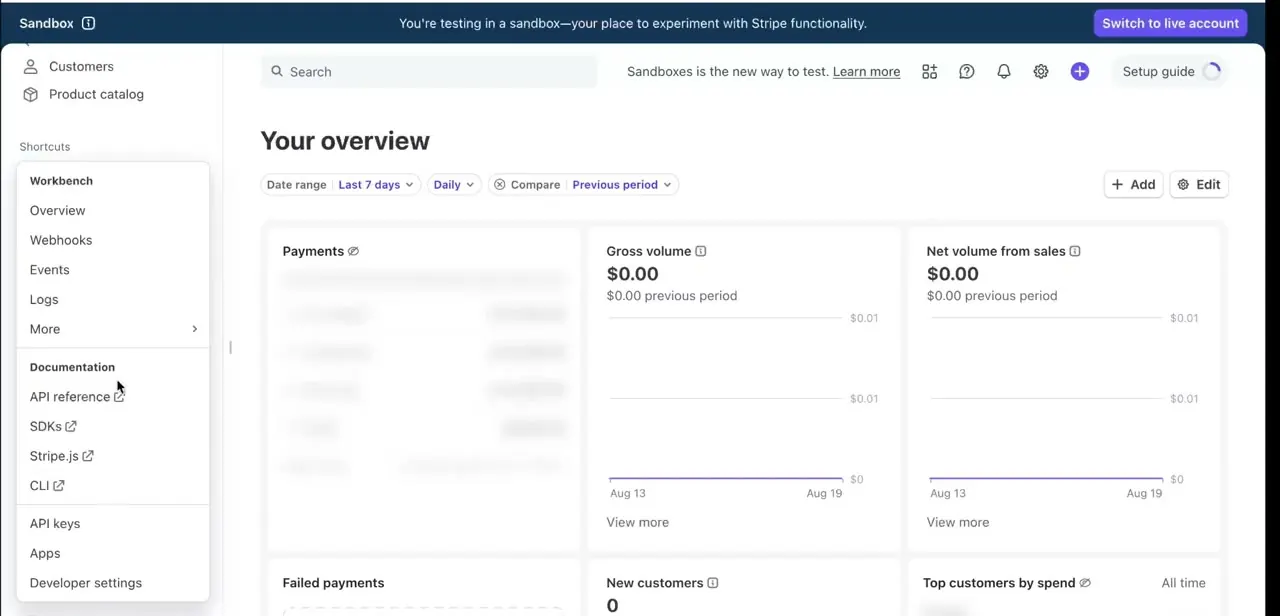
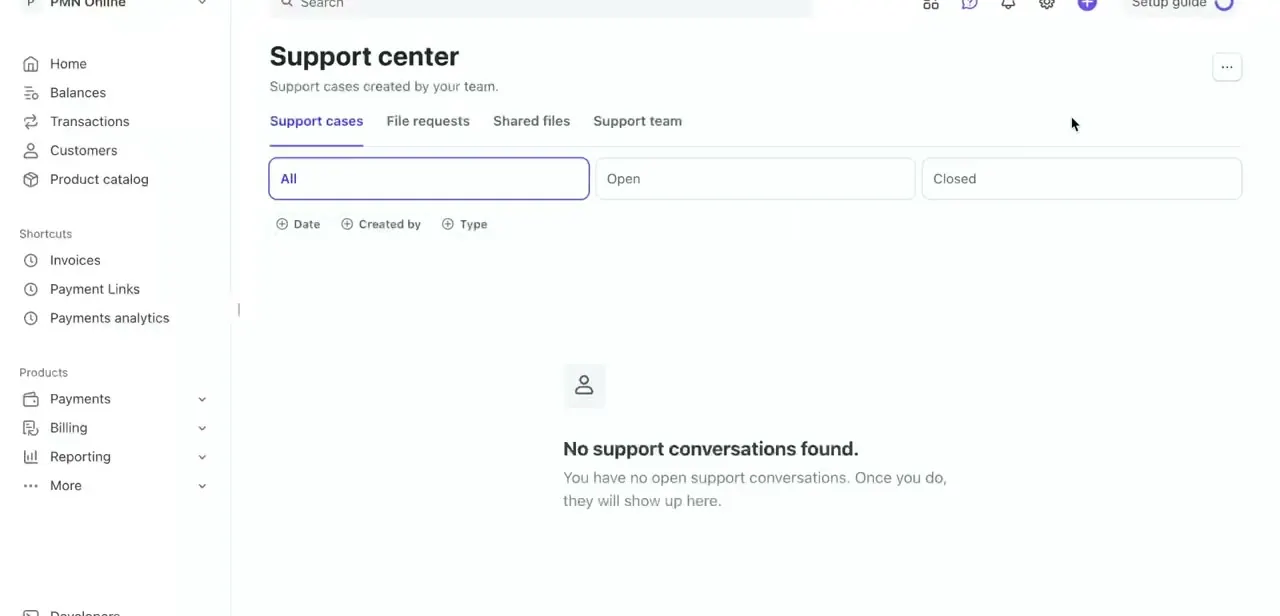
From inside your Stripe Dashboard, the left sidebar's Support center lists Support cases, File requests, Shared files, and Support team as tabs, with filters for All, Open, and Closed cases. A fresh account shows "No support conversations found" here, which is expected.
This is the tracking view for cases you've already opened, not where you start a new one. Note where it lives anyway, so you can find a case again later instead of digging through email.
02Start a new request from the Stripe Support site
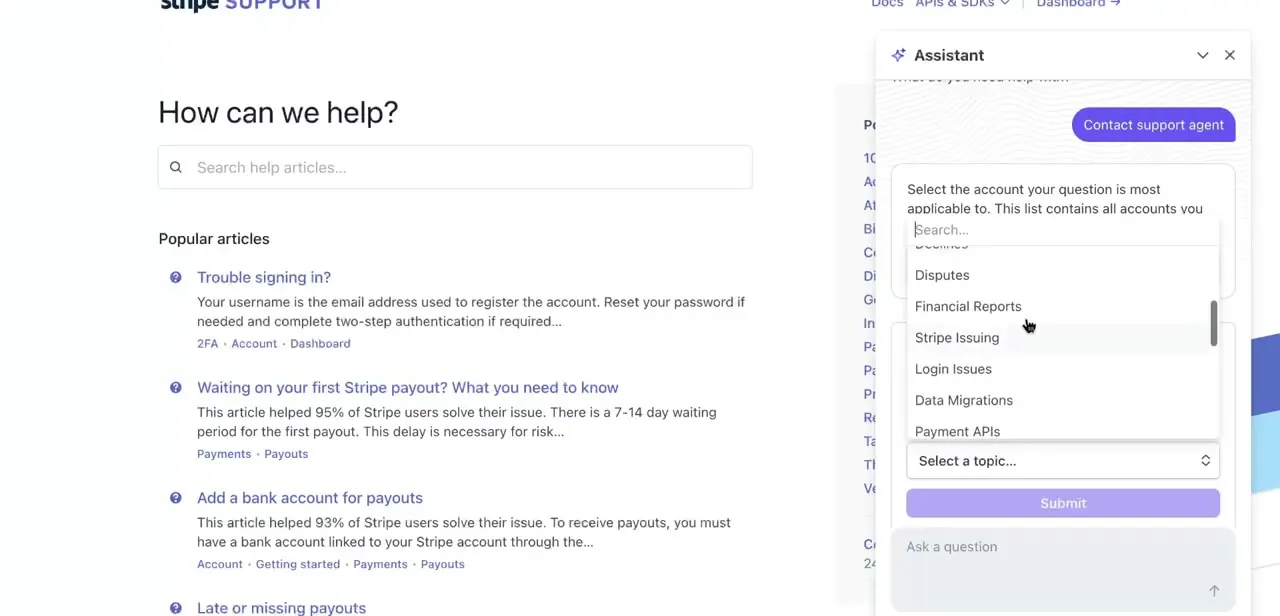
To open a new request, go to Stripe's public Support site instead of the in-Dashboard tracker. It leads with a "How can we help?" search box and a list of popular articles: trouble signing in, waiting on your first payout, adding a bank account. Scan those first, since Stripe notes some of them resolve the large majority of the readers who land on them.
03Use the Assistant to select your topic
If the articles don't cover your issue, the Assistant panel on the same page asks which account your question applies to, then asks you to pick a topic from a scrollable list: Disputes, Financial Reports, Stripe Issuing, Login Issues, Data Migrations, Payment APIs, and more. Picking a topic close to your actual issue, not a generic catch-all, is what routes the conversation correctly and gets you a useful answer faster.
04Choose live chat or email based on urgency
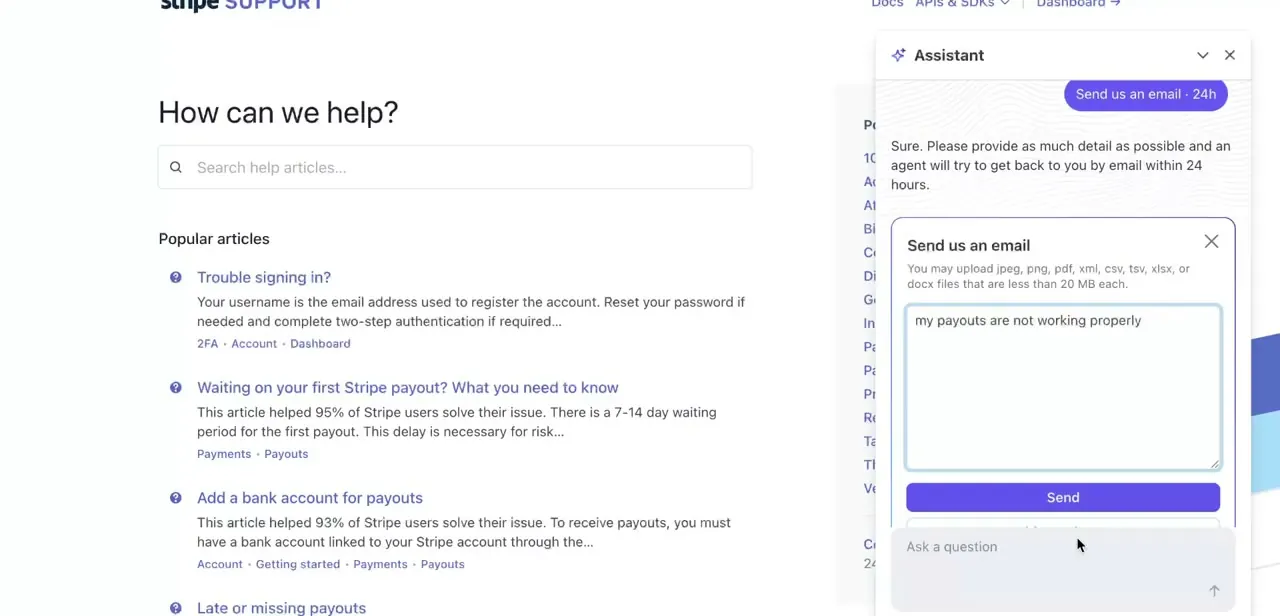
Once you've described the problem to the Assistant, it offers a path to a support agent: a live conversation, or an email option such as "Send us an email" with a note that an agent replies within roughly 24 hours. Stripe's Dashboard Help widget separately offers a callback option, where you leave a phone number and a short description and an agent calls you, useful when neither chat nor a day-long email wait fits. A text box lets you describe the issue in your own words, something specific like "my payouts are not working properly", before you attach files and send.
05Write a description that gets a faster answer
Whether you end up in chat or email, the gap between a fast resolution and a slow back-and-forth usually comes down to how specific your first message is. Name the affected account, the type of issue (a specific payout, a disputed charge, a failed API call), and paste any error text verbatim instead of paraphrasing it. Support agents can look up an exact error message or transaction ID far faster than they can decode "it's broken."
06Track the conversation afterward
Once your request is submitted, by chat, email, or callback, it shows up in the Dashboard's Support center under Support cases, moving from Open to Closed once resolved. Checking there is the fastest way to follow up without searching your inbox, and it's also where you'd go to reopen a case if the same issue comes back.
Frequently asked questions
Is Stripe support available 24/7?
The Assistant and Support site are reachable any time. Live chat and email are generally available around the clock in English; agent response speed can still vary by the specifics of your case.
Do I need a paid Stripe plan to get support?
No. Every Stripe account has access to the Support center and the public Support site's Assistant, article search, chat, email, and callback options, regardless of plan.
How fast does Stripe respond to email support?
The Assistant's email option sets expectations upfront, generally around 24 hours for a first response, so live chat or a callback are the better choice for anything urgent like a payment outage.
Can Stripe call me back instead of chatting?
Yes. The Dashboard's Help widget includes a callback option alongside chat and email; you leave a phone number and a short description and an agent calls you.
What information should I have ready before contacting support?
The affected account, a specific description of the issue, any exact error text, and relevant IDs (payout, charge, or dispute). The more specific your first message, the faster the Assistant or an agent can route and resolve it.
Where do I find a support case I already opened?
Open the Support center from your Stripe Dashboard sidebar and check the Support cases tab, filtering by Open or Closed to find the conversation.
Sources and last check
Click path and screens for the Dashboard Support center and the public Assistant flow come from a recorded walkthrough. The public support.stripe.com and stripe.com/contact pages were fetched directly in September 2026 and are consistent with that walkthrough. The Dashboard's Help widget sits behind login, so its callback option could not be fetched directly; it's included because it's described consistently across multiple independent third-party support guides describing Stripe's own interface, not because it was screen-recorded or directly verified by this pass.
About the author

Impran M N
I've been hooked on technology for as long as I can remember — especially the new tools and AI apps that seem to land every other week. Easy Tech Tuts is where I write up whatever I've just worked out: I do the task in the real product, record the screen, and turn it into the guide I wish I'd found first.