Easy Tech Tuts
How to Connect Stripe With QuickBooks Easily 2026
By Impran M NLast checked against official docs
If you take payments through Stripe, connecting it to QuickBooks means those charges, fees, and refunds flow into your books instead of you re-typing them from a Stripe export. QuickBooks' own help article points to a specific app for this, Stripe Connector by QuickBooks, though the integrations search also surfaces several third-party alternatives with their own pricing. This guide covers finding that app, getting through its authorization and sync setup, and reading the transactions once they land.
01Confirm your Stripe account is active
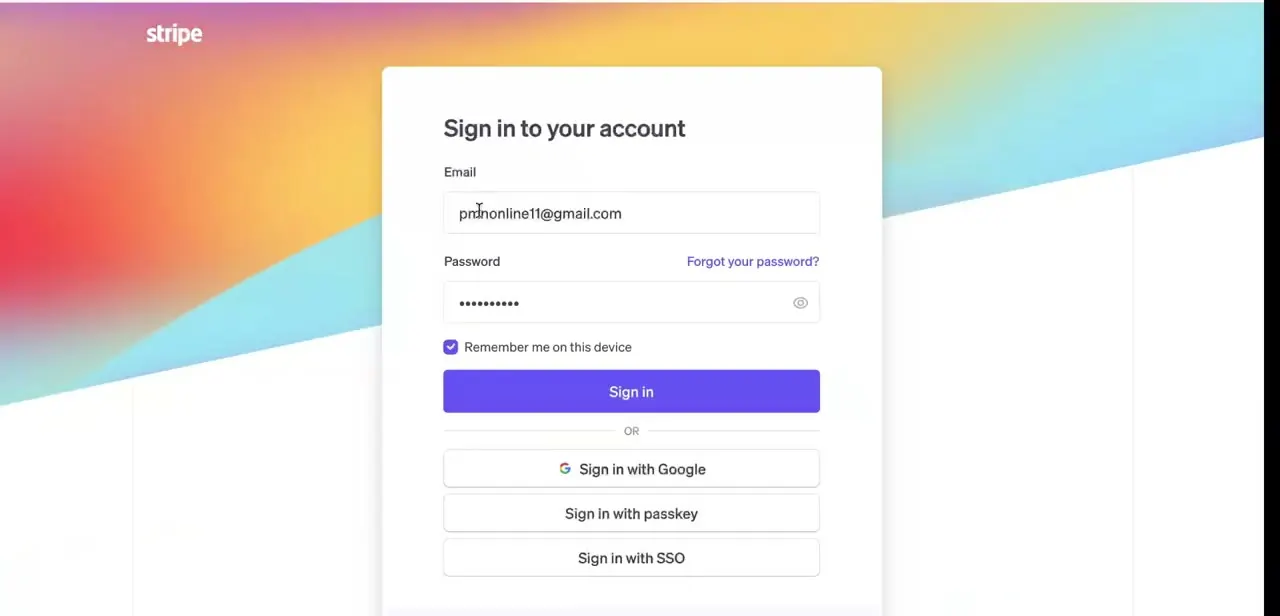
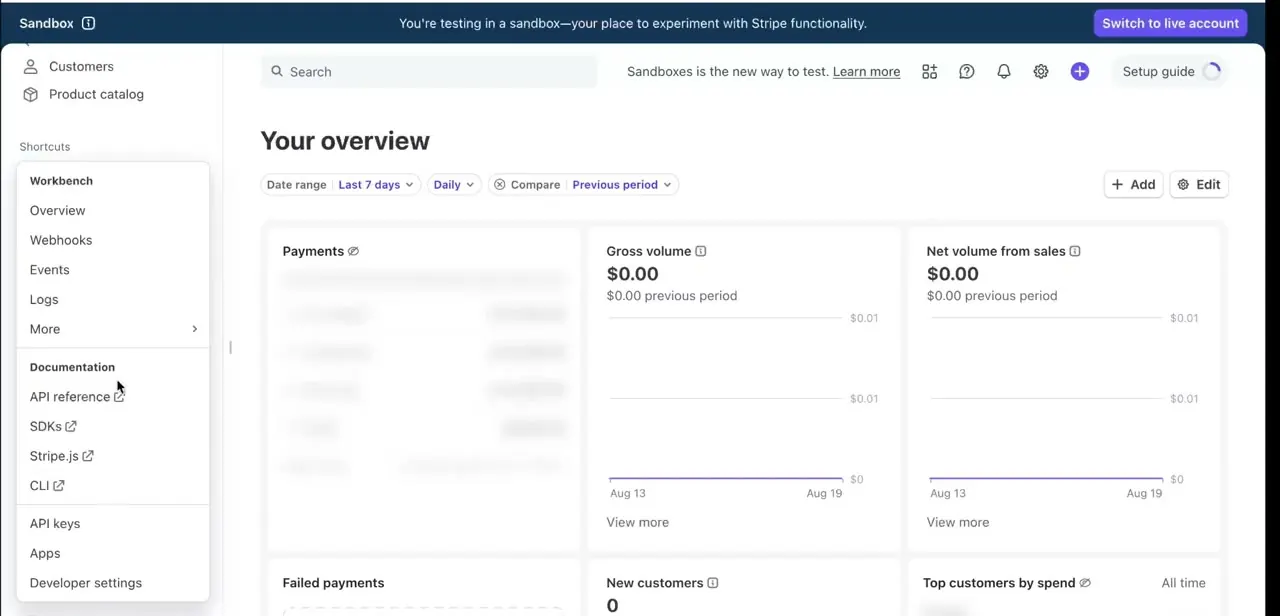
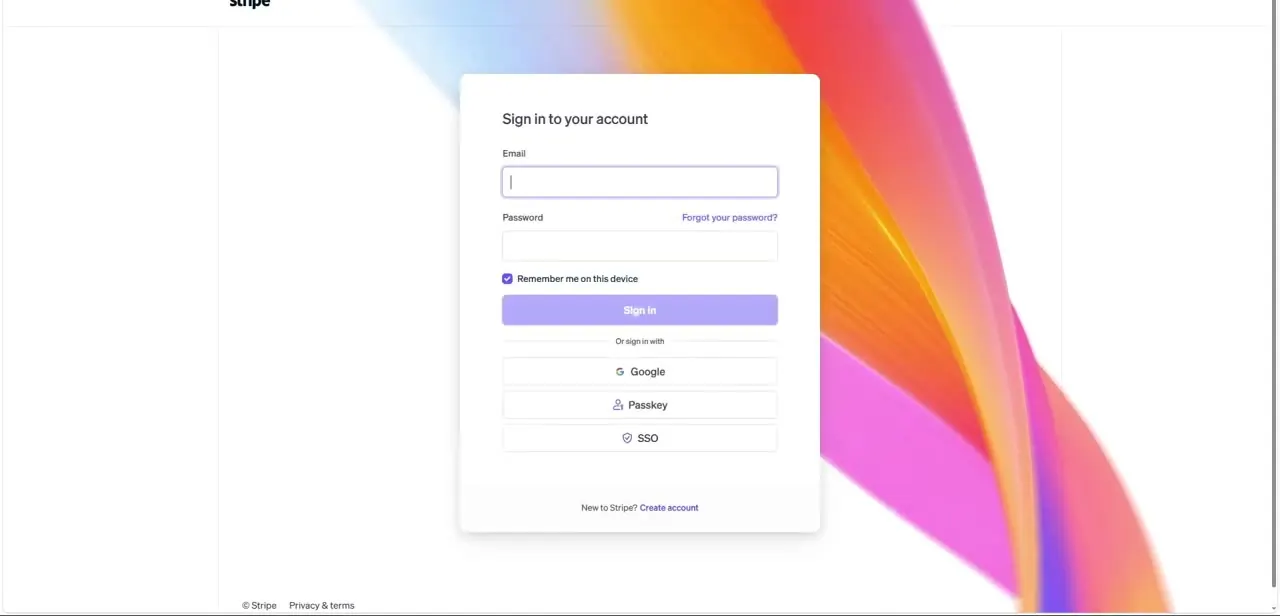
Before connecting anything, sign into Stripe directly and make sure the account is fully set up: payouts enabled, business details confirmed, and at least a few transactions or a live payments product. Stripe's sign-in accepts email and password or SSO through Google, a passkey, or single sign-on. Do this before touching QuickBooks, since the connector expects an account that's already functional rather than one still pending Stripe's review.
02Find Stripe Connector by QuickBooks
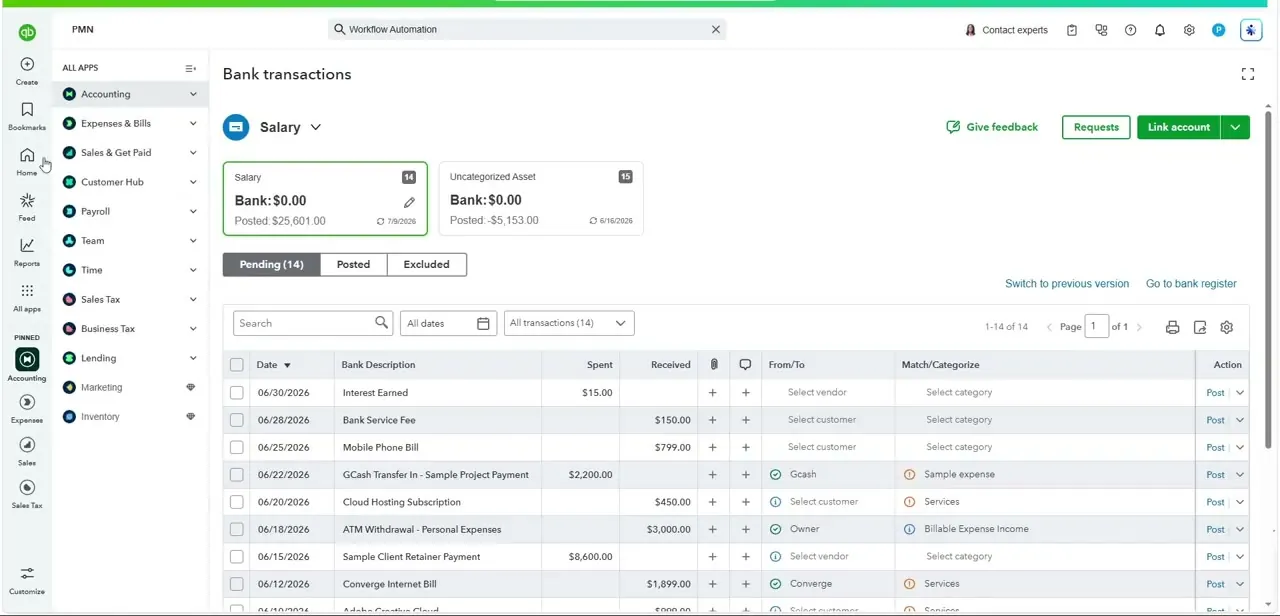
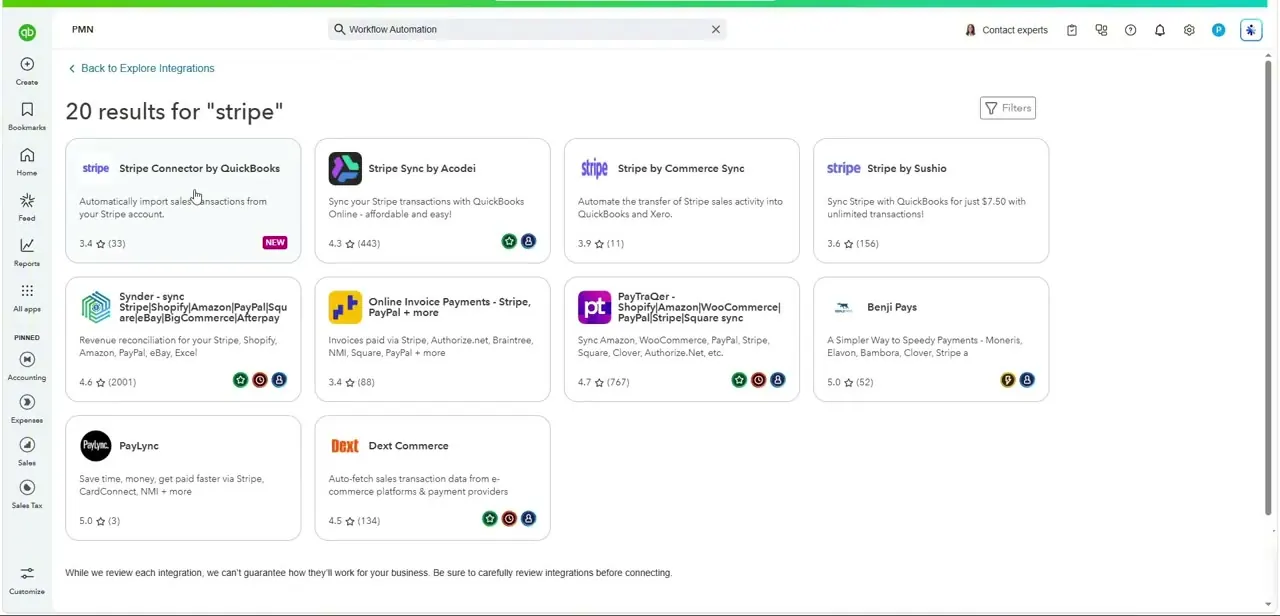
QuickBooks' documented path is Apps (or Integrations) in the left menu, then Find apps, then search "stripe." Bank transactions also has a Link account button that opens the same integrations search, so either entry point gets you there. The search returns roughly twenty results, not one: Stripe Connector by QuickBooks is the first-party option, alongside third-party apps like Stripe Sync by Acodei, Stripe by Commerce Sync, and Stripe by Sushio, each with its own pricing and star rating on the card.
03Compare the connector options before picking one
QuickBooks itself notes it can't guarantee how each listed integration performs for your business, so read a few descriptions rather than clicking the first result. Stripe Connector by QuickBooks is the most direct native option; the third-party alternatives add features like multi-platform reconciliation across Stripe, Shopify, and PayPal at different price points.
04Authorize and configure the sync
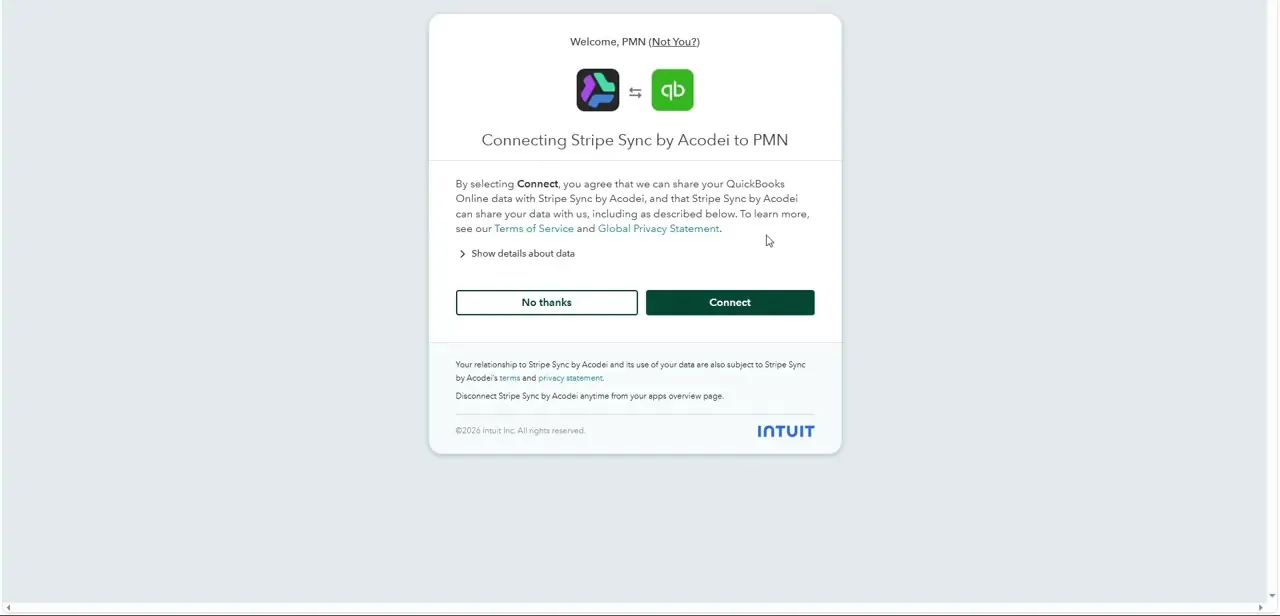
Selecting the app prompts you to log in with your Stripe account email and password, then approve a data-sharing screen headed Agree and Connect. After that, you configure the app itself: choose the Stripe deposit bank account, pick which locations to track, and set a historical sync start date.
QuickBooks can pull up to two years of past Stripe transactions if you choose to go back that far. Select Sync Now once the settings are the way you want them.
05Check how transactions land once the sync runs
Synced transactions typically show up in the For Review tab of Bank transactions within about two hours. Sales appear as "Payment received" lines showing the gross amount, the net amount, and Stripe's fee.
When a Stripe product or service name matches one already in QuickBooks, the line item matches to it automatically; when it doesn't, the transaction defaults to a generic "Stripe Sales" entry instead. Payouts show as bank deposits that bundle several days of sales and fees together, and fees route to a dedicated Stripe Fees expense account on their own.
When it doesn't work
Line items keep showing up as generic "Stripe Sales" instead of matching your products
Why: QuickBooks only matches a synced line item to an existing product or service automatically when the names line up. A mismatch falls back to the generic entry.
Fix: Rename the product or service in Stripe (or in QuickBooks) so the names match, or manually recategorize the generic entries during review.
Transactions stop appearing after previously working
Why: Most third-party connector apps have usage tiers or transaction limits that can quietly pause a sync once you exceed them.
Fix: Check the connector app's own settings page for a paused or limit-reached status before assuming QuickBooks itself has a problem.
The sync won't reconnect after a password change
Why: Changing your Stripe or QuickBooks password after connecting breaks the existing authorization.
Fix: Revisit the integrations search, find the connected app, and use its reconnect or repair option rather than installing a second, duplicate connection.
Frequently asked questions
Is there only one way to connect Stripe to QuickBooks?
No. Searching "stripe" in QuickBooks' integrations panel returns around twenty results, including the native Stripe Connector by QuickBooks and several third-party sync apps with different pricing and features.
What do I have to configure during setup, not just authorize?
After agreeing to share data, you choose the Stripe deposit bank account, the locations to track, and how far back to sync — up to two years of historical transactions.
Will Stripe payouts show as one lump sum in QuickBooks?
Often yes, since a single payout can bundle several days of charges and fees together. Match each payout back to the invoices it covers rather than posting it as one generic income line.
Why does a transaction show up as "Stripe Sales" instead of my actual product name?
QuickBooks only auto-matches a line item when the product or service name in Stripe matches one already set up in QuickBooks. Anything that doesn't match falls back to that generic label.
Does the native connector cost anything?
QuickBooks' help article doesn't list a price for Stripe Connector by QuickBooks. The third-party alternatives in the same search results do show their own pricing on each app's card, so check before installing one of those instead.
Sources and last check
Click path and screens come from a walkthrough recorded in July 2025. The app name, authorization flow, sync configuration options, and how transactions post were re-checked against QuickBooks' official help article in September 2026. That check added the sync configuration step (deposit account, locations, two-year historical range) and the "Stripe Sales" fallback behavior, neither of which the original draft covered, and corrected the consent screen's wording to Agree and Connect.
About the author

Impran M N
I've been hooked on technology for as long as I can remember — especially the new tools and AI apps that seem to land every other week. Easy Tech Tuts is where I write up whatever I've just worked out: I do the task in the real product, record the screen, and turn it into the guide I wish I'd found first.