Easy Tech Tuts
How to Charge Card on Stripe, Ask Payment in Credit Cards Easily 2026
By Impran M NLast checked against official docs
Stripe gives you more than one way to ask a customer for money, and picking badly is why people end up building a checkout page for what should have been a single link. The three practical routes are a payment link you paste into a message, an invoice you email with a due date, and a direct charge against a card a customer has already saved with you.
Each carries different paperwork, timing, and a different effect on how professional the request looks. This guide walks each one through the Stripe dashboard, covers the payment-method settings that quietly decide what your customer sees, and notes the fee and test-mode details worth knowing before you send the first request.
01Pick the method that matches the situation
A payment link suits a fixed amount you want paid now: freelance deposits, one-off products, event tickets. An invoice suits work with terms attached, where the customer needs a document with a number and a due date for their own bookkeeping.
Charging a saved card directly is for repeat customers who've already paid you once and agreed to have their card stored. The distinction that matters most is who types the card number.
With links and invoices, the customer enters it on Stripe's own page, which keeps card data out of your systems entirely. Default to those two.
02Create a payment link
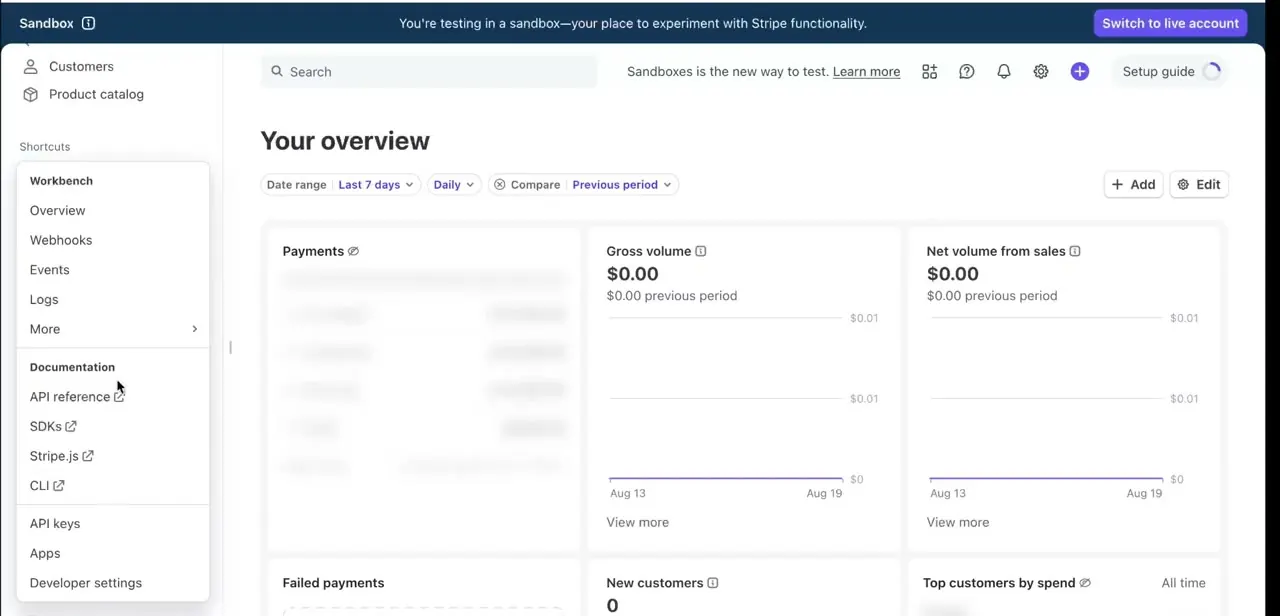
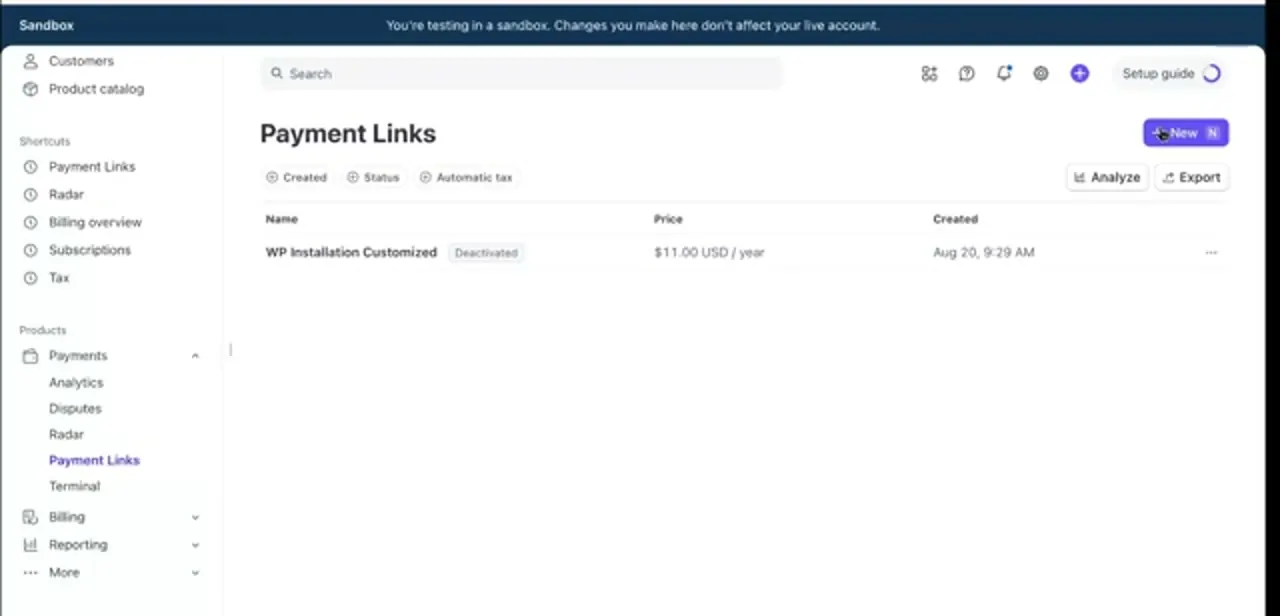
In the dashboard's left navigation, Payment Links sits under Payments, and it's also pinned in the Shortcuts group at the top. The page lists every link you've made with its name, price, and creation date; a link you no longer want live can be deactivated instead of deleted, which stops it accepting payments but keeps its history.
Click New to build one. Stripe supports two pricing models here: a fixed product or subscription, the common case, and "customers choose what to pay", meant for tips or donations, where you can set a suggested amount plus an optional minimum and maximum (the default cap is $10,000; Stripe support can raise it on request). Either way, Stripe generates a URL you paste anywhere, and the same link can be reused by any number of customers.
03Send an invoice instead when terms matter
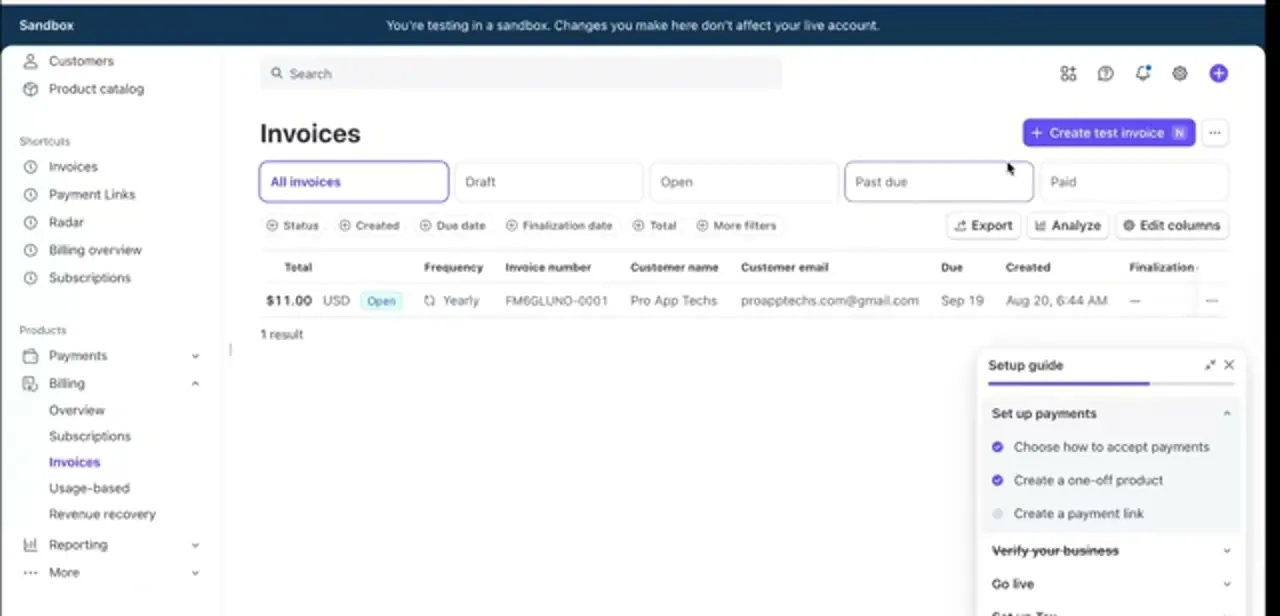
Invoices live under Billing in the left navigation, filtered along the top by All, Draft, Open, Past due, and Paid. Each row carries the total, frequency, invoice number, customer name and email, due date, and creation date: everything you'd need to chase a late payment.
Creating one attaches a customer record, line items, and a due date, and Stripe emails a hosted invoice page with a Pay button. First-time accounts get card, Link, bank transfers, Cash App Pay, and WeChat Pay enabled by default for invoices; add more in Payment methods settings if you need them. The advantage over a link is the audit trail: the invoice number, the status, and automatic reminders once the due date passes.
04Control which payment methods your customer sees
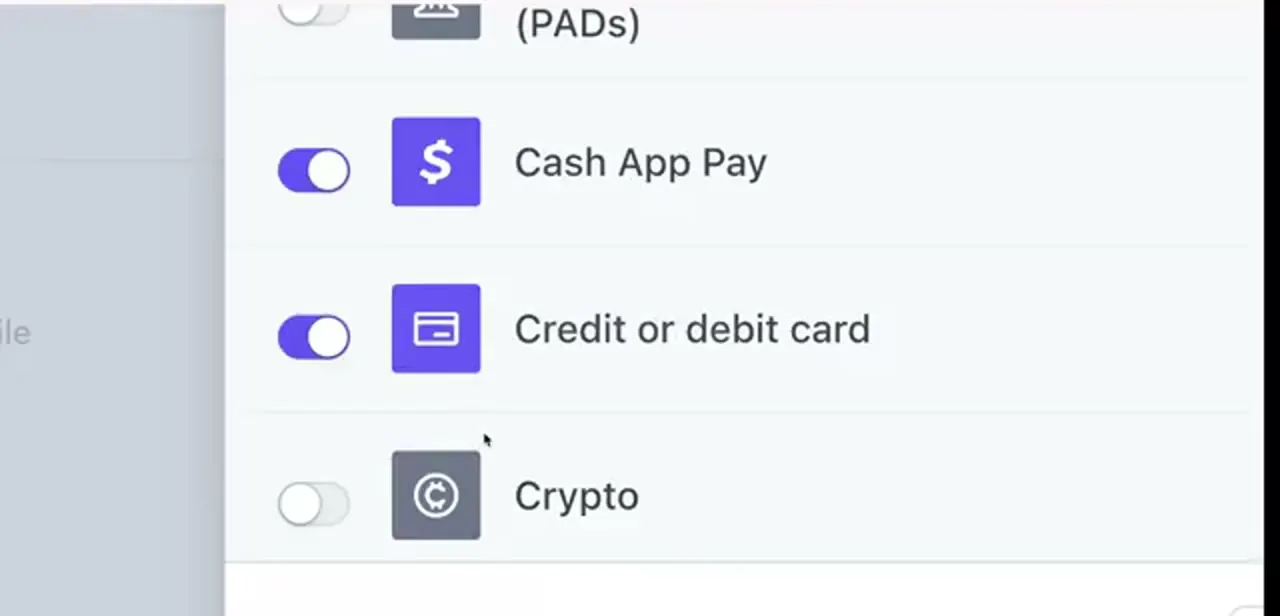
Whichever route you use, the checkout page shows only the payment methods you've enabled, each with its own toggle in settings. Card needs to be on for this task; alongside it you'll typically find wallets, bank debits, Cash App Pay, and others, all switched independently.
A customer only sees Apple Pay or Google Pay if they've activated that wallet on their own device, and what's shown also depends on their browser, so an empty-looking checkout isn't necessarily a setting you got wrong. Leaving too many methods on clutters the page and can push the card fields below the fold; leaving too few costs you conversions from wallet-only customers. Enable card plus the one or two alternatives your own customers use, and check the result on a phone.
05Charge a card the customer has already saved
For a returning customer, open Customers, find their record, and charge the payment method stored on it. This is the closest thing to the classic "charge a card from the dashboard" workflow, and it works because the customer entered the card themselves and agreed to it being kept on file.
Typing a card number read to you over the phone is different: it needs manual card entry enabled on your account and puts you inside card-data compliance rules (PCI). Unless you genuinely run an in-person or phone-order business, send a link instead. It's faster, and it moves the security burden to Stripe.
06Test in sandbox, then check what the fees cost you
Stripe's dashboard runs in a sandbox until you switch it to live, and a banner across the top says so; nothing there touches your real account, and any invoice or link you build is a test object. Use it to send yourself an invoice and click through the payment page as a customer would before anything real goes out.
Some payment methods, bank debits and vouchers among them, take Stripe two to fourteen days to confirm a payment instead of clearing instantly like a card, so don't assume a pending charge has failed. Set up a webhook if you need to know the exact moment a payment clears.
| Method | Who enters the card | Best for | Audit trail |
|---|---|---|---|
| Payment link | Customer, on Stripe's page | Fixed-price one-off requests | The link's own dashboard page, reusable |
| Invoice | Customer, from a hosted invoice page or email | Work with terms, a due date, and reminders | Invoice number, status, automatic reminders |
| Charge saved card | No one re-enters it; charged from file | Repeat customers who already agreed to store their card | Appears on the customer's existing record |
When it doesn't work
A customer says they can't see Apple Pay or Google Pay
Why: Those wallets only appear when the customer has activated them on their own device, and what's shown also depends on their browser.
Fix: Nothing to fix in your settings. Ask the customer to pay by card directly, or check the link on a device and browser known to support the wallet.
A payment sits as pending instead of showing paid
Why: Bank debits and vouchers take Stripe two to fourteen days to confirm, unlike an instant card charge.
Fix: Wait for confirmation before assuming it failed. A webhook will tell you the moment it clears if you need to know sooner.
Manual card entry isn't available in the dashboard
Why: It has to be explicitly enabled for your account, and enabling it brings PCI card-data compliance obligations with it.
Fix: For most businesses, a payment link or invoice does the same job without the requirement.
Frequently asked questions
What's the fastest way to ask someone for a card payment on Stripe?
A payment link. Create it once under Payments, Payment Links, then paste the URL into an email or message. The customer enters their card on Stripe's hosted page and you never handle the number.
Can I type a customer's card number into the Stripe dashboard myself?
Only if manual card entry is enabled for your account, and enabling it brings PCI card-data compliance obligations with it. For most businesses a payment link or invoice is both faster and safer.
When should I use an invoice instead of a payment link?
When the payment needs a document behind it: an invoice number, a due date, automatic reminders, and a status you can filter by Draft, Open, Past due, or Paid. Links suit immediate, informal requests better.
Do the fees change depending on the method?
No. Stripe charges per successful transaction, not per method, though international cards and currency conversion add to the rate. Creating links and invoices costs nothing on its own.
Why can't my customer see Apple Pay on the payment link?
Wallets like Apple Pay and Google Pay only show up if the customer has activated them on their own device, and visibility also depends on their browser. It isn't a toggle in your dashboard.
How do I test a payment before sending it to a real customer?
Use the sandbox. The dashboard shows a banner confirming you're testing and that nothing affects your live account, so you can build a link or invoice and walk through the customer's view safely.
Sources and last check
Click path and screens come from a walkthrough recorded in 2025. Re-checked against Stripe's official documentation in September 2026, which added detail this guide was missing: Payment Links supports a "customers choose what to pay" model with a $10,000 default cap, raisable on request; first-time accounts get card, Link, bank transfers, Cash App Pay and WeChat Pay enabled by default on invoices; and wallet visibility (Apple Pay, Google Pay) depends on the customer's own device and browser, not a dashboard setting.
About the author

Impran M N
I've been hooked on technology for as long as I can remember — especially the new tools and AI apps that seem to land every other week. Easy Tech Tuts is where I write up whatever I've just worked out: I do the task in the real product, record the screen, and turn it into the guide I wish I'd found first.