Easy Tech Tuts
Squarespace to Google Sites - How to Connect Your Domain to Google Sites Step by Step
By Impran M NLast checked against official docs
Moving your published site to Google Sites while keeping a domain you originally bought through Squarespace involves a specific sequence: publish the Google Site, prove you own the domain, point the right DNS records at Google, and wait for everything to propagate. None of that happens inside Squarespace or Google Sites alone.
It's a handoff between the two, and skipping a step is the most common reason people end up staring at an unverified domain. This guide walks through that handoff in order, including what the domain-connection screen looks like when verification hasn't gone through yet.
Before you start
- A domain already registered through Squarespace, with access to its domain and DNS settings
- A Google Site that's built and ready to go live — Google won't attach a custom domain to a site that hasn't been published yet
01Publish your Google Site before touching DNS
Google Sites needs a live, published site before it will let you attach a custom domain to it, so finish your pages and hit Publish first. Trying to connect a domain to an unpublished or half-built site just adds a variable to troubleshoot later if something doesn't work, so get the site itself in a state you're happy with before moving on to domain settings.
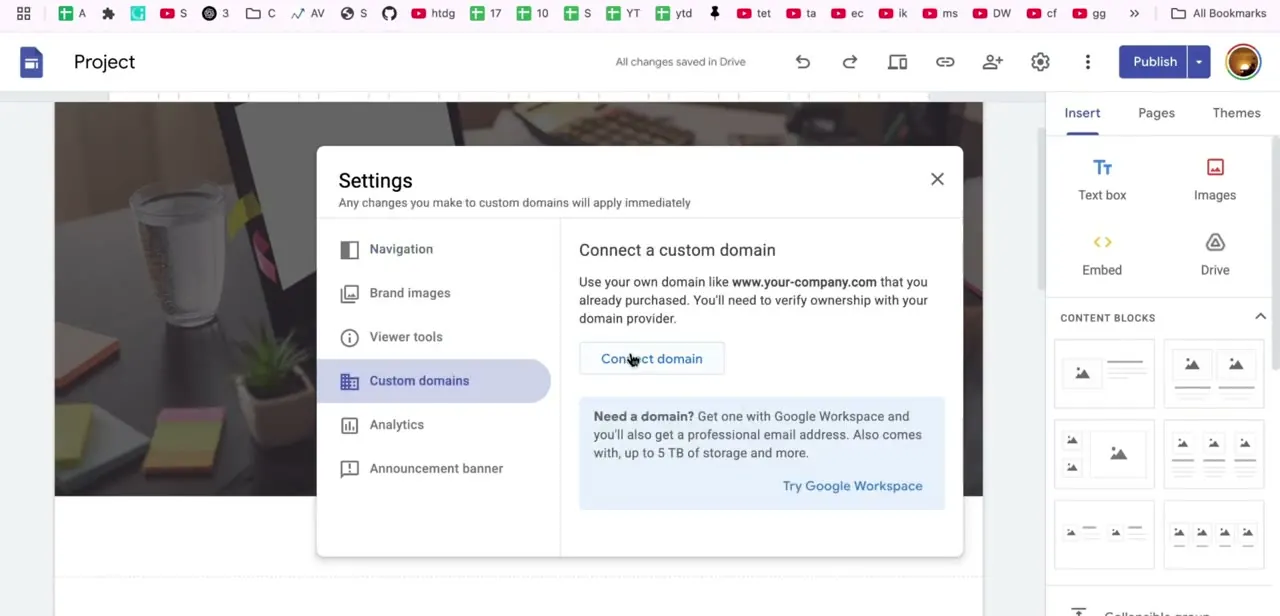
02Open Custom domains in Site settings
From your published site, open the settings menu and go to Custom domains. This is where Google Sites separates itself from the free `sites.google.com` address: the panel explains that using your own domain means a domain you already own, and that you'll need to verify ownership with your domain provider before it takes effect.
There's also a shortcut here to buy a new domain through Google Workspace if you don't already have one, but since the domain already exists on Squarespace, you'll connect it instead of buying a new one. Google's own help center currently labels this button Start setup rather than Connect domain, so if your screen reads differently from the one pictured here, that's a rename, not a different feature.
03Enter your domain and expect the unverified warning
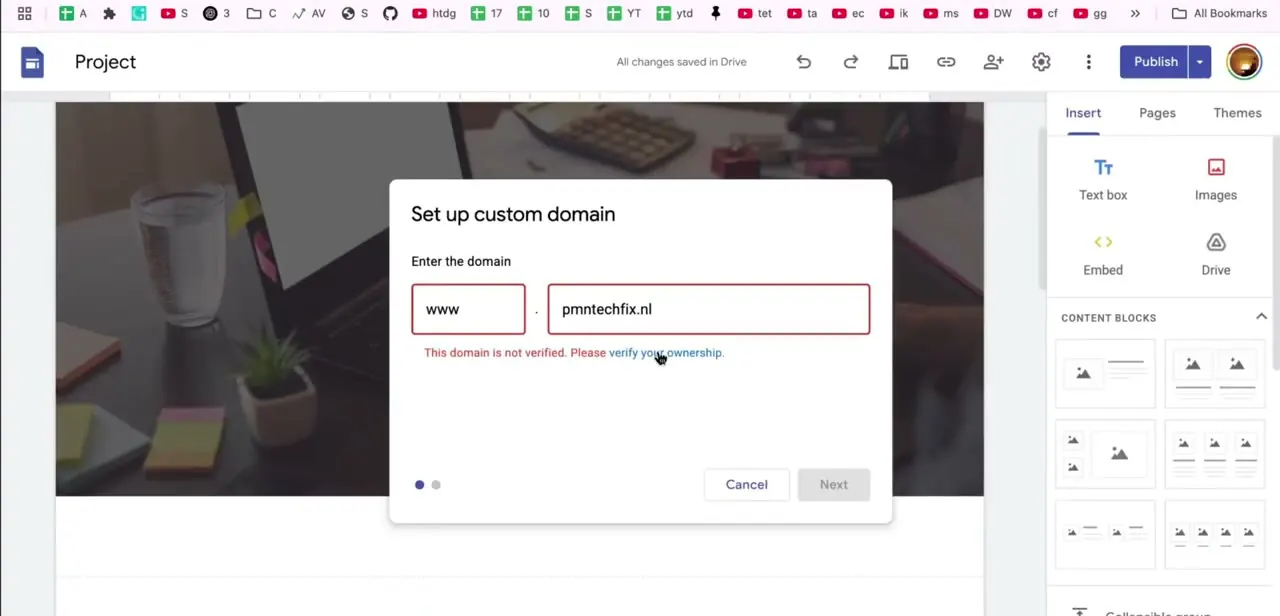
Clicking through opens a two-part field: a subdomain prefix like www, and your root domain, for example pmntechfix.nl. The moment you enter it and try to continue, Google shows a message that the domain isn't verified and needs your ownership confirmed.
This is expected at this stage, not an error. No domain passes this screen until ownership is proven, which happens through a TXT record you add in Squarespace's DNS settings, not anything inside Google Sites itself.
04Verify ownership through Google Search Console
Following the verify-ownership link takes you into Google Search Console's domain verification flow, which generates a TXT record containing a unique token. Copy that token exactly, then add it as a new TXT record in Squarespace's DNS settings.
To get there, open your domains dashboard, click the domain, then click DNS in the side panel; Squarespace's own help center still titles the article for this page "Opening Advanced DNS settings," even though the panel itself is now just labelled DNS. Once the record is saved and has propagated, Search Console can confirm you control the domain, which unlocks the rest of the Google Sites connection flow.
05Point the domain at Google with a CNAME
With ownership verified, add a CNAME record in the same DNS panel, mapping the www host to ghs.googlehosted.com. That's the record that tells browsers where to fetch your Google Site from.
Google Sites doesn't accept a CNAME on a bare root domain at all; Google's documentation is explicit that a connected domain must include a subdomain such as www. For the root, use Squarespace's separate domain-forwarding feature instead: open the domain's Website tab, add a Domain Forwarding Rule with @ in the Subdomain field, point it at your www address, and set the redirect type to Permanent Redirect (301).
06Wait for propagation and confirm HTTPS
Once the CNAME and the forwarding rule are saved, DNS propagation can take anywhere from a few minutes up to 48 hours, depending on your domain's settings and your ISP's caching. If the domain doesn't resolve right away, a DNS lookup tool will confirm whether the CNAME has taken effect instead of leaving you guessing.
When it does resolve, visit the domain directly and confirm it loads your Google Site over HTTPS with no certificate warning. Google issues the SSL certificate automatically once the domain mapping is confirmed, but that can lag slightly behind DNS propagation.
When it doesn't work
Google still shows the domain as not verified after adding the TXT record
Why: DNS changes need time to propagate before Search Console can see the new record, and clicking Verify too early just returns the same failure.
Fix: Wait a few hours and retry. If it still fails after 24-48 hours, check the TXT record was saved with the exact host and value Search Console generated, with no extra characters.
The bare root domain (no www) never loads the Google Site
Why: Google Sites does not accept a CNAME on an apex/root domain, only on a subdomain like www.
Fix: Set up a Domain Forwarding Rule in Squarespace with @ as the subdomain, pointing the root at your www address, rather than trying to CNAME the root directly.
The site loads but the browser flags a certificate warning
Why: Google issues the SSL certificate after the domain mapping is confirmed, and that step can lag behind DNS propagation by some time.
Fix: Recheck after a few hours. If the warning persists well beyond that, confirm the CNAME still points to ghs.googlehosted.com exactly.
Frequently asked questions
Do I need to keep my domain registered with Squarespace?
Yes. In this setup the domain stays registered with Squarespace while its DNS records are configured to point at Google Sites. You're not transferring the domain, just redirecting where it resolves.
How long does DNS propagation take after adding the records?
Google's own documentation puts it at up to 48 hours, though it's often much faster depending on your domain's settings and caching along the way.
Why does Google Sites say my domain isn't verified?
That appears by default until ownership verification completes through Google Search Console, typically via a TXT record added to Squarespace's DNS settings. It's an expected step, not a sign something is broken.
Should I point the root domain or the www version at Google Sites?
Google Sites requires a subdomain such as www; it will not accept a CNAME on a bare root domain. The standard approach is to CNAME www to ghs.googlehosted.com and add a Domain Forwarding Rule sending the root to www.
Will HTTPS work automatically on my custom domain?
Yes. Once the domain is verified and DNS has propagated, Google Sites issues and applies an SSL certificate automatically, though it can take a little longer to appear than the DNS change itself.
Sources and last check
Click path and screens come from a walkthrough recorded against Squarespace and Google Sites. Re-checked against Google's and Squarespace's official support pages in September 2026. Two corrections came out of that check: Squarespace's DNS panel is now reached via the domain's DNS tab rather than a page still called "DNS/Advanced," and the root-domain workaround is Squarespace's own Domain Forwarding Rules feature (@ as the subdomain, Permanent Redirect) rather than a generic apex redirect. Also noted: Google's current help center calls the connect button Start setup, where the recording shows Connect domain.
About the author

Impran M N
I've been hooked on technology for as long as I can remember — especially the new tools and AI apps that seem to land every other week. Easy Tech Tuts is where I write up whatever I've just worked out: I do the task in the real product, record the screen, and turn it into the guide I wish I'd found first.