Easy Tech Tuts
How to Create Horizontal Scrolling Images in Squarespace 2026, with Auto Play & Thumbnails
By Impran M NLast checked against official docs
Squarespace builds an image slideshow from a single Images section, no plugin and no code required, but the gallery starts life as a static grid. Switching it to a slideshow is a setting buried in the section editor, and the three slideshow layouts on offer don't all do the same thing: only one of them supports both autoplay and a thumbnail strip together. This guide walks the real editor screens for adding the section, picking the layout that gives you both, and setting the pacing.
Before you start
- A Squarespace 7.1 site using Fluid Engine sections. Sites still on the classic 7.0 editor build galleries as a block instead, with a different settings panel than the one shown here.
01Add an Images section to your page
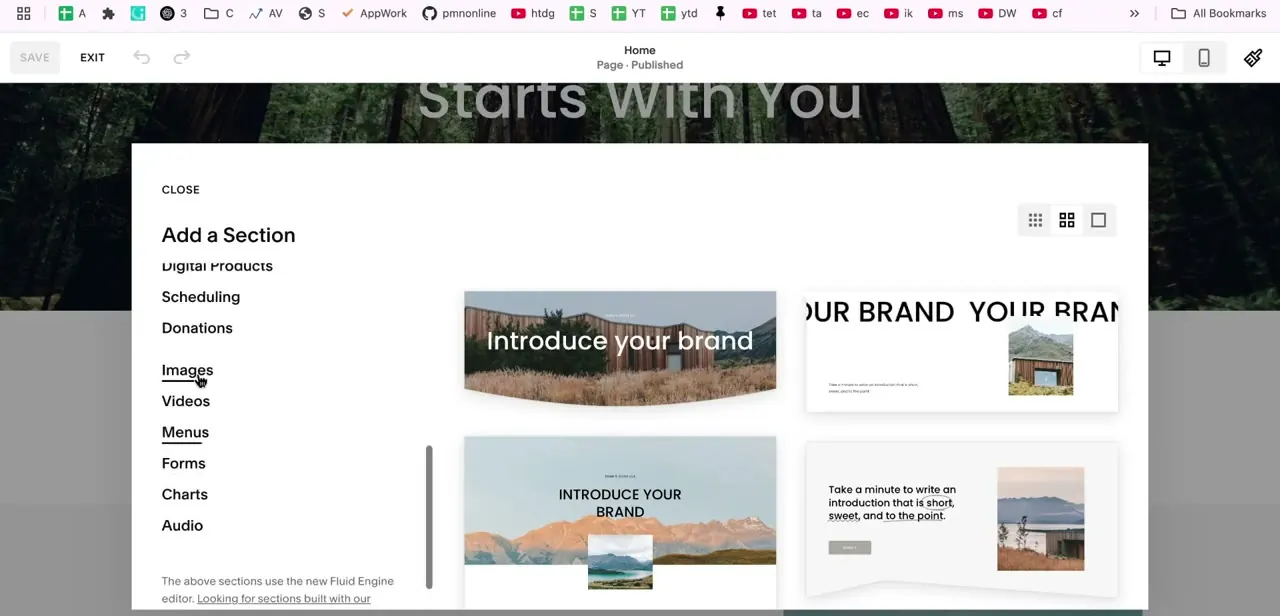
From the page editor, click Add a Section to open Squarespace's content picker, which groups options like Digital Products, Scheduling, Donations, Images, Videos, Menus, Forms, Charts, and Audio. Choose Images, and you're shown pre-built layout starting points: some built around a large hero-style photo with brand copy overlaid, others pairing a smaller image with a text block. Any of them works as a starting point, since the layout type changes in the next step regardless.
02Pick a Slideshow type, and know what each one leaves out
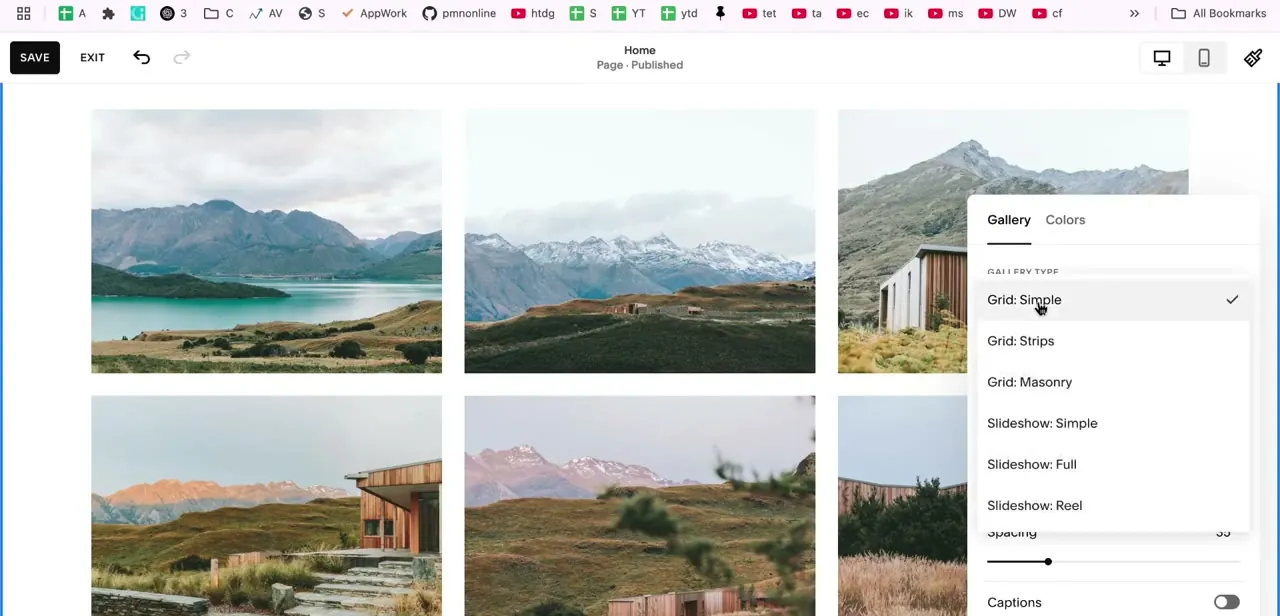
Once images are loaded into the section, open its settings panel and check Gallery Type. By default it's Grid: Simple.
The same dropdown lists Grid: Strips, Grid: Masonry, and three slideshow variants: Slideshow: Simple, Slideshow: Full, and Slideshow: Reel. Any of the three turns the static grid into a slideshow, but they aren't equivalent.
According to Squarespace's own gallery-section documentation, Autoplay is only available on Slideshow: Simple or Slideshow: Full. Thumbnails is available on Slideshow: Simple alone.
That leaves Slideshow: Reel, the layout that visually looks most like a horizontally scrolling filmstrip since it shows several images at once, without a built-in way to auto-advance; visitors scroll it by hand unless custom code is added, which is outside what this guide covers. If both autoplay and a thumbnail strip matter, Slideshow: Simple is the only layout that gives you both.
03Set the height, width, and thumbnail strip
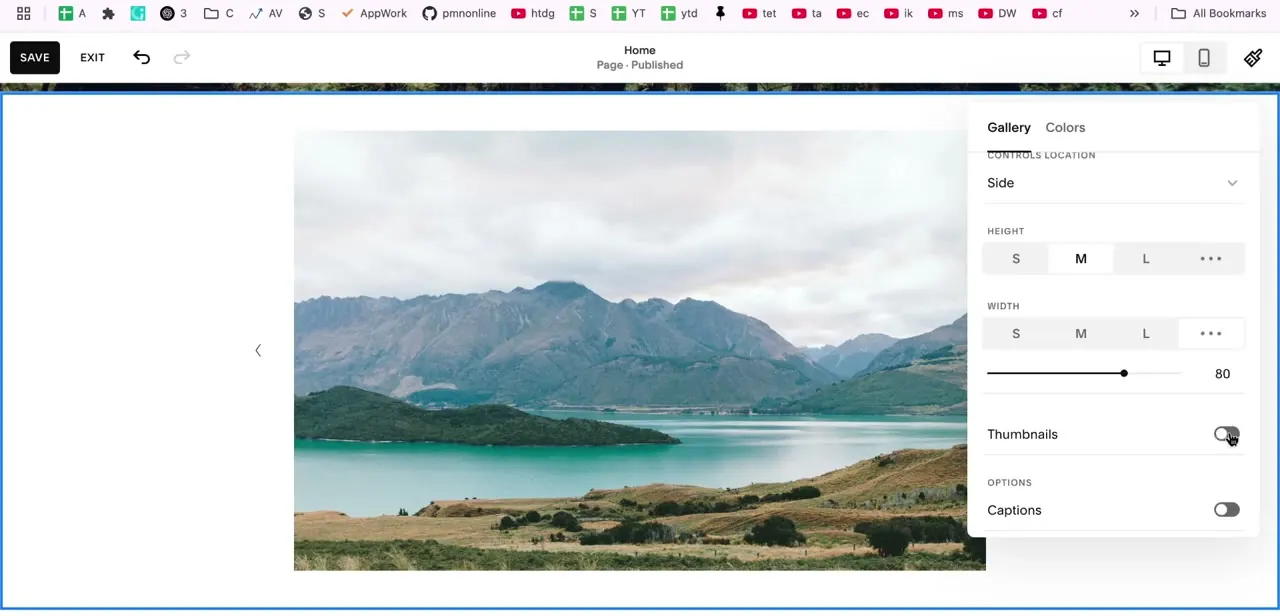
With Slideshow: Simple selected, the panel switches to slideshow-specific controls: Controls Location for where the previous/next arrows sit, Height presets from S to a custom size, and a Width slider for how much of the section each slide fills. 80 out of 100 leaves a bit of surrounding space so the image doesn't feel cropped tight to the edges. The Thumbnails toggle beneath adds a strip of preview images below the main slide, letting visitors jump straight to a specific photo instead of clicking through one at a time.
04Turn on autoplay and dial in the pace
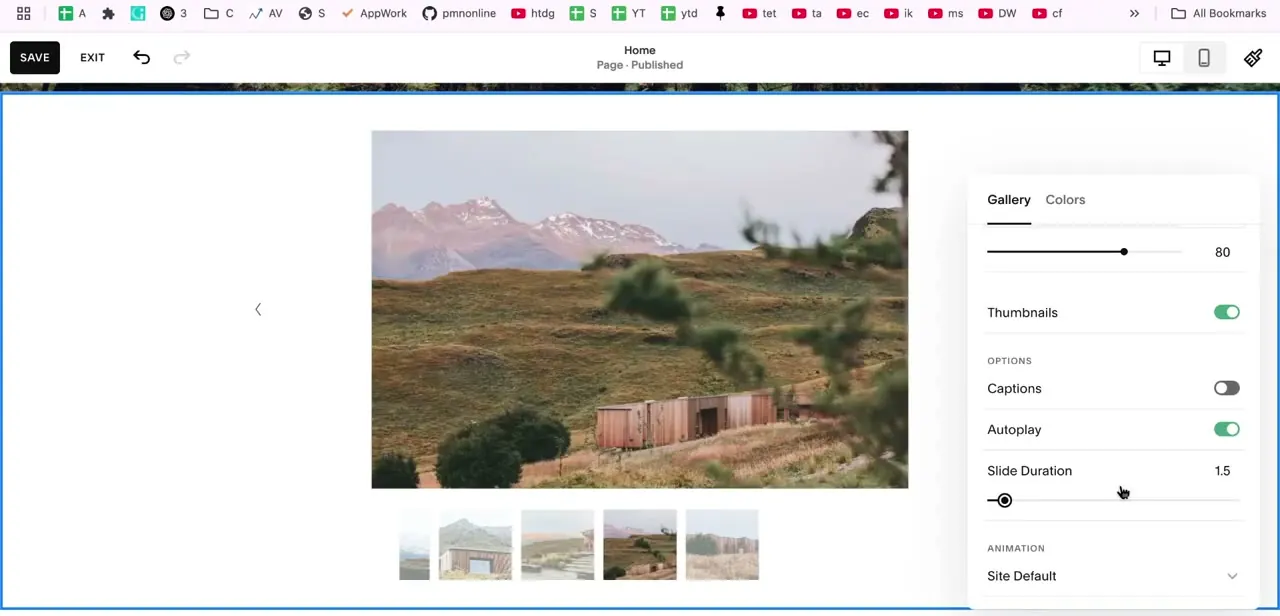
Further down the same panel, Autoplay makes the gallery advance on its own instead of waiting for a click, and Slide Duration sets how many seconds each image stays on screen. With Thumbnails and Autoplay both on, the gallery shows the current slide large, a strip of clickable thumbnails underneath, and advances automatically at whatever pace is set.
There's no universal right duration. Something under two seconds suits a fast-moving showcase of many small products; a portfolio piece or a before-and-after photo, with detail worth studying, reads better closer to three or four seconds. Scrub the slider and watch the preview at that pace before settling on a number, since it depends on how long visitors need to look at each image.
05Decide whether captions and a divider add or distract
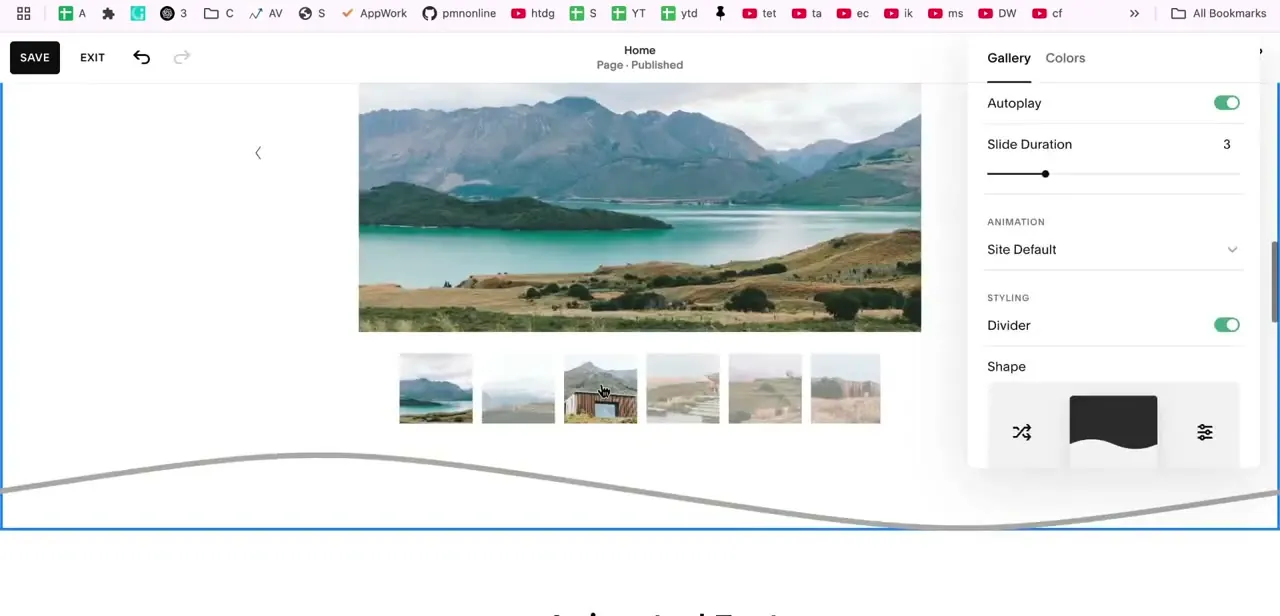
The same settings panel includes a Captions toggle and, further down, styling options like a section Divider with different shape presets. Captions help when an image needs context a viewer wouldn't get from the photo alone; leave them off for a purely visual showcase where text would clutter the frame. The divider shape separates this section from whatever comes next on the page, and it previews live as you click through the options, so it costs nothing to try a few.
06Preview and publish
Before publishing, switch the editor's preview to the mobile icon at the top to confirm the slideshow scrolls and autoplays the same way on a phone screen, since gallery sections can behave differently at narrow widths. Once both views look right, save the section and publish the page. The gallery goes live exactly as configured, with no separate embed step.
When it doesn't work
Picked Slideshow: Reel expecting autoplay, and there's no Autoplay toggle
Why: Reel is the one slideshow layout without built-in autoplay. Squarespace's gallery-section documentation limits Autoplay to Slideshow: Simple and Slideshow: Full.
Fix: Switch Gallery Type to Slideshow: Simple, or Full if a thumbnail strip isn't needed, to get a native Autoplay toggle.
Switched to Slideshow: Full and the Thumbnails toggle disappeared
Why: Thumbnails is exclusive to Slideshow: Simple. Full and Reel don't offer it at all.
Fix: Use Slideshow: Simple whenever the thumbnail strip matters, even though Full renders a larger, full-bleed image.
The Add a Section panel looks nothing like these screenshots
Why: A site still on Squarespace's classic 7.0 editor builds galleries as a Gallery block placed inside a page, not a Fluid Engine Images section, with its own, differently laid out settings.
Fix: Check for the Fluid Engine note at the bottom of the Add a Section panel. These steps apply to 7.1 sites using Fluid Engine.
Frequently asked questions
Which Squarespace gallery layout supports both autoplay and thumbnails?
Only Slideshow: Simple. Slideshow: Full has autoplay but no thumbnail strip, and Slideshow: Reel has neither built in.
Does Slideshow: Reel scroll on its own?
Not automatically. Reel is the layout that visually looks most like a scrolling filmstrip, showing several images at once, but Squarespace doesn't give it a native autoplay setting. Visitors scroll it by hand unless custom code is added.
What's the difference between the Grid and Slideshow layouts?
Grid layouts (Simple, Strips, Masonry) display images in a static arrangement. Slideshow layouts (Simple, Full, Reel) turn the gallery into a sequential, one-image or filmstrip presentation instead.
How do I control how fast the slideshow moves?
The Slide Duration setting, which appears once Autoplay is on for Slideshow: Simple or Full. Lower values move faster; higher values give each image more time on screen.
Why don't my gallery settings match this guide?
Sites still on Squarespace's classic 7.0 editor use a Gallery block with a different settings panel. This guide covers 7.1 sites built with Fluid Engine sections.
Sources and last check
The screenshots confirm the walkthrough used Slideshow: Simple, the only layout with both Autoplay and Thumbnails. That distinction, and the fact that Slideshow: Reel has no native autoplay, were re-checked against Squarespace's official Gallery sections help article in September 2026. The original draft treated all three slideshow types as interchangeable, which they aren't. The Fluid Engine prerequisite comes directly from text visible in the Add a Section screenshot itself.
About the author

Impran M N
I've been hooked on technology for as long as I can remember — especially the new tools and AI apps that seem to land every other week. Easy Tech Tuts is where I write up whatever I've just worked out: I do the task in the real product, record the screen, and turn it into the guide I wish I'd found first.