Easy Tech Tuts
How to Make a Slideshow on Squarespace Easily 2026
By Impran M NLast checked against official docs
A slideshow is one of the fastest ways to give a Squarespace homepage or portfolio some visual weight without touching a line of code. The option isn't labeled "slideshow" up front: it's a layout choice inside the Images/Gallery section type, alongside a handful of grid layouts.
This guide walks through the real editor flow on a Squarespace 7.1 site, starting from a published page, opening the Add a Section panel, and configuring the gallery's captions, animation, and layout so the finished slideshow fits the page. It also flags one setting, Lightbox, that Squarespace turns off the moment you switch to a slideshow layout.
Before you start
- A Squarespace 7.1 site. Gallery sections are a 7.1 feature; 7.0 sites build a slideshow through a gallery page or a Gallery block instead, with a different settings panel.
01Start from your site in edit mode
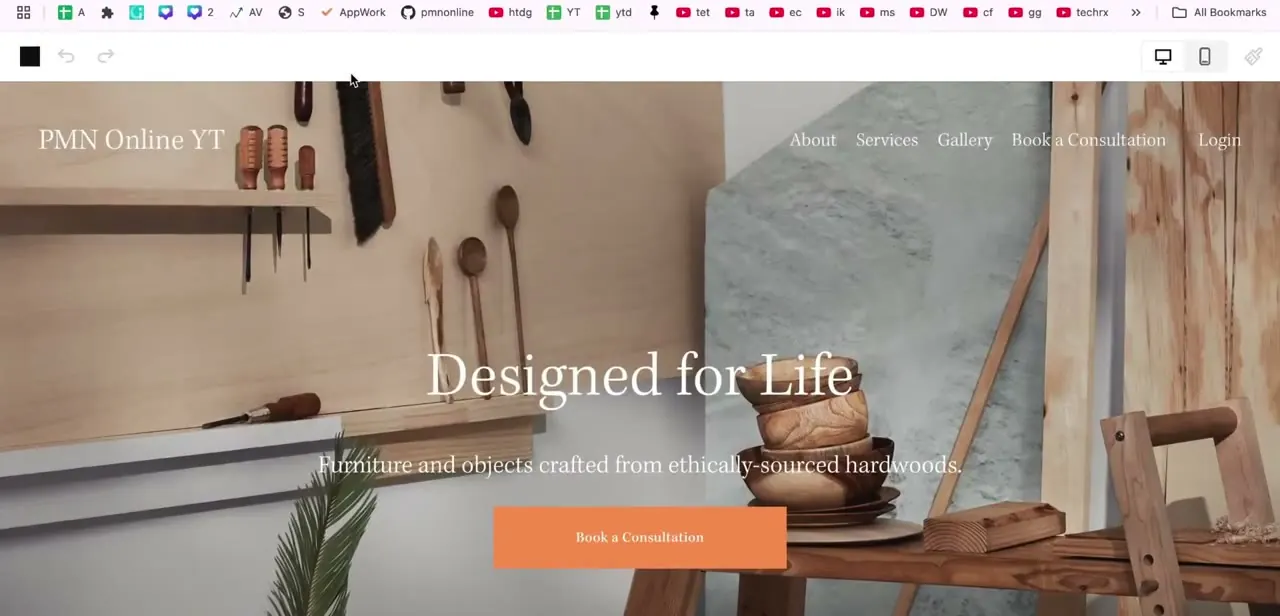
Open your Squarespace site and enter the page editor for whichever page will hold the slideshow. In this example, a furniture and woodworking site called "PMN Online YT" has a hero section reading "Designed for Life" and navigation for About, Services, Gallery, and Book a Consultation.
The top bar shows Save, Exit, and undo/redo controls, plus a Page label confirming you're editing the Home page and that it's currently Published. That matters: changes here go live once saved, instead of sitting in a draft state first.
02Open Add a Section and choose Images
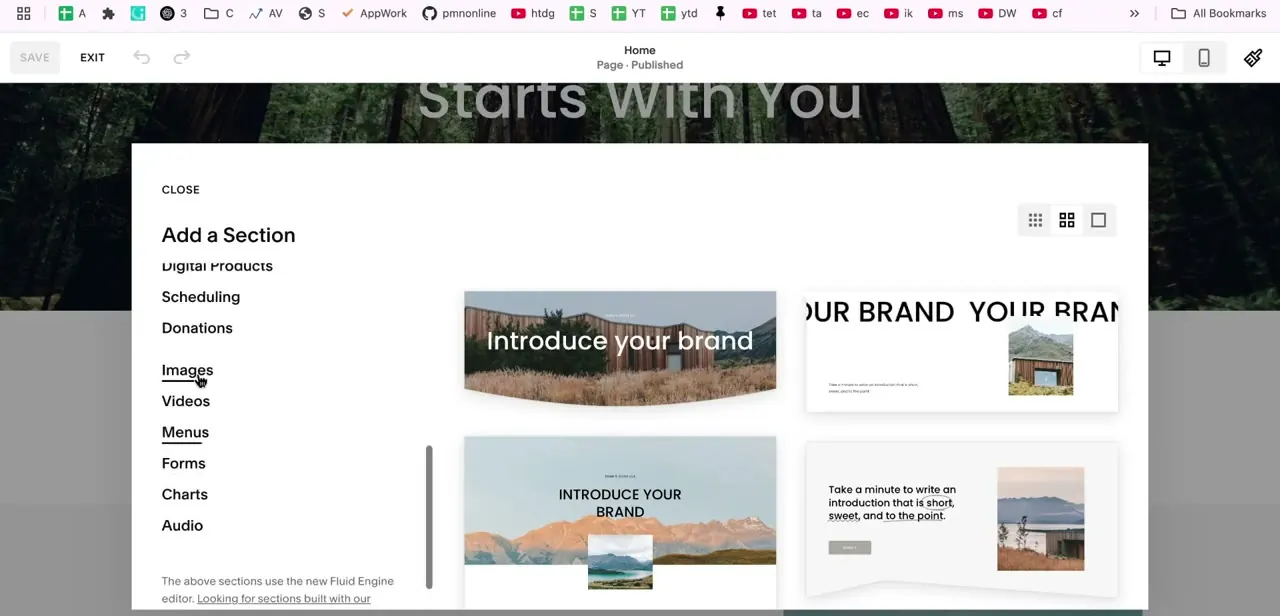
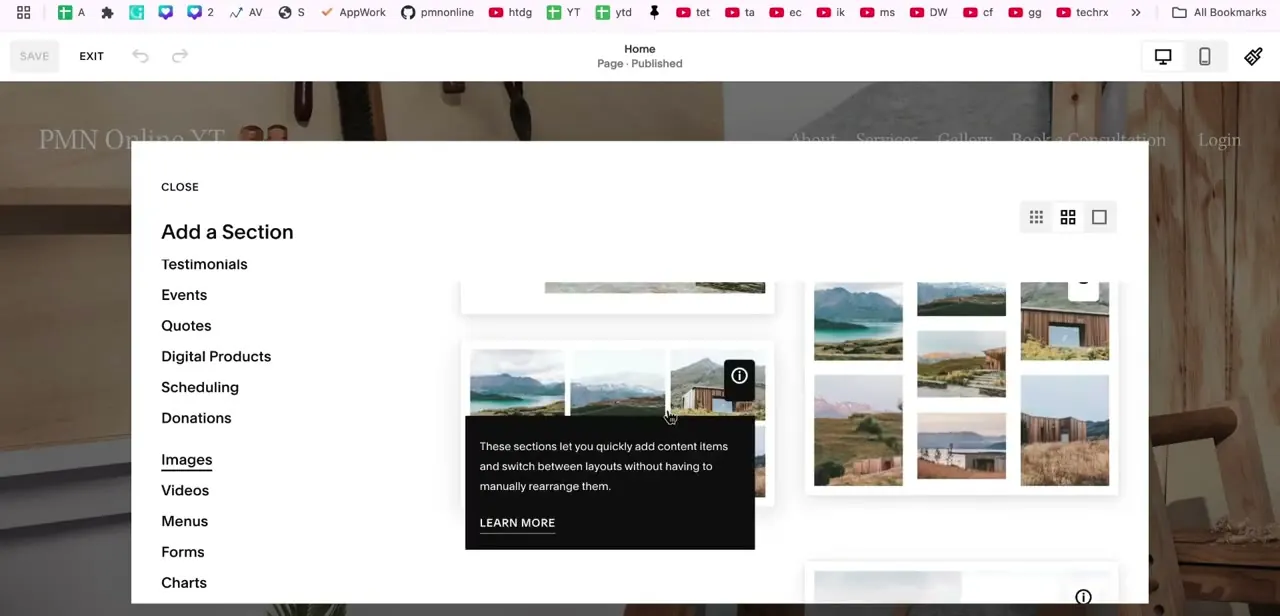
Click the add-content control where you want the slideshow to sit, which opens the Add a Section panel. Down the left side is a full list of section types: Testimonials, Events, Quotes, Digital Products, Scheduling, Donations, and further down, Images, Videos, Menus, Forms, and Charts. Selecting Images shows a live preview on the right with layout options, and a tooltip explains what these sections do: "These sections let you quickly add content items and switch between layouts without having to manually rearrange them." That's the key detail: the layout, including any of the slideshow variants, is something you can change afterward without rebuilding the block.
03Configure captions, animation, and lightbox while the layout is still Grid
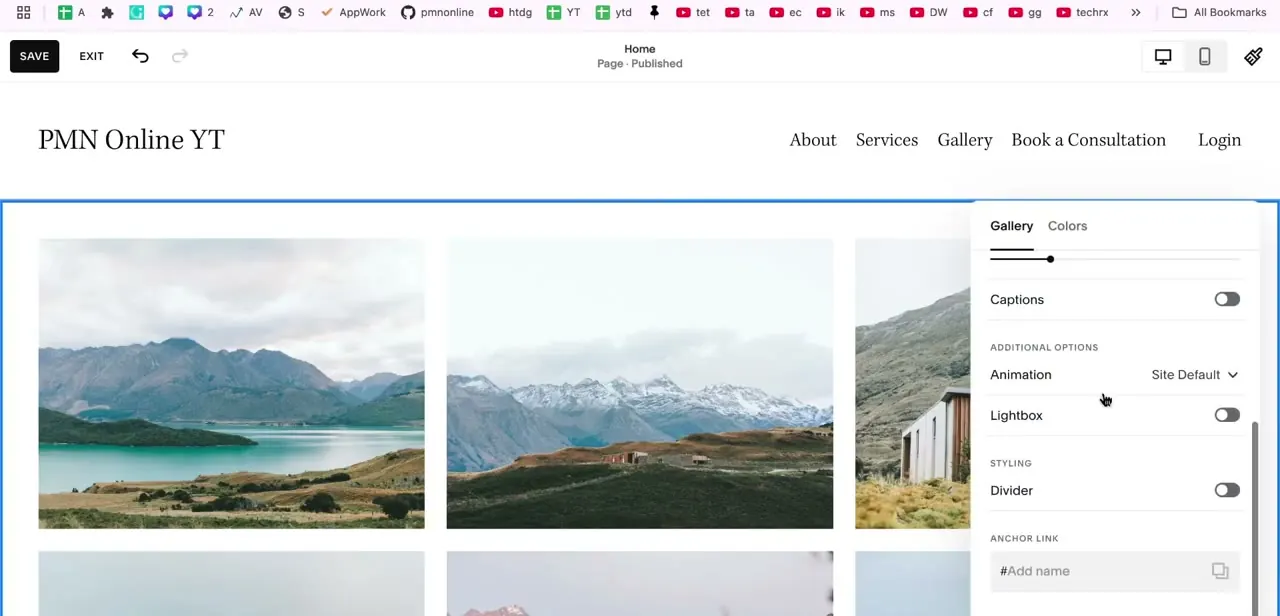
The Images section starts out in a Grid layout, and its settings panel opens with two tabs, Gallery and Colors. Under Gallery, a slider near the top controls image sizing, and below that sit Captions, Animation, Lightbox, and Divider toggles, plus an Anchor Link field for linking to this section from elsewhere on the page.
Captions shows or hides text under each image, Animation defaults to "Site Default" but can be set per block, Lightbox lets visitors click an image to view it enlarged, and Divider adds a line under the section. Decide on Lightbox now, because it disappears once the layout changes to Slideshow: Squarespace's own documentation states plainly that slideshow layouts don't support a lightbox feature. If a click-to-enlarge view matters to you, a Grid layout is the only option in this section type that offers it.
04Switch the layout to a Slideshow variant
Reopen the layout panel, the same one used to choose Images originally, and pick one of Squarespace's three slideshow layouts: Slideshow: Simple (one image at a time, within the page's normal width), Slideshow: Full (one image at a time, edge to edge), or Slideshow: Reel (several images visible at once, like a film reel). There's no plain "carousel" option in this section type.
That name belongs to the older, separate Gallery block feature used inside page content, not to Gallery sections. Captions carry over differently depending on which slideshow you pick: Simple and Full show a caption under every image, while Reel shows one only under the image currently centered. Lightbox, set in the previous step, switches off automatically the moment you land on any slideshow variant.
05Add and reorder your images
Add the photos you want in the rotation directly into the gallery block, and drag them into the order you want them to appear. The tooltip from the Add a Section step already confirmed this layout lets you rearrange content without rebuilding it, so add more images than you need at first and trim or reorder later instead of trying to get the set perfect on the first pass.
06Optimize images and preview on mobile
Before publishing, compress your images so the slideshow loads quickly. Large, uncompressed photos are the most common reason a slideshow feels sluggish.
Use the device toggle near the top of the editor to preview how the slideshow looks on mobile, since captions and navigation controls that look fine on desktop can crowd a small screen. It's easier to adjust settings now than after visitors start seeing it.
| Layout | How it displays | Captions |
|---|---|---|
| Slideshow: Simple | One image at a time, within the page's normal width | Shown under each image |
| Slideshow: Full | One image at a time, edge to edge | Shown under each image |
| Slideshow: Reel | Several images visible at once, like a film reel | Shown only under the center image |
From Squarespace's official Gallery sections documentation, September 2026. None of the three support the Lightbox option.
When it doesn't work
The Lightbox toggle disappears after switching to Slideshow
Why: Squarespace's slideshow layouts don't support lightbox at all; the toggle only appears while a Grid layout is active.
Fix: If a click-to-enlarge view matters, use a Grid layout instead. No slideshow variant offers it.
Captions aren't showing on some images in the slideshow
Why: The layout is Slideshow: Reel, which shows a caption only for the image currently centered, not the others in view.
Fix: Switch to Slideshow: Simple or Slideshow: Full if every image needs a visible caption at once.
Add a Section doesn't show an Images/Gallery option like this at all
Why: The site is on Squarespace 7.0, where this section type doesn't exist.
Fix: Use a gallery page or a Gallery block instead; the equivalent settings live in a different panel on 7.0.
Frequently asked questions
Do I need a plugin to add a slideshow to Squarespace?
No. Slideshow is a layout option built into the Images/Gallery section type on Squarespace 7.1, so no extra plugin or app is needed.
Can I control how fast the slideshow moves?
Yes. The Animation setting in the Gallery panel controls transitions, and you can switch it from Site Default to a specific style per block.
Will the slideshow look good on mobile?
Squarespace slideshows adapt to mobile automatically. Check the editor's device preview toggle for captions and spacing on a small screen before publishing.
How can I make my slideshow load faster?
Optimize your images before uploading: reduce file size while keeping quality. This matters especially for a slideshow, since its images often load before a visitor has scrolled anywhere near them.
Does Lightbox work with a slideshow layout?
No. Squarespace's documentation states that slideshow layouts don't support the Lightbox feature; it's only available on Grid: Simple, Grid: Strips, or Grid: Masonry.
Sources and last check
Click path and screens come from a recorded 7.1 Squarespace editor session; the settings panel in the screenshots was captured while the section was still in Grid layout, before switching to Slideshow. Re-checked against Squarespace's official Help Center in September 2026, which corrected two things this article previously got wrong: it called one of the layout choices "carousel" (that name belongs to the separate, older Gallery block feature, not Gallery sections), and it listed Lightbox as a slideshow setting when Squarespace's own documentation states slideshow layouts don't support Lightbox at all. The per-layout caption behavior and the 7.1-only availability were added from the same documentation.
About the author

Impran M N
I've been hooked on technology for as long as I can remember — especially the new tools and AI apps that seem to land every other week. Easy Tech Tuts is where I write up whatever I've just worked out: I do the task in the real product, record the screen, and turn it into the guide I wish I'd found first.