Easy Tech Tuts
How to Fix Squarespace This rule is conflicting with an existing DNS record while Domain Forwarding
By Impran M NLast checked against official docs
Domain forwarding in Squarespace looks like a two-field form, but it depends on the DNS records already sitting on your domain. When one of those records already claims the subdomain you're forwarding, Squarespace refuses to save the rule.
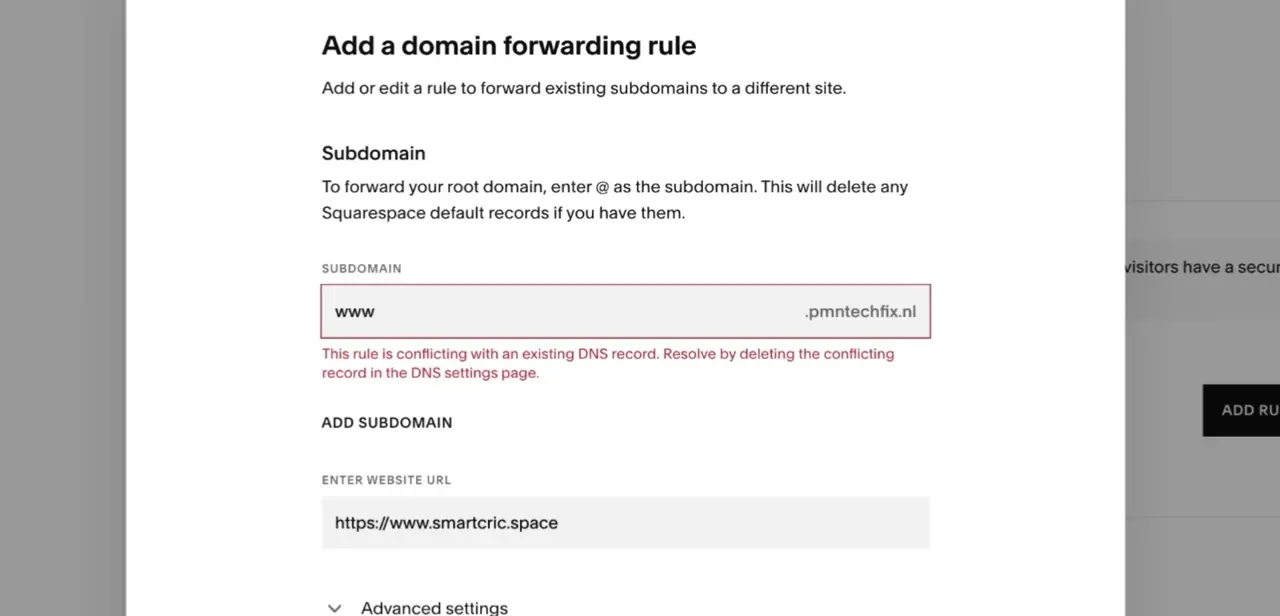
The error reads "This rule is conflicting with an existing DNS record. Resolve by deleting the conflicting record in the DNS settings page," which says what's wrong but not where to fix it. This guide walks through the real error on a live domain (pmntechfix.nl), shows which records are causing it, and finishes with what a correctly forwarded domain looks like once the conflict is cleared.
Before you start
- A domain registered through Squarespace, or connected via Nameserver Connect, so its DNS is managed inside the Squarespace dashboard. If DNS is managed with an outside provider, this guide's steps don't apply and records are edited there instead.
01Reproduce the error and read it carefully
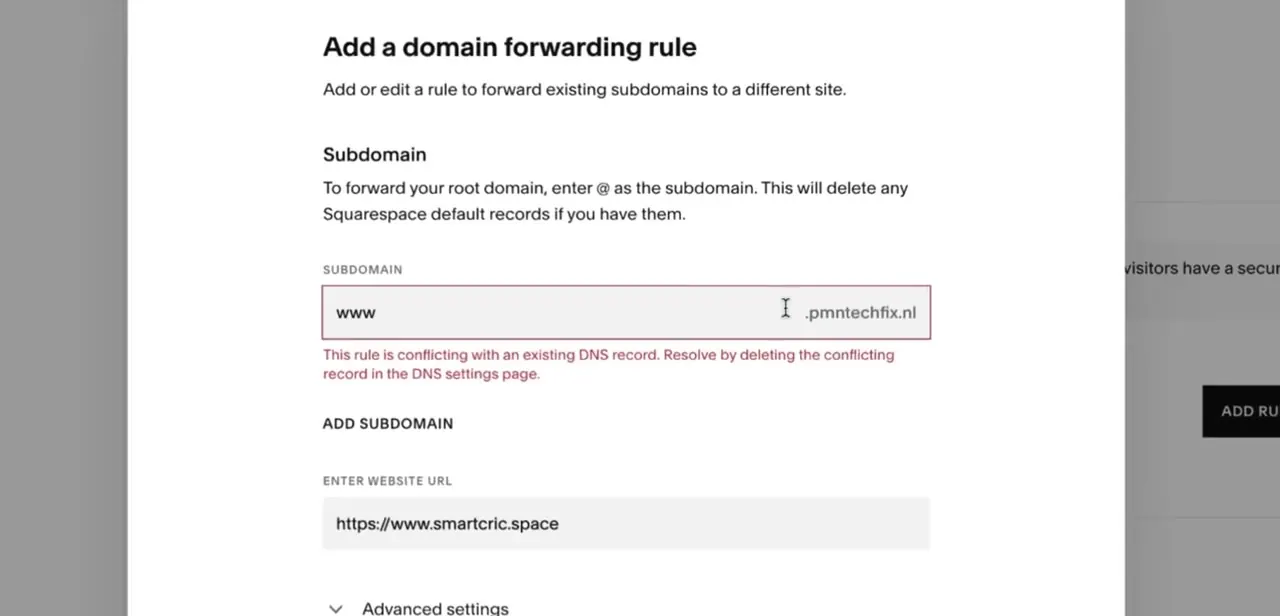
In Domain Forwarding, adding a rule for the www subdomain, pointing it at a destination like https://www.smartcric.space, triggers a red validation message directly under the subdomain field: "This rule is conflicting with an existing DNS record. Resolve by deleting the conflicting record in the DNS settings page." The form won't let the rule save while this message shows, no matter how many times the destination URL is re-entered. The message names the fix's location on purpose: the DNS Settings page, not this forwarding dialog.
02Understand why it happens
When a domain is registered through Squarespace or connected to a Squarespace site, the platform writes a set of default DNS records: A records pointing the root domain to Squarespace's servers, and a CNAME pointing www to Squarespace's hosting. Those records exist so the site resolves correctly by default.
Squarespace's own documentation says setting up forwarding normally clears these defaults for you automatically, since a default record and a forwarding rule can't both control the same subdomain. This error is what happens when that automatic cleanup doesn't run, most often because the record on file no longer matches a clean default. Squarespace won't silently delete something it isn't sure about, so it stops and asks for the conflict to be removed by hand first.
03Open DNS Settings and find the defaults
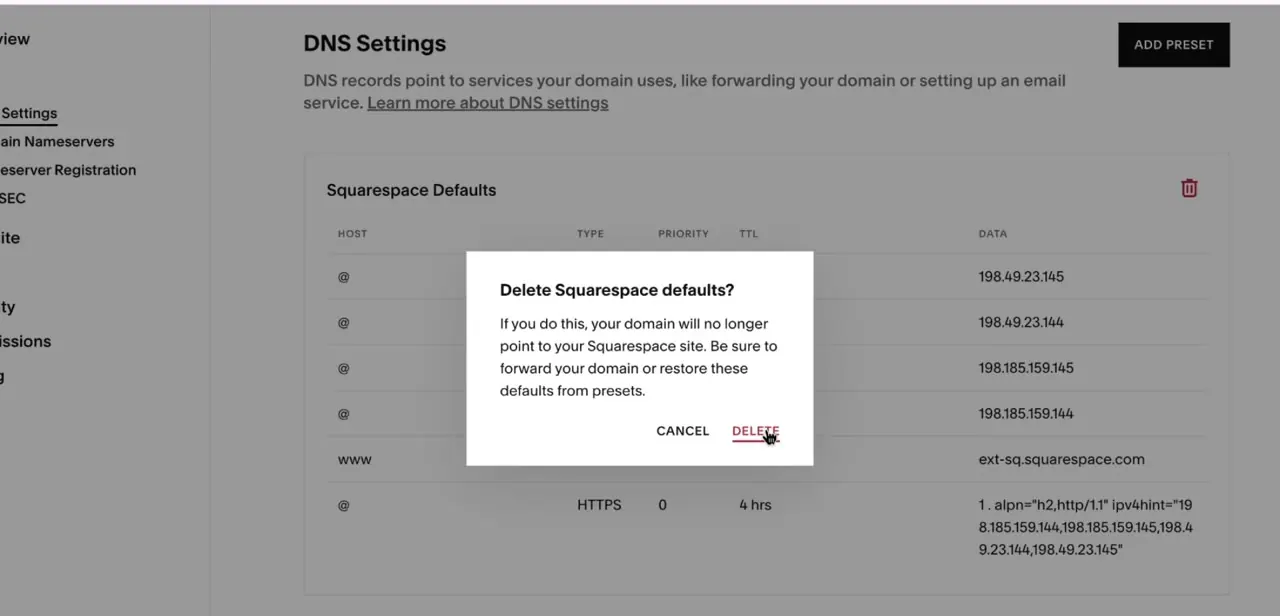
From the domain's settings, go to DNS Settings. A table lists every record on the domain, grouped into sections; Squarespace Defaults is usually the one to check first, showing A records for the @ host pointing at Squarespace IP addresses, plus a www CNAME record pointing to ext-sq.squarespace.com. Forwarding the www subdomain specifically will almost always conflict with that CNAME row; forwarding the root domain (@) conflicts with the A records instead.
04Delete the conflicting defaults
Click the trash icon next to the Squarespace Defaults section. A confirmation dialog appears: "Delete Squarespace defaults?
If you do this, your domain will no longer point to your Squarespace site. Be sure to forward your domain or restore these defaults from presets." That warning is accurate: deleting these records does disconnect the domain from the Squarespace site's own content. That's fine here, since forwarding is about to take over that job, but it's the wrong move for a domain meant to keep showing its Squarespace site.
05Re-add the forwarding rule
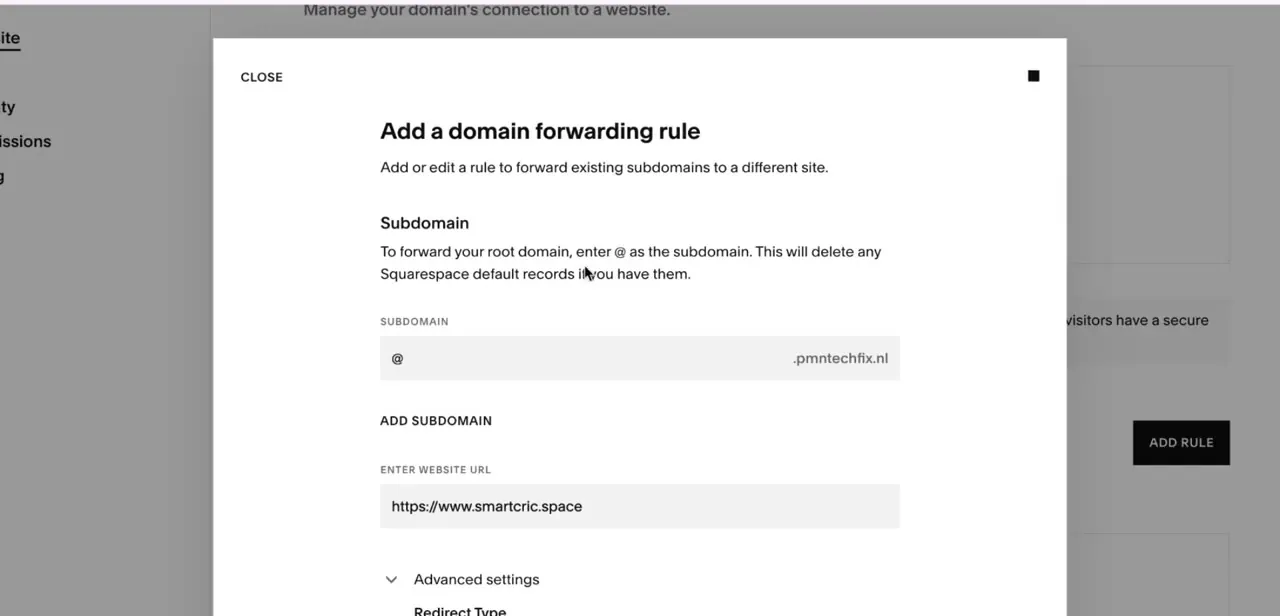
Back in Domain Forwarding, add the rule again with the same subdomain and destination URL as before. With the conflicting record gone, the red error no longer appears and the rule saves. Forwarding the root domain instead of www is simpler: the form's own hint under the Subdomain field says entering @ will delete any remaining Squarespace default records automatically as part of adding that rule, no manual DNS Settings trip required.
06Confirm the rule is live
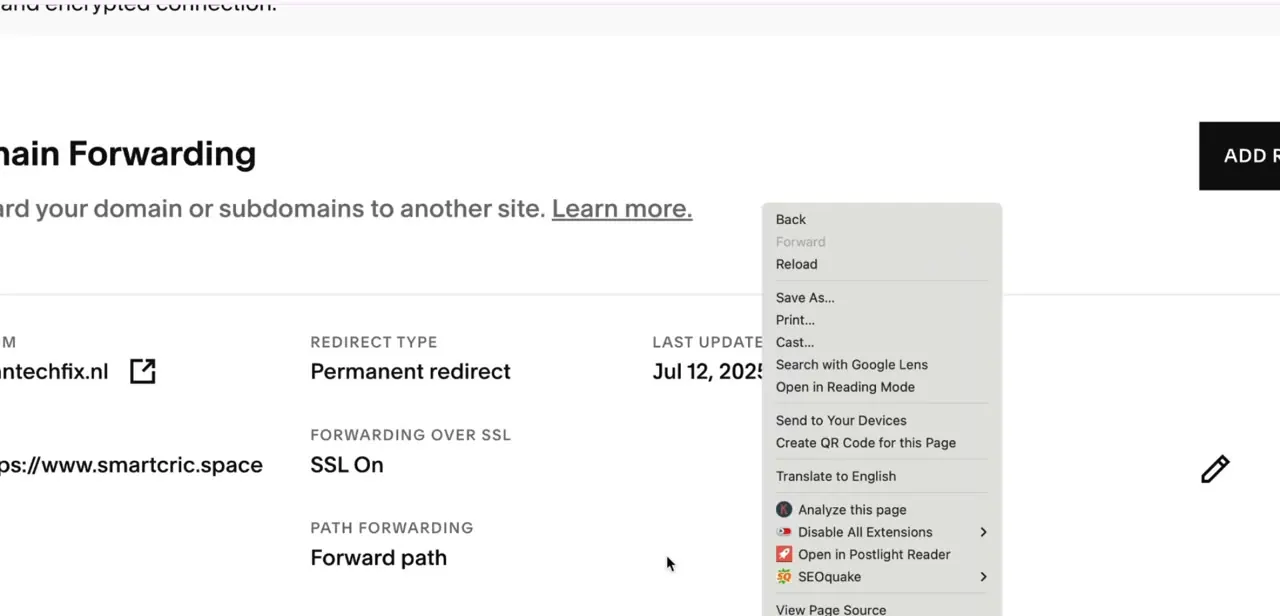
Once saved, the Domain Forwarding page shows the rule's real settings: Redirect Type as Permanent redirect, Forwarding over SSL as On, and Path Forwarding as Forward path, next to a Last Update timestamp. Permanent redirect and SSL on are the settings for a production forward: permanent tells browsers and search engines this is the lasting destination, and SSL keeps the redirect itself encrypted before it reaches the destination site. Squarespace notes that a forwarding change can take up to 48 hours to fully propagate, so a rule that looks right here but hasn't taken effect for every visitor yet isn't necessarily broken.
| Forwarding target | Likely conflicting record |
|---|---|
| www subdomain | www CNAME record under Squarespace Defaults |
| Root domain (@) | @ A records under Squarespace Defaults |
When it doesn't work
The rule still won't save after deleting Squarespace Defaults
Why: A different, non-default A, AAAA, ALIAS or CNAME record on that same subdomain is also claiming it, separate from the Squarespace Defaults section.
Fix: Scan the full DNS Settings table, not just Squarespace Defaults, for any other record with the same host as the subdomain being forwarded, and delete that one too.
The main site goes down right after deleting the defaults
Why: This is expected. Deleting Squarespace Defaults disconnects the domain from the Squarespace site itself, which is exactly what the confirmation dialog warns about.
Fix: Finish adding the forwarding rule right away so something takes over routing the domain. If the rule fails to save and the site needs to come back immediately, use Add preset in DNS Settings to restore the Squarespace defaults.
The rule saved but visitors still land on the old destination
Why: Squarespace states forwarding changes can take up to 48 hours to fully propagate, and browsers or local DNS resolvers may also be holding a cached result.
Fix: Wait, then re-check in a private browser window, which skips the local cache.
Frequently asked questions
Why does Squarespace say my forwarding rule conflicts with a DNS record?
Squarespace writes default A and CNAME records for a domain connected to a Squarespace site. Adding forwarding is supposed to clear those automatically, but when the cleanup doesn't run, this conflict error appears until the old record is deleted by hand.
Which record usually causes the conflict?
For www subdomain forwarding, it's typically the www CNAME record under Squarespace Defaults. For root domain forwarding, it's the @ A records.
Is it safe to delete the Squarespace Defaults records?
Yes, when forwarding is being set up, since the forwarding rule takes over routing the domain. It's not safe for a domain that still needs to display its own Squarespace site content, since deleting the defaults disconnects that link.
What if I'm forwarding my root domain instead of www?
Entering @ as the subdomain in the forwarding rule form deletes the remaining Squarespace default A records automatically, as part of adding the rule, so there's no separate DNS Settings step for that case.
How long until the forwarding rule actually works for visitors?
Squarespace's documentation states changes can take up to 48 hours to propagate fully, though it's often faster. If it still looks wrong after that, check for a cached result in a private browser window before assuming the rule is broken.
How do I know the forwarding rule actually worked?
Open Domain Forwarding after saving and check the rule's details: it should show a Redirect Type, Forwarding over SSL status, and a Last Update timestamp instead of the red conflict error.
Sources and last check
Click path, error text, and confirmation-dialog wording come from a walkthrough recorded in July 2025 (screenshots dated Last Update Jul 12, 2025) and were checked directly against those frames. The explanation of why the conflict occurs, the 48-hour propagation note, and both reference links were checked against Squarespace's official Help Center in September 2026. One naming gap surfaced in that check: the screenshots show the path-forwarding option labelled "Forward path," while Squarespace's current documentation refers to the same setting as "Maintain paths" (with "Remove paths" as the alternative), suggesting a rename since the recording. The step text keeps "Forward path" because that is what the screenshots actually show.
About the author

Impran M N
I've been hooked on technology for as long as I can remember — especially the new tools and AI apps that seem to land every other week. Easy Tech Tuts is where I write up whatever I've just worked out: I do the task in the real product, record the screen, and turn it into the guide I wish I'd found first.