Easy Tech Tuts
How to Transfer Domain From Squarespace to WordPress 2026 Easily
By Impran M NLast checked against official docs
Moving from Squarespace's design constraints toward WordPress's themes, plugins, and custom code is a common upgrade path, and there are two legitimate ways to get the domain there. WordPress.com now accepts a domain transfer directly, provided the domain meets its eligibility rules.
The other route, shown in the screenshots below, sends the domain to a general host first — Hostinger in this walkthrough — which is the path people take when they want self-hosted WordPress rather than WordPress.com's own hosting. This guide covers both, plus the authorization code you'll need from Squarespace and the lock windows that can stop a transfer before it starts.
Before you start
- Admin or owner access to the Squarespace account that holds the domain
- The domain registered (or last transferred) more than 60 days ago, with no recent change to its contact details
01Decide which "WordPress" you're moving toward
WordPress.com, the hosted service, now accepts an incoming domain transfer directly through Hosting Dashboard (or Upgrades) → Domains → Add a domain → Use a domain I own → Transfer your domain name — it isn't blocked the way some older guides describe. The domain still needs to be more than 60 days old and not transferred within the last 60 days, and the transfer is free with an annual paid plan.
Self-hosted WordPress (wordpress.org software running on your own hosting) is a different target, and it's what the rest of this guide follows: you transfer the domain to a general host, then install WordPress there yourself. Pick this path for more control over plugins and server configuration; pick the direct WordPress.com route if you'd rather not manage hosting at all.
02Unlock the domain and get its authorization code from Squarespace
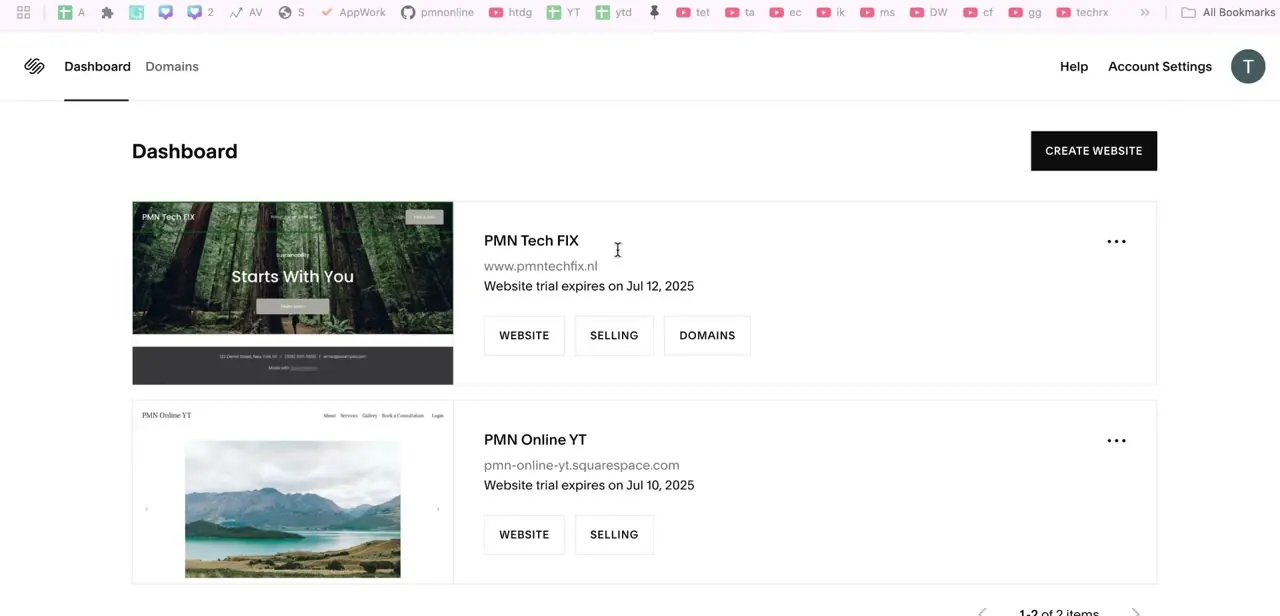
In the domains dashboard, open the domain, and toggle Domain Lock off. Click Request transfer code, then confirm with your password or two-factor authentication — Squarespace emails the authorization code (also called an EPP code or transfer key) to the domain's contact address, usually within 24 hours.
Three things can block this before it starts. A domain bought in the last 60 days carries a registration lock.
One transferred into Squarespace in the last 60 days carries a separate transfer lock. And a recent change to the domain's contact information can trigger its own short lock. If the transfer code request fails or the toggle won't move, check which of these applies before assuming something's broken.
03Start the transfer from your chosen host
With the domain unlocked and the code in hand, go to the host you're transferring to — Hostinger in this recording — and start a domain transfer from its dashboard, not from anything inside Squarespace or WordPress.com. Most hosts run seasonal transfer promotions, worth checking, but confirm first that the host actually supports the domain's top-level extension; not every registrar accepts every TLD.

04Enter the authorization code and choose your name servers
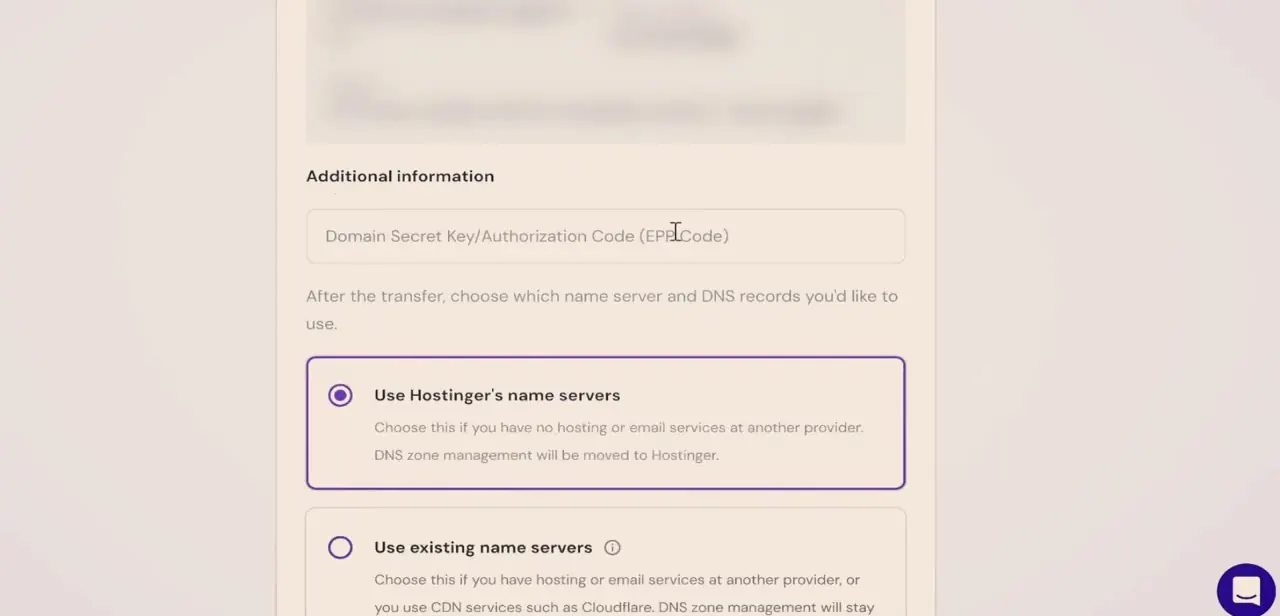
The transfer form asks for the domain's Secret Key or Authorization Code (EPP code) under Additional information, then a choice about DNS: use the new host's name servers, or keep the existing ones. Pick the host's name servers if nothing else — email, a CDN — currently depends on this domain's DNS and you want everything to move together.
Pick "use existing name servers" if Cloudflare or another service is handling DNS and should stay untouched. Getting this choice wrong doesn't break the transfer itself, but it can knock out email or another service until you fix the DNS afterward.
05Submit the transfer and expect a multi-day wait
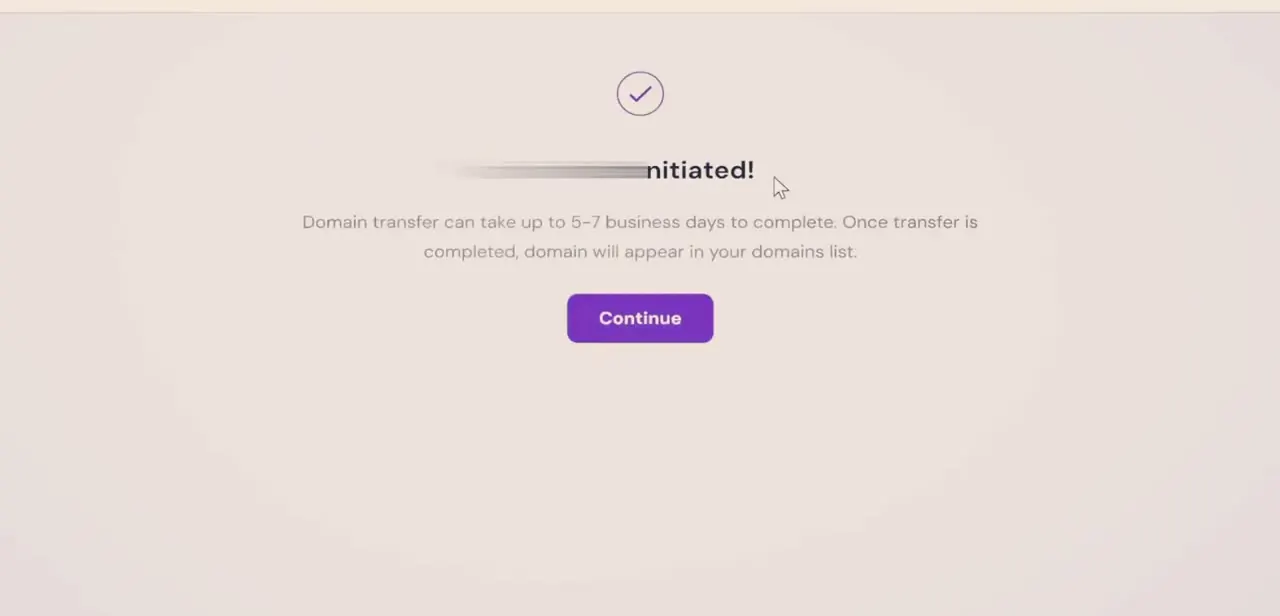
Once submitted, the host confirms the transfer was initiated: it can take up to 5–7 business days to complete, and the domain appears in your domains list once it does. Nothing here is a stalled process on the host's end. Domain transfers involve a handoff between registries and sometimes a confirmation email you need to approve, so a day or two of silence is normal.
06Point the domain at your self-hosted WordPress site once it lands
This step applies to the host-transfer path above; if you sent the domain straight into WordPress.com in step one, it's already connected. After the transfer completes on a host like Hostinger, install WordPress there and point the domain at it — if the domain and hosting now live with the same provider, this can be as simple as attaching the domain to the hosting plan, with no separate DNS step. Give any DNS change some time to propagate before assuming something's wrong if the site doesn't resolve within the first few minutes.
When it doesn't work
Squarespace won't unlock the domain or send a transfer code
Why: The domain is inside a 60-day registration lock (newly bought), a 60-day transfer lock (recently moved to Squarespace), or a short lock triggered by a recent change to its contact details.
Fix: Check the domain's registration, last-transfer, and last-contact-change dates in Squarespace's domains dashboard, then wait out whichever window applies before requesting the code again.
The authorization code email never arrives
Why: Squarespace sends it to the domain's registered contact email, which can be out of date or land in spam.
Fix: Confirm the contact email on the domain in Squarespace before requesting the code again, and check spam folders; contact Squarespace support if it still doesn't show up.
Email or another service breaks right after the transfer
Why: The transfer form's name-server choice moved DNS management to the new host, cutting off a service — email, a CDN — that depended on the previous DNS records.
Fix: Recreate the missing DNS records at the new host, or if the domain hasn't transferred yet, redo the request and choose "use existing name servers" instead.
Frequently asked questions
Can I transfer my domain directly into WordPress.com?
Yes. WordPress.com now accepts incoming domain transfers directly, provided the domain is more than 60 days old and hasn't transferred in the last 60 days. You still unlock it and get an EPP code from Squarespace first. This guide's screenshots follow the alternate path many people take instead — transferring into a general host to run self-hosted WordPress — which is why a WordPress.com dashboard isn't shown here.
Why would I transfer to a host like Hostinger instead of straight into WordPress.com?
Because you want self-hosted WordPress (wordpress.org software) rather than WordPress.com's hosted service — more control over plugins, themes, and server configuration, at the cost of managing hosting yourself.
What is the EPP code and where do I find it in Squarespace?
It's the domain's authorization code, also called a Domain Secret Key or transfer key, required by the new registrar to accept the transfer. In the Squarespace domains dashboard, open the domain, toggle Domain Lock off, and click Request transfer code.
Why won't Squarespace let me start the transfer?
Most often a lock window: domains bought in the last 60 days, domains transferred into Squarespace in the last 60 days, and domains with a recent contact-info change are all held for a period before they can transfer out.
How long does the transfer actually take?
Both WordPress.com and third-party hosts quote roughly 5–7 business days after you submit the request, though the exact timing depends on the registries involved and whether a confirmation email needs approving.
Sources and last check
Click path and screenshots for the host-transfer route come from a recording using Hostinger as the receiving host. Re-checked in September 2026 against Squarespace's own support article on transferring a domain away, and against WordPress.com's own support page on incoming transfers — the latter corrected this guide's previous claim that WordPress.com can't accept a domain transfer directly; it can, subject to a 60-day eligibility window. The lock windows and EPP code steps came from Squarespace's documentation.
About the author

Impran M N
I've been hooked on technology for as long as I can remember — especially the new tools and AI apps that seem to land every other week. Easy Tech Tuts is where I write up whatever I've just worked out: I do the task in the real product, record the screen, and turn it into the guide I wish I'd found first.