Easy Tech Tuts
How to Setup & Add Appointment Scheduling Option to Squarespace with Acuity & Calendly 2026 Easily
By Impran M NLast checked against official docs
If you take bookings as a business owner or freelancer, adding a scheduling option to your Squarespace site turns a visitor's interest into a confirmed appointment without a single email back and forth. Acuity Scheduling is a Squarespace company, and logging in with your Squarespace account connects the two with a single login, but Acuity is still its own product; it can run on its own or alongside almost any website. This guide walks through the real admin screens for creating a scheduling page, adding appointment types with their own pricing, and the third-party alternative if Acuity isn't the right fit.
Before you start
- A Squarespace site with editing access
- An Acuity Scheduling account (created during setup; no credit card needed for the trial)
01Log in and open your site's Pages panel
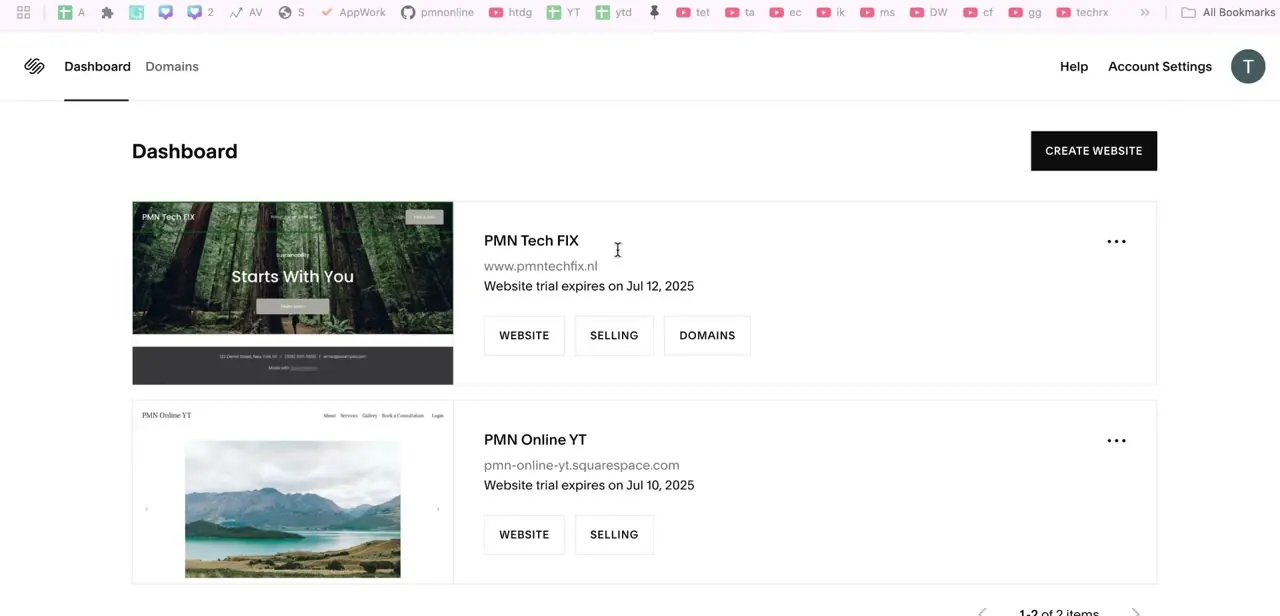
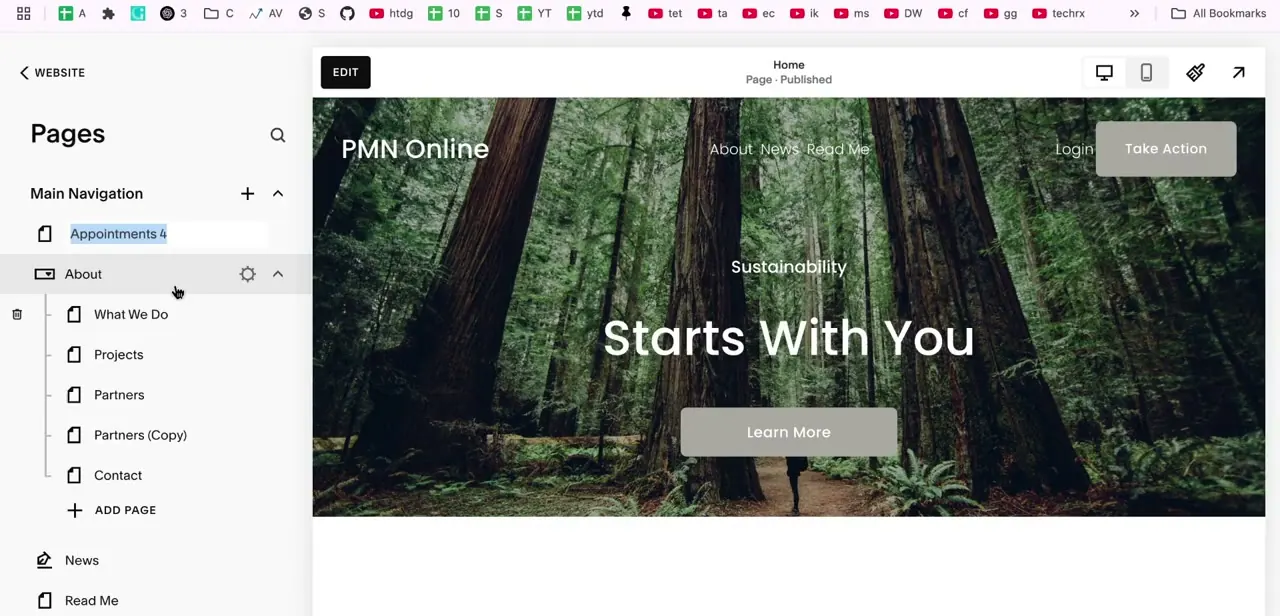
Sign in to Squarespace, using Continue with Google if your account is linked that way, then open the site you want to edit. From the editor, the left-hand Pages panel lists every page in your main navigation: About, News, Read Me, and so on. A new scheduling page shows up here too; in the example it's added and renamed inline, right at the top of Main Navigation, which is also where you'd drag it into a different position in your menu.
02Add a dedicated scheduling page
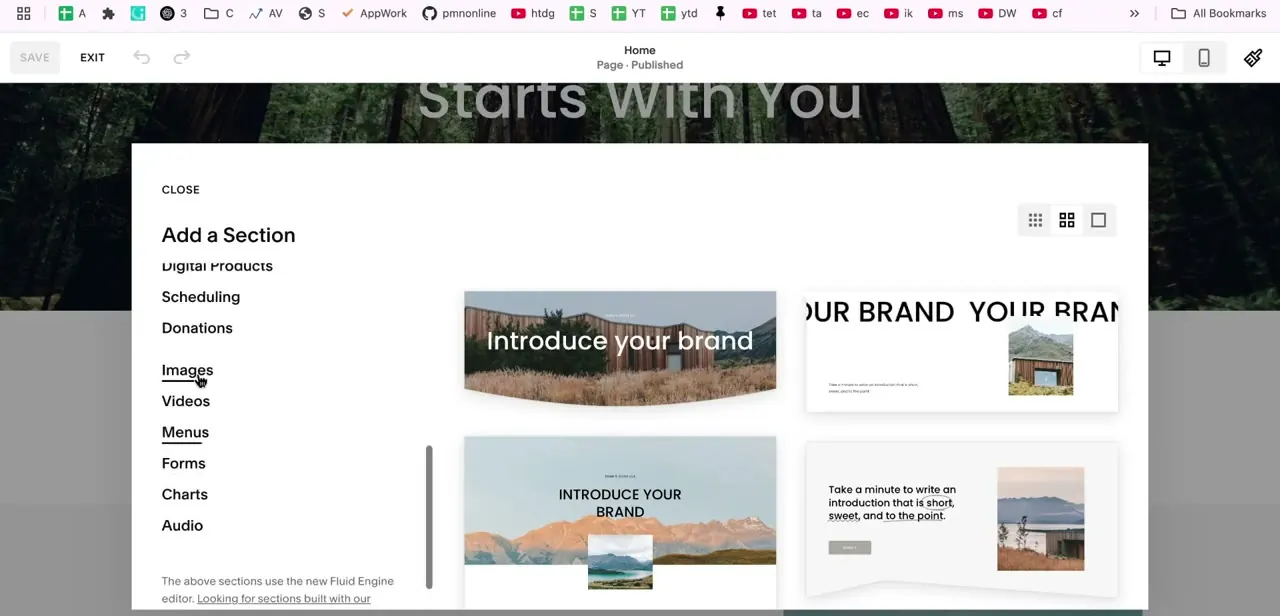
Click the + next to Main Navigation and choose Scheduling from the page type options to create a standalone booking page. You can also open a page you already have and add a Scheduling block to embed the calendar inside it instead.
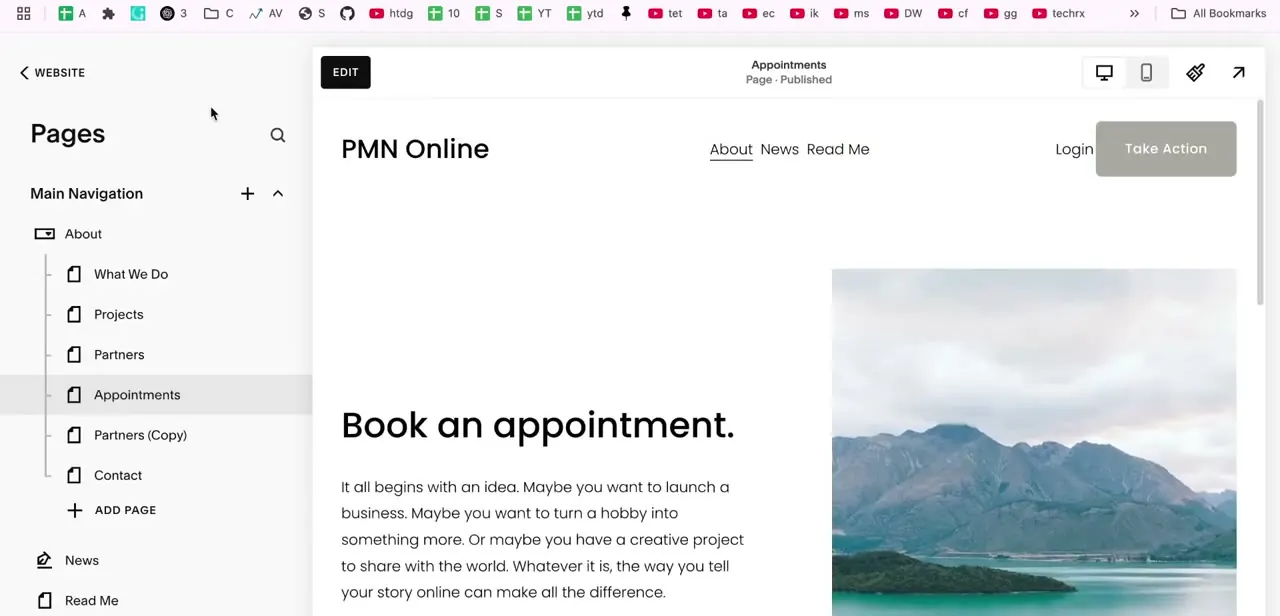
Give the page a clear name like "Appointments" or "Book Now" so it reads naturally in your site's menu. Selecting the page opens its content editor, where a generic template (headline, description text, and a supporting image) sits ready for you to rewrite with your own copy.
03Set up your appointment types in Acuity
Go to Settings, then Scheduling, and either link an existing Acuity account or create a new one. Acuity's own site puts it plainly: no website or credit card required to start the trial.
Inside Acuity, you define each bookable service as its own appointment type: a name, a duration, and a price. This step determines what a customer sees when they land on your booking page, so list every service separately instead of lumping them into one generic "consultation" slot.
04Review the live scheduling page
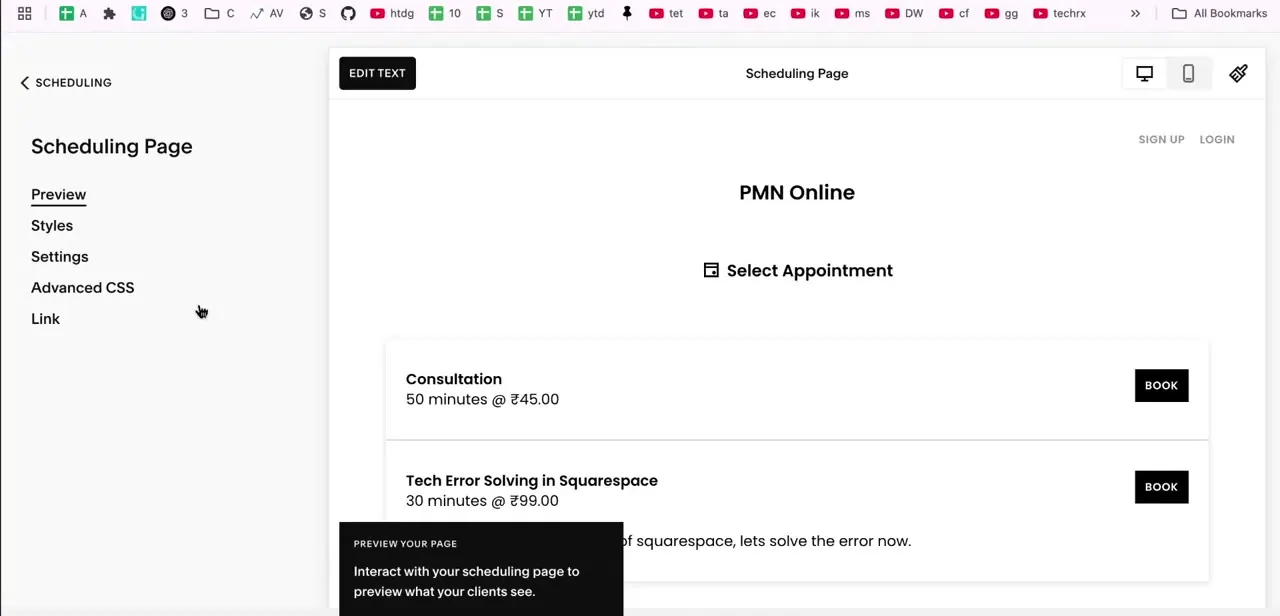
Open the Scheduling Page settings. Preview, Styles, Settings, Advanced CSS, and Link tabs sit in the left panel; use Preview to see exactly what clients will see.
The example page shows two appointment types stacked as cards: a 50-minute Consultation at ₹45.00 and a 30-minute "Tech Error Solving in Squarespace" session at ₹99.00, each with its own Book button. Only appointment types marked public in Acuity show up here, so check that before assuming the page is broken.
05Or embed a third-party tool instead
If you prefer a service like Calendly, get its inline embed code from that tool's own site, then paste it into a Code block on your Squarespace page. This works, but Squarespace states plainly that code-based customizations fall outside its support scope: if the embed breaks, that's between you and the third-party tool. Try Acuity first unless you have a specific reason to stick with something you already use elsewhere; you're managing one fewer account and get a feature Squarespace will troubleshoot directly.
06Preview, save, and publish
Before you call it done, click through the scheduling page as a visitor would: select an appointment type, confirm the booking flow loads, and check that payment settings are switched on correctly if you're charging for the appointment. Once everything checks out, hit Save to publish the page to your live site. From there, visitors find your scheduling page through the menu link you set up and book time with you directly, with no manual back-and-forth needed.
| Plan | Bookable calendars | Notable extras |
|---|---|---|
| Starter | 1 | Self-scheduling, unlimited services and appointments, Stripe/Square/PayPal payments, reminder emails |
| Standard | Up to 6 | Everything in Starter, plus text reminders, appointment packages, memberships and subscriptions, gift certificates |
| Professional | Up to 36 | Everything in Standard, plus removing 'Powered by Acuity' branding, HIPAA compliance (BAA available), multiple time zones, custom API and CSS |
Squarespace's scheduling pricing page doesn't display a fixed monthly figure that stays accurate here since it varies by billing term. Check squarespace.com/scheduling for current rates before choosing a tier.
When it doesn't work
The embedded Calendly (or other third-party) widget looks broken or won't load
Why: Squarespace excludes code-block embeds from its support scope, so a broken third-party widget is the other vendor's issue to fix.
Fix: Check the embed code with the third-party tool's own support, or switch to a native Scheduling block, which Squarespace does support directly.
Clients stop being able to book once the trial ends
Why: The Acuity trial ran out without a paid plan selected.
Fix: Pick a plan from Settings > Scheduling before the trial expires, or booking pauses until you do.
A new appointment type doesn't show up on the scheduling page
Why: Appointment types live inside Acuity, not on the Squarespace page, and the Scheduling block only displays types marked public.
Fix: In Acuity, confirm the new appointment type is set to public, then refresh the Squarespace page.
Frequently asked questions
What's the difference between Acuity and a third-party tool like Calendly?
Acuity is Squarespace's own connected scheduler: set it up from Settings > Scheduling with no code involved, and it can share a login with your Squarespace account. A tool like Calendly needs an embed code pasted into a Code block, and Squarespace won't troubleshoot that embed if it breaks.
Can I add a scheduling page to my site's menu?
Yes. Creating a Scheduling page through + Add Page automatically adds it to Main Navigation, and you can drag it into whatever position you want in the Pages panel.
Do I need a paid Acuity account?
You can start on a free trial with Starter-level features and no credit card required. Once the trial ends, continued booking needs a paid tier: Starter, Standard, or Professional.
Can I set my own rates and appointment lengths?
Yes. Each appointment type you create in Acuity has its own name, duration, and price; the example page shows a 50-minute and a 30-minute service listed at different rates on the same booking page.
Does Acuity billing show up with my Squarespace site bill?
If you log into Acuity with your Squarespace account, yes: Squarespace charges the same card you use for your site. Acuity's subscription still runs independently of your website plan, so one expiring doesn't cancel the other.
Sources and last check
Screens and the example appointment types come from a recorded walkthrough. The Acuity/Squarespace relationship, trial terms, billing behavior, plan tiers, and the note that Squarespace doesn't support third-party embed code were checked against Squarespace's official help center and its scheduling pricing page in September 2026. That check corrected the original claim that Acuity is built directly into the platform: it's a connected companion product with its own account and billing.
About the author

Impran M N
I've been hooked on technology for as long as I can remember — especially the new tools and AI apps that seem to land every other week. Easy Tech Tuts is where I write up whatever I've just worked out: I do the task in the real product, record the screen, and turn it into the guide I wish I'd found first.