Easy Tech Tuts
How to Remove Domain Forwarding Squarespace & Add, Restore DNS 2026 Easily
By Impran M NLast checked against official docs
Domain forwarding is handy for pointing an old or extra domain somewhere else, but it's easy to set up and forget about until you need to undo it. Maybe the promotion it supported has ended, or the domain needs to point at a different site entirely.
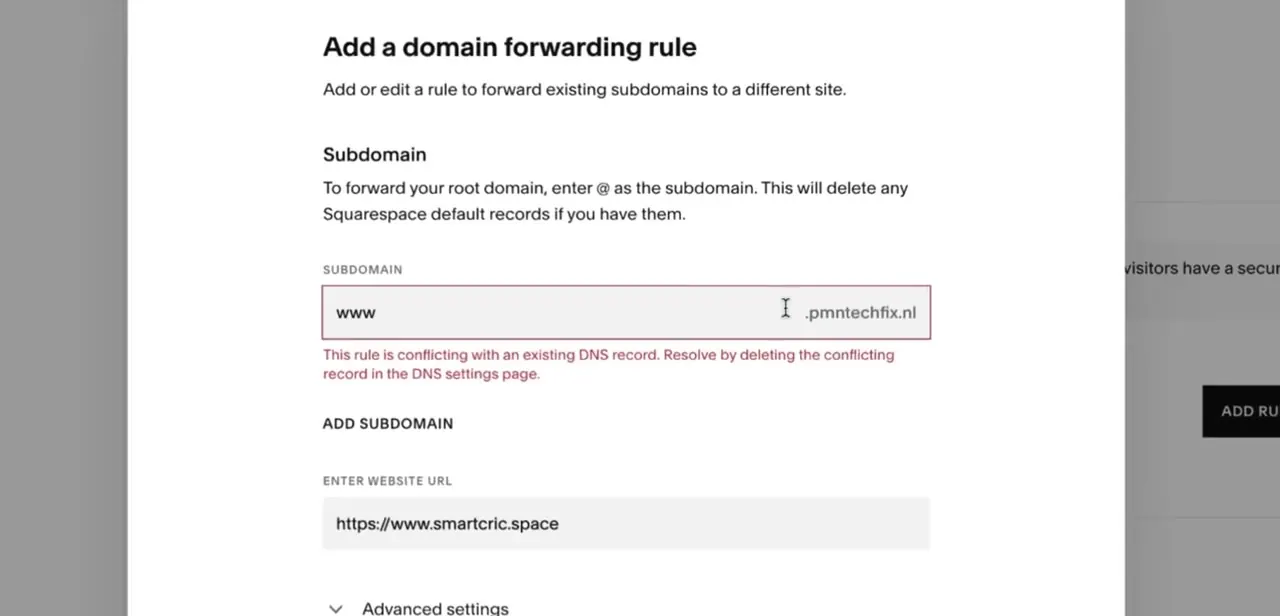
There's also a less obvious reason to remove it: Squarespace won't let you edit a domain's DNS records directly while a forwarding rule is active on it. Deleting the rule is a couple of clicks.
Restoring the domain's working DNS records afterward is the part people skip, and Squarespace doesn't do it automatically. This guide covers both: deleting the forwarding rule, and putting the domain's DNS records back so it resolves correctly again.
Before you start
- Know whether the domain's DNS is managed inside Squarespace or at the original registrar, since that determines where you go to restore records
- Your Squarespace account password or two-factor method on hand, since deleting a forwarding rule asks you to reauthenticate
01Open the domain in your Squarespace account
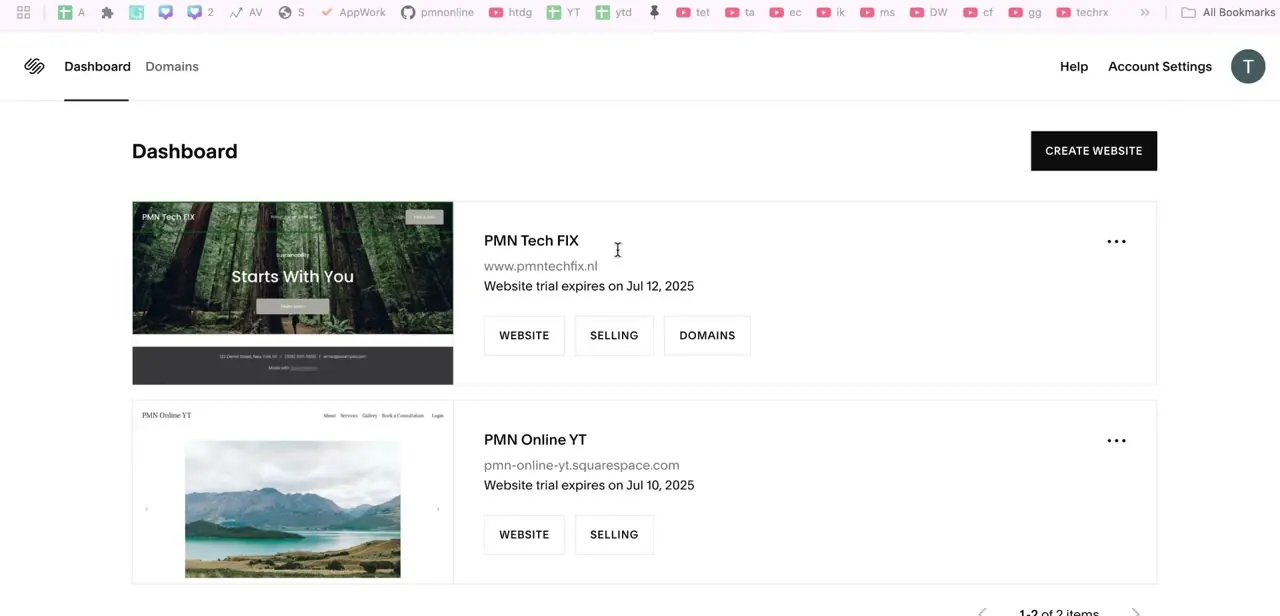
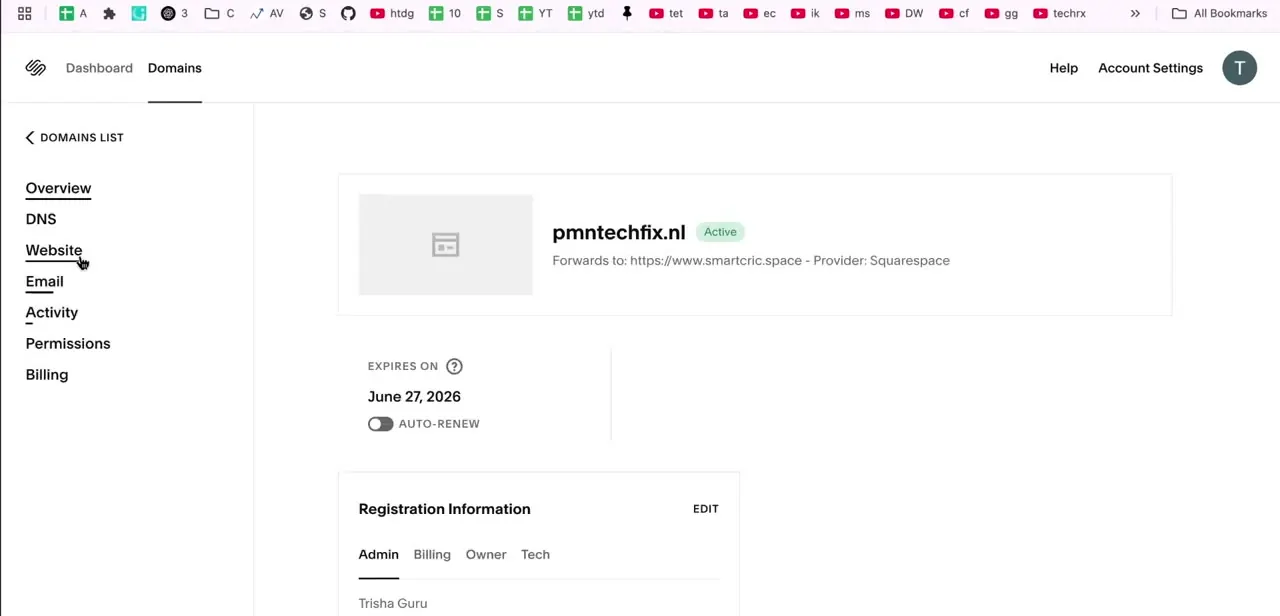
Log in to Squarespace and go to the Domains section of your account, then select the domain you want to change. The overview page shows its status and, if forwarding is active, a line right under the domain name confirming where it currently forwards to and which provider is handling it. Check that line first; it tells you the rule is live and gives you the exact destination URL, useful to have on hand if you want to reference it or set up the same forward again elsewhere.
02Go to Website settings and find Domain Forwarding
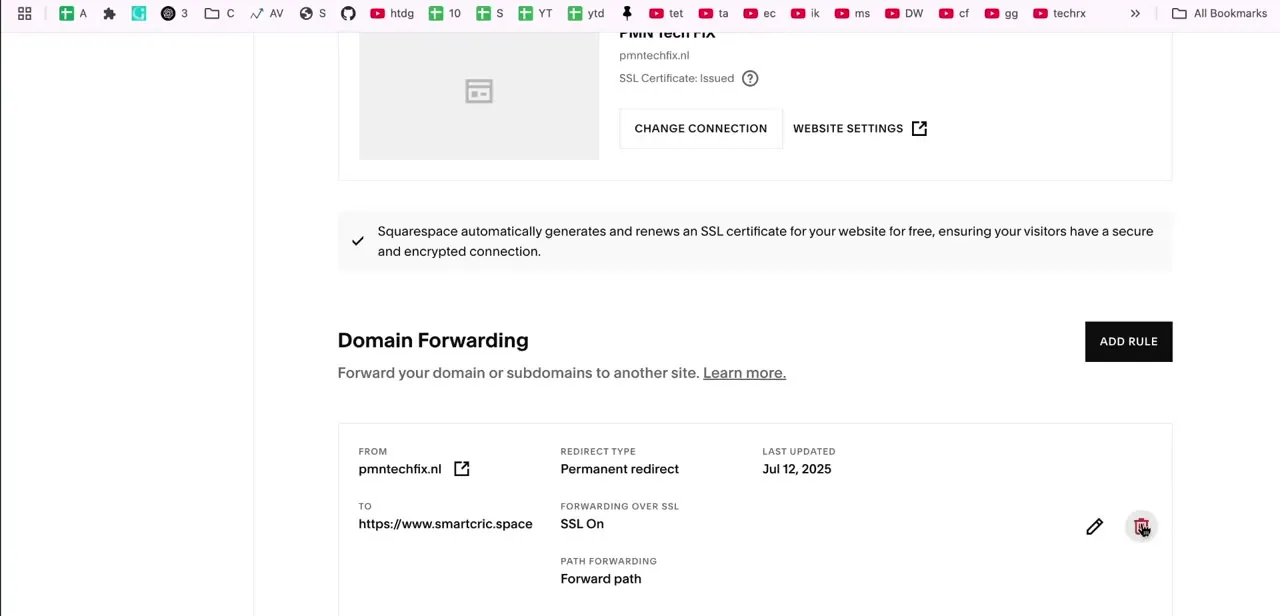
From the domain's side menu, click Website to reach the connection and forwarding settings. Scroll down to the Domain Forwarding section, which lists every rule currently set up for that domain, each with its source, destination, redirect type, and forward-path setting laid out in a row.
Next to each rule are two small icons: a pencil to edit it, a trash can to delete it. Glance at the whole list before deleting anything, in case there's more than one rule and you only want to remove one.
03Delete the forwarding rule
Click the trash icon next to the rule you want to remove. Squarespace asks you to confirm with your account password or two-factor code before the deletion goes through.
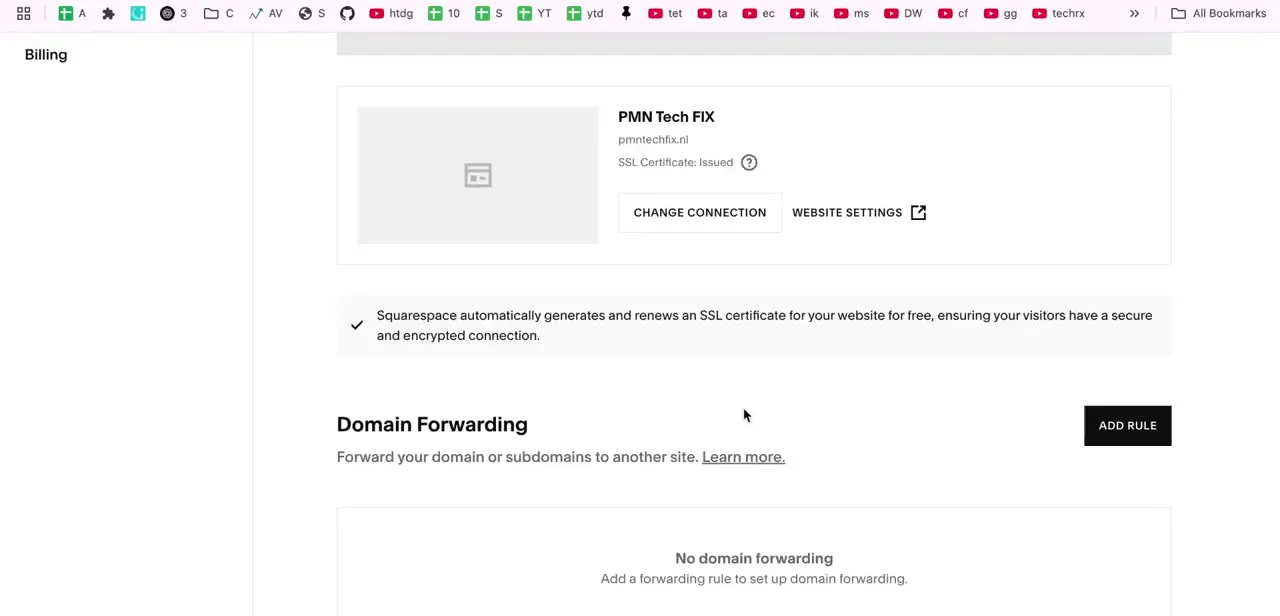
The rule disappears from the list immediately, and the panel switches to a "No domain forwarding" message with a prompt to add a rule if you need one again. At this point the domain still resolves however its underlying DNS records say to; forwarding was a layer on top of that, and removing it doesn't touch the records themselves.
04Restore your DNS records
If setting up forwarding earlier meant your original DNS records were removed or changed, deleting the rule won't put them back on its own; you need to re-add them yourself. If the domain uses Squarespace's own DNS, which is the common case, go to the domain's DNS settings and add Squarespace's default records back: four A records at the root (@) and two CNAME records, listed in the table below. If your domain was pointed at something other than a Squarespace site before forwarding, use whatever records that host originally gave you instead.
05Give it time to propagate
DNS changes aren't instant everywhere at once. Expect the update to show up within a few minutes in most places, but allow up to 24 hours for it to fully propagate across every network.
If you check right away and still see the old forwarding destination, that's almost always a caching issue, not a sign something went wrong. Clear your browser cache, try a private window, or check from a different network like your phone's mobile data; any of those usually show the corrected result while the rest of the internet catches up.
| Type | Host / Alias | Points to |
|---|---|---|
| A | @ | 198.185.159.144 |
| A | @ | 198.185.159.145 |
| A | @ | 198.49.23.144 |
| A | @ | 198.49.23.145 |
| CNAME | www | ext-cust.squarespace.com |
| CNAME | a unique code Squarespace gives your account | verify.squarespace.com |
The verification CNAME's host value is specific to your account. Copy it from your own DNS settings rather than reusing one from elsewhere.
When it doesn't work
The domain shows a Squarespace parking or "not connected" page after restoring records
Why: Only one A record was added instead of all four, an older single-record setup that no longer matches Squarespace's current default.
Fix: Add all four A records listed above at the root (@).
The DNS settings won't let you add or edit records
Why: Squarespace blocks direct DNS edits on a domain while a forwarding rule is still active on it.
Fix: Delete the forwarding rule first (step 3), then edit DNS.
The old redirect destination still loads after removing the rule
Why: Browser or DNS caching, not a sign the removal failed.
Fix: Clear the browser cache, use a private window, or check from a different network; allow up to 24 hours for full propagation.
Frequently asked questions
Will removing a forwarding rule break my site?
Not on its own, but if you don't restore the original DNS records afterward, the domain may not point anywhere correctly.
What DNS records do I need to restore Squarespace's default setup?
Four A records at the root (@): 198.185.159.144, 198.185.159.145, 198.49.23.144, and 198.49.23.145, plus a CNAME for www pointing to ext-cust.squarespace.com and a verification CNAME pointing to verify.squarespace.com, with a host value unique to your account.
How long does it take for the removal to take effect?
It can take a few minutes to show up and up to 24 hours to fully propagate everywhere.
I still see the old redirect after removing the rule, why?
This is usually a caching issue. Try clearing your browser cache, using a private window, or checking from a mobile network.
Why can't I edit my DNS records while forwarding is active?
Squarespace locks direct DNS editing on a domain while a forwarding rule is live on it, to avoid conflicts between the two. Delete the forwarding rule first, and the DNS settings become editable again.
Sources and last check
Click path and screens come from a walkthrough recorded in August 2025. The DNS restoration step previously listed only one A record and one CNAME; checked against Squarespace's official documentation in September 2026, the full default set is four A records plus two CNAME records, now reflected in the table above. The note that DNS editing is blocked while forwarding is active also comes from Squarespace's own documentation.
About the author

Impran M N
I've been hooked on technology for as long as I can remember — especially the new tools and AI apps that seem to land every other week. Easy Tech Tuts is where I write up whatever I've just worked out: I do the task in the real product, record the screen, and turn it into the guide I wish I'd found first.