Easy Tech Tuts
How to Enable SSL on Squarespace, Solve Certificate Unavailable, Processing, Not Working Error 2026
By Impran M NLast checked against official docs
Squarespace issues a free SSL certificate for every connected custom domain automatically, but that doesn't mean your site is serving traffic over HTTPS. That's a separate setting you flip yourself.
Leave it on the wrong option and search engines can index the insecure version of your site, visitors won't get redirected to the secure one, and you lose the padlock icon that signals trust. This guide covers where that setting lives, what each option does per Squarespace's own documentation, and what to check if the certificate shows as unavailable or gets stuck processing instead of activating.
Before you start
- A custom domain already connected to the Squarespace site; SSL only applies once a domain is connected
- If the domain is registered elsewhere, its DNS records already pointed at Squarespace exactly as Squarespace's connection instructions specify
01Open Settings and find SSL
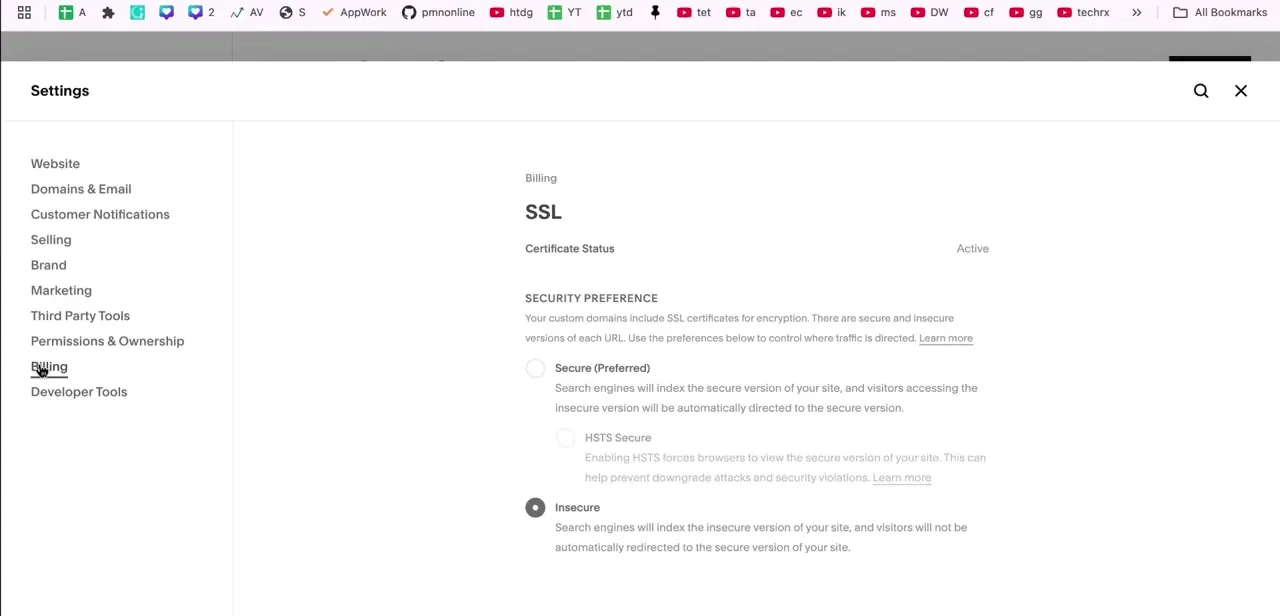
From your Squarespace dashboard, go to Settings, then Developer Tools, then SSL; it's easy to miss because it isn't grouped with Domains & Email, where most people look first for anything domain-security related. At the top of the SSL page, Certificate Status should read Active if Squarespace has already issued a certificate for your connected domain. If it reads Unavailable or Processing instead, the certificate hasn't finished issuing, and the Security Preference below won't matter until that resolves.
02Understand the three security preference options
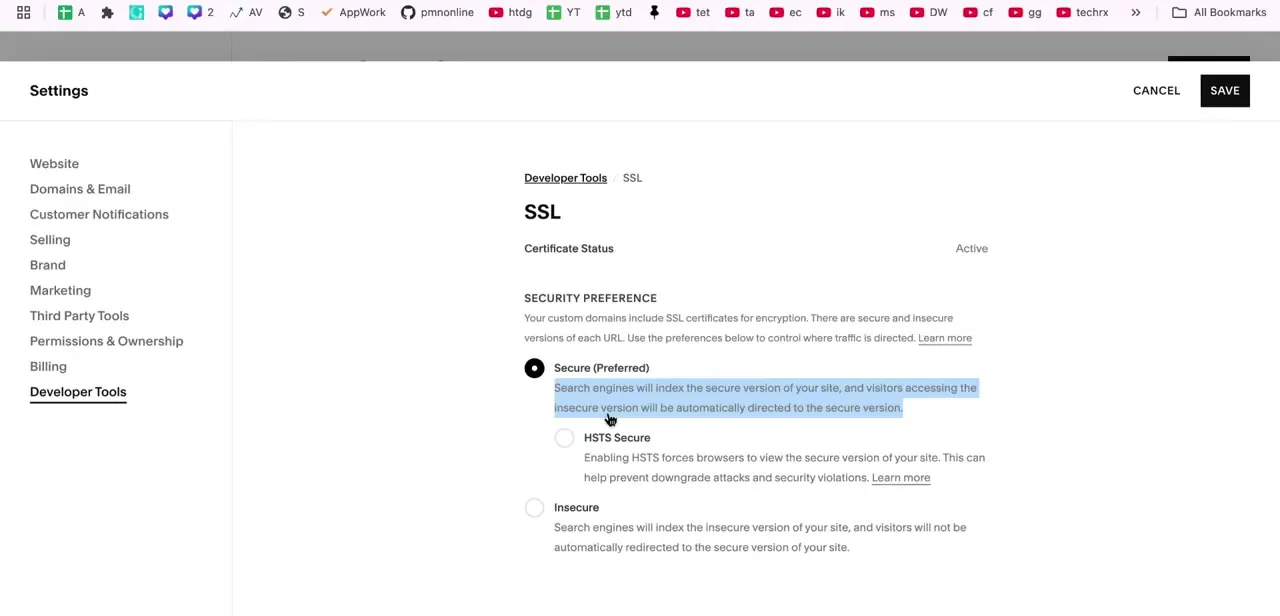
Below the certificate status, Squarespace gives three options. Secure (Preferred) directs search engines to index the HTTPS version of your site and automatically redirects visitors from the insecure URL; Squarespace's own documentation calls this the setting almost every site should use.
HSTS Secure goes further, forcing browsers to only load the secure version and helping prevent downgrade attacks, and Squarespace's help center recommends enabling it together with Secure instead of waiting. Insecure is meant for legacy domains registered or connected before October 2016; it leaves both HTTP and HTTPS versions live and indexable, which is the configuration behind most missing-padlock complaints.
03Switch to Secure and save
Click the radio button next to Secure (Preferred), then click Save in the top-right corner. The change applies immediately to new requests, but if your site was previously running Insecure, give it a little time for cached versions of your pages to clear out of search engines and browsers. Once saved, load your site in a fresh browser tab and confirm you see the padlock icon and an automatic redirect if you try to load the plain HTTP version of a page.
04Fix a certificate stuck on Unavailable
Squarespace's own troubleshooting guidance splits this by where the domain is registered. For a domain bought through Squarespace, check that the default DNS records under Domains & Email are still intact; something removing them is the usual cause. For a domain registered elsewhere, confirm its DNS records match Squarespace's connection instructions exactly, and also check whether your registrar has a CAA record restricting which certificate authorities can issue certificates for the domain; Squarespace specifically flags this as a reason issuance can fail even with otherwise correct DNS.
05Wait out a certificate stuck on Processing
Squarespace's documentation puts the window at up to 48 hours after connecting a domain or changing DNS, not longer. During that time, Certificate Status reads Processing and the Security Preference options may be greyed out; that's expected, not a sign of failure. Changing DNS settings again mid-wait restarts that clock, so leave them alone once they're correct.
06Verify SSL is working across devices
Once status shows Active and Secure is selected, test the site on desktop and mobile, ideally from a network you don't normally use, since local DNS caching can make a fixed site look broken to you longer than to everyone else. Look for the padlock in the address bar and try loading a plain http:// page to confirm it redirects to https:// automatically. If it still doesn't, and the certificate is genuinely Active, Squarespace's troubleshooting guide also points at the visitor's browser: one that doesn't appear on Let's Encrypt's list of platforms trusting ISRG Root X1 won't show the site as secure regardless of your settings.
| Option | What it does | Best for |
|---|---|---|
| Secure (Preferred) | Indexes the HTTPS version and redirects visitors to it automatically | Nearly every site |
| HSTS Secure | Forces browsers to only ever load the secure version, blocking downgrade attacks | Used together with Secure; Squarespace recommends enabling both |
| Insecure | Leaves both HTTP and HTTPS versions live and indexable | Legacy domains connected before October 2016 |
When it doesn't work
Certificate Status stays Unavailable past 48 hours on a third-party domain
Why: DNS records don't exactly match Squarespace's connection instructions, or the registrar has a CAA record that blocks Squarespace's certificate authority from issuing a certificate.
Fix: Compare every DNS record against Squarespace's instructions, and check the domain's CAA records at the registrar for a restriction that excludes Squarespace's issuer.
Certificate Status stays Unavailable on a domain bought through Squarespace
Why: One of the domain's default DNS records was changed or removed.
Fix: Go to Domains & Email and confirm the default records are still intact.
The site still shows Not Secure even though Certificate Status is Active
Why: Security Preference is still set to Insecure, or the visitor's browser isn't on Let's Encrypt's list of platforms that trust ISRG Root X1.
Fix: Confirm Secure is selected and saved, then check the browser in question against Let's Encrypt's supported-platforms list.
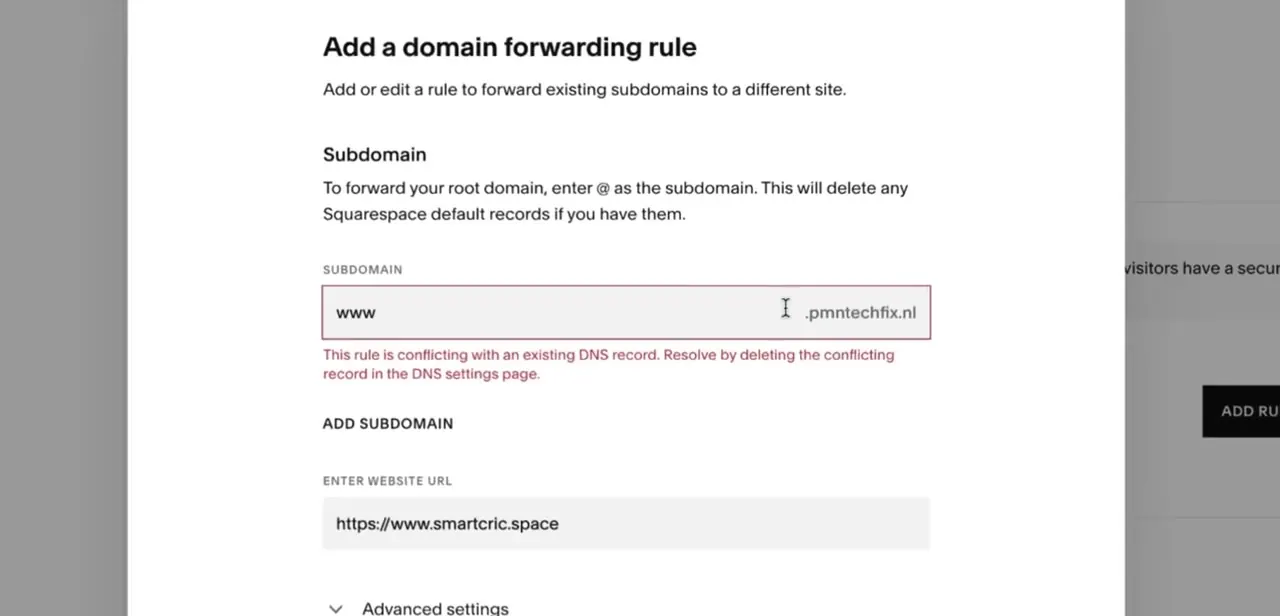
A domain using forwarding keeps showing an SSL warning
Why: Forwarded domains have their own SSL toggle, separate from the Security Preference setting, and it can end up switched off.
Fix: Find the SSL toggle for that forwarding domain, switch it on, and save.
Frequently asked questions
Why does my Squarespace SSL certificate say Unavailable?
Usually a DNS mismatch, or, for domains registered elsewhere, a CAA record at the registrar blocking Squarespace's certificate authority. Check Domains & Email and compare your records against Squarespace's connection instructions exactly.
How long does it take for Squarespace SSL to finish processing?
Squarespace's own documentation says up to 48 hours after connecting a domain or changing DNS. Avoid making further DNS changes during that window, since each change can restart the wait.
What's the difference between Secure and HSTS Secure?
Secure redirects insecure traffic to the HTTPS version automatically. HSTS Secure adds stricter enforcement that forces browsers to only load the secure version, helping prevent downgrade attacks. Squarespace recommends enabling both together instead of adding HSTS later.
Do I need to pay extra for SSL on Squarespace?
No. Squarespace includes a free SSL certificate automatically with every connected custom domain, on any plan, with no separate purchase or app needed.
Why don't visitors see the padlock even though my certificate is Active?
Check that Security Preference is set to Secure and not left on Insecure; an active certificate only secures traffic when that setting directs visitors to the HTTPS version. If Secure is already set, the visitor's browser may not be on Let's Encrypt's supported-platforms list.
Is the Insecure option ever the right choice?
Squarespace describes it as intended for legacy domains registered or connected before October 2016. For any newer or newly connected domain, Secure is the setting to use.
Sources and last check
Click path and screens come from a recorded walkthrough, and the Developer Tools menu location was confirmed directly against the screenshots. The processing window, the Insecure option's intended use, the HSTS recommendation, and the Unavailable-status causes were re-checked against Squarespace's official Understanding SSL and Troubleshooting SSL pages in September 2026. That check corrected this guide's earlier 72-hour processing estimate to Squarespace's documented 48 hours, corrected the claim that HSTS should wait until Secure has run for a while (Squarespace recommends enabling both together), and added the CAA-record and browser-compatibility causes that were previously missing.
About the author

Impran M N
I've been hooked on technology for as long as I can remember — especially the new tools and AI apps that seem to land every other week. Easy Tech Tuts is where I write up whatever I've just worked out: I do the task in the real product, record the screen, and turn it into the guide I wish I'd found first.