Easy Tech Tuts
How to Enable Parallax Effect in Scrolling & Disable it on Squarespace 2026
By Impran M NLast checked against official docs
Parallax makes a section's background image drift more slowly than the text sitting on top of it, so the page gains a sense of depth as a visitor scrolls. On Squarespace it's a per-section setting, not a site-wide toggle, so you can use it on a hero banner and leave every other section still.
The setting lives a few clicks deep inside the section editor, and two real limits explain most of the 'it isn't working' reports. This guide covers turning it on, checking it properly, switching it back off, and knowing when it's the wrong choice for a page.
The setting itself takes under a minute to change. Whether a visitor actually sees it move depends on two constraints most guides skip.
Before you start
- A section with a background image already added; Image Effect doesn't apply to background video or Squarespace's Background Art
- A browser with WebGL support, to see the effect while editing and while checking the published page
01Open the page in the editor and hover the section
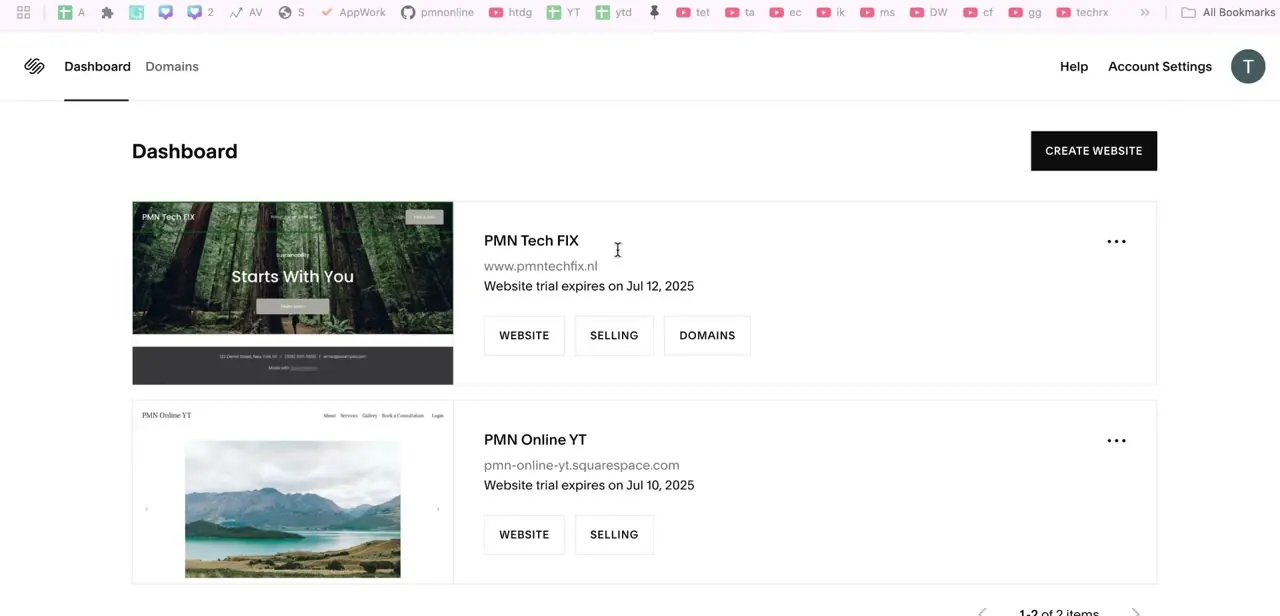
Sign in at squarespace.com and open the site from your dashboard (Continue with Google is quickest if your account is linked to one). Navigate to the page with the background image you want to animate and click Edit to leave the preview and enter the page editor.
You're in edit mode once a toolbar appears across the top, with Save and Exit on the left, undo and redo beside them, and desktop and mobile view icons on the right. Move the cursor over the section that holds the image and a small menu opens at its right edge.
Edit Section sits at the top; View Layouts, a row of icons for duplicating and reordering, and Remove sit below it. Check you're hovering the right section before clicking.
On a hero banner the menu can overlap the navigation, and Remove sits close enough to be a real hazard. The blue Add Section buttons above and below mark where the section actually starts and ends.

02Open Background, then pick an effect
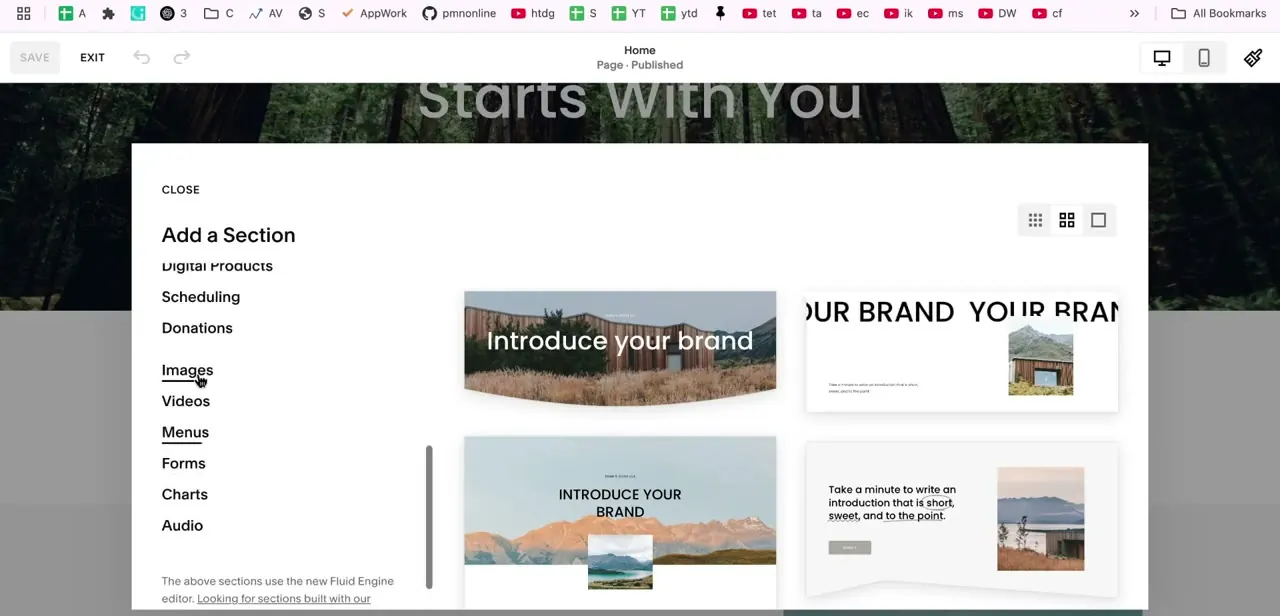
Edit Section opens a panel on the right with tabs for the section's layout, colors and background. Choose Background, where the image or video behind the section is managed, then click into Image Effect.
Squarespace files this one level below the image itself, which is why people go looking for a parallax switch in Site Styles and never find one. It isn't there.
It's a per-section setting. The panel shows the options as a grid of thumbnails rendered with your own photo, so you can see roughly what each one does before committing.
Squarespace currently offers six: None (the default, and what you return to for a static background), Parallax, Liquid, Film Grain, Refracted Circles and Refracted Lines. Click the Parallax tile to apply it.
Two limits matter here, and neither is obvious from the panel itself. Image effects need a browser with WebGL support; on an older phone, or a browser without it, the section just shows the static photo with no animation, which is the most common reason someone assumes the effect isn't working. Effects also apply only to a background image: if the section's background is a video, or Squarespace's own Background Art (patterns and gradients), Image Effect has nothing to act on.

03Save, then check the live page
Click Save in the top-left toolbar. Nothing applies until you do, and clicking Exit first discards the change.
Leave the editor afterward and scroll the actual published page, because the editor's own preview doesn't reproduce the scrolling motion faithfully: the effect depends on the page scrolling normally, and the editor's canvas doesn't do that. Check the section on a phone as well as a desktop browser.
Beyond the WebGL requirement above, Squarespace also respects a visitor's reduced-motion accessibility setting, so a background that drifts on your laptop can sit still on someone else's phone. That's expected behavior, not a bug in your setup.
04Turn it off again, and use it sparingly
Disabling is the same path in reverse: hover the section, Edit Section, Background, Image Effect, then choose None (or a different effect) and Save. Do this on any section where the effect fights the content.
Parallax suits a large, simple hero image with room to breathe, and looks cheap on a busy photo or a short section where the background barely moves before it scrolls past. One or two animated sections per page is a reasonable ceiling.
Each one adds scroll-linked work for the browser, and a page with five or six drifting backgrounds feels unsteady, not polished. If a background image is doing a job, showing a product, carrying text, leave it static.
When it doesn't work
The background looks completely static even though Parallax is selected
Why: The browser or device doesn't support WebGL, which image effects require. Unsupported browsers fall back to a plain static image.
Fix: Test the browser at get.webgl.org, or check the section on a different browser or a newer phone.
Parallax is selected but nothing happens on a video or patterned background
Why: Image effects only apply to background images. Video backgrounds and Squarespace's Background Art aren't affected.
Fix: Swap the section's background to a static image if the effect matters, or accept that video and art backgrounds stay still.
The effect looks fine on a laptop but not on a colleague's phone
Why: Some visitors have reduced motion turned on at the OS level, and Squarespace respects that preference by disabling scroll animations for them.
Fix: Nothing to fix. This is intentional accessibility behavior, not a bug.
Frequently asked questions
Where is the parallax setting on Squarespace?
Inside the page editor: hover the section, click Edit Section, open Background, then Image Effect. The six effects, including Parallax, appear as a grid of thumbnails previewed with your own image.
Can I apply parallax to just one section instead of the whole page?
Yes. It's set per section, so you can animate a hero banner and leave every other section's background completely static.
How do I turn parallax off?
Go back to the same Image Effect panel, select None, then click Save. Choosing a different effect works too if you want a different look instead of a static background.
Why can't I see the parallax effect?
The most common reason is a browser or device without WebGL support, which image effects require; the section falls back to a static image. Also check that you saved and are viewing the published page, not the editor's own preview, and that reduced-motion isn't turned on for that visitor.
Does parallax work on background video or Background Art?
No. Image effects, including Parallax, apply only to a section's background image. A video background or Squarespace's own Background Art pattern won't animate.
Does parallax slow my site down?
A single section is fine, but each scroll-linked effect adds work for the browser on every frame. Keep it to one or two sections per page, especially with large background images.
Sources and last check
Click path and both screenshots come from a walkthrough recorded in 2025 on Squarespace 7.1. The list of image effects, the WebGL requirement, and the video/Background Art limitation were re-checked against Squarespace's own 'Section background images' and accessibility documentation in September 2026; the WebGL and background-type constraints weren't in the original draft.
About the author

Impran M N
I've been hooked on technology for as long as I can remember — especially the new tools and AI apps that seem to land every other week. Easy Tech Tuts is where I write up whatever I've just worked out: I do the task in the real product, record the screen, and turn it into the guide I wish I'd found first.