Easy Tech Tuts
How to Change Paragraph Spacing on Squarespace, Line Spacing in CSS Style 2026
By Impran M NLast checked against official docs
Cramped body text is one of the fastest ways to make an otherwise good Squarespace site feel amateur, and it's also one of the easiest things to fix. Squarespace 7.1 exposes line height and letter spacing as sliders inside Site Styles, so you can loosen or tighten every paragraph on the site without touching CSS.
The controls are live — the page behind the panel re-flows as you drag, which is both the best and the most dangerous part of the feature, since it's easy to overshoot. This guide walks the exact path through the editor, explains what each slider does to your type, and gives you ranges to land on instead of guessing.
01Open the site you want to restyle
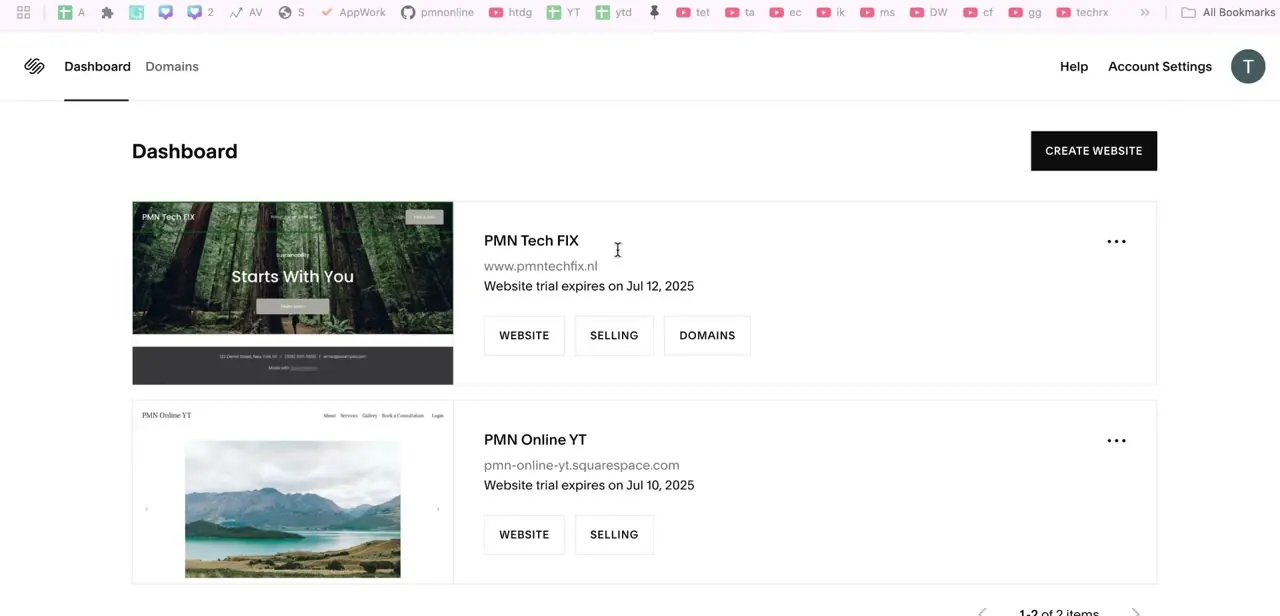
Sign in at squarespace.com and pick the site from your dashboard. Spacing set through Site Styles is global: it applies to every element that uses the Paragraph text style, which includes plenty of things beyond body copy, since many blocks inherit their type from it by default.
That's exactly what you want for consistency, but it also means a bad value shows up everywhere at once. If you run more than one site on the account, confirm you opened the right one before dragging anything. From the dashboard, click Edit to open the page editor, since the styling panel lives inside the editor rather than in account settings.
02Open Site Styles from the editor
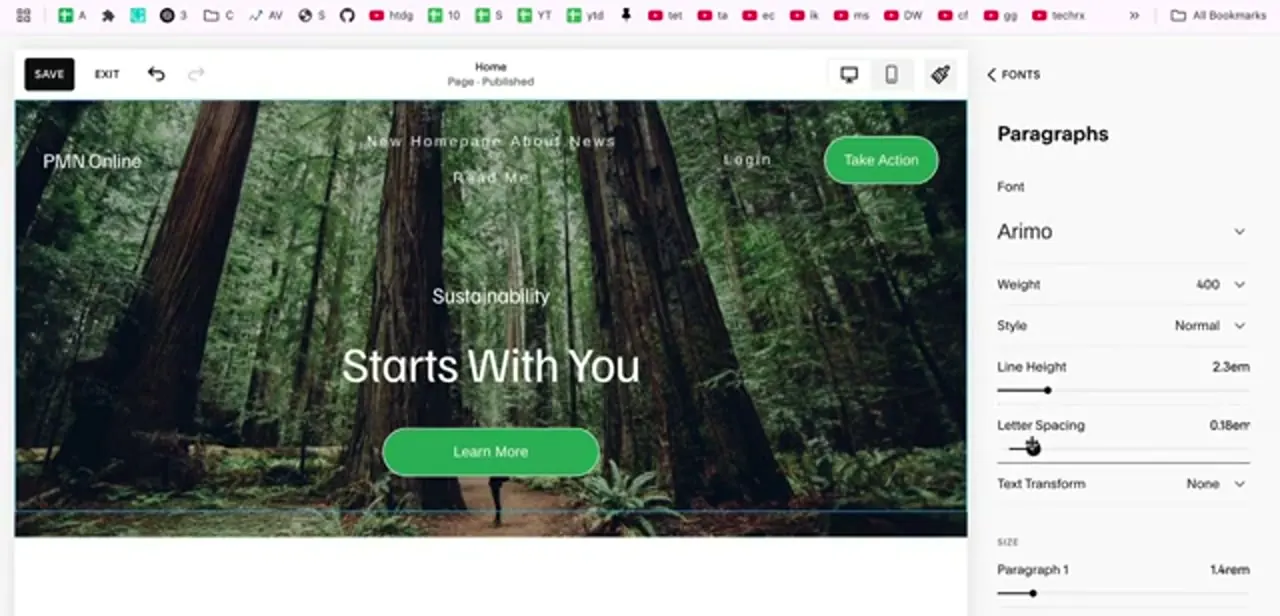
Inside the editor, look at the toolbar across the top of the preview. Alongside the desktop and mobile view toggles is a paintbrush icon — that's Site Styles.
Clicking it slides a panel in from the right with the site-wide design controls: Fonts, Colors, Buttons, Animations, and so on, grouped under what Squarespace calls Global Font Styles. Everything in this guide happens under Fonts, so open that section first. Note the desktop and mobile icons in the same toolbar; you'll want them shortly, since spacing that reads well on a wide screen often falls apart on a phone.
03Go to Fonts and open Paragraphs
Under Fonts you'll find your text groups broken out separately: Headings, Paragraphs, Buttons, and so on. Choose Paragraphs to control body copy.
The panel gives you Font, Weight, Style, Line Height, Letter Spacing, and Text Transform, with a Size section underneath holding Paragraph 1, 2, and 3. Line Height and Letter Spacing are the two sliders that matter for spacing, and both are measured in em, so they scale with font size instead of being locked to pixels. That's why a value that looks right at one size usually still looks right once you bump the text up.
04Set line height for readable body copy
Line height is the vertical gap between lines within a paragraph, and it does more for readability than font size does. For body text, somewhere between 1.4em and 1.7em is comfortable for most fonts.
Below about 1.3em, lines start to collide and the eye loses its place returning to the left margin; near 0em, Squarespace's own guidance warns lines can overlap outright, especially on mobile. Pushing it far higher, as in the 2.3em setting shown above, does the opposite damage: the lines stop reading as one paragraph and start looking like a list. Drag the slider slowly and watch a real paragraph of your own copy in the preview, not a heading, since headings and body text need different values.
05Use letter spacing sparingly on body text
Letter spacing controls the horizontal gap between individual characters. On paragraphs it should stay almost invisible — anything past roughly 0.05em starts to slow reading down noticeably, because the words stop holding together as shapes.
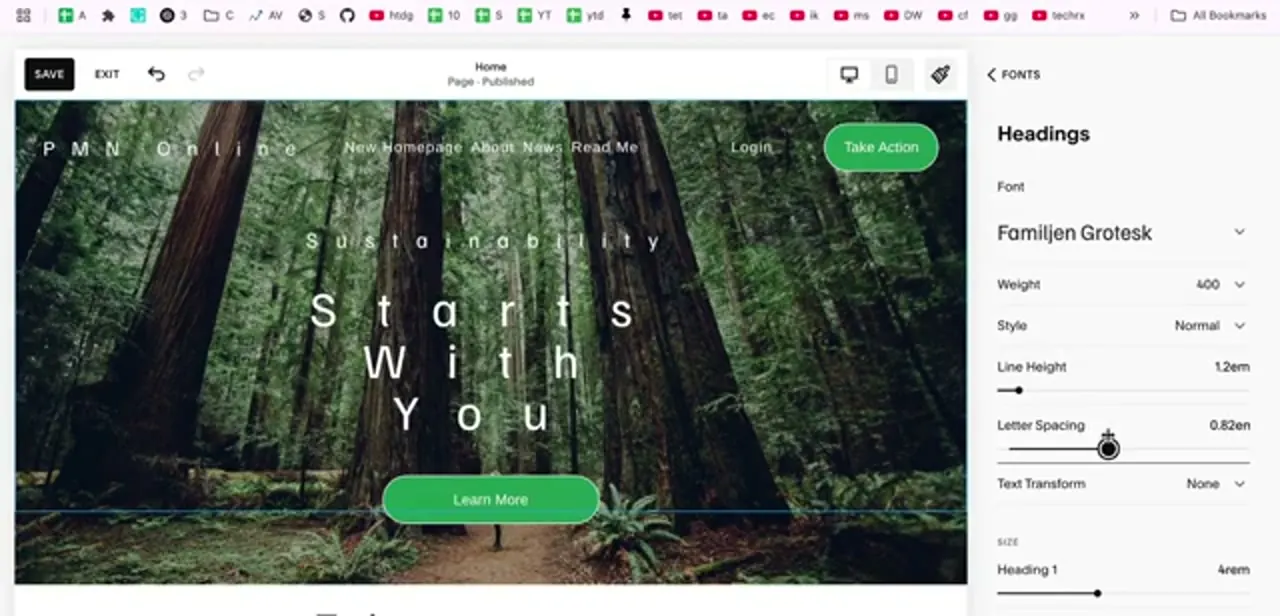
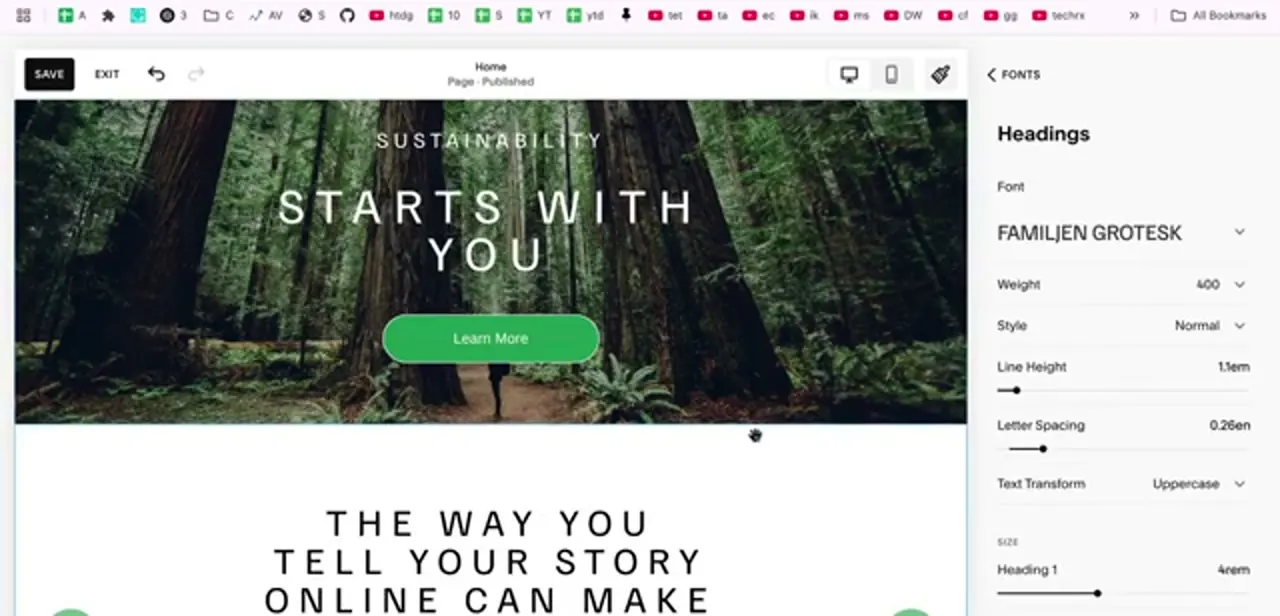
A negative value is riskier still: Squarespace's own guidance is to keep letter spacing at 0 or higher, since negative values can cause characters to overlap, particularly on mobile. Where letter spacing genuinely earns its place is on headings and small caps, and that lives in the Headings panel instead of Paragraphs. Open Headings the same way and you get the same set of controls for your display type, including Text Transform, which is how you get an uppercase heading style with generous tracking without retyping any text.
06Check the result on mobile before saving
Extra line height and letter spacing cost horizontal and vertical room, and phones have far less of both. A heading that fits on two tidy lines at desktop width can wrap to four on a phone once you widen the tracking, and generous line height on paragraphs can push your call-to-action well below the fold.
Switch to the mobile view with the phone icon in the top toolbar and scroll through a text-heavy page before you commit. Squarespace scales type down on small screens automatically, but that doesn't rescue a layout you've deliberately stretched.
07Save, and know when CSS is actually needed
Click SAVE in the top-left of the editor to publish the change; until you do, everything is just a preview. The undo arrow next to SAVE steps back through your edits if you've gone too far.
For most sites the built-in sliders are the whole answer, and they're safer than code because they survive template updates. Reach for Custom CSS only when you need something the panel can't express: spacing on one specific block, a different line height on a single page, or spacing that changes at a particular breakpoint. In that case, target the block's own ID instead of a global paragraph selector, so your override doesn't quietly fight the Site Styles setting everywhere else.
When it doesn't work
Text lines overlap or run into each other after adjusting spacing
Why: Line height set too close to 0em. Squarespace's own guidance is that very low line-height values can cause overlapping text, and the effect is worse on mobile screens.
Fix: Bring Line Height back up to at least around 1.3em to 1.4em and re-check on the mobile preview.
Letter spacing looks fine on desktop but characters overlap on a phone
Why: A negative Letter Spacing value. Squarespace recommends staying at 0em or higher, since negative values are more likely to cause overlapping characters on smaller screens.
Fix: Reset Letter Spacing to 0 or a small positive value instead of a negative one.
Changing Paragraph spacing also shifted the look of buttons or other elements you didn't touch
Why: Many blocks inherit their text style from Paragraph by default, so a Paragraph-level change cascades further than just body copy.
Fix: Check the affected element's own style settings; if it needs to stay independent, give it a dedicated style or a Custom CSS override targeting just that block.
Frequently asked questions
Do I need to know CSS to change paragraph spacing on Squarespace?
No. Line Height and Letter Spacing are sliders inside Site Styles > Fonts > Paragraphs on Squarespace 7.1, and they apply site-wide with no code.
Where exactly is the paragraph spacing setting?
Open the page editor, click the paintbrush icon in the top toolbar to open Site Styles, then choose Fonts and open the Paragraphs group. Line Height and Letter Spacing sit under Font, Weight, and Style.
What's the difference between line height and letter spacing?
Line height is the vertical gap between lines of a paragraph. Letter spacing is the horizontal gap between individual characters. Line height affects readability more, so change it first and leave letter spacing near zero on body text.
What line height should I use for body text?
Roughly 1.4em to 1.7em suits most fonts. Below 1.3em, lines start crowding each other; near 0em, Squarespace warns lines can overlap outright.
Can I change spacing on just one text block instead of the whole site?
Site Styles is global by design. For a single block you need Custom CSS targeting that block's ID — the one case where code beats the built-in controls.
Should letter spacing ever go negative?
Squarespace advises against it. Keep letter spacing at 0em or above; negative values are more likely to cause characters to overlap, especially on mobile.
Sources and last check
Click path and slider values come from a recorded walkthrough. Re-checked against Squarespace's official "Styling text" help article in September 2026, which added two constraints the original draft didn't mention: line height near 0em can cause overlapping text on mobile, and letter spacing should stay at 0em or above since negative values risk overlapping characters. Both are now reflected in the troubleshooting section.
About the author

Impran M N
I've been hooked on technology for as long as I can remember — especially the new tools and AI apps that seem to land every other week. Easy Tech Tuts is where I write up whatever I've just worked out: I do the task in the real product, record the screen, and turn it into the guide I wish I'd found first.