Easy Tech Tuts
How to Cash Out & Withdraw Money on Squarespace with Stripe, Paypal & Square 2026
By Impran M NLast checked against official docs
Squarespace's third-party processors, Stripe, PayPal, and Square, never hold your money; that's most of why "withdrawing" from a Squarespace store confuses people. Sales made through those three go straight to whichever processor you connect, and the processor pays your bank on its own schedule.
Squarespace also now offers its own native processor, Squarespace Payments, which works differently: it holds funds inside your Squarespace account and, for US sellers, can route them into a Squarespace Balance account instead of only a bank. This guide covers all four options, where the Payments panel lives, what each covers, and the settings that quietly cause delayed or failed payouts.
Before you start
- A Squarespace site on a paid plan (selling requires one, and a trial site can't process live payments)
- Business details and a bank account ready, since every processor asks for them before releasing a payout
01Open your site's Payments settings
Log in at squarespace.com and open the site you're selling from. Payment processors are configured per site, not per account, so a second site needs its own setup.
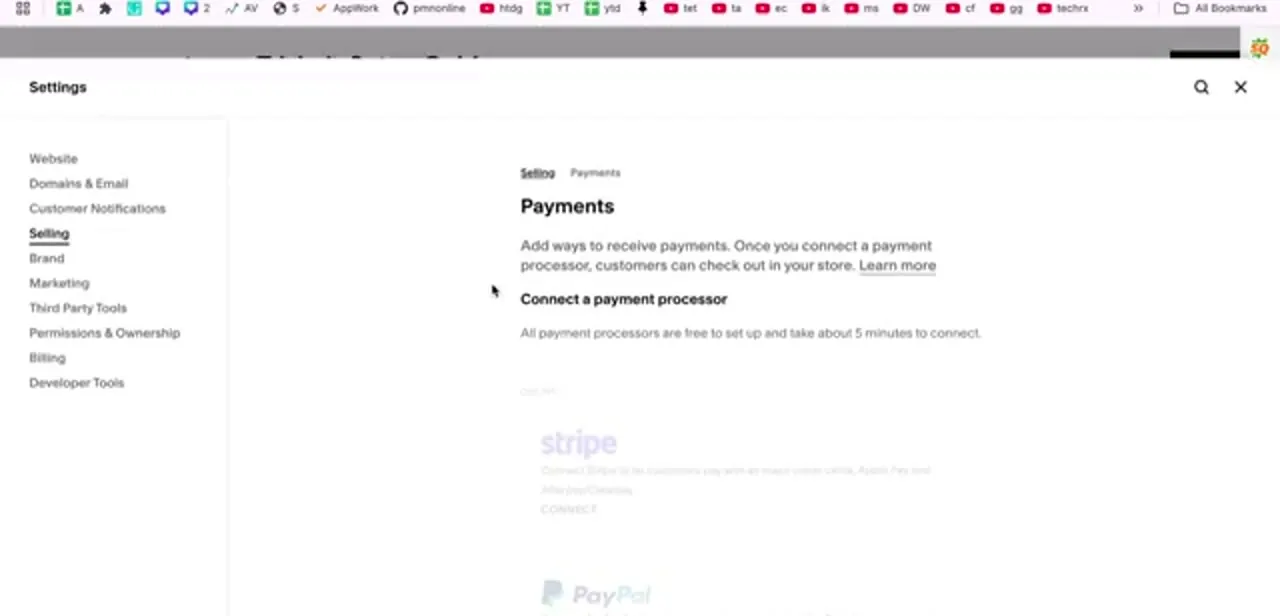
Inside the site dashboard, open Settings, then Selling, then Payments. Typing "payments" into the dashboard search box jumps you straight there if you'd rather not hunt through the menu.
The page opens on Connect a payment processor. Squarespace notes that connecting a processor is free and takes roughly five minutes, which is accurate for the connection itself; verification on the processor's side can take longer.
02Pick between Stripe, PayPal, Square, and Squarespace Payments
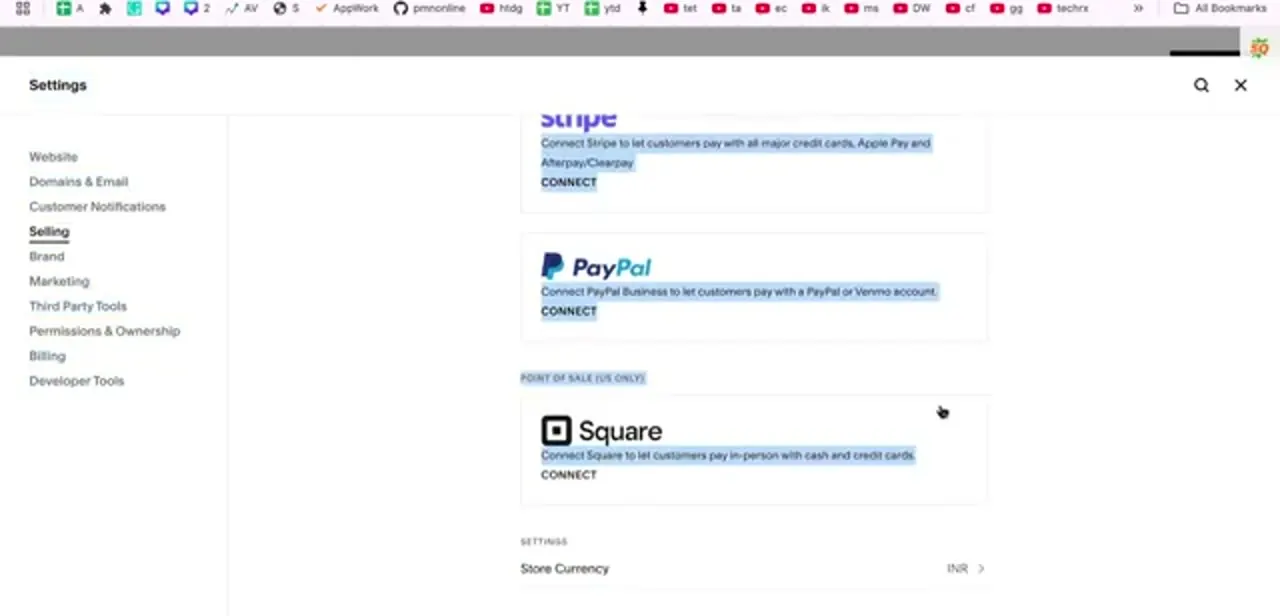
Scrolling the Payments page shows the processor cards for your account. Stripe accepts all major credit cards plus Apple Pay and Afterpay/Clearpay, and Squarespace's documentation lists it as supported worldwide.
PayPal Business accepts PayPal and Venmo payments and is also supported worldwide. Square sits in its own Point of sale section marked US only; it's for taking payments in person with cash and cards, not for your online checkout.
Depending on your site's region and when your account was set up, you may also see a fourth card for Squarespace Payments, Squarespace's own native processor. Unlike the three above, it holds funds directly instead of only forwarding them; the steps below cover what changes if you use it. None of these are mutually exclusive: connecting Stripe and PayPal together is common and simply gives shoppers two buttons at checkout.
03Connect the processor and finish its verification
Clicking Connect hands you off to the processor's own signup (or, for Squarespace Payments, an in-dashboard setup flow), where you log into an existing account or create one. Expect to supply business details, a tax identifier, and the bank account that will receive money.
This is where the actual withdrawal path gets defined, and for Stripe, PayPal, and Square it happens on that company's servers, not Squarespace's. All of them ask for identity verification before releasing funds, typically a government ID and proof of the business address. Finish this in the same session as connecting: an unverified processor will happily take payments while holding every payout, which is the single most common reason a seller thinks Squarespace is withholding their money.
04Set your store currency before your first sale
At the bottom of the Payments page is Store Currency. Check it deliberately: currency determines what customers are charged in, and it can't be changed freely once your store has processed orders.
It also has to be a currency your chosen processor supports for your country, so a mismatch here surfaces later as declined payments, not as an obvious error message on this page. Confirm it matches the bank account you connected so you're not paying conversion fees on every payout.
05Understand when the money actually lands
Once a customer pays through Stripe, PayPal, or Square, the funds sit with that processor and transfer to your bank on its own payout schedule. Stripe typically pays out on a rolling basis after an initial holding period for new accounts, commonly a week or two on the first payout and shorter afterwards.
PayPal keeps the balance in your PayPal account until you transfer it out, which makes it feel more manual. Squarespace Payments works differently again: because it's native, payouts go straight from your Squarespace dashboard to a connected bank account, or, for US sellers, into a Squarespace Balance account you can spend from directly. Squarespace's Orders panel always shows what you sold; whichever processor's own dashboard shows what you've been paid, and those two numbers won't match at any given moment because of timing and fees.
| Option | Coverage | Holds funds? | Where money lands |
|---|---|---|---|
| Stripe | Worldwide | No — forwards to your bank | Your bank, on Stripe's rolling schedule |
| PayPal Business | Worldwide | Yes, in your PayPal balance | PayPal balance, until you transfer it |
| Square | US only, in-person only | No — forwards to your bank | Your bank, on Square's schedule |
| Squarespace Payments | Where Squarespace has rolled it out; seller must be based in the signup country | Yes, natively | Connected bank account, or Squarespace Balance (US) |
Coverage and payout details from Squarespace's own support documentation, current as of the September 2026 check. Rollout varies by region, so confirm what your own account shows.
When it doesn't work
A payout hasn't arrived even though sales went through
Why: Identity verification is incomplete on the processor's side.
Fix: Log into Stripe, PayPal, Square, or Squarespace Payments directly and check for a pending verification request; a flagged document is the most common blocker.
A payout appears to fail or simply vanish
Why: Bank details were entered with a transposed digit, or point to a closed account.
Fix: Recheck the bank details inside the processor's own settings. A failed transfer returns funds to the processor balance silently instead of throwing a visible error.
New orders stop processing entirely
Why: A password or account change revoked the processor's authorization inside Squarespace.
Fix: Reconnect the processor from Settings > Selling > Payments and confirm its status shows Connected.
Frequently asked questions
Where is the Withdraw button in Squarespace?
Usually there isn't one. Squarespace's third-party processors, Stripe, PayPal, and Square, never hold your money; withdrawals happen in their own dashboards. The exception is Squarespace Payments, Squarespace's native processor, which does hold funds and can pay into a Squarespace Balance account for US sellers.
Which payment processors does Squarespace support?
Stripe for cards, Apple Pay and Afterpay/Clearpay; PayPal Business for PayPal and Venmo; Square for in-person point of sale, US only; and Squarespace Payments, Squarespace's own native option, where it's available.
Can I connect more than one processor at the same time?
Yes. Running Stripe and PayPal together is common and simply gives customers both options at checkout. Each pays out to its own configured destination.
How long until my first payout arrives?
It depends on which option you use, not on Squarespace itself. New Stripe accounts usually wait a week or two for the first payout before settling into a faster rolling schedule; PayPal holds the balance until you transfer it; Squarespace Payments pays into your connected bank or Squarespace Balance on its own schedule.
Why did my payout fail even though the sale went through?
Almost always incomplete verification or incorrect bank details on the processor's side. The charge succeeds, the transfer to your bank bounces, and the money sits in your processor balance until you correct the details.
Does Squarespace charge anything for connecting a payment processor?
No. Connecting any of the four options is free. What you pay is each processor's own per-transaction fee, which varies by processor and card type. Selling at all does require a paid Squarespace plan.
Sources and last check
Click path and screens come from a walkthrough recorded in 2025, when the account only showed Stripe, PayPal, and Square. Re-checked against Squarespace's official support articles in September 2026, which surfaced a real gap: Squarespace has since added its own native processor, Squarespace Payments, which does hold funds (via a Balance account for US sellers) and so doesn't fit this guide's original "Squarespace never holds your money" framing. That framing is corrected throughout; the rest of the Stripe/PayPal/Square mechanics matched the current documentation.
About the author

Impran M N
I've been hooked on technology for as long as I can remember — especially the new tools and AI apps that seem to land every other week. Easy Tech Tuts is where I write up whatever I've just worked out: I do the task in the real product, record the screen, and turn it into the guide I wish I'd found first.