Easy Tech Tuts
How to Build a Course in Squarespace Easily 2026
By Impran M NLast checked against official docs
Squarespace builds courses into its Content & Memberships tools, so lessons, chapters, pricing plans and paywalls sit in the same editor as the rest of your site. A course page has two parts: an overview page with the description, a Start course button, a progress bar and the lesson list, and the individual lesson pages behind it.
This guide goes from adding the page to taking the first payment. Along the way it flags the things Squarespace's setup screens don't put up front: course pages need a version 7.1 site, every sale carries a transaction fee that depends on your plan, video storage starts at 30 minutes, and anything behind a paywall is hidden from search engines.
Before you start
- A Squarespace site on version 7.1 (course pages aren't available on 7.0)
- To charge money: a connected payment processor (Squarespace Payments, Stripe or PayPal)
01Start from the site dashboard
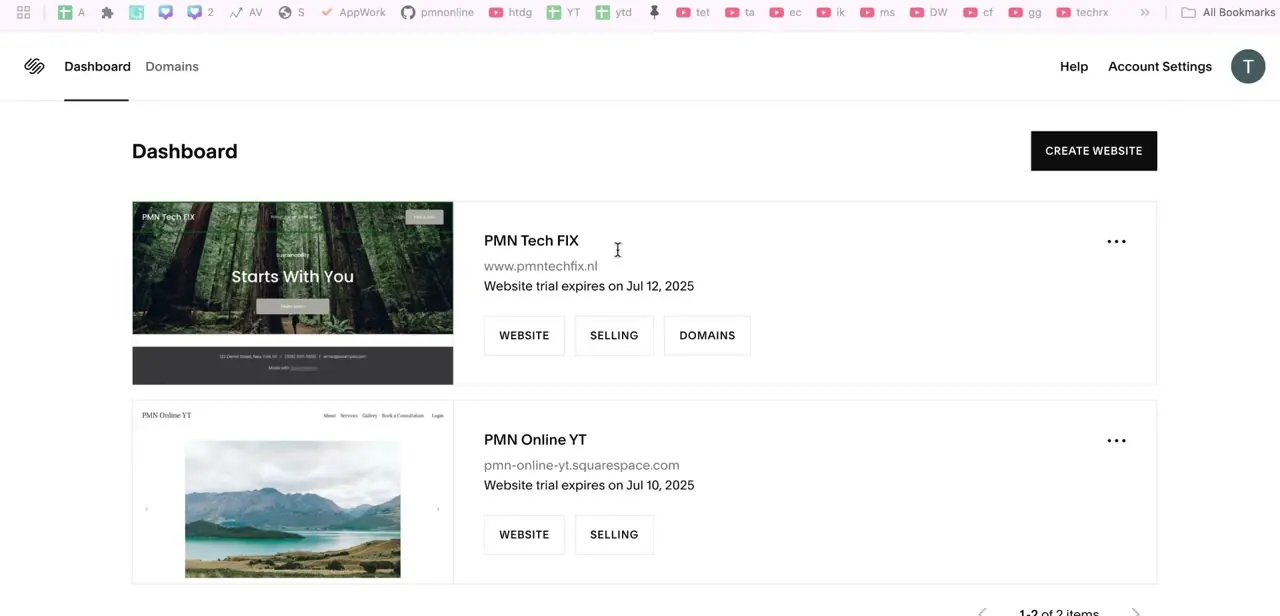
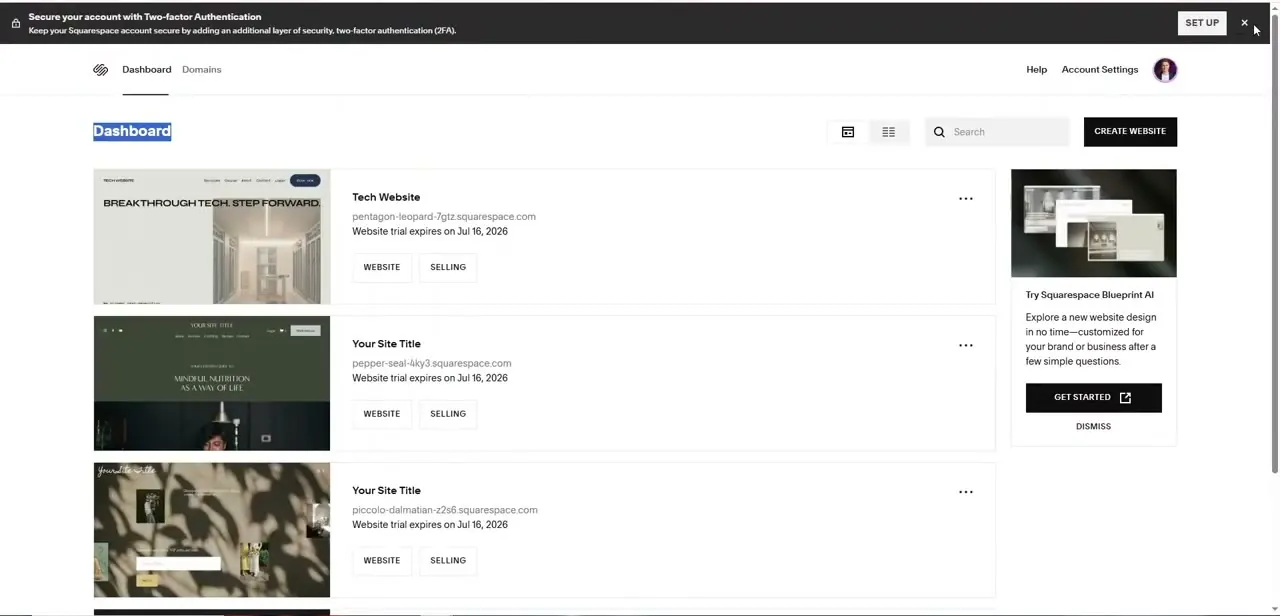
Every site you own appears as a card on the Squarespace dashboard, with its trial expiry date and quick links to Website and Selling. The Blueprint AI shortcut on the right generates a new site design from a short questionnaire.
It helps if you're starting a dedicated course site from scratch; skip it if the course is going on a site you already have. Open the site you want to build on.
02Add a course page
Open the Pages panel and click + beside the navigation section where the course should appear. Under Sell, click Content & Memberships, then click Course at the top of the window.
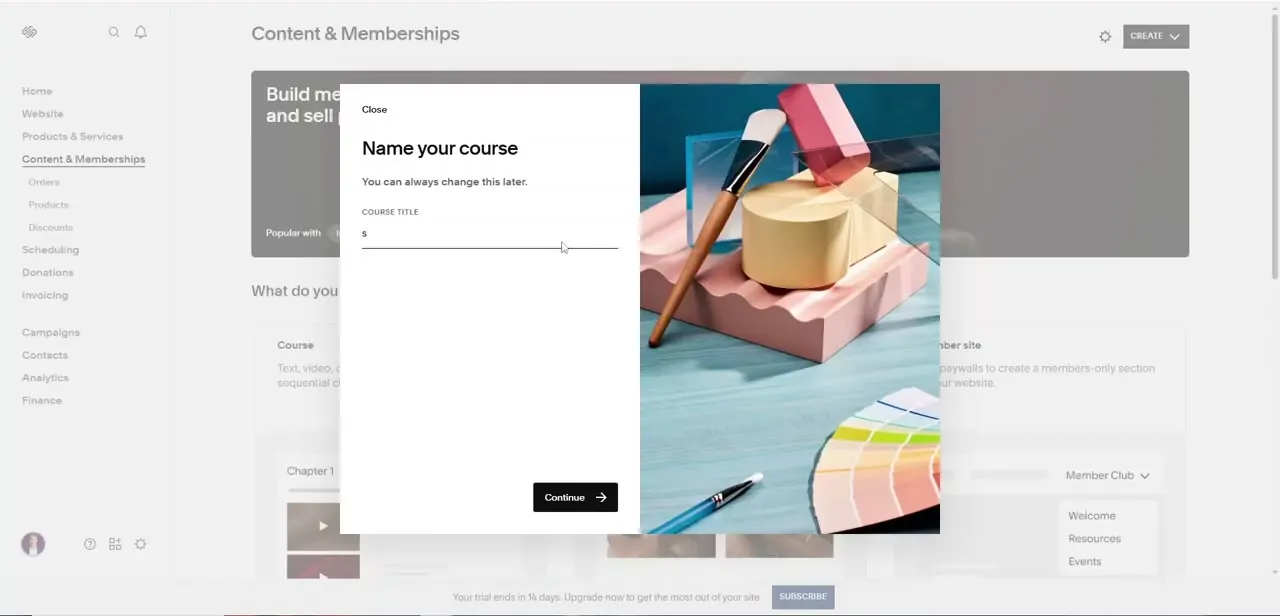
Pick a layout and enter a title. The recording shows the same step as a "Name your course" dialog, which notes that you can change the name later.
The overview page then opens on the right. Duplicating a course page copies all its lessons too, which is a safe way to rework a live course without visitors seeing half-finished changes.
03Add lessons and group them into chapters
In the course page panel, click Course Content, then + and choose Lesson. Give it a title of 200 characters or fewer.
An excerpt, custom URL and thumbnail are optional. On the Video tab, upload a file, reuse one from your library, or paste a YouTube or Vimeo link.
Lesson videos can run up to three hours, storage allowing. On the Status tab, publish now, schedule, or leave it as a draft.
Then click Edit to add page sections with text, images or forms under the video. Chapters are optional: Course Content, +, Chapter.
Drag lessons into them and drag chapters into order. The overview page lists everything in the order shown in this panel.
A course holds up to 250 lessons. Mind the storage.
Basic sites get 30 minutes of uploaded video across the whole site. Embedding from YouTube or Vimeo doesn't use it.
04Create a pricing plan
Nothing is locked until the course belongs to a pricing plan. Click the course page, then in Selling tools click Add a pricing plan and Create pricing plan.
Review the name and description, list up to five benefits (60 characters each), and choose a structure: Free, where visitors trade an email address for access; Fixed amount, paid once or in instalments for permanent access; or Subscription, billed weekly, monthly or yearly. Paid structures can offer up to two pricing options.
You can also set sign-up start and end dates for a cohort, and bundle up to 10 other course, blog, video or member-site pages into the same plan. Click Create. The course now shows a Paywall label in the Pages panel.
05Choose where the paywall appears
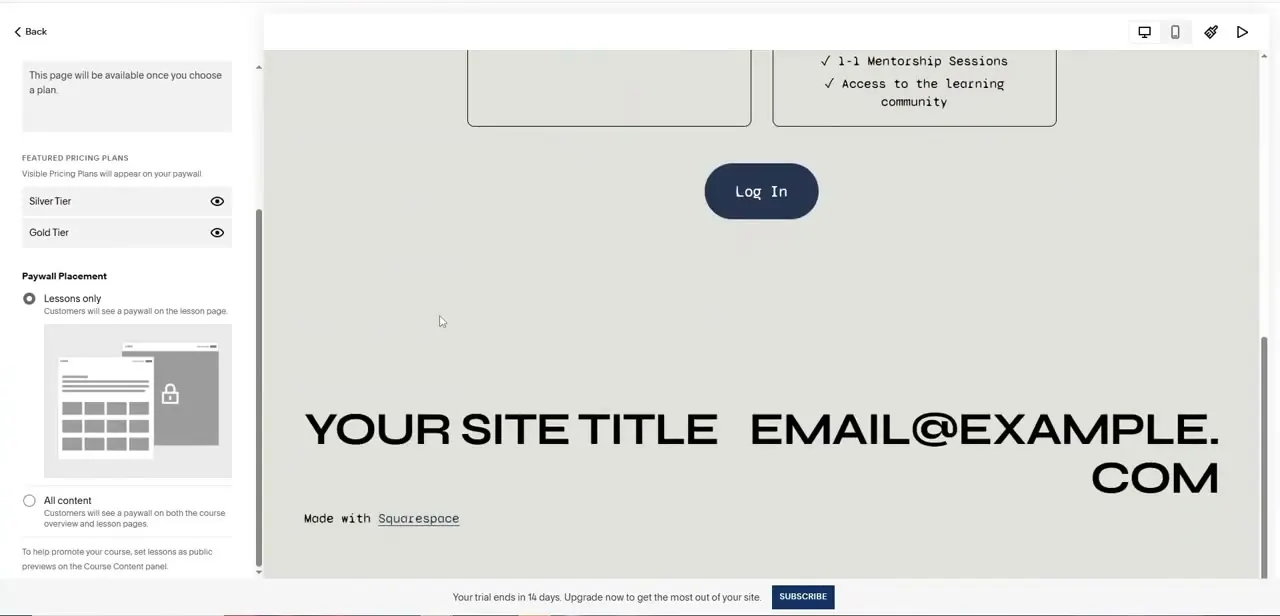
In Selling tools, click Paywall and pick the placement. All content hides the overview and every lesson until the visitor signs up.
Lessons only leaves the overview public, so visitors can read the outline and lesson titles, and puts the paywall on the lessons. Here you also edit the paywall's headline and description and choose which plans it shows; this setup features a Silver Tier and a Gold Tier.
Lessons only unlocks one more tool. Hover over a lesson in Course Content, click ..., and choose Set as public preview.
That lesson becomes free to watch and gets a preview badge on the overview, which is often the best sales pitch the course has. Under All content, preview lessons can't be reached.
06Style the overview and lesson pages
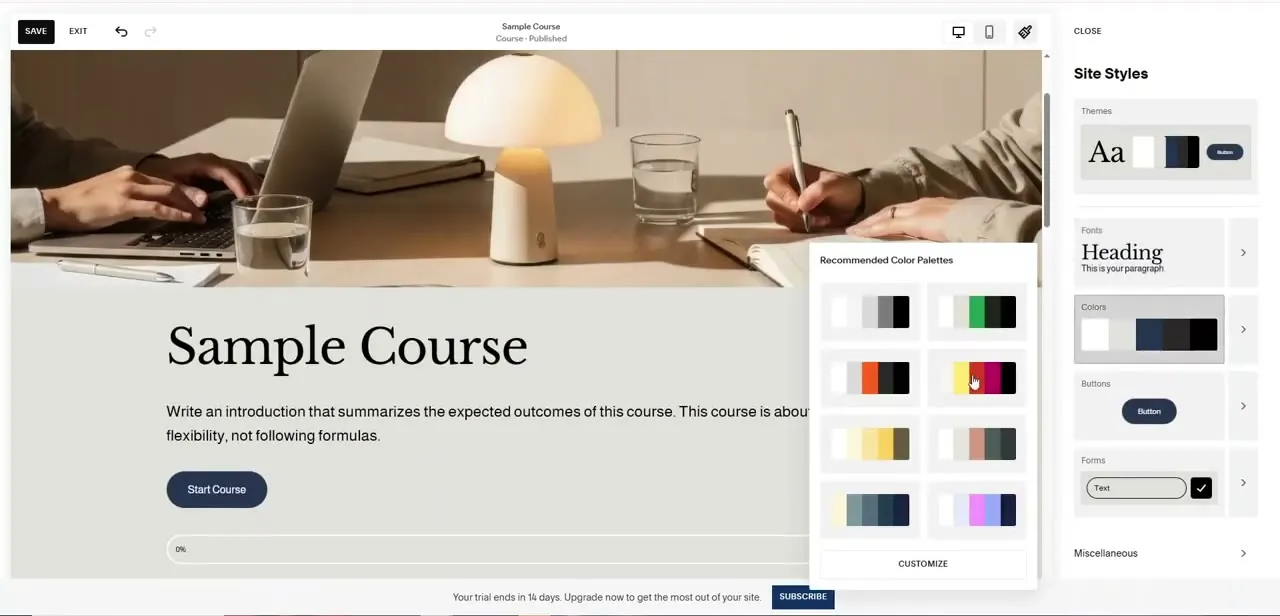
Course pages follow your site-wide fonts and colours, so changes in Site Styles (Themes, Fonts, Colors, Buttons, Forms) carry across. In the recording, Recommended Color Palettes preview directly against the Sample Course title and Start Course button.
For course-specific layout, click Edit on the overview, then Edit Layout. Elements toggles the course title, description, button, lesson thumbnails and excerpts.
Design sets spacing, alignment and a List or Grid layout. Colors picks a theme.
Lesson pages have the same three tabs, plus extra settings for course navigation and mobile buttons that appear only once you click Start course and edit from inside a lesson. Lesson styles apply to every lesson at once.
07Connect payments, then publish
Paid plans need a payment processor. Squarespace Payments and Stripe take cards for every structure.
PayPal only works for one-time fixed-amount plans, not instalments or subscriptions, and Apple Pay can't be used for pricing plans at all. When it's ready, enable the course page, publish the site if needed, and add the course to your navigation.
One thing to plan for: every page in a pricing plan is hidden from search engines. The course itself won't rank in Google, so give it a public sales or landing page outside the plan and point your marketing there.
| Website plan | Fee on course and membership sales | Video storage |
|---|---|---|
| Basic | 7% | 30 minutes |
| Core | 5% | 5 hours |
| Plus | 1% | 50 hours |
| Advanced | 0% | Unlimited |
From Squarespace's Digital Products pricing page, updated July 2026. Payment processor fees are charged separately. Sites on a legacy Digital Products plan keep their existing rates.
When it doesn't work
Course doesn't appear under Content & Memberships
Why: The site is on version 7.0. Course pages exist only on 7.1.
Fix: Build the course on a 7.1 site.
Visitors can't open a lesson you set as a public preview
Why: Paywall placement is set to All content, which also locks the overview page, so the preview is unreachable.
Fix: Switch the paywall to Lessons only.
PayPal isn't offered at checkout for your subscription or instalment plan
Why: PayPal and gift cards only work for one-time fixed-amount plans.
Fix: Connect Squarespace Payments or Stripe to take card payments for instalments and subscriptions.
A lesson video won't upload
Why: Uploaded video counts against a site-wide storage allowance, which is 30 minutes on Basic.
Fix: Embed the video from YouTube or Vimeo, or move to a plan with more storage.
Frequently asked questions
Will my course show up in Google?
Not the paywalled pages. Squarespace hides every page in a pricing plan from search engines, so create a public landing page for the course and promote that.
How many lessons can a course have?
Up to 250 lessons per course page. Chapters are optional groupings on top of that.
Can I give one lesson away free?
Yes. Set the paywall to Lessons only, then use Set as public preview on that lesson. It gets a preview badge on the overview page.
If I change the price, do existing students pay the new rate?
No. Pricing plan changes only affect people who sign up afterwards. Existing subscribers keep the amount and frequency they agreed to.
Can I rename the course later?
Yes. The course name is a page setting you can change at any time from the course page's settings.
Sources and last check
Screens, including the Silver and Gold tier setup, come from a walkthrough recording. The add-course click path, lesson and chapter limits, pricing plan structures, paywall placement, public previews, payment processor rules, search-engine visibility, transaction fees and video storage were re-checked against Squarespace's Help Center in September 2026. This version adds the 7.1 requirement, the fee and storage table, and the fact that paywalled pages aren't indexed, none of which the earlier guide mentioned.
About the author

Impran M N
I've been hooked on technology for as long as I can remember — especially the new tools and AI apps that seem to land every other week. Easy Tech Tuts is where I write up whatever I've just worked out: I do the task in the real product, record the screen, and turn it into the guide I wish I'd found first.