Easy Tech Tuts
How to Add Pop up on Squarespace, Promotional or Email Popup Guide 2026
By Impran M NLast checked against official docs
Squarespace's Promotional Pop-Up is a built-in feature, not a third-party app, so there's nothing to install before you can capture email signups or put a sale in front of visitors. It lives under Settings, inside Marketing, on current Squarespace sites, and it only works from a desktop browser since the Squarespace app doesn't expose it. This guide follows the real settings screens: the toggle, the layout picker, the display-timing options, and the one trade-off Squarespace's own documentation flags before you turn a full-screen layout on.
Before you start
- A Squarespace site on the Core, Plus, Advanced, Business, Commerce Basic, or Commerce Advanced plan; Promotional Pop-Up isn't available below that tier
- A desktop browser, since the setting can't be edited from the Squarespace mobile app
01Find Promotional Pop-Up (the location depends on your Squarespace version)
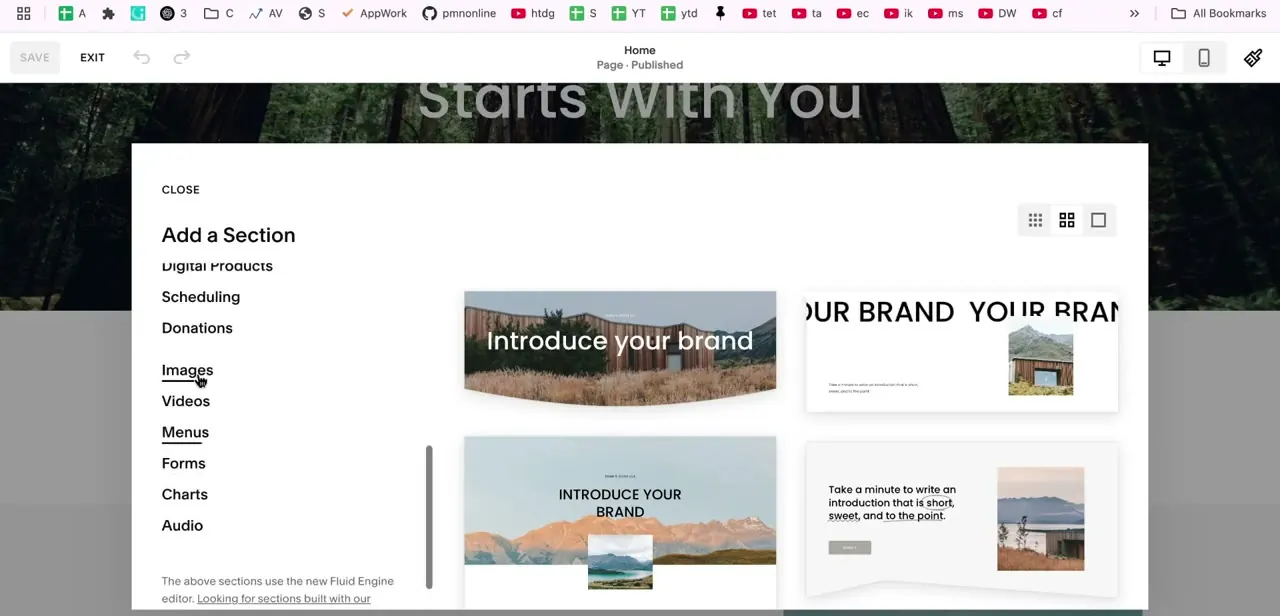
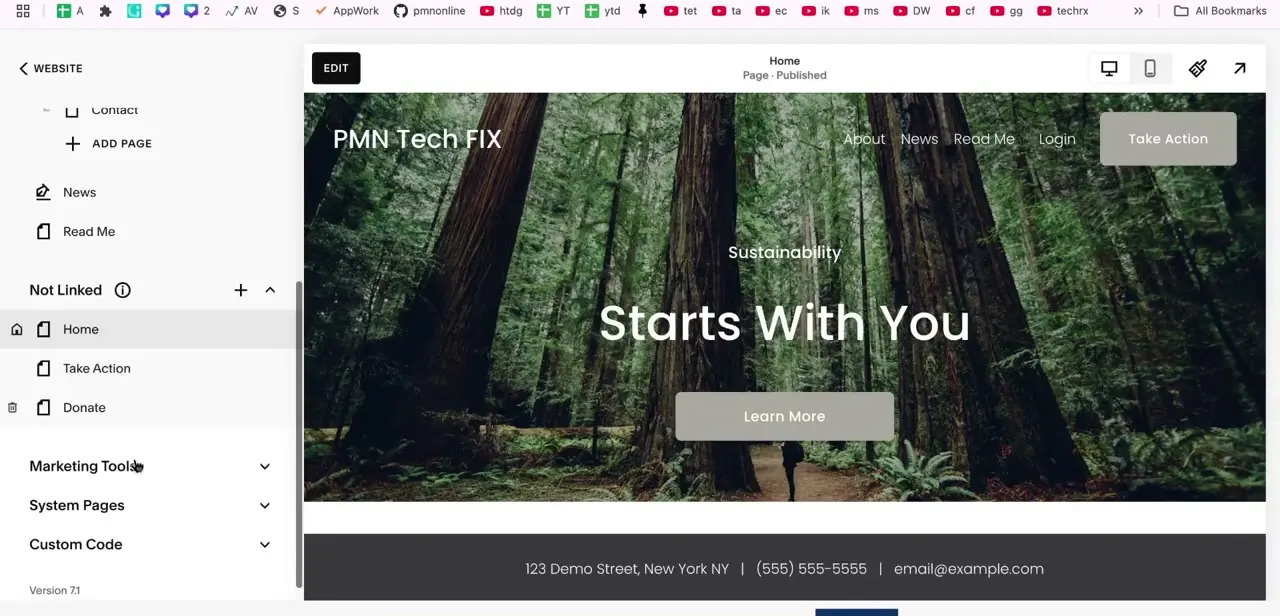
On Squarespace's current 7.1 platform, the setting sits under Settings, then Marketing, then Promotional Pop-Up. Older sites still on the 7.0 platform don't have it there; instead it's filed inside the Pages panel, under a Marketing Tools section below the regular navigation pages, which is what this screenshot shows. Either way, it's a site-wide setting rather than something attached to one page, so it won't turn up if you go looking inside an individual page's own settings.
02Turn on the toggle and check the live preview
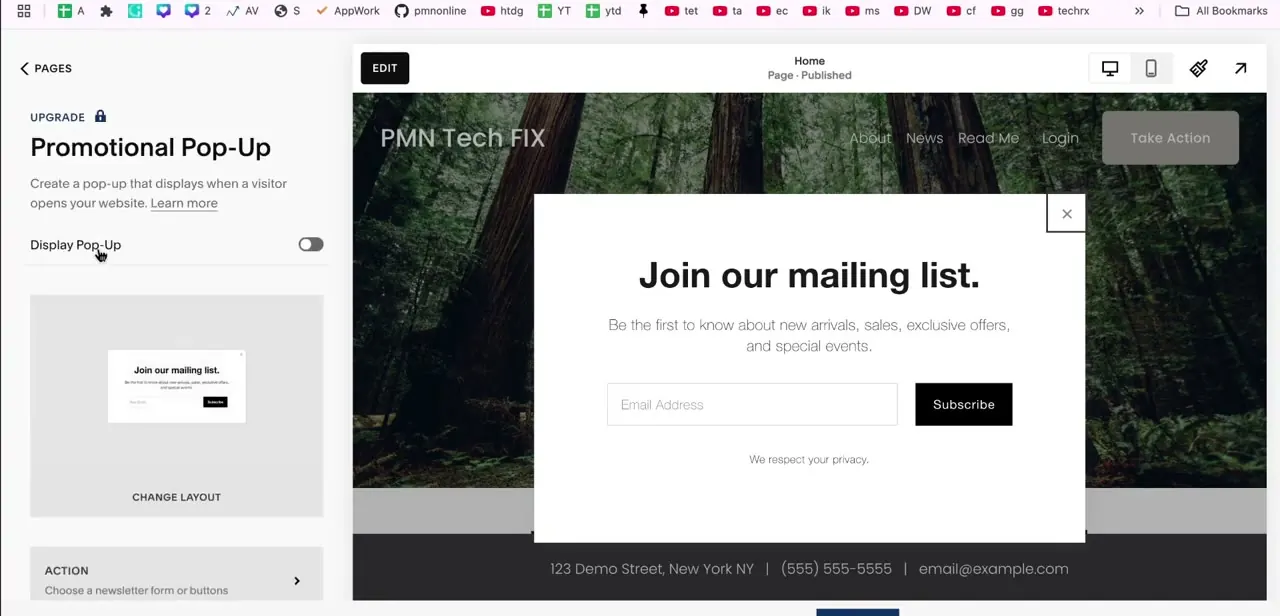
Open Promotional Pop-Up and switch on Display Pop-Up. A live preview on the right shows a default "Join our mailing list" popup already sitting over your homepage, complete with an email field and Subscribe button. It's a quick way to see roughly how a popup behaves on your own site before touching any of the settings underneath it.
03Choose a layout
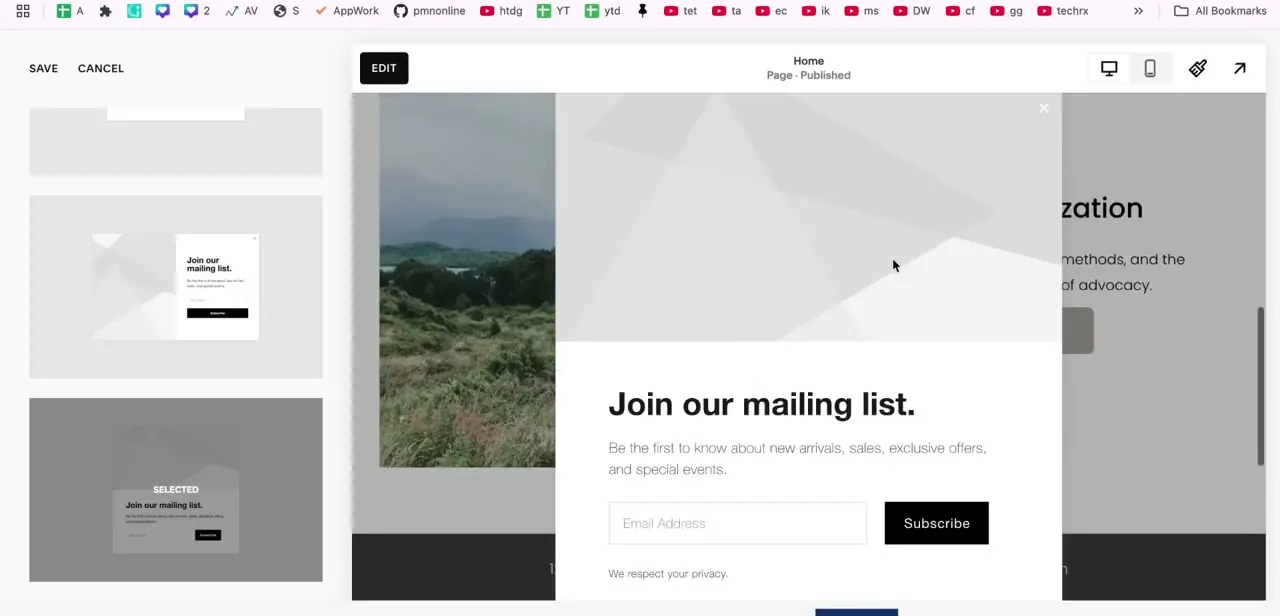
Click Change Layout to open a grid of thumbnails covering Squarespace's popup sizes, from a small card in the corner of the screen up to one that covers the full page. Selecting a thumbnail updates the live preview behind the panel immediately.
Not every layout has room for an image, so check the thumbnail before picking one if a photo matters to the design. Squarespace's own guidance also notes that a full-page layout can affect search ranking, worth weighing against how much attention the offer actually needs.
04Write the content and set what happens on submit
Switch to the Content tab to edit the headline and supporting line. The default copy reads "Join our mailing list.
Be the first to know about new arrivals, sales, exclusive offers, and special events," which only works as a placeholder, so swap it for the actual offer. Under Action, choose whether the popup collects an email signup, links to a button, or points somewhere else on the site. A separate Style tab handles colors and fonts if the default doesn't match.
05Set how often it reappears
Under Display & timing, choose how long a visitor who's already closed the popup has to wait before seeing it again: options run from the next day up to 30 days, or Never for a one-time display. Squarespace tracks this with a cookie, so anyone who clears their cookies or switches devices sees the popup as if for the first time. Keep that in mind if the numbers look off.
06Save, then check it on desktop and mobile
Click Save, then open the site in an incognito or private window so you're seeing what a new visitor sees, not a cached version. Check mobile separately.
Squarespace's popups fill roughly half the screen there, drop the image, and force left-aligned text so the close button stays visible, none of which you control directly. Confirm the close button is easy to find on both before calling it finished.
When it doesn't work
The layout I picked doesn't show an image
Why: Not every Promotional Pop-Up layout includes an image slot.
Fix: Check the thumbnail in Change Layout before selecting it if a photo or graphic is part of the design.
The popup looks crowded or the close button is hard to find on a phone
Why: Mobile display is automatic and different from desktop: it fills about half the screen, drops any image, and forces left-aligned text.
Fix: Use the device toggle in the editor to preview mobile specifically, rather than assuming the desktop preview matches.
The popup keeps showing on every visit for the same person
Why: The Display & timing interval is set too short, or the visitor's browser cleared its cookies between visits.
Fix: Increase the interval under Display & timing, and note that repeated testing in a private window won't retain the cookie between sessions.
Organic search traffic dipped after adding the popup
Why: Squarespace's own documentation notes that full-page popup layouts can affect search ranking.
Fix: Switch to a layout that covers only part of the screen instead of a full-page takeover.
Frequently asked questions
Where do I find the Promotional Pop-Up settings?
On a current Squarespace 7.1 site, it's under Settings > Marketing > Promotional Pop-Up. On an older 7.0 site, look in the Pages panel under Marketing Tools instead.
Does Promotional Pop-Up cost extra?
No. It's included on the Core, Plus, Advanced, Business, Commerce Basic, and Commerce Advanced plans, with no add-on fee. It only works from a desktop browser, not the Squarespace app.
Can a popup hurt my SEO?
Squarespace's own documentation warns that full-page layouts can affect search ranking. A layout covering only part of the screen is the safer choice if that's a concern.
How do I stop the popup from showing on every single visit?
Set an interval under Display & timing, options run from the next day up to 30 days, or Never for a one-time display. It's cookie-based, so cleared cookies reset it.
Does the popup look the same on mobile as on desktop?
No. Mobile display is automatic: it fills roughly half the screen, drops any image, and left-aligns the text so the close button stays visible.
Sources and last check
Click path and screens come from a recording of a Squarespace 7.0 site, where this setting sits inside the Pages panel. Re-checked against Squarespace's official documentation in September 2026: on the current 7.1 platform the setting has moved to Settings > Marketing > Promotional Pop-Up, corrected here alongside the plan requirement, the display-timing options, and the SEO note on full-page layouts, all confirmed against the same page.
About the author

Impran M N
I've been hooked on technology for as long as I can remember — especially the new tools and AI apps that seem to land every other week. Easy Tech Tuts is where I write up whatever I've just worked out: I do the task in the real product, record the screen, and turn it into the guide I wish I'd found first.