Easy Tech Tuts
How to Add Icons to Your Website in Squarespace, Browser Icon, Logo Change 2026 Easily
By Impran M NLast checked against official docs
Your logo and your browser tab icon are small details, but they're often the first two things a visitor notices: one sits in your header on every page, the other sits in the tab bar the whole time your site is open. Squarespace handles both from the dashboard, though they live in different places: the logo through the site header editor, the favicon through a quick search. This guide follows the real dashboard screens for both, from the setup checklist you land on after logging in through uploading and sizing each image correctly.
01Start from your site's home dashboard
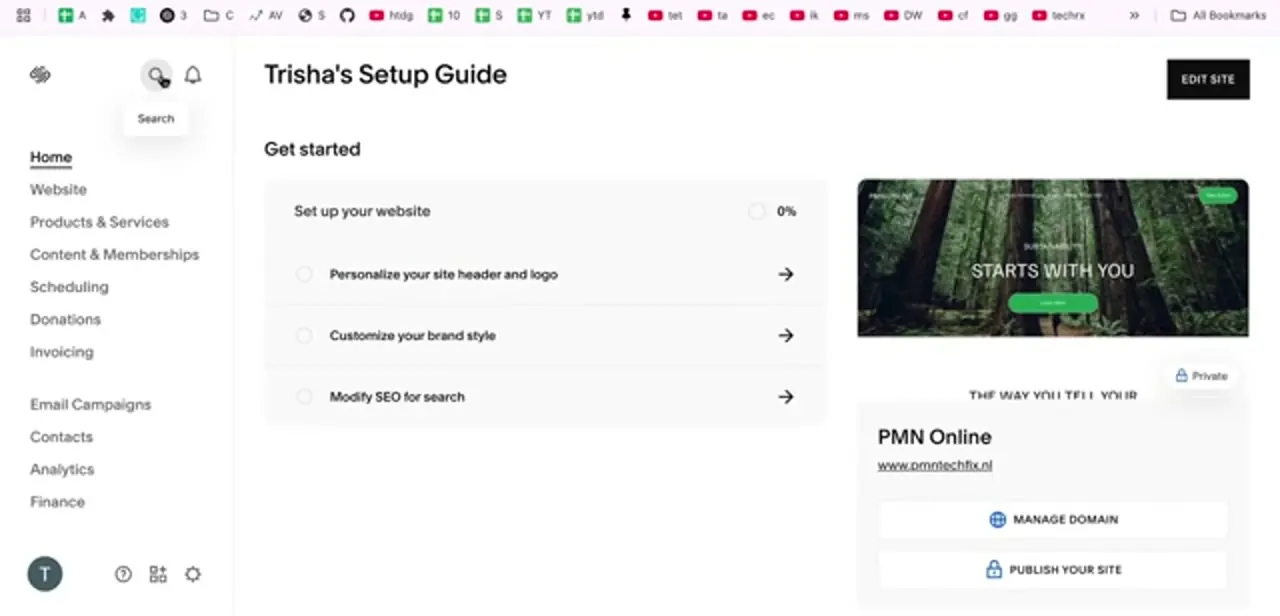
After logging in and picking your site, you land on a home dashboard built around a setup checklist: things like "Personalize your site header and logo," "Customize your brand style," and "Modify SEO for search." A card on the right shows your homepage preview along with its domain and buttons to manage the domain or publish the site. If your logo and icon still need setting up, "Personalize your site header and logo" is the direct link into that editor.
02Upload the logo and set its size
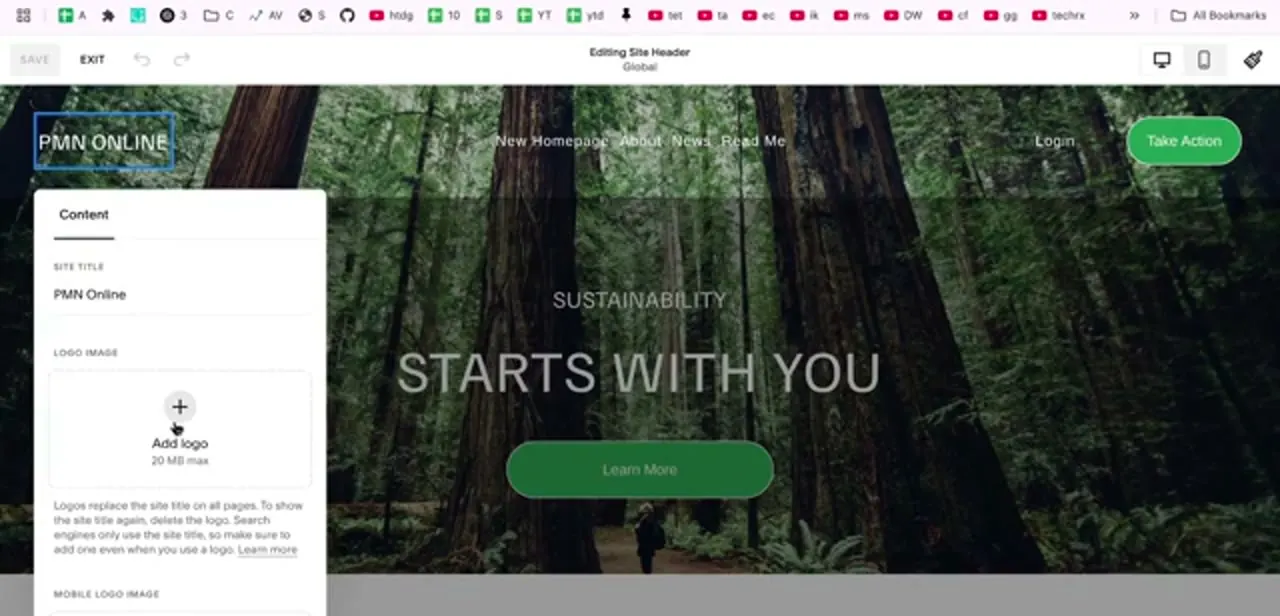
Clicking into header personalization drops you into Editing Site Header mode, with a Content panel on the left: a Site Title field and, below it, a Logo Image uploader capped at 20 MB. Squarespace notes on this panel that a logo replaces the site title everywhere it appears, and that search engines still read the title text even when a logo image is showing, so keep the title field accurate regardless.
Once uploaded, the same panel shows two sliders, Logo Height and Mobile Logo Max Height, each defaulting to a modest size around 50px and 30px. Drag these to fit your header: too large and it crowds the navigation links beside it, too small and it disappears against a busy background.
Squarespace clips logos taller than roughly 250px in some templates, so a shorter, wider mark is safer than a tall one. The preview updates live as you adjust.
03Find the favicon setting through search
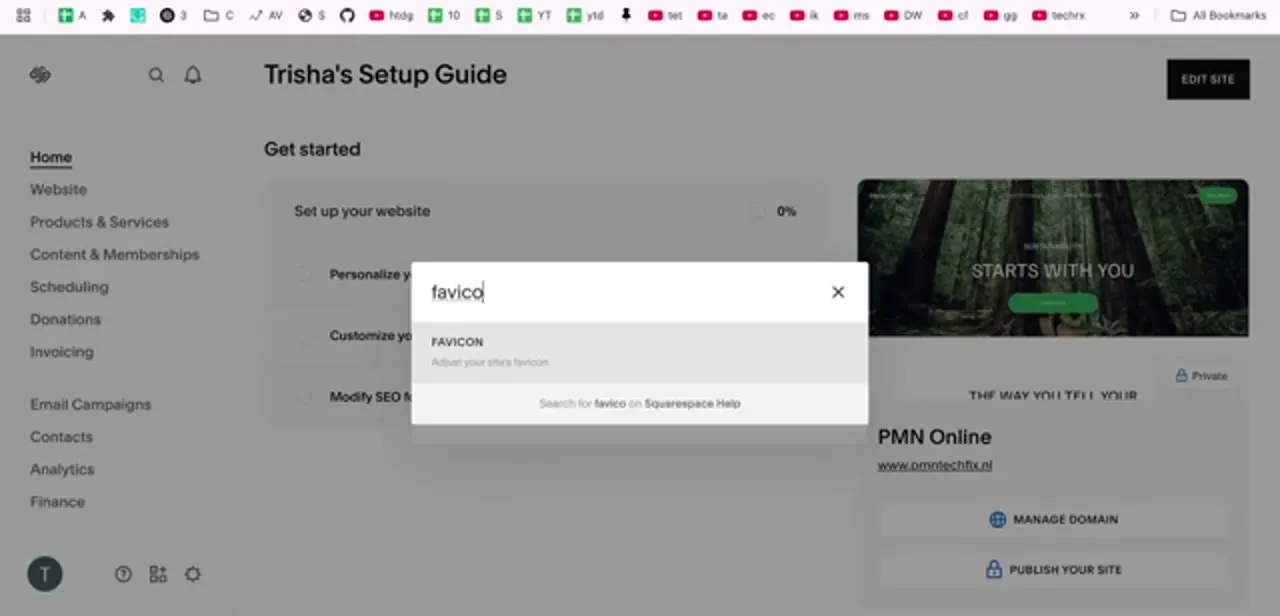
The browser icon lives in a different part of Squarespace than the logo. The fastest way to it is the built-in dashboard search, not the Design menus. Click the search icon near the top of the sidebar and type "favicon"; Squarespace surfaces a direct result labeled "FAVICON: Adjust your site's favicon" that skips the nested navigation entirely.
04Upload an image in a format Squarespace accepts
Squarespace's favicon uploader takes PNG, JPG, or GIF. It does not take .ico files, despite "favicon" and ".ico" being treated as synonyms almost everywhere else; if a generator handed you an .ico, re-export it as PNG first.
The image needs to be square, and Squarespace's own guidance is to upload between 100×100 and 300×300 pixels, under 100 KB. A simplified mark or initial usually reads better than a full logo at this size, since the browser tab renders it at a fraction of that.
05Save both settings, then clear your cache to confirm
Save the header editor and the favicon screen separately; they're two distinct settings even though both are branding. Browsers cache favicons aggressively, so if the tab icon doesn't update right away, clear your browser cache or open the site in a private window. Once both show correctly, your header and browser tab carry consistent branding across the site.
| Image | Formats | Size | File size limit |
|---|---|---|---|
| Logo | PNG, JPG, GIF, WEBP | No fixed dimensions; keep under ~250px tall to avoid clipping in some templates | 20 MB |
| Favicon | PNG, JPG, GIF (no .ico) | Square, 100×100 to 300×300 | 100 KB |
Frequently asked questions
What image format should I use for a Squarespace logo?
PNG or WEBP works best, since both preserve transparency and stay sharp at different header sizes, up to the 20 MB upload limit.
Does Squarespace accept .ico favicon files?
No. The favicon uploader takes PNG, JPG, or GIF only. Re-export an .ico file as PNG before uploading it.
Why isn't my new favicon showing up?
Browsers cache favicons aggressively. Clear your cache or open the site in a private window to see the update.
Does the favicon need to be a specific size?
It must be square. Squarespace recommends between 100×100 and 300×300 pixels, kept under 100 KB, even though browser tabs display it at only 16px.
Can I use the same image for both the logo and favicon?
You can, but since the favicon displays very small in the tab bar, a simplified icon version of your logo usually reads more clearly than the full logo at that size.
I can't find the favicon setting in the menus. What's the fastest way?
Use the search icon in the dashboard sidebar and type "favicon." Squarespace surfaces a direct shortcut instead of requiring navigation through Design menus.
Sources and last check
Dashboard screens and click path come from a walkthrough recorded in July 2025. Format and size rules were re-checked against Squarespace's Help Center in September 2026, which corrected the favicon format list: this article previously said PNG, ICO, JPG, or SVG were accepted, but Squarespace's uploader takes PNG, JPG, and GIF only, with no .ico or SVG support. The 100 KB file-size ceiling and the 100×100 to 300×300 recommended range were added from the same source; neither appeared in the original version.
About the author

Impran M N
I've been hooked on technology for as long as I can remember — especially the new tools and AI apps that seem to land every other week. Easy Tech Tuts is where I write up whatever I've just worked out: I do the task in the real product, record the screen, and turn it into the guide I wish I'd found first.