Easy Tech Tuts
How to Add HTML to Squarespace Easily 2026
By Impran M NLast checked against official docs
Squarespace's built-in tools cover a lot, but sometimes you need a custom element, a styled button, a script, an embedded widget, that only custom HTML provides. Squarespace doesn't bury this behind a developer mode; it's a Code block, sitting in the same content panel as every other block type you already drag onto a page. This guide covers where that block lives, what its editor looks like, how to tell whether your HTML is actually rendering before you save, and the one plan restriction that trips people up.
Before you start
- Basic comfort reading HTML and CSS, since the Code block is a plain text editor with no visual assistance
- An existing Squarespace site with a page you're able to edit
01Open the page you want to edit
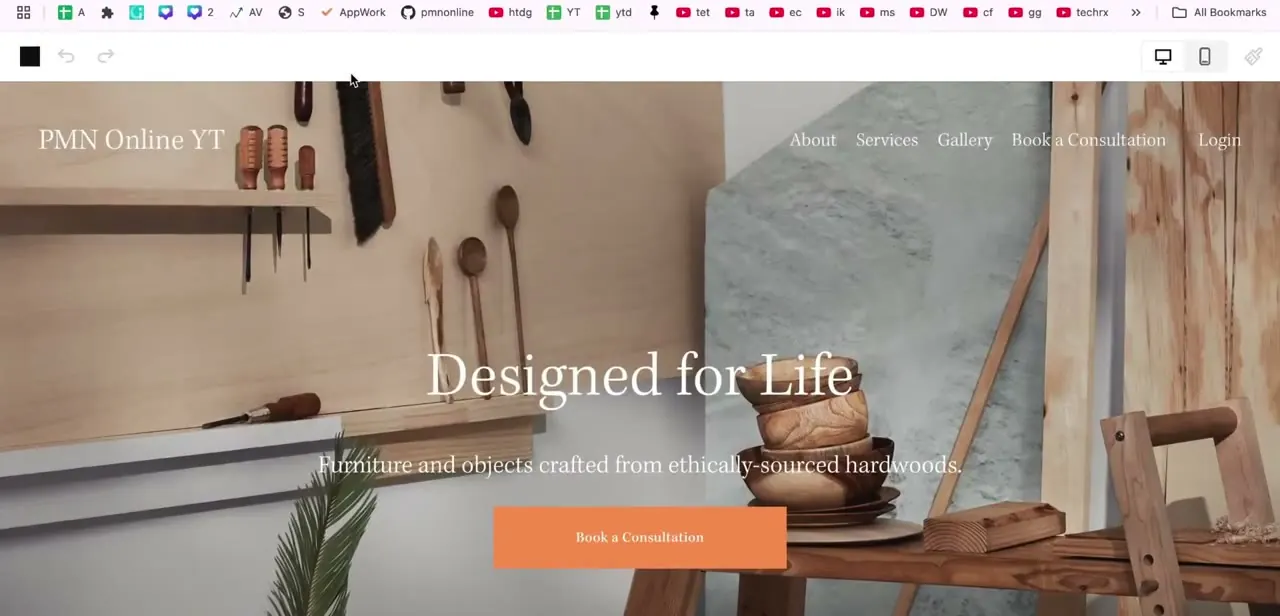
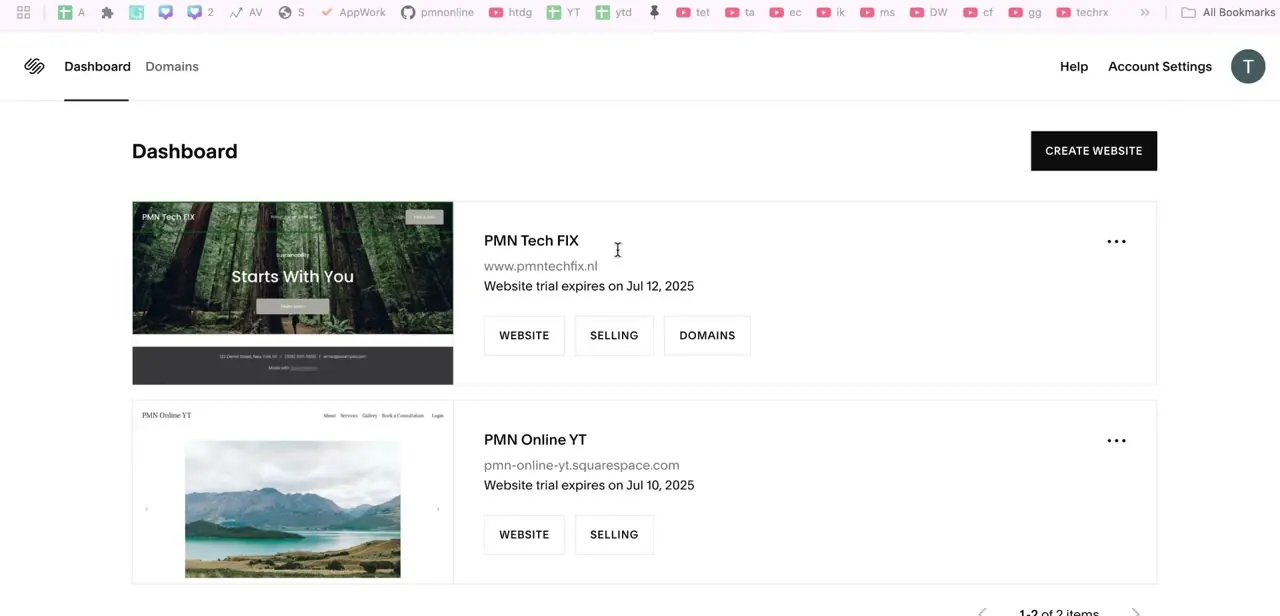
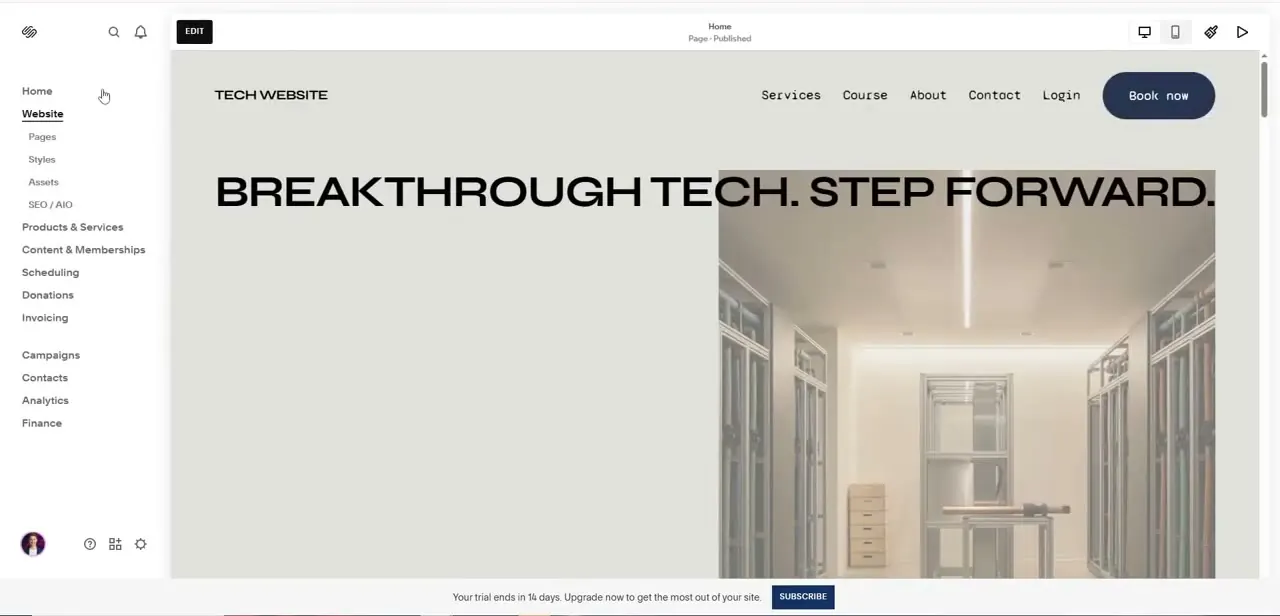
From the site dashboard, the sidebar lists Website, expandable into Pages, Styles, Assets, and SEO/AIO, alongside Products & Services, Content & Memberships, Scheduling, and more further down. Selecting Website and then a page like Home drops you into a live preview with an EDIT button top left; the page header confirms its status, for example "Home — Page · Published," so you always know whether you're changing something already live.
02Find the Code block in the content panel
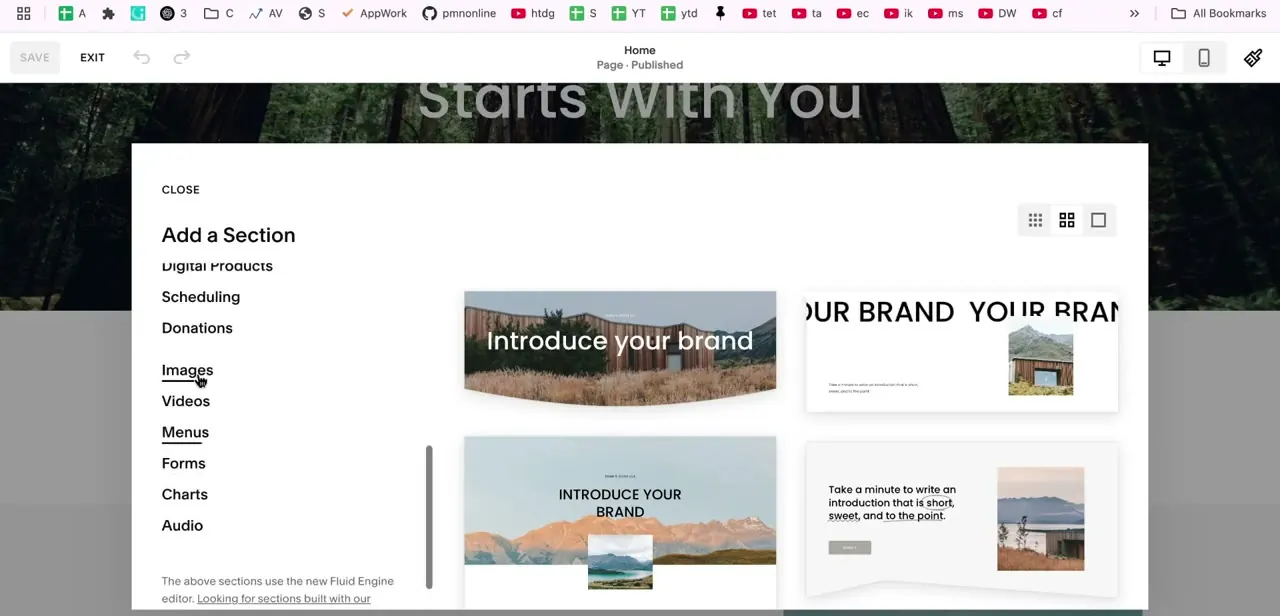
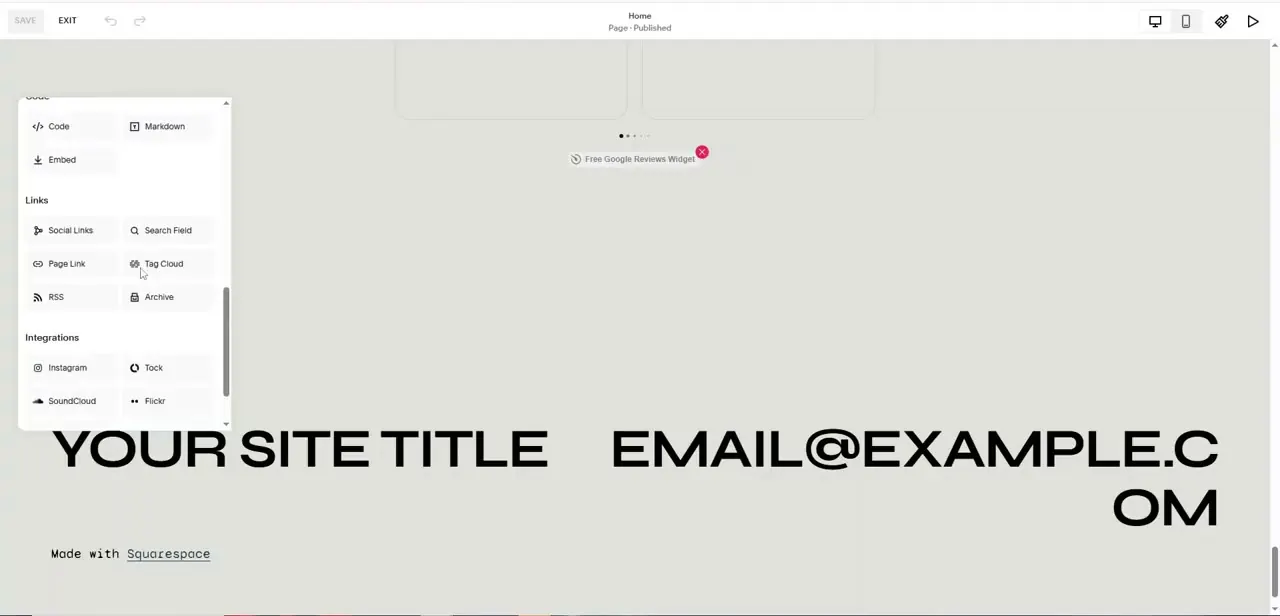
Click Edit, then the plus icon to insert a new block, and a categorized panel slides open. Under a Code heading near the top sit three options side by side: Code, Markdown, and Embed.
Code is for raw HTML and CSS, Markdown for lightly formatted text, Embed for pasting a URL or third-party snippet instead of writing markup yourself. Below that, the same panel lists Links (Social Links, Search Field, Page Link, Tag Cloud, RSS, Archive) and Integrations (Instagram, Tock, SoundCloud, Flickr). A lot of what people reach for custom HTML to build already has a native block here, and the native version usually themes better with the rest of the site.
03Write or paste your HTML into the Code block
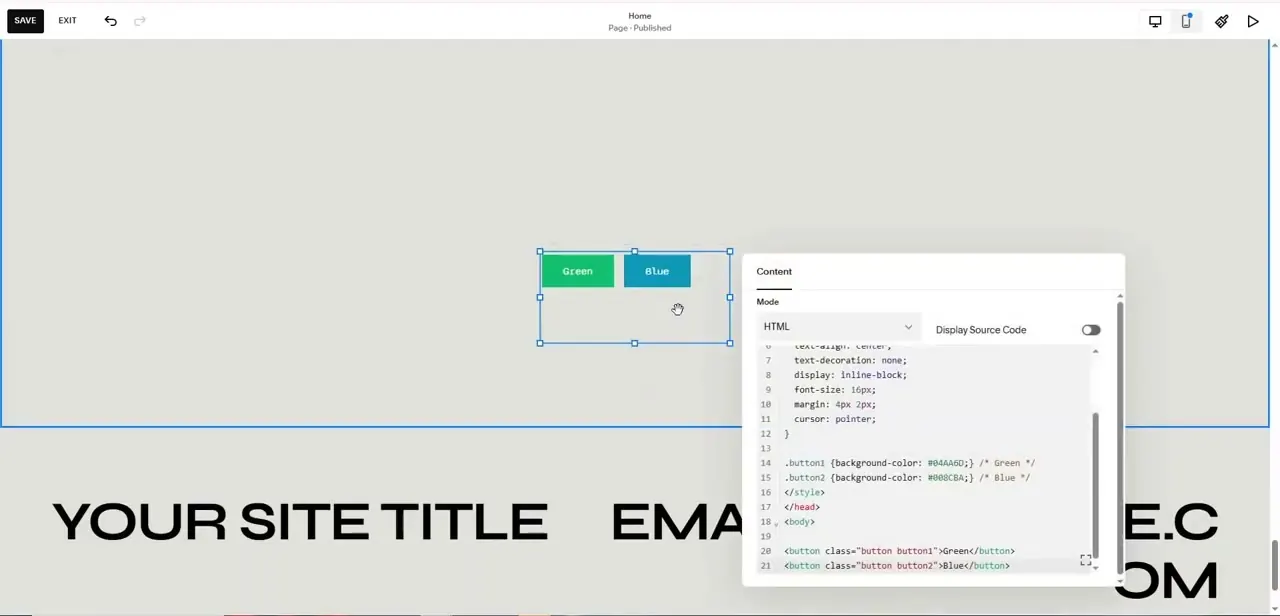
Dropping a Code block onto the page opens a Content panel with a Mode dropdown set to HTML and a Display Source Code toggle. The editor is a plain text area where you write markup and CSS together: one example defines two button classes with background colors set by hex code (#04AA6D for green, #008CBA for blue), styling properties like border-radius, padding, and cursor, then the actual markup below it, `<button class="button button1">Green</button>` and `<button class="button button2">Blue</button>`.
The block renders live on the canvas behind the panel as you type. HTML and CSS run this way on any plan; a `<script>` tag needs Core or higher, so if nothing happens when you add one, check the plan before you assume a typo.
04Preview on both device sizes before you trust it
The block renders inline as you edit, which gives an immediate check, but that in-editor preview doesn't always match every screen size. Use the desktop and mobile preview icons in the top toolbar, since a button pair or embedded script that looks fine on desktop can overflow or misalign on a narrow mobile viewport.
Save only after checking both. The Save button sits top left next to Exit, and until it's clicked, HTML changes exist only in the draft state.
05When a block doesn't render
A blank or broken block is usually a syntax error: an unclosed tag, a missing closing brace on a CSS rule, or a class name that doesn't match between the `<style>` block and the markup below it. Toggle Display Source Code on to see the raw text instead of the executed result, which makes a stray character easy to spot.
If the block renders but looks wrong, check for a class name collision with Squarespace's own theme styles; renaming custom classes to something unlikely to exist elsewhere on the page, like a prefixed `.pmn-button1`, usually resolves it. And if a script simply does nothing, confirm the site is on Core or a higher plan before debugging further.
| What you need | Use instead |
|---|---|
| Links to your social profiles | Social Links block |
| A link to another page or section | Page Link block |
| An RSS feed or a list of past posts | RSS or Archive block |
| Instagram, SoundCloud, or Flickr content | The matching Integration block |
| A custom button style, or a script with no native integration | Code block |
Native blocks inherit your site's fonts, spacing, and color palette automatically; a Code block has to be styled by hand to match.
When it doesn't work
The block shows blank or broken
Why: Usually a syntax error: an unclosed tag, a missing closing brace on a CSS rule, or a class name that doesn't match between the <style> block and the markup below it.
Fix: Turn on Display Source Code to see the raw text rather than the rendered result, which makes a stray character easy to spot.
A <script> tag does nothing
Why: The site is on Squarespace's Basic plan, which supports HTML, Markdown, and CSS in Code blocks but not JavaScript execution or code injection.
Fix: Upgrade to Core or higher, or replace the script with a native block if one covers the same need.
The block renders but looks wrong
Why: A custom class name collides with one Squarespace's own theme styles already use.
Fix: Rename the custom classes to something unlikely to exist elsewhere on the page, like a prefixed .pmn-button1.
Frequently asked questions
Do I need coding skills to add HTML to Squarespace?
Basic familiarity with HTML and CSS helps a lot, since the Code block is a plain text editor with no visual assistance, but simple embeds can often be added by pasting existing code from elsewhere.
Can adding custom HTML break my Squarespace site?
A broken Code block typically only affects that block, not the whole page, but always check both desktop and mobile previews before saving, since layout issues are the most common problem.
Is custom HTML available on all Squarespace plans?
HTML, Markdown, and CSS inside a Code block are available on every plan, including Basic. Running JavaScript in a Code block, or using site-wide code injection, needs the Core plan or higher.
What are common reasons to add HTML to a Squarespace site?
Custom buttons with specific styling and embedding a script or widget with no native integration are the main cases. Check the Links and Integrations sections first, since many common needs already have a native block.
Where exactly is the Code block located?
Click Edit on a page, then the plus icon to add a block. Code sits near the top of the panel under a "Code" heading, alongside Markdown and Embed.
Sources and last check
Click path and screens come from a recorded Squarespace session. Re-checked against Squarespace's own support articles on custom code and Code blocks in September 2026, which corrected a plan claim this guide previously got wrong: HTML and CSS work on every plan, but JavaScript inside a Code block, and code injection generally, need Core or higher.
About the author

Impran M N
I've been hooked on technology for as long as I can remember — especially the new tools and AI apps that seem to land every other week. Easy Tech Tuts is where I write up whatever I've just worked out: I do the task in the real product, record the screen, and turn it into the guide I wish I'd found first.