Easy Tech Tuts
How To Add Google Calendar To Squarespace Easy Integration 2026
By Impran M NLast checked against official docs
Embedding Google Calendar into a Squarespace site keeps visitors updated on events, appointments, or class schedules without you touching the page every time something changes. The process happens in two places, Google Calendar's own sharing settings and Squarespace's page editor, and each one has a setting that will make the embed look fine to you while showing nothing to anyone else. This guide covers generating the embed code, the calendar-sharing setting people miss, and the Squarespace plan tier the Code Block needs.
Before you start
- A Google Calendar you're allowed to make public, or one already shared publicly
- A Squarespace site on the Core plan or above; Code Blocks won't render an embedded calendar on the Personal plan
01Pick the calendar, and check it's shared publicly
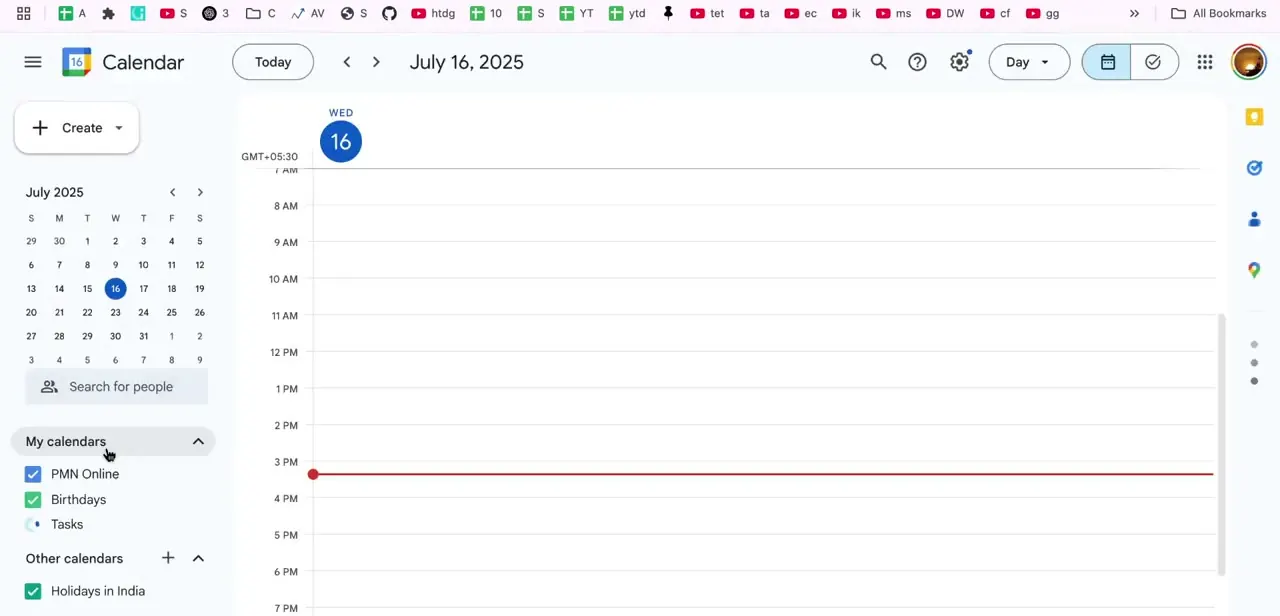
Open Google Calendar and look at the "My calendars" list in the sidebar. Most accounts have more than one, such as a primary calendar alongside a Birthdays or Tasks calendar.
Pick the one that belongs on the site; a business calendar for appointments or classes is usually separate from a personal one. Google is explicit about this part: "Your calendar is only visible to people you share it with.
To make your calendar visible to everyone, make your calendar public." A calendar that isn't public will look correct to you, since you're signed in, and show nothing to an anonymous site visitor. Confirm this now, before generating the code.
02Open that calendar's settings
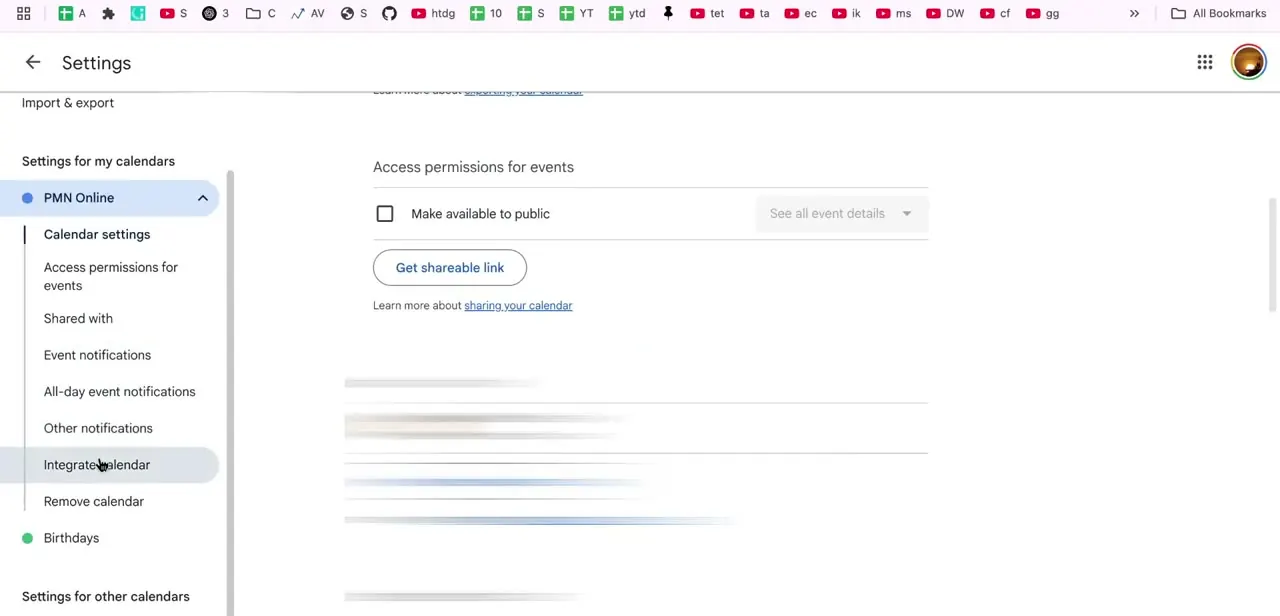
Click the gear icon and choose Settings, then find your calendar under "Settings for my calendars." Selecting it opens sub-pages including Access permissions for events, Shared with, and Integrate calendar. If the calendar isn't public yet, this is also where Access permissions lives; turn on "Make available to public" before moving on.
03Copy the embed code
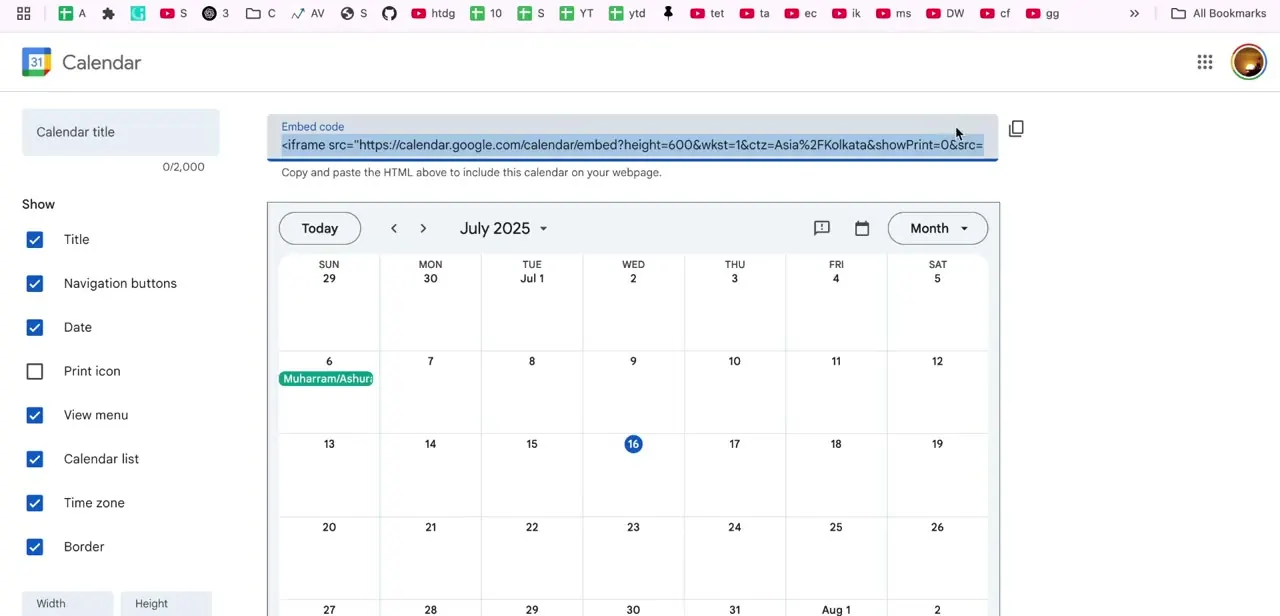
On the Integrate calendar page, an HTML snippet starts with `<iframe src="https://calendar.google.com/calendar/embed?..."`, with a live preview below it. Click Customize to adjust the title, which controls appear (navigation, print icon, view menu), and the dimensions.
Google's own guidance is to keep width and height each at least 500 pixels, since a smaller box crops the month view awkwardly. Get these settings right here; they carry over once pasted into Squarespace. Click the copy icon once the preview looks right.
04Add a Code Block on your Squarespace page and paste the code
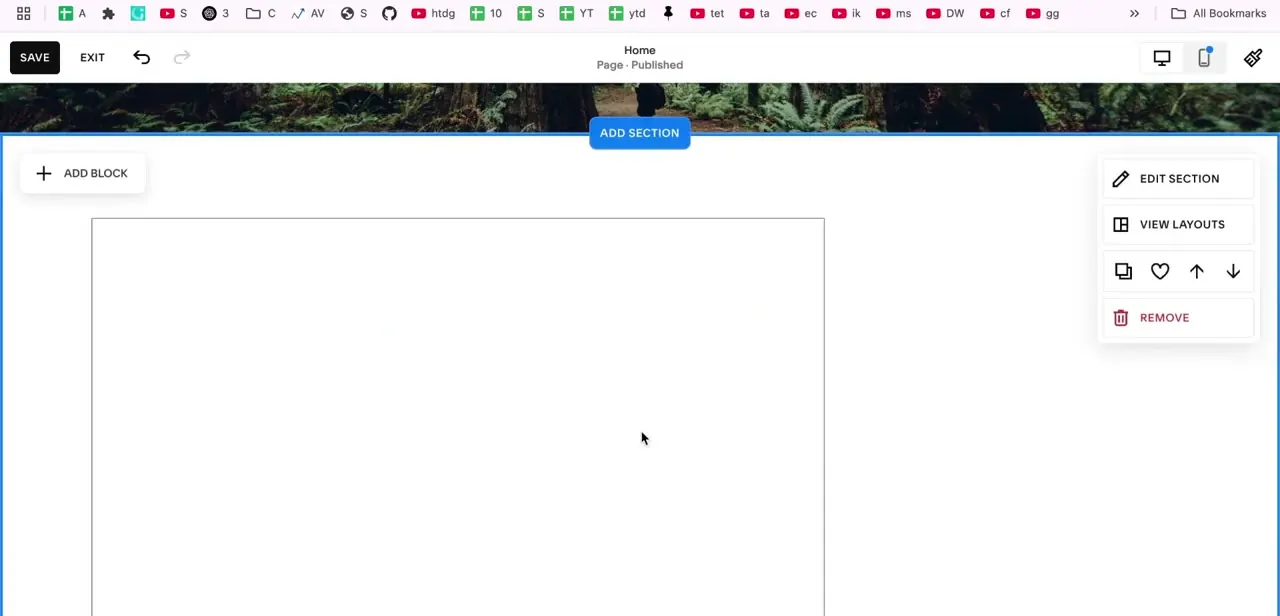
Switch to Squarespace, open the target page, and click Edit. Add Block, then Code Block, the block type built for raw HTML like an iframe.
Click the pencil icon, paste the code from Google Calendar, and save. Squarespace renders the live calendar in place of the code; drag the block if it needs to sit elsewhere, then save the page. From here, anything added, moved, or deleted in Google Calendar shows up on the site automatically, with nothing to update on the Squarespace side.
When it doesn't work
The calendar looks right to you but visitors see a blank block or an error
Why: The calendar's sharing setting isn't public. Google Calendar only shows a calendar to people it's explicitly shared with, and being signed into your own account hides that from you.
Fix: In Google Calendar Settings, under Access permissions for events, turn on "Make available to public."
The Code Block saves the pasted code but nothing renders on the live page
Why: The site is on the Personal plan. Squarespace only renders iframes and JavaScript inside Code Blocks on the Core plan and above.
Fix: Check the site's plan under Billing and upgrade to at least Core if it's currently on Personal.
The embedded calendar looks cramped or cuts off dates
Why: The width or height set on the Integrate calendar screen is below Google's recommended minimum.
Fix: Reopen Integrate calendar, click Customize, and set both width and height to at least 500 pixels before copying the code again.
Frequently asked questions
Will my Squarespace calendar update automatically?
Yes. Any change in Google Calendar (a new event, a changed time, a cancellation) shows up on the Squarespace page automatically, since the embed pulls live from Google instead of storing a copy.
Do site visitors need the calendar to be public to see it?
Yes. Google states plainly that a calendar is only visible to people it's shared with, so it has to be set to public, or the embed shows nothing to anyone who isn't you.
Does this work on every Squarespace plan?
No. Code Blocks only render iframes and JavaScript on the Core plan and above. On the Personal plan, the block saves the pasted code but never displays it.
Can I embed multiple calendars on different pages?
Yes. Generate a separate embed code for each calendar under "My calendars," and place each one in its own Code Block on whichever page it belongs to.
What block do I use to embed the calendar?
A Code Block, with the iframe snippet from Google's Integrate calendar screen pasted directly into it.
Can I customize how the calendar looks?
Yes. The Customize option on the Integrate calendar screen sets the title, which controls show, and the dimensions before you copy the code, and those settings carry into the embedded version.
Sources and last check
Click path and screens come from a walkthrough recorded in August 2026. In September 2026 the sharing requirement and the Squarespace plan restriction were re-checked against Google's and Squarespace's own help documentation. The public-sharing requirement and the Personal-plan iframe restriction were both missing from the article before this pass.
About the author

Impran M N
I've been hooked on technology for as long as I can remember — especially the new tools and AI apps that seem to land every other week. Easy Tech Tuts is where I write up whatever I've just worked out: I do the task in the real product, record the screen, and turn it into the guide I wish I'd found first.