Easy Tech Tuts
How to Add Gallery Block in Squarespace 2026 Easily
By Impran M NLast checked against official docs
A gallery block is the fastest way to show off a set of photos on a Squarespace page without cramming them into a single image block or a long scroll of separate images. Squarespace's Fluid Engine editor makes this easy to reach, but the option lives inside a broader "Add a Section" panel instead of a single obvious button, which is where people get stuck. This guide walks through opening that panel, picking a gallery layout, and filling it with your own images, descriptions, and links, using the actual editor screens so you know exactly what to click.
01Open your site editor and click Edit
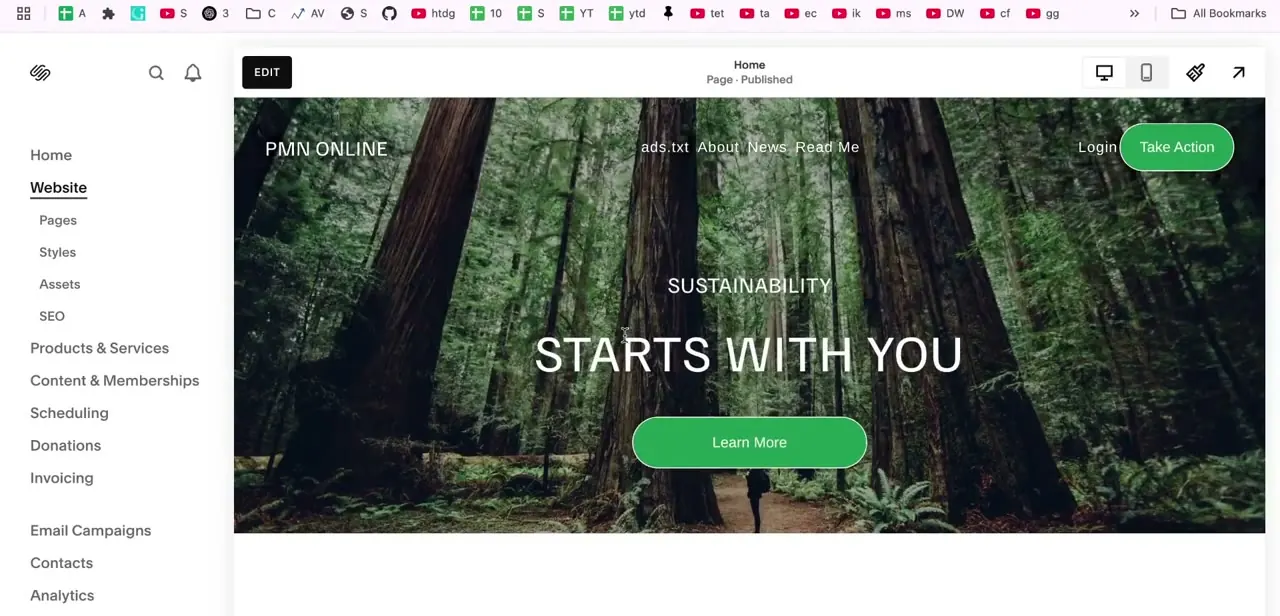
Log into your Squarespace account and go to the page you want to add a gallery to. In the left-hand panel you'll see your site's full navigation tree (Home, Pages, Products & Services, Content & Memberships, and so on), with an Edit button at the top of the preview pane.
Click Edit to enter the live page editor, which is where every section and block on that page gets added or changed. This works the same whether the page already has content or is still blank.
02Open the Add a Section panel
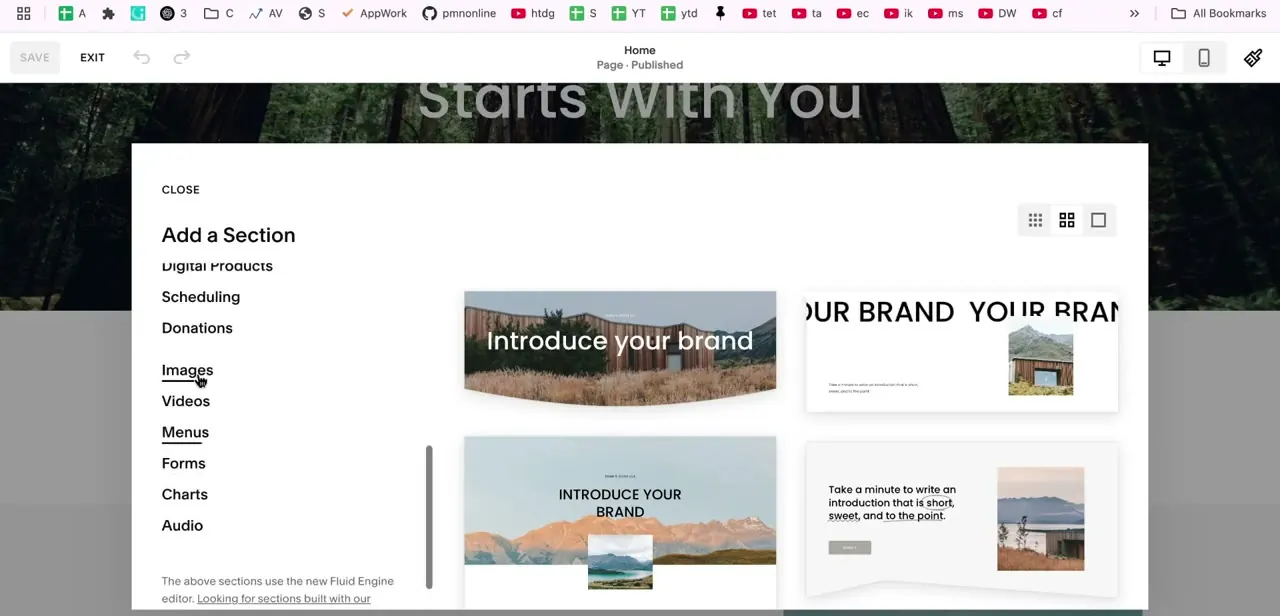
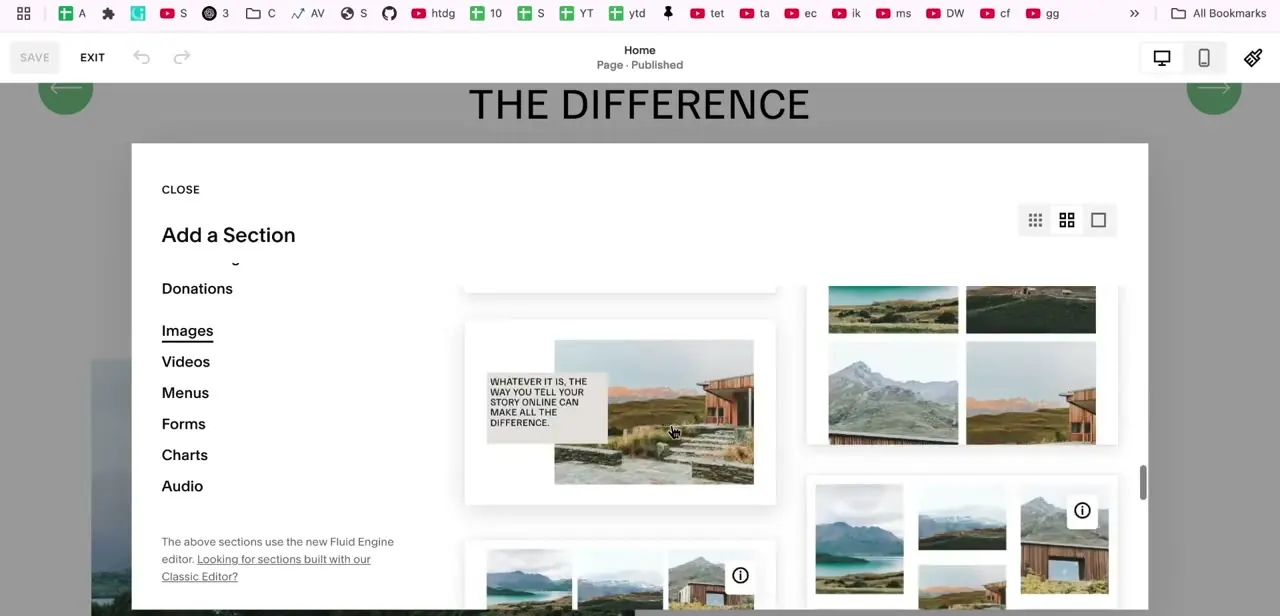
Hover over the spot on the page where you want the gallery to sit and click the plus icon that appears. On Fluid Engine sites this opens an "Add a Section" panel instead of a simple block list, with categories running down the left side: Donations, Images, Videos, Menus, Forms, Charts, and Audio.
Click Images, and a scrollable set of pre-built gallery layouts appears on the right. Some are styled as photo grids, others as a single large image with an overlay caption; each is a starting template you swap your own images into.
03Pick a layout and open the gallery editor
Click whichever image layout best matches how many photos you're displaying and how much emphasis you want each one to get. A dense grid works well for a large set of similar shots; a single large image with text overlay suits a smaller, more curated selection. Once inserted, clicking into the block opens the Gallery editor, a dedicated panel showing thumbnails of every image currently in the set along the left and a larger preview with editing options on the right.
04Upload or search for your images
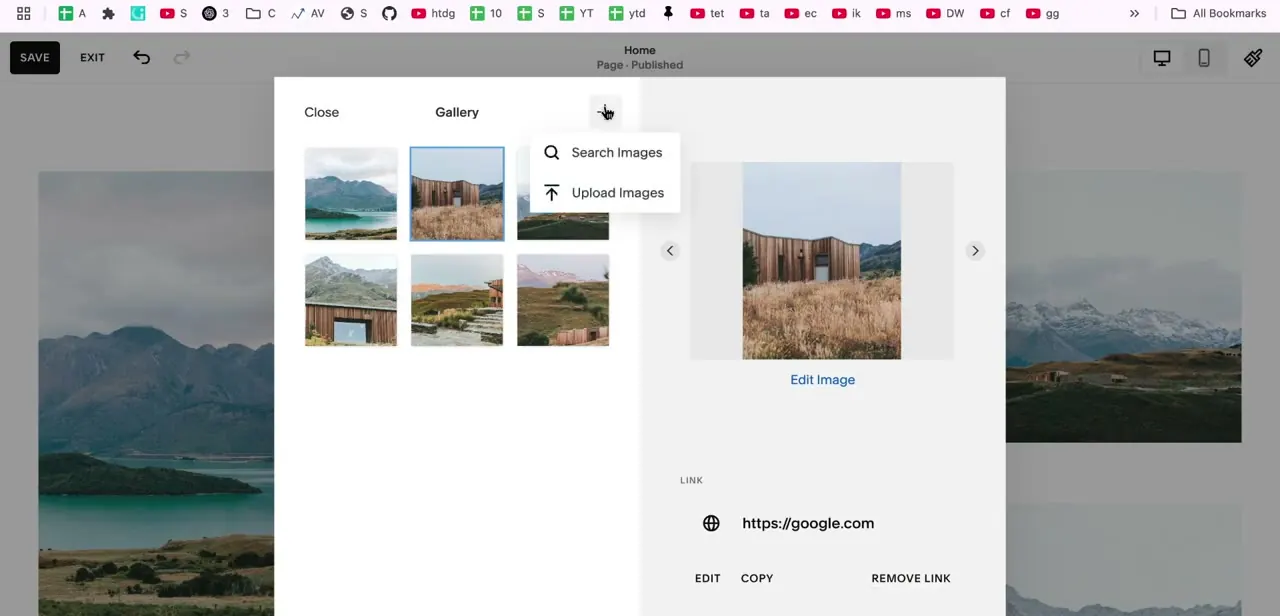
Inside the Gallery editor, click the plus icon next to the word "Gallery" at the top to open a small menu. Search Images pulls from Squarespace's built-in stock library; Upload Images adds your own photos from your device, or lets you reuse an image already uploaded elsewhere on the site through the library tab.
Upload Images is what you'll use for real product shots, portfolio work, or event photos. Select your files and they're added straight into the gallery's thumbnail strip alongside whatever is already there. Squarespace caps a single gallery at 250 images, and its own documentation notes that pages load more slowly as you add more, so a smaller curated set generally performs better than dumping in a full archive.
05Set a description and link for each image
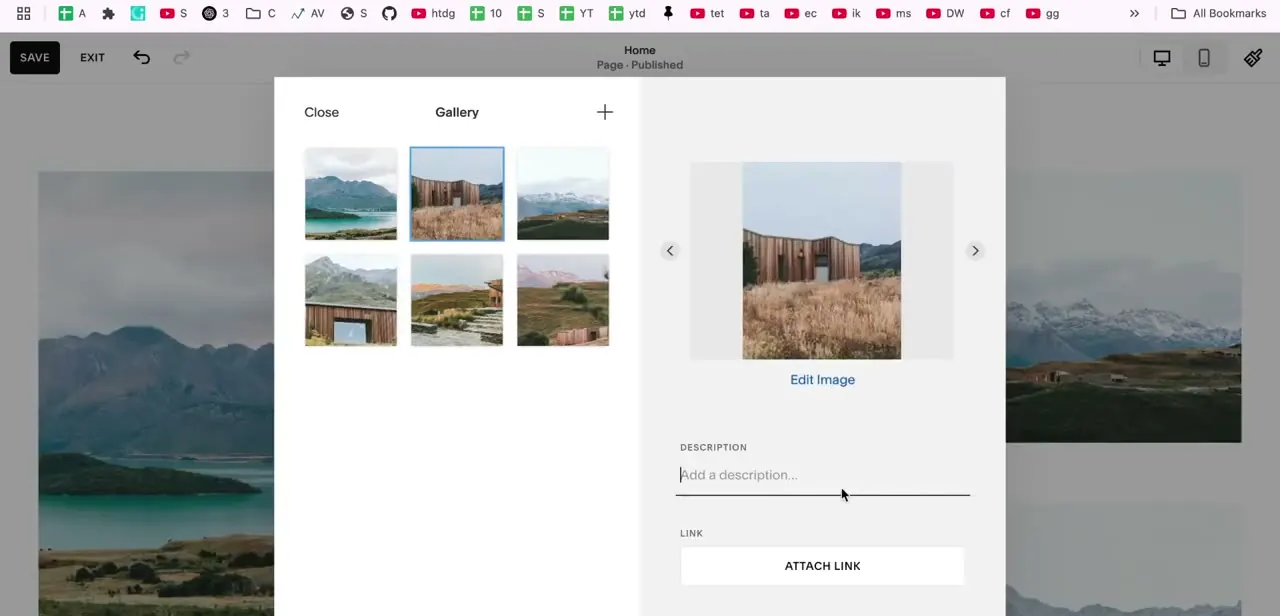
Click any thumbnail in the gallery editor to select it, and the right-hand panel updates to show that image full-size with an Edit Image link above a Description field and a Link section below it. The description becomes the image's alt text and any caption your layout displays, which matters for accessibility and SEO, not only presentation. The Attach Link option makes an individual image clickable, useful if a photo should lead to a product page, a blog post, or an external site instead of just sitting there.
06Reorder, resize, and save
Drag thumbnails within the left-hand strip to change the order images appear in the gallery, and use the block's corner or edge handles on the page itself to resize the whole section to fit your layout. When everything looks right, click Save in the top-left corner of the editor to publish the change, or Exit to back out without keeping it.
The gallery updates live on the page the moment you save. Preview it on both desktop and mobile before you move on, since a grid that looks even on one can crowd or gap on the other.
When it doesn't work
The page feels sluggish after building out a large gallery
Why: Squarespace's own documentation notes that page load time increases as more images are added to a gallery block, and a single gallery can hold up to 250 images.
Fix: Trim the set to the images that earn their place, or split a very large collection across more than one gallery block on separate pages.
A gallery item plays like a video but the file won't upload through the gallery's own uploader
Why: Squarespace's gallery block is built for images; video isn't fully supported inside it the way images are.
Fix: Add the video with a separate video block or embed block placed next to the gallery instead of trying to force it into the same block.
Images in the grid have uneven gaps or mismatched row heights
Why: The layout is mixing portrait, landscape, and square images, which the grid-style layouts assume are closer to uniform.
Fix: Crop images to a consistent aspect ratio before uploading, or switch to a layout style built for mixed proportions, like a single-image-with-overlay template.
Frequently asked questions
Can I use a slideshow layout for my gallery?
Yes. Opening the Add a Section panel and choosing the Images category shows several pre-built layouts that present images as a slideshow or carousel instead of a static grid.
How many images can a gallery block hold?
Up to 250, per Squarespace's own page limits documentation. That limit applies to a single gallery block or gallery section on 7.1.
Can I resize a gallery block after adding it?
Yes. Drag the block's edge and corner handles on the page to adjust its size at any time after it's been added.
Can I add video to a gallery block?
Not directly. Video lives in its own category in the Add a Section panel, alongside Images, so a mixed photo-and-video display generally means pairing a gallery block with a separate video or embed block.
Does this work the same on Squarespace 7.1?
Yes. This Add a Section flow, with Images, Videos, Menus, Forms, Charts, and Audio categories, is specific to 7.1's Fluid Engine editor.
Can I link an individual image in the gallery to another page?
Yes. Selecting any image in the Gallery editor reveals an Attach Link option so that photo can point to a URL, a product, or another page on your site.
Sources and last check
Click path and editor screens come from a recorded Fluid Engine walkthrough. The 250-image cap, the note about slower page loads with larger galleries, and the video-block limitation were checked against Squarespace's official Gallery blocks and Page limits support articles in September 2026 and added here since the original guide didn't mention them; no factual error was found in the existing click path.
About the author

Impran M N
I've been hooked on technology for as long as I can remember — especially the new tools and AI apps that seem to land every other week. Easy Tech Tuts is where I write up whatever I've just worked out: I do the task in the real product, record the screen, and turn it into the guide I wish I'd found first.