Easy Tech Tuts
How to Add a Coming Soon Page on Squarespace 2026, Enable Maintenance / Under Construction Page
By Impran M NLast checked against official docs
Whether you're preparing for launch, mid-redesign, or just working behind the scenes, a coming soon page keeps visitors informed instead of showing them a half-finished site. Squarespace offers two genuinely different ways to do this: swap in a standalone page as your homepage while the real site stays unlinked, or lock the entire site behind Site Availability for a true maintenance-mode effect. This guide covers building that page in Squarespace 7.1, setting it live, and the site-lock alternative, plus a real tradeoff neither method advertises: both pull the site out of search results while they're active.
01Add a blank page in Not Linked
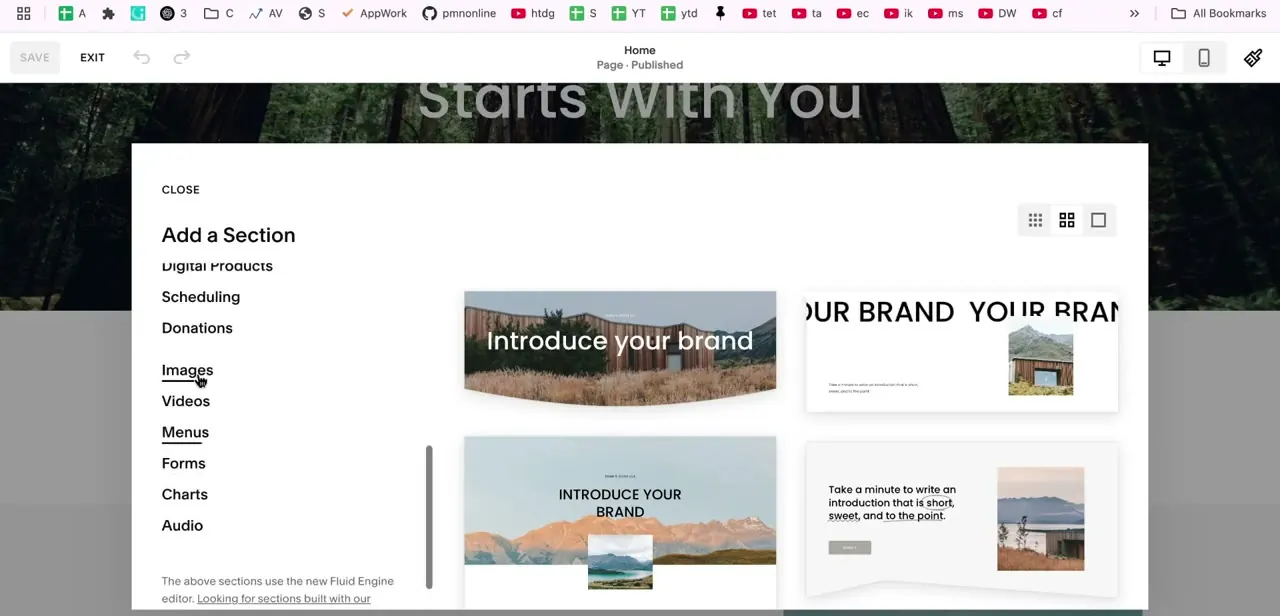
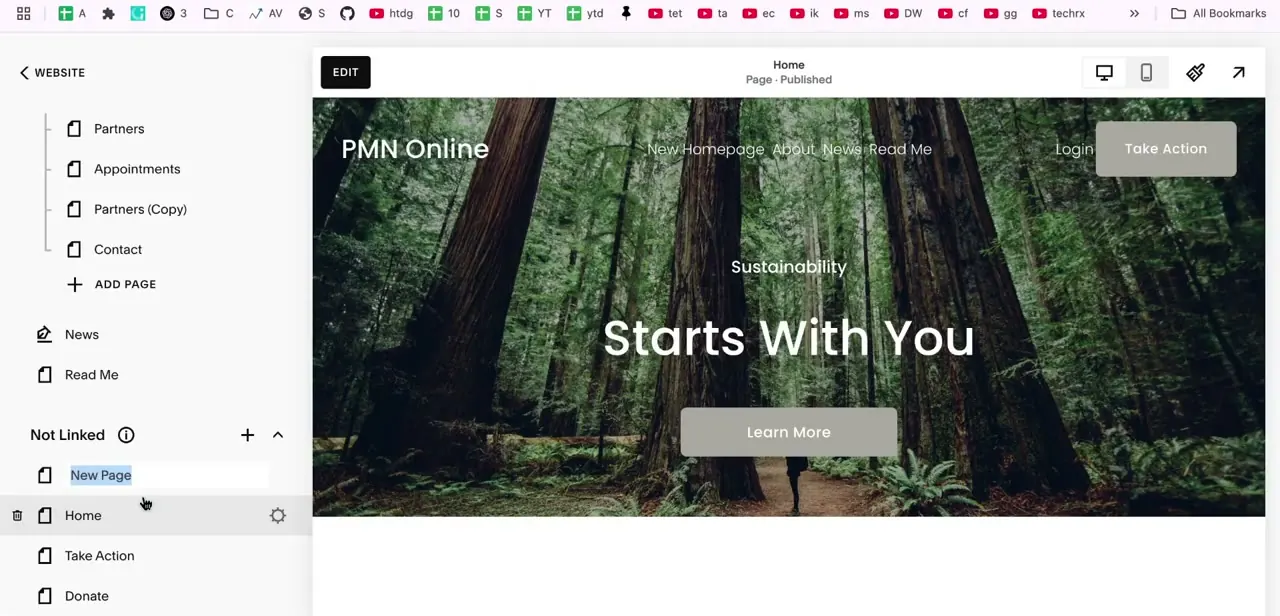
In the Squarespace dashboard, open Pages and scroll to the Not Linked section: pages that exist on the site but aren't wired into any navigation menu, which is exactly what a page still under construction needs. Click the plus button and add a Blank Page, then name it something findable, like "Coming Soon," especially once several unlinked pages sit alongside your real ones.
This applies to Squarespace 7.1. Version 7.0 has a separate Cover Page type built for the same purpose, with fixed splash templates instead of the block editor described here.
02Design the page content
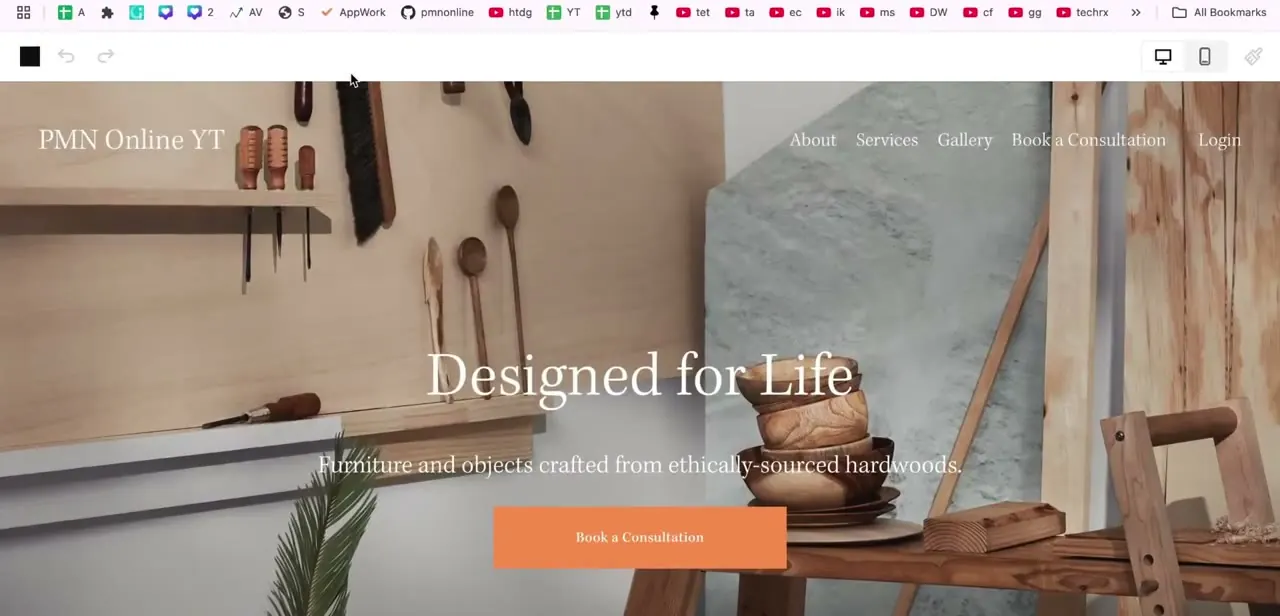
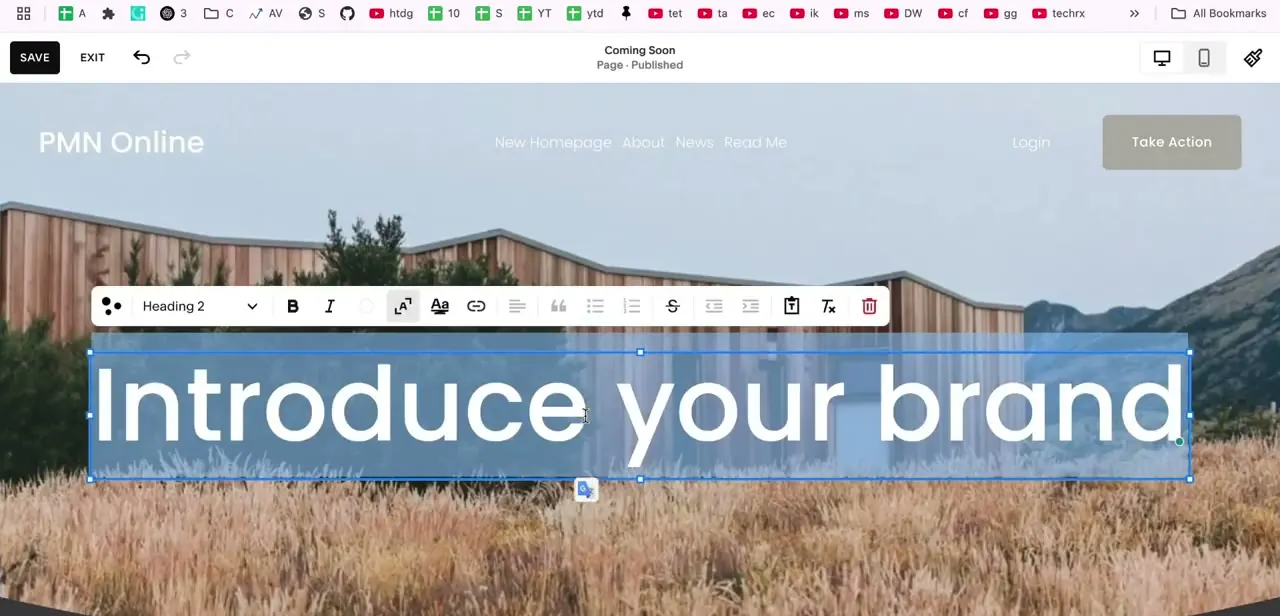
Open the new page in the editor and build a simple message. A bold heading is usually enough, something like "Coming Soon" or "Launching Soon," styled with the same section and heading tools used on any other page.
Click into a text block to edit it directly; the inline editor lets you change heading level and formatting right there. Keep the message short, since this page gets glanced at, not read closely.
03Open Page Settings to configure the page
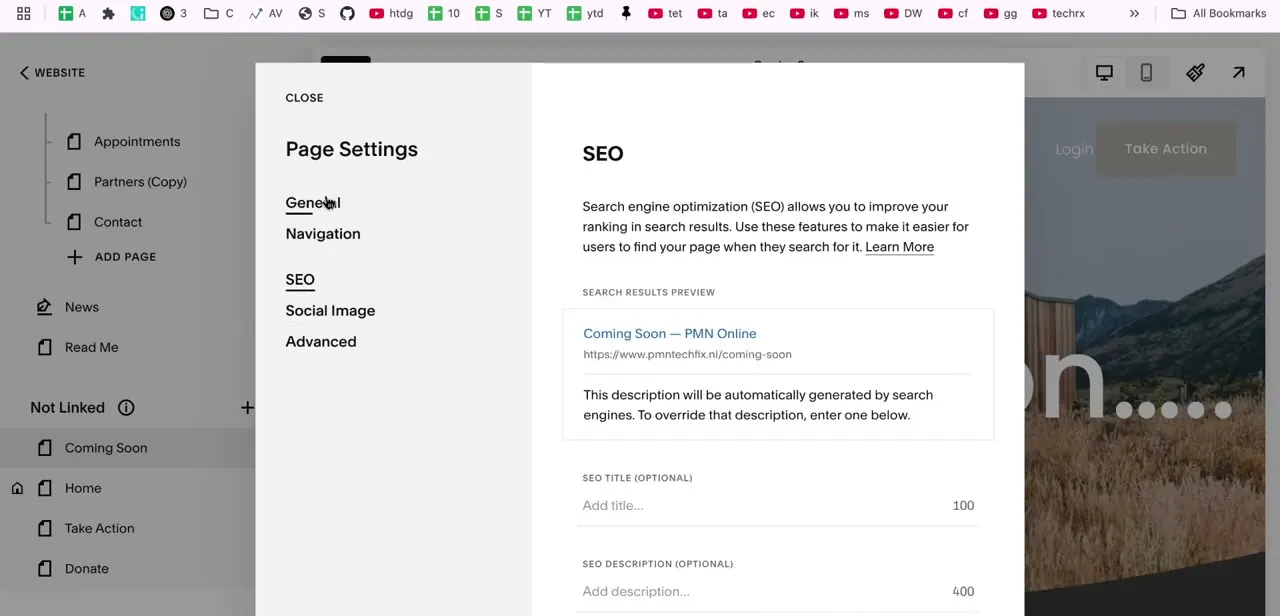
Hover over the page in your list and click its settings icon to open Page Settings, which groups General, Navigation, SEO, Social Image, and Advanced into tabs. General is where you'll set this page as your homepage. Check SEO too, since it controls the title and description shown if the page gets shared or indexed while still in coming-soon mode, though see the search-visibility note in a later step if you're combining this with a full site lock.
04Set it as your homepage and confirm it's live
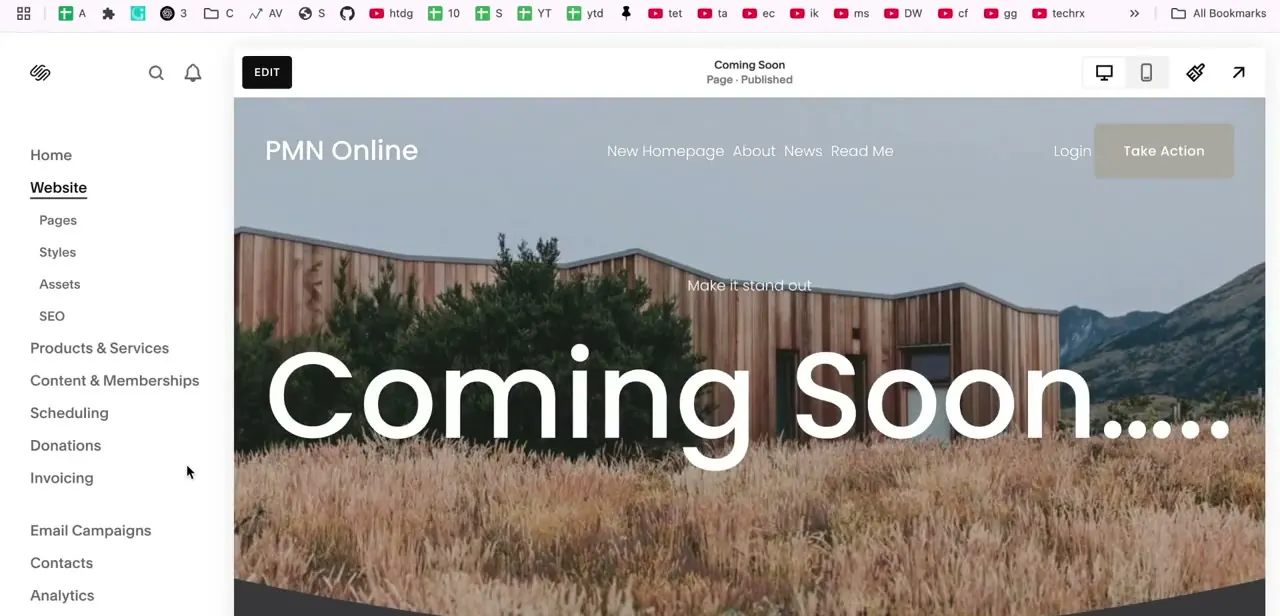
Back in General, enable Set as Homepage and save. Squarespace immediately starts serving this page to every visitor, while the rest of the site stays reachable only through the Not Linked section or direct URLs nobody's been given yet. Preview the live site afterward to confirm visitors land on the coming-soon message, not your old homepage; the change takes effect the moment you save.
05Or lock the whole site instead
To hide everything instead of just swapping the homepage, go to Settings, then Site Availability. Password Protected asks visitors for one shared password before they see anything.
Private hides the site behind a "Private Site" message and only lets in owners and contributors who can log in, with no password to hand out. Either option removes the site from search results over time, so this method trades search visibility for genuine privacy while it's on.
06Combine both approaches if it fits your launch
The two methods aren't exclusive. Build the homepage swap with an email capture form for early visitors, then still turn on Site Availability behind it, so anyone without the password sees your coming-soon message instead of a generic lock screen. This setup is common right before a real launch: the site stays fully hidden while you collect interested visitors' emails ahead of time.
| Method | Hides the whole site? | Search visibility | Good for |
|---|---|---|---|
| Blank homepage swap | No; other pages are still reachable by direct URL | Normal; the swapped page is simply what gets indexed as home | A public landing page with an email signup while you build behind it |
| Site Availability (Password Protected or Private) | Yes; nothing loads without access | Removed from search results over time | True maintenance mode, or a site that isn't ready for anyone to see |
The two can run together: use the homepage swap as the visible landing page, then lock the rest of the site behind Site Availability.
When it doesn't work
The coming soon page isn't showing for visitors
Why: Set as Homepage wasn't saved, or the browser is showing a cached copy of the old homepage.
Fix: Confirm the toggle is on under Page Settings, then General, and check again in a private browsing window to rule out caching.
Visitors can still reach the real site during "coming soon"
Why: The homepage-swap method only replaces the homepage. Other pages left in Not Linked stay publicly reachable to anyone who has or guesses the URL.
Fix: Use Password Protected or Private under Site Availability if the rest of the site genuinely needs to stay hidden, not just off the homepage.
The site dropped out of search results after launch
Why: A site-wide password or Private setting removes the site from search indexes over time; that's expected, not a bug, while either is active.
Fix: Turn off Site Availability once the real site is ready, and expect search visibility to return gradually as it gets recrawled.
Frequently asked questions
What's the difference between the two coming soon methods?
One swaps a cover page in as your homepage while the rest of the site stays in Not Linked; the other, Site Availability, locks the entire site behind a password or login.
Does this method work on Squarespace 7.0 too?
The click path here is for 7.1. Squarespace 7.0 has a separate Cover Page type with its own fixed splash templates instead of the block editor this guide uses.
Can I collect emails on my coming soon page?
Yes, an email capture form block works on the homepage-swap page, before or during a full site lock.
Where do I enable password protection?
Settings, then Site Availability, then Password Protected. You'll set a password and an optional message for visitors.
What's the difference between Password Protected and Private?
Password Protected lets anyone in with a shared password. Private has no password at all; only owners and contributors who can log in get through.
Does locking my site affect search rankings?
Yes. Both Password Protected and Private remove the site from search results over time, so treat either as a real tradeoff, not a free option.
Can I remove the coming soon setup later?
Yes. Turn off Set as Homepage in Page Settings, or switch Site Availability back to public, and normal access returns.
Sources and last check
Click path and screens come from a recorded walkthrough on Squarespace 7.1. Checked against Squarespace's official Help Center in September 2026: added that Cover Pages are a 7.0-only feature (7.1 uses the block editor shown here), added Private as a second whole-site-lock option alongside Password Protected, and added that both options remove the site from search results over time, none of which the earlier version mentioned.
About the author

Impran M N
I've been hooked on technology for as long as I can remember — especially the new tools and AI apps that seem to land every other week. Easy Tech Tuts is where I write up whatever I've just worked out: I do the task in the real product, record the screen, and turn it into the guide I wish I'd found first.