Easy Tech Tuts
How to Remove Taxes on Shopify Checkout, Delete Estimated Tax in POS, Store 2026 Easily
By Impran M NLast checked against official docs
Not every Shopify store needs to charge tax. Maybe you sell in a region with no sales tax obligation, your prices are already tax-inclusive, or you're testing a store that shouldn't show an estimated tax line yet.
Shopify's tax controls live in a Global settings panel with a handful of checkboxes that decide whether tax gets folded into your prices or added on top, plus separate region-level rules for where tax gets collected. This guide walks through those settings, plus a lesser-known spot where you can edit the exact wording of tax-related messages customers see at checkout.
01Open your Shopify admin
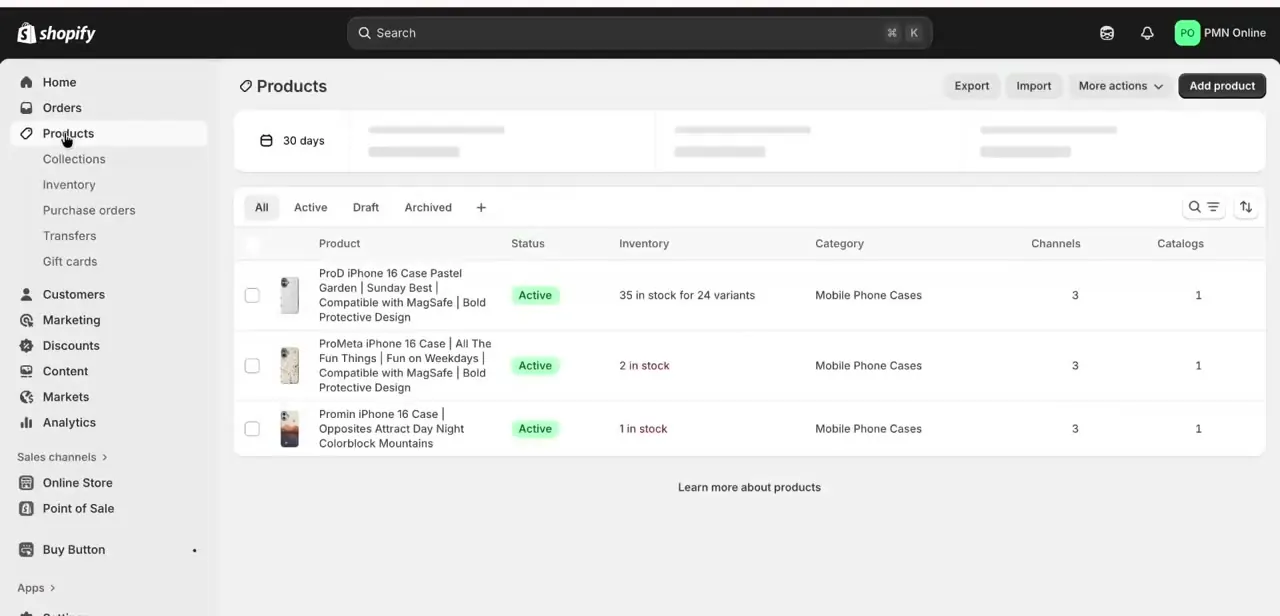
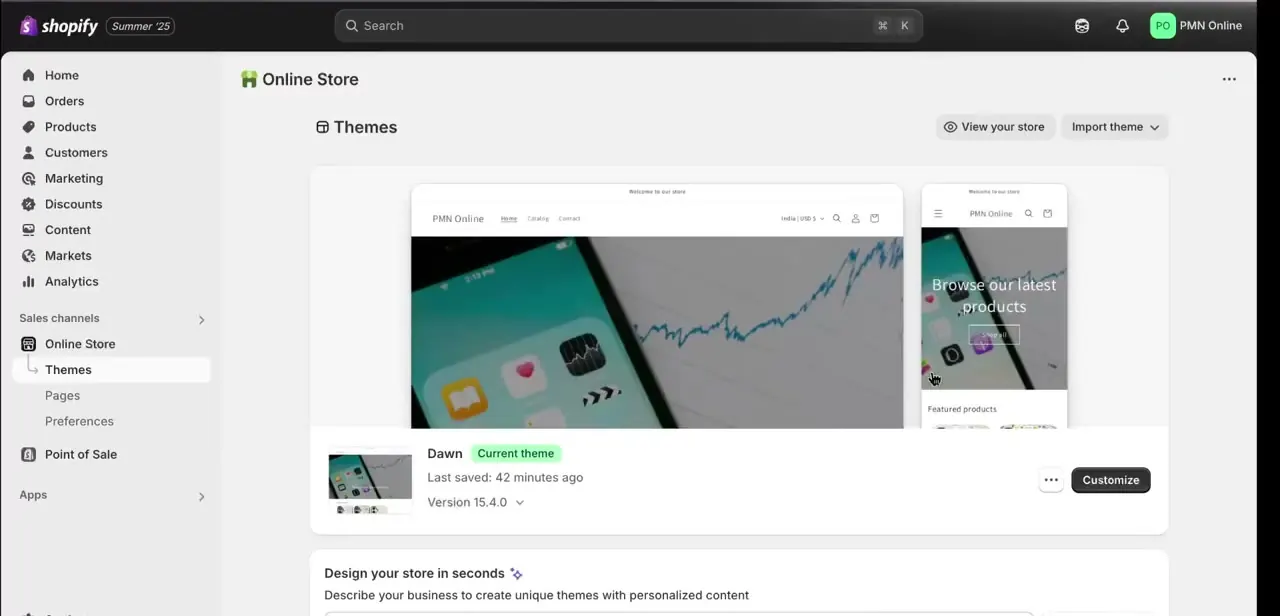
Log in and land on the admin dashboard, where the left-hand navigation lists Home, Orders, Products, Customers, Marketing, Discounts, Content, Markets and Analytics, followed by your Sales channels: Online Store with its Themes, Pages and Preferences, and Point of Sale below that. Settings sits further down this sidebar, and it's where the tax controls in the next step live. Point of Sale sitting in the same menu matters, because Shopify's tax overrides apply to both your online checkout and any POS terminal on the same store.
02Find the Global settings for tax calculation
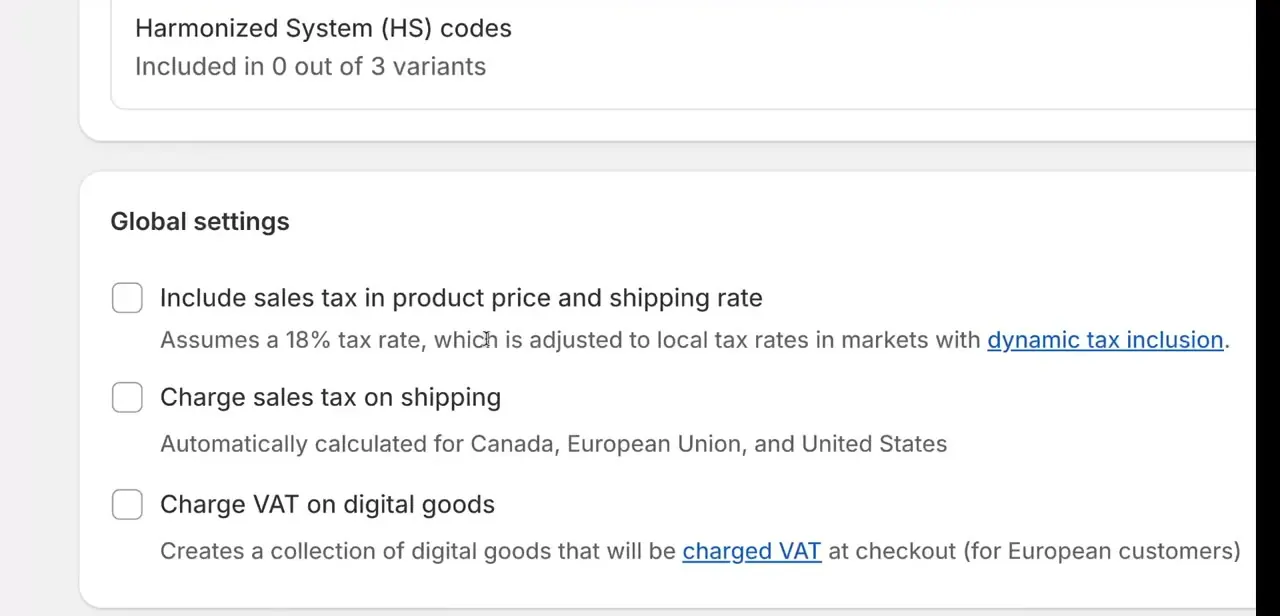
Under Settings > Taxes and duties, a Global settings section holds three checkboxes: Include sales tax in product price and shipping rate, which folds an assumed rate into your displayed prices instead of adding a separate tax line; Charge tax on shipping rates, which adds tax to the shipping charge itself; and Charge VAT on digital goods, which applies EU digital-goods VAT rules to products tagged as digital. None of these are checked by default in this view, so tax isn't being added under any of the three.
03Match the checkbox to your actual goal
These three settings solve different problems. If displayed prices should already include tax with nothing added at checkout, that's Include sales tax in product price; checking it stops Shopify from adding a visible tax line.
Charge tax on shipping rates only matters where Shopify isn't already calculating tax automatically for that region; where automatic calculation is active, the checkbox has no effect and the shipping tax follows the automatic engine instead. The VAT checkbox applies only if you sell digital goods to EU customers, and can stay off otherwise without touching anything else.
04Check region-level tax registration too
The Global settings checkboxes control how tax is calculated and displayed, but whether you're registered to collect tax in a given country or state is a separate, region-by-region setting elsewhere in the same tax area. If an estimated tax line is still appearing after you adjust the global options, check whether you're also registered to collect tax for that customer's region. Shopify keeps calculating and showing an estimate for any region with an active tax registration, regardless of the global checkboxes.
05Customize the tax messaging in Theme content
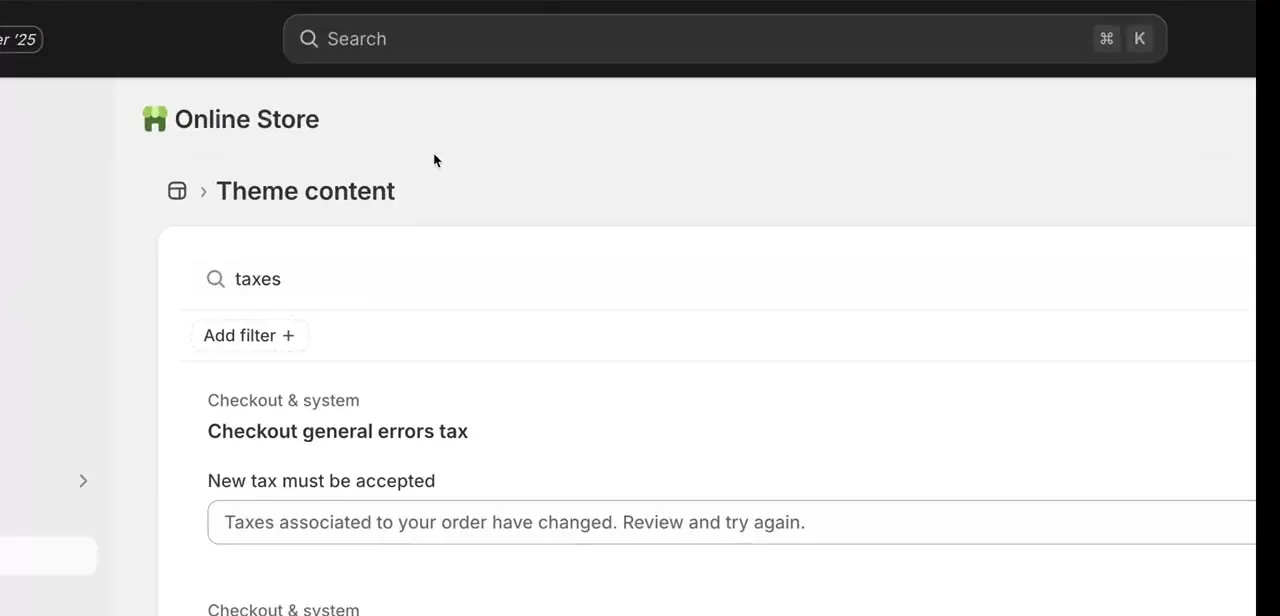
Separately from whether tax is charged, Shopify also lets you edit the exact wording customers see around tax at checkout. Under Online Store, open Theme content and search "taxes" to find entries like "Checkout general errors tax," including the message shown when taxes on an order change and the customer needs to review it. This doesn't turn tax calculation off, but it's useful if you want the checkout copy to read more clearly for a store where tax rarely applies.
06Test both online checkout and POS
Once your settings are saved, run through a test order on your storefront and, separately, a sale on any Shopify POS device connected to the same store. Confirm the estimated tax line no longer appears where expected, and that regions or products where tax should still apply are behaving correctly. Test both surfaces: POS calculates tax based on the store location assigned to that device, and some merchants have reported it not matching the online store's tax engine exactly, so a setting that looks right in the checkout preview is worth double-checking on the till too.
| Setting | What it changes | Where it applies |
|---|---|---|
| Include sales tax in product price and shipping rate | Folds tax into the displayed price instead of adding a checkout line | Any region you choose to enable it for |
| Charge tax on shipping rates | Adds tax to the shipping charge itself | Only regions where Shopify isn't already calculating tax automatically |
| Charge VAT on digital goods | Applies EU digital-goods VAT rules to products tagged as digital | EU customers buying digital or downloadable products |
When it doesn't work
Charge tax on shipping rates is checked but shipping still isn't taxed
Why: The setting only affects regions where Shopify isn't already calculating tax automatically. Where automatic calculation is active, the checkbox has no effect.
Fix: Check whether that region already uses Shopify's automatic tax calculation; if so, shipping tax follows the automatic engine, not this checkbox.
An estimated tax line still shows after unchecking all three Global settings boxes
Why: Region-level tax registration is a separate setting from the Global settings checkboxes, and an active registration keeps generating an estimate for that region.
Fix: Open the region-by-region tax registration list and remove or adjust the registration for the specific country or state in question.
Shopify POS shows a different tax total than the online store for the same product
Why: POS calculates tax from the store location assigned to that device and its shipping zone, and some merchants report it not always matching the online store's Shopify Tax calculation.
Fix: Confirm the POS device's location sits inside the correct shipping zone, then check the POS cart's own tax override separately from the online storefront.
Frequently asked questions
Can I remove tax for just one region?
Yes. Tax collection is set region by region, separate from the Global settings checkboxes, so you can leave tax active elsewhere while removing it for one specific area.
Does this update apply to POS immediately?
It's meant to; tax overrides in Settings > Taxes and duties apply to both online checkout and Shopify POS on the same store. In practice, some merchants have reported POS calculating tax slightly differently, so test a real sale on the device before trusting the preview.
What does "Include sales tax in product price" change?
It folds an assumed tax rate into your displayed prices and shipping rate instead of adding a separate tax line at checkout. It doesn't remove tax; it changes how it's shown.
Does "Charge tax on shipping rates" always tax shipping when checked?
No. It only has an effect in regions where Shopify isn't already calculating tax automatically. Where automatic calculation applies, this checkbox is bypassed.
Can I edit the wording of tax messages at checkout without changing whether tax is charged?
Yes. Under Online Store, open Theme content and search "taxes" to find and edit checkout copy such as the tax-changed error message, separately from the actual calculation settings.
Will this affect existing orders?
No. Changing tax settings going forward doesn't retroactively change tax already applied to completed orders.
Sources and last check
Click path and screens come from a recorded walkthrough. The three Global settings checkbox names, the region-limited scope of Charge tax on shipping rates, and the POS tax-sharing behavior were checked against Shopify's own Help Center in September 2026. The earlier version of this guide called the shipping checkbox "Charge sales tax on shipping" and implied it always taxes shipping once checked; Shopify's documentation says it only acts where tax isn't already calculated automatically.
About the author

Impran M N
I've been hooked on technology for as long as I can remember — especially the new tools and AI apps that seem to land every other week. Easy Tech Tuts is where I write up whatever I've just worked out: I do the task in the real product, record the screen, and turn it into the guide I wish I'd found first.